Connect PostgreSQL to Mammoth and import tables or SQL
The PostgreSQL connector imports a table or the result of your own SQL query into Mammoth as a dataset. Open it from Data Library > New dataset > Connectors and search for PostgreSQL. Project Admins create the connection; Project Editors can start datasets from a connection the project already has. Which connectors you can add depends on your plan.
What you can bring in from PostgreSQL
- Any table you can read, grouped by schema (the default schema is
public). - The result of your own
SELECTquery, including joins and filters. - A query Mammoth writes from a plain-language description, when AI query is on for your workspace.
The dataset can refresh daily or only when you ask.
Before you connect PostgreSQL
You need:
- A PostgreSQL server reachable from the internet, or through an SSH bastion host.
- A database user with
SELECTpermission on the tables you want to import. - The server's hostname or IP address, port (default
5432), database name, username and password. - Mammoth's IP address added to your PostgreSQL allowlist (
pg_hba.confand any cloud security group). The connection form shows the address. See Allow Mammoth through your firewall.
Connect PostgreSQL to Mammoth
These steps follow the shared flow in Connect a database or app.
- Go to the Data Library and click New dataset.
- Choose Connectors.
- Search for PostgreSQL and click its tile. The connection form opens.
- Fill in the fields below.
- Click Connect. Mammoth checks the details and saves the connection. If the check fails, the error appears at the bottom of the form.
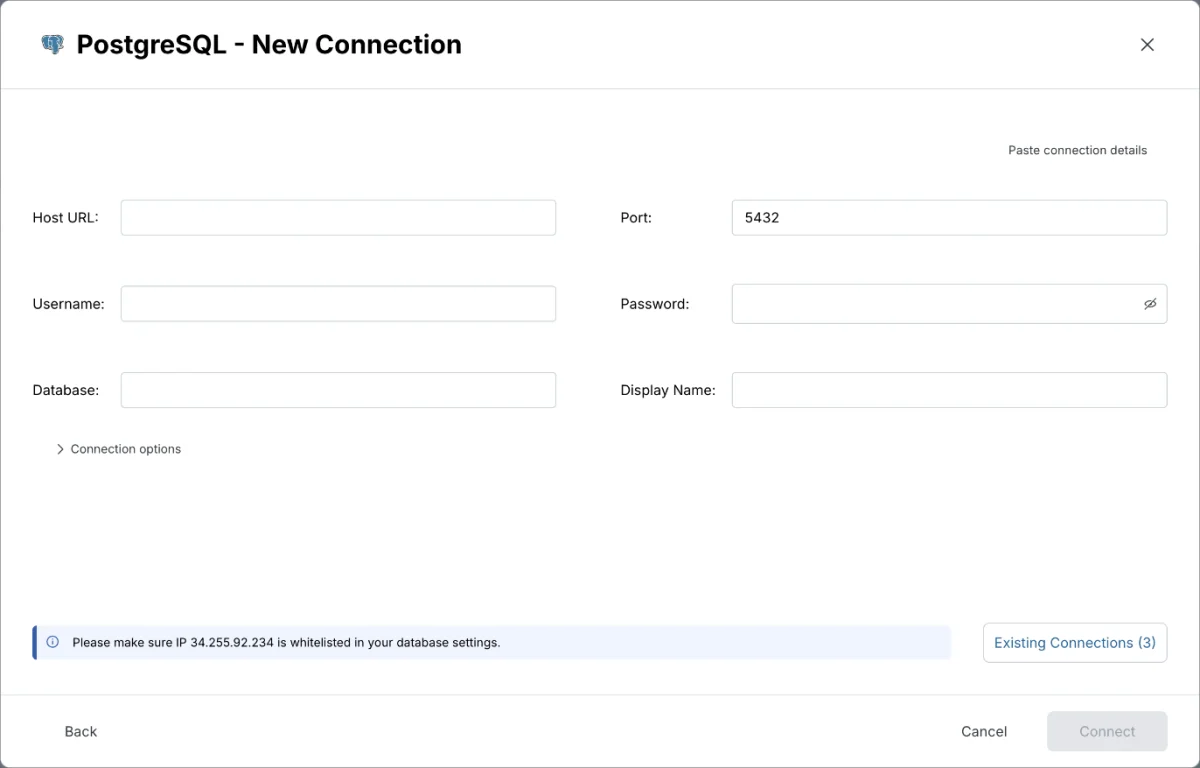
| Field | What to enter | Example |
|---|---|---|
| Host URL | Hostname or IP address of your PostgreSQL server | analytics-prod.example.com |
| Port | TCP port PostgreSQL listens on | 5432 (default) |
| Username | Database user with SELECT access | mammoth_reader |
| Password | Password for the database user | |
| Database | Name of the database to connect to | analytics_prod |
| Display Name | Optional label for this connection in Mammoth | Postgres Production |
Once connected, the connector workspace opens on your tables.
Connect PostgreSQL through an SSH tunnel
Use this when your database is reachable only through an SSH bastion host.
- On the connection form, open Connection options.
- Tick Connect through an SSH tunnel.
- Fill in the SSH fields below, then click Connect.
| Field | What to enter |
|---|---|
| SSH host | Hostname or IP address of the SSH server Mammoth connects through |
| SSH port | Port the SSH server listens on (default 22) |
| SSH user | User Mammoth signs in to the SSH server as |
| SSH sign-in | Password or Private key |
| SSH password | Shown when SSH sign-in is Password |
| Private key | Shown when SSH sign-in is Private key. Paste the key, starting -----BEGIN OPENSSH PRIVATE KEY----- |
With a tunnel, Mammoth reaches the SSH host, so allow Mammoth's IP address on the SSH host, not on the database. Host URL and Port are the database's address as the SSH host sees it.
Query a PostgreSQL table in the SQL view
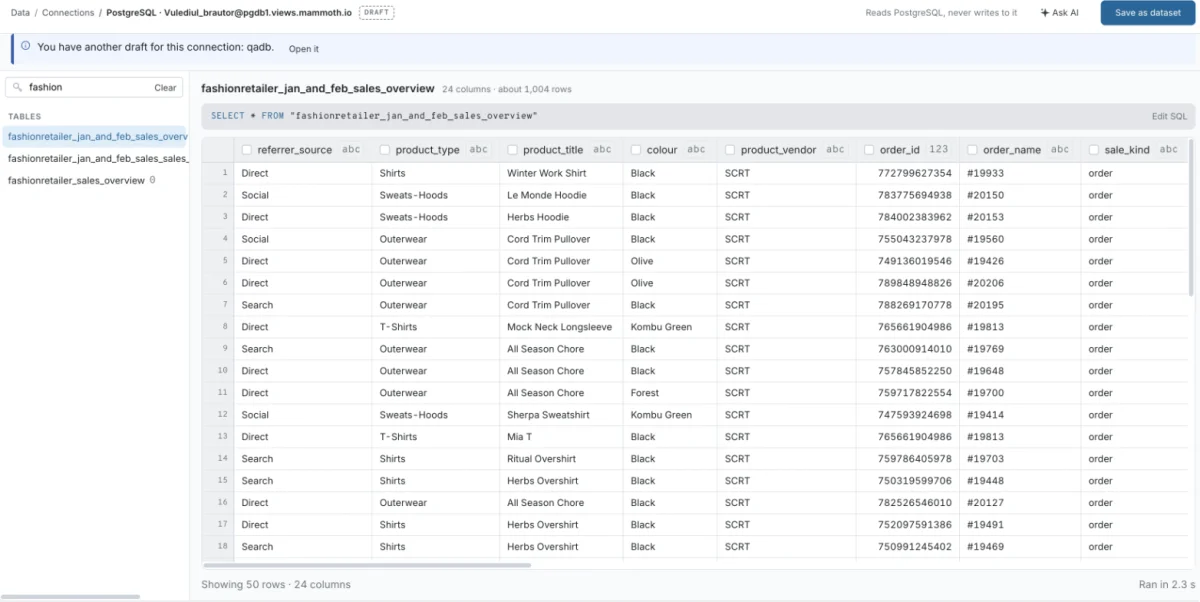
- In Tables, click a table. Mammoth opens its rows with the
SELECT *query that read them, shown above the rows. - To change the query, click Edit SQL, edit it, and click Run (or press Ctrl+Enter).
- To keep only some columns, tick them in the table header.
Example query:
SELECT order_id, customer_id, amount, created_at
FROM orders
WHERE created_at >= NOW() - INTERVAL '90 days'
  AND status = 'completed'
Write a PostgreSQL query from a description
When AI query is on for your workspace, click Edit SQL to see the Describe the data you need... box above the editor.
- Describe what you want, for example "all completed orders in the last 90 days".
- Click Write SQL. Mammoth writes the query from your table structure.
- Check the query, then click Run.
If a query fails, click Fix with AI to ask the chat to correct it. Connect a database or app covers the full SQL view.
Save PostgreSQL data as a dataset
- Click Save as dataset.
- Enter a Name and choose a folder under Save in.
- Under Keep it up to date, choose Daily at 06:00 or Only when I ask.
- Under On each refresh, click Change and pick what a refresh does (see the table below).
- Click Save as dataset. When the dataset is ready, click Open dataset.
| On each refresh | What it does |
|---|---|
| Replace all rows | Matches the source after every refresh. This is the default. |
| Add only new rows | Keeps what you have and adds rows above the last value of a Key column |
| Keep only the newest rows | Empties the dataset, then brings in rows since the last refresh (needs a Key column) |
| Add every row again | Shown when the query has no column that can serve as a key column, so each refresh adds a full copy |
A key column is a column whose values only ever go up, such as an ID or a date.
Refresh PostgreSQL data on a schedule
Choosing Daily at 06:00 creates a Dataset Refresh automation for the dataset. To run it on another schedule, edit that automation. For a dataset saved with Only when I ask, create a Dataset Refresh automation yourself.
After you save, you can change what a refresh does in the dataset's Update method setting. It offers Replace all data, Add new rows only and Keep only the newest rows.
Troubleshoot PostgreSQL connections
| Symptom | Likely cause | Fix |
|---|---|---|
| Connection fails | Mammoth's IP address isn't allowed | Add it to pg_hba.conf and any cloud security group |
| Connection fails | Wrong host or port | Check the Host URL and Port |
| Connection fails | The user can connect only from localhost | Let the database user connect from an external host |
| Connection fails through a tunnel | SSH details are wrong, or the SSH host can't reach the database | Check the SSH host, port, user and key or password, and that the SSH host can reach the database |
| No tables appear in Tables | The user lacks SELECT permission | Run GRANT SELECT ON ALL TABLES IN SCHEMA public TO your_user; and check the connection succeeded |
| Query returns unexpected results | The query or a time zone differs from what you expect | Test the query in your PostgreSQL client first, and check for time zone differences when you filter by date |
Related
- Connect a database or app: the shared connector workspace steps and the full SQL view.
- Allow Mammoth through your firewall: the IP address to allow and how.
- Manage saved connections: edit, reuse or delete this connection.
- Refresh a dataset: change when the dataset refreshes.
- Speed up pipelines and connectors: strategies for large tables.
- Connector reference: every source Mammoth connects to.
Something wrong? support@mammoth.io