Connect monday.com to Mammoth with a personal token
The Monday.com connector imports board and item data from your monday.com account into Mammoth as a dataset. It signs in with a monday.com personal access token, with no OAuth step. Open it from Data Library > New dataset > Connectors and search for Monday.com. Project Admins create the connection; Project Editors can start datasets from a connection the project already has. Which connectors you can add depends on your plan.
What you can bring in from monday.com
- Board and item tables the token owner can see, and the columns you tick.
- Data you ask for in the Chat. The agent picks tables and columns for you.
The dataset can refresh daily or only when you ask.
Before you connect monday.com
You need:
- A monday.com account with access to the boards you want to import.
- A monday.com personal access token. Copy your personal API token from your monday.com account, or generate a new one. monday.com's own documentation shows where to find it.
Connect monday.com to Mammoth
- Go to the Data Library, click New dataset, and choose Connectors.
- Search for Monday.com and click its tile. The connector workspace opens with the Chat connecting monday.com.
- Fill in the fields below in the chat's card and connect.
If you already have a monday.com connection, pick it under Your connections in the launcher instead. See Connect a database or app for the shared steps.
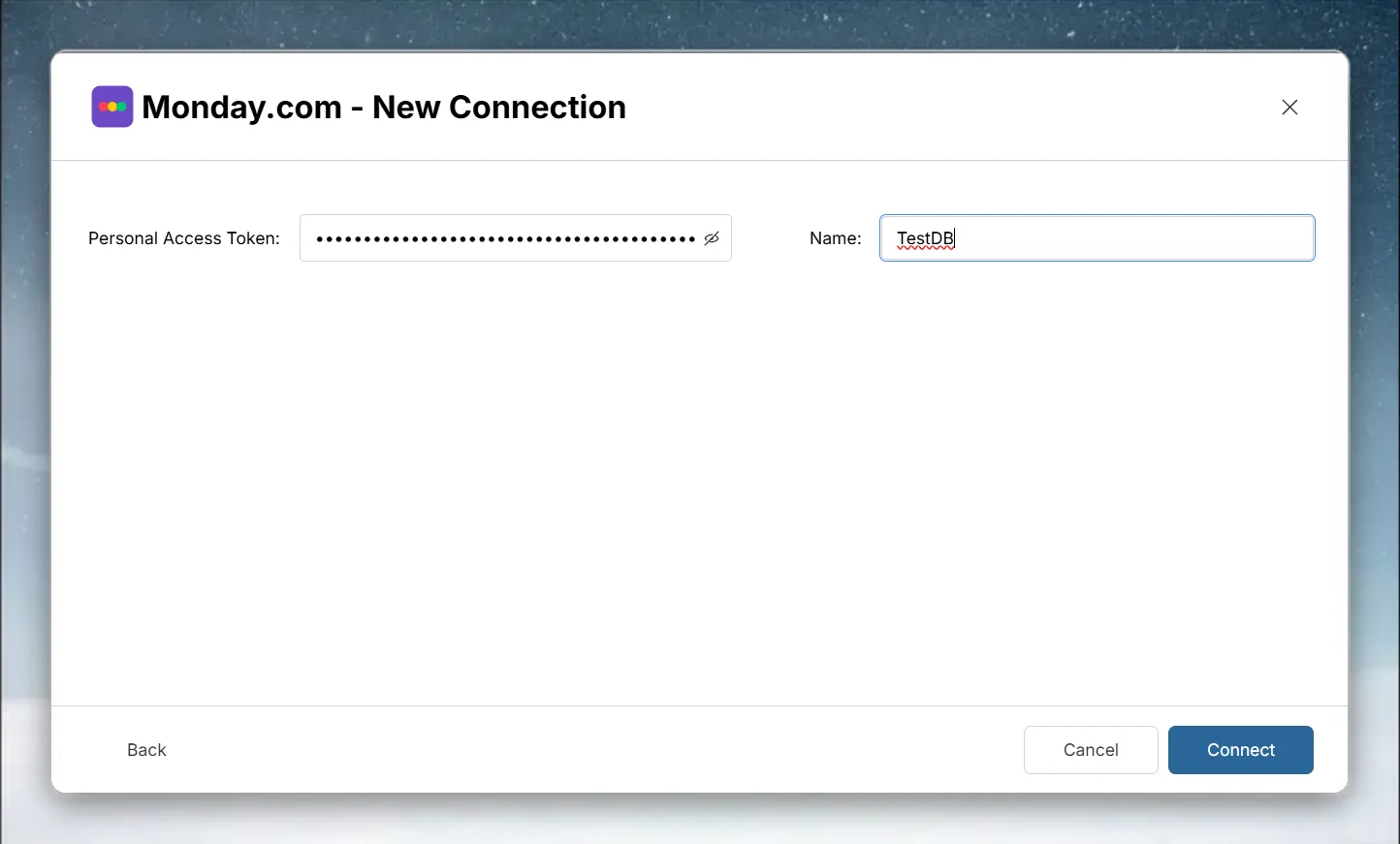
| Field | What to enter |
|---|---|
| Personal Access Token | Your monday.com API token |
| Name | A label for this connection (required) |
Pick monday.com tables and columns
- In Tables, click a table to see its columns and sample rows.
- Tick the columns you want. They gather in Your table.
- Click Preview 100 rows to check the result.
Save monday.com data as a dataset
- Click Save as dataset.
- Enter a Dataset name, for example "Monday Project Tracker", and pick the folder under Save in.
- Under Keep it up to date, choose Daily or Manual.
- Click Save.
Refresh monday.com data and choose an update method
Choosing Daily creates a Dataset Refresh automation that you can reschedule later.
After the dataset is saved, its Update method offers only two options:
| Update method | What it does |
|---|---|
| Replace all data | Rebuilds the dataset from the source on every refresh |
| Add to existing data | Adds every row the refresh brings in to the rows you already have |
monday.com refreshes don't use a key column, so Mammoth can't add only new rows.
Troubleshoot monday.com connections
| Symptom | Likely cause | Fix |
|---|---|---|
| "Invalid or expired API token. Please check your Monday.com API token." | monday.com rejected the token | Copy the whole token again. Regenerating a token invalidates the old one, so update the connection with the new token. |
| A board isn't visible | The token owner can't see the board | Give the token owner access to the board in monday.com |
Related
- Connect a database or app: the shared connector workspace steps.
- Manage saved connections: update the token on this connection.
- Refresh a dataset: change when the dataset refreshes.
- REST API: build a connector for another work tool with the agent.
- Connector reference: every source Mammoth connects to.
Something wrong? support@mammoth.io