Share a Mammoth project and set Admin, Editor, Viewer roles
Sharing a project gives people access to all its datasets and automations, each with a project role: Project Admin, Project Editor or Project Viewer. Open the Share icon at the top right of the Data Library, or Manage Users in the project menu. You need to be a Project Admin on the project or a Workspace Owner.
The three project roles
| Role | What they can do | Summary in the role dropdown |
|---|---|---|
| Project Admin | Full control: configure settings, manage members, delete the project, plus everything an Editor can do | "Manage and configure project settings, share and delete" |
| Project Editor | Work with data and pipelines: access, create, edit and manage datasets and automations in the project | "Access, edit, and manage project data and pipelines" |
| Project Viewer | View items in the Data Library, read-only. Can't add, change or delete datasets or views | "View Data Library items (read-only)" |
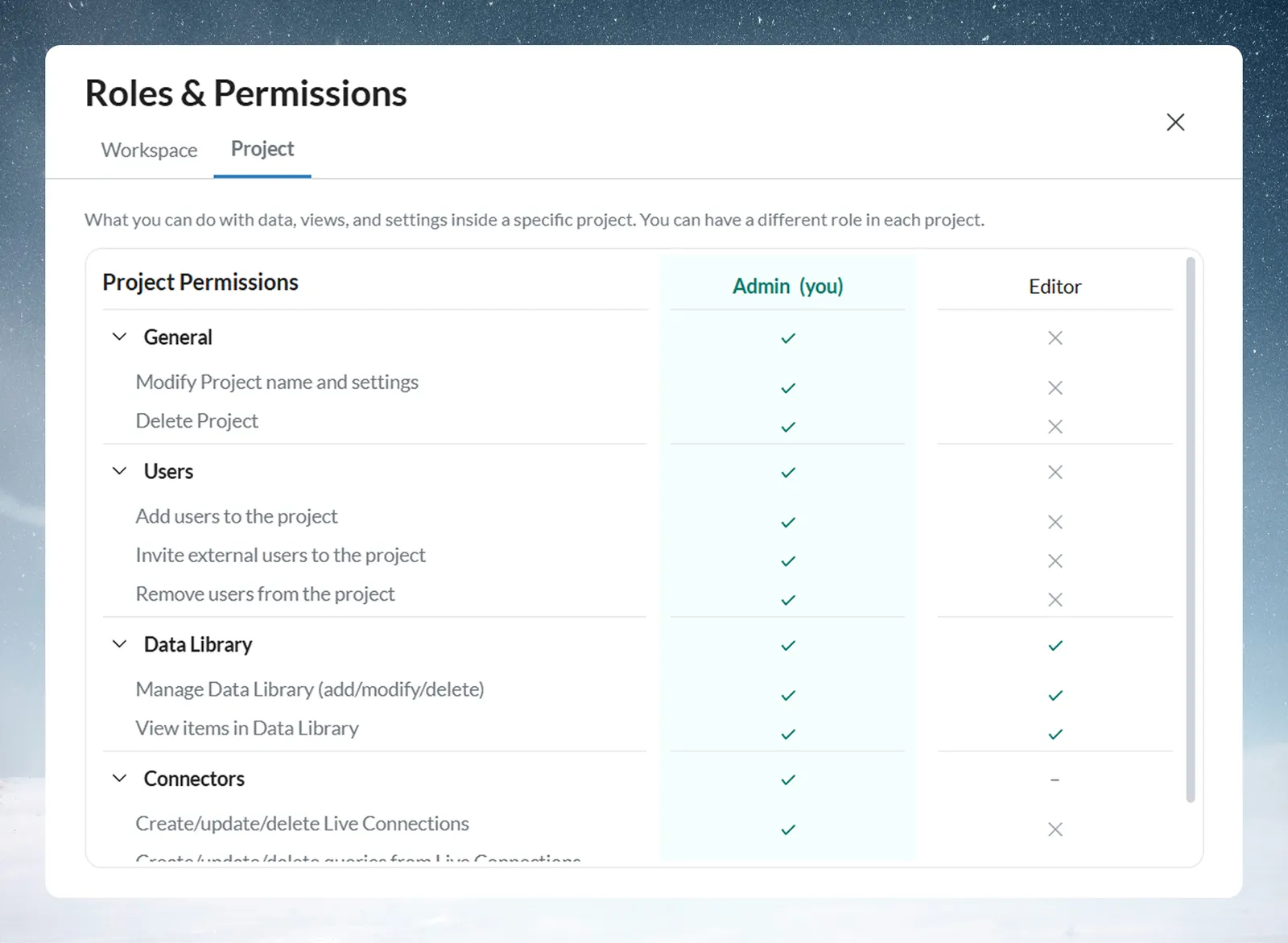
Project Admins can also create, update or delete Live Connections. Editors can view and change datasets, views, pipelines and Live Connection queries, but can't manage members or Live Connections. For the full matrix, see Workspace and project roles, permissions and custom roles.
Roles are set per project, so someone can be an Admin in one project and an Editor in another. On plans that include custom roles (Pro), custom project roles appear too.
When in doubt, give Project Editor. Give Project Admin only to people who need to manage membership, Live Connections or settings, and Project Viewer to people who only need to look. To share only dashboards without project access, share the dashboards or a collection instead.
Open Share Project or Manage Project Users
| Entry point | How to open it | Window title |
|---|---|---|
| Share button | Click the Share icon at the top right of the Data Library header | "Share Project" |
| Manage Users | Project selector → More options (three dots) next to the project → Manage Users | "Manage Project Users" |
| Action | Share Project | Manage Project Users |
|---|---|---|
| Add members, change roles, remove one person | Yes | Yes |
| Tick several people and click Remove Users | No | Yes |
| Leave Project or Join Project button above the list | No | Yes |
| Can ask the agent about it (Workspace Owners) | Yes | Yes |
Use Share while you're working in the project. Use Manage Users to get there from the project selector without opening the project.
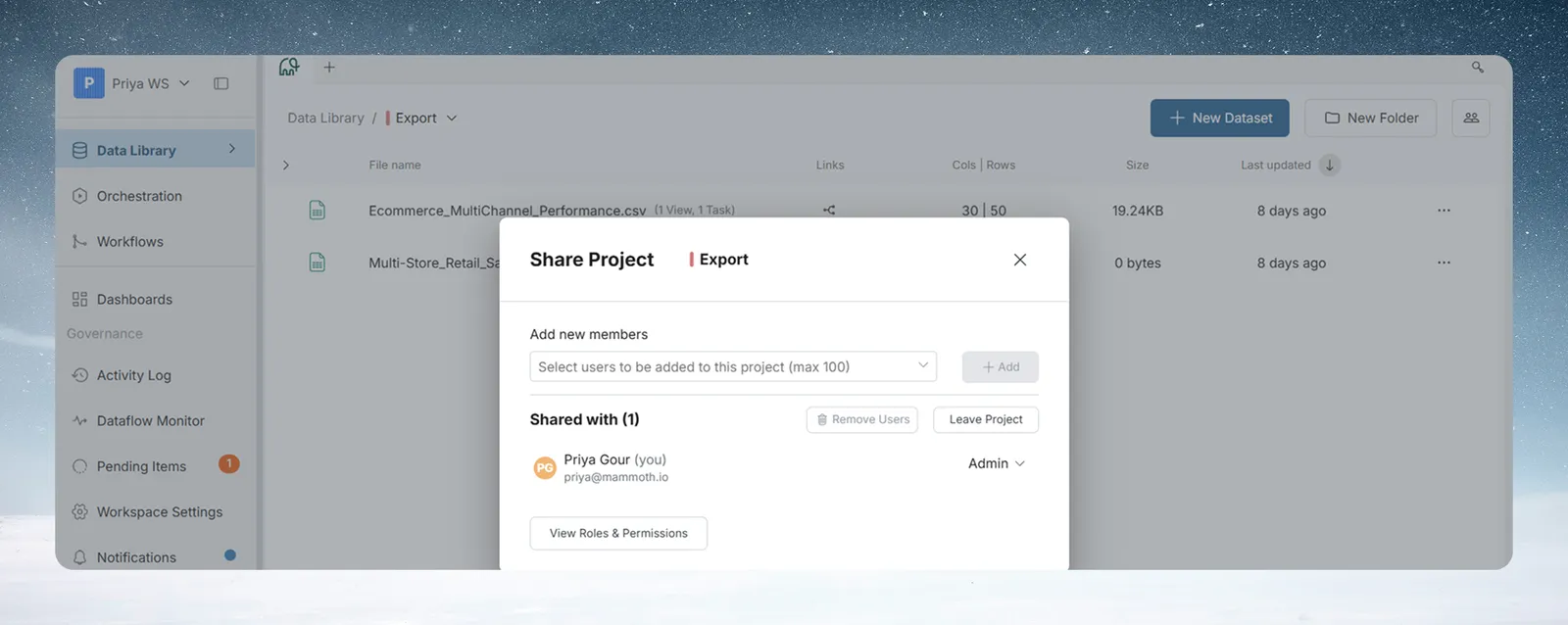
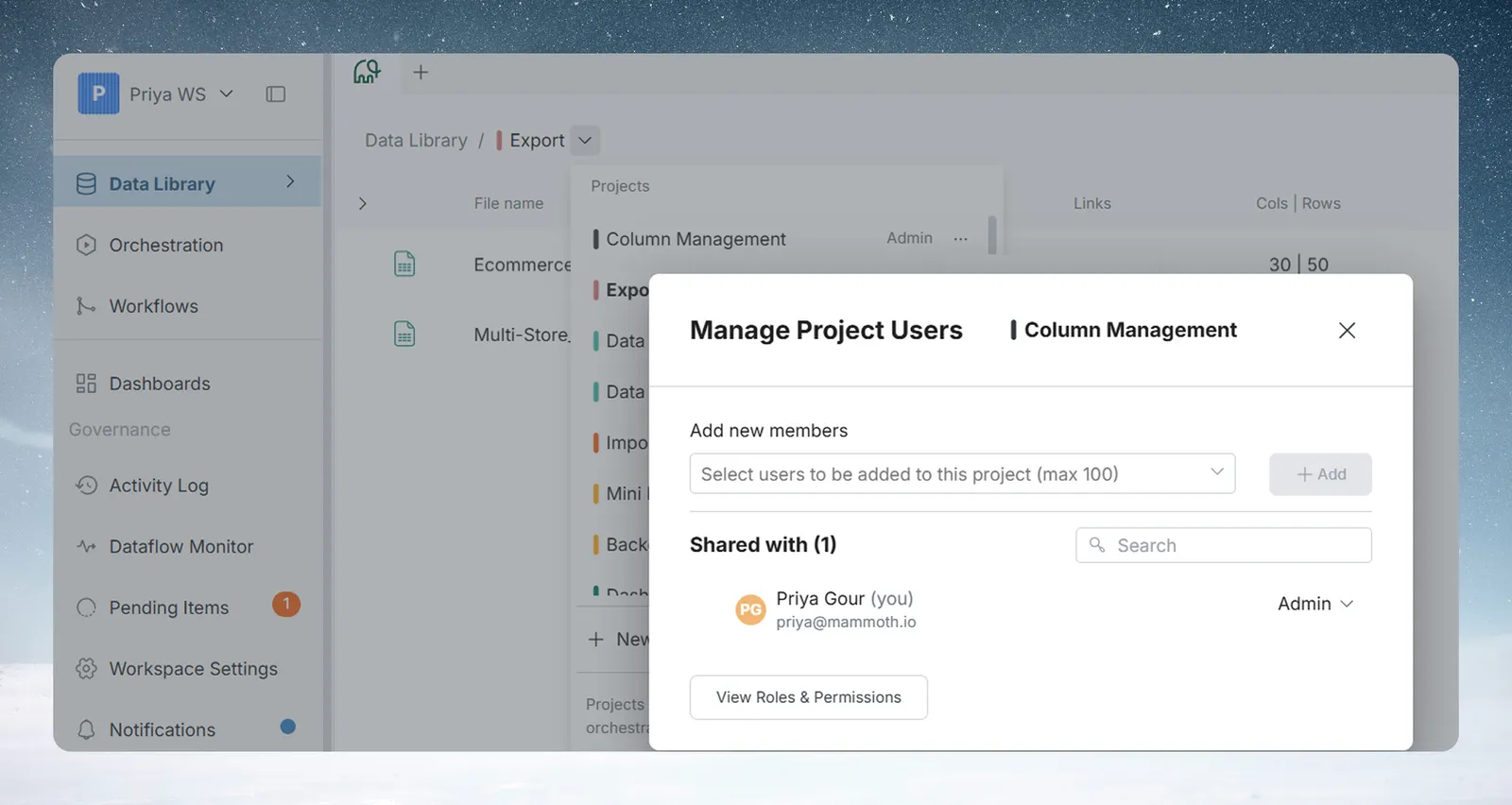
Both windows let you add members by name or email, see current members with their roles, change roles from a dropdown, remove people with Remove in that dropdown, and open the roles reference. The Shared with (N) count includes you; your own entry is marked "(you)".
If you can't add members, the window says "Only Project Admins can share projects" and shows the people with access, with View Roles & Permissions and Got it. Project Editors and Project Viewers can see the member list but not Add new members.
Add workspace members to a project
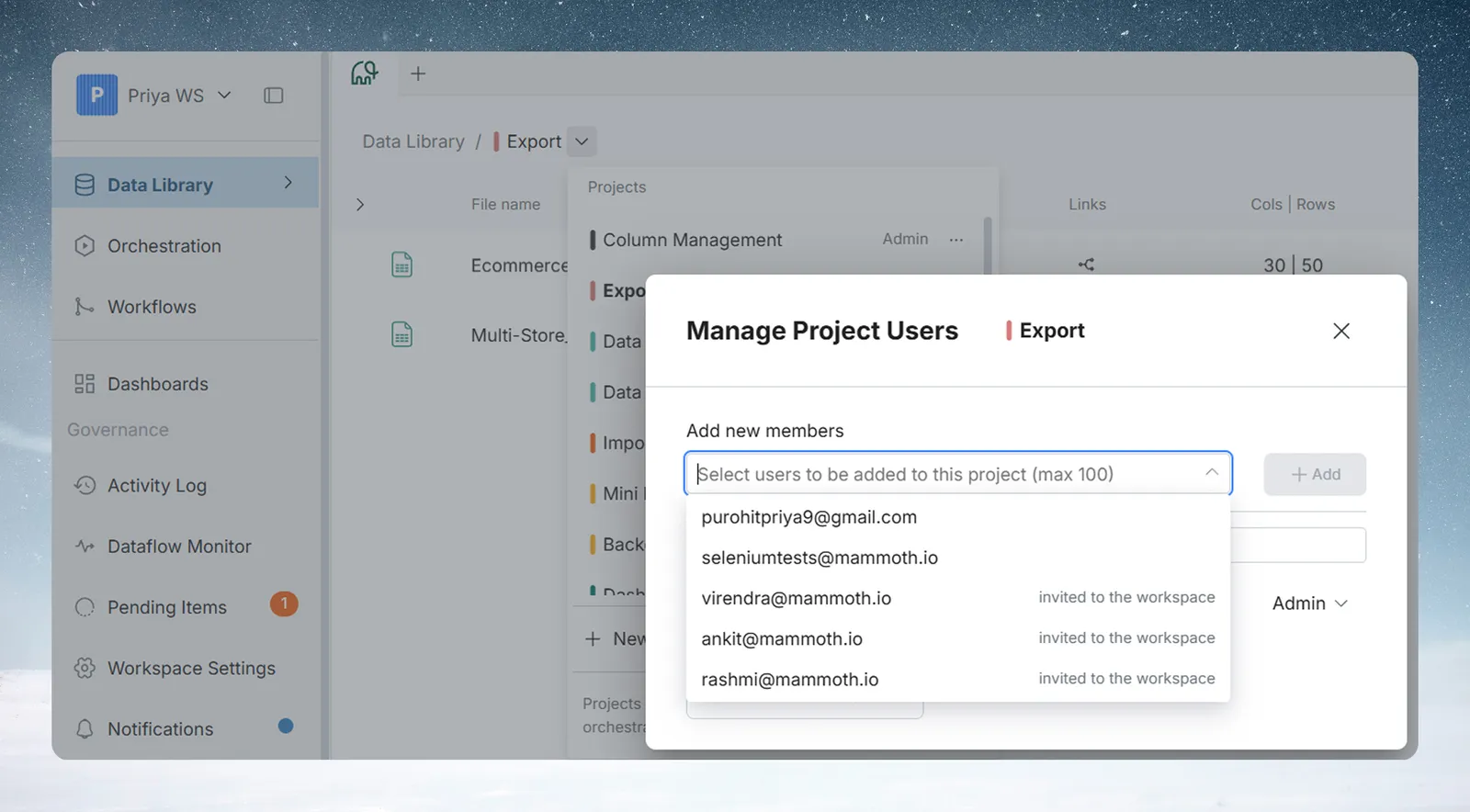
- In the Add new members field, type a user's name or email address.
- Select them from the list of workspace users.
- Add more people if you like, separated by a comma, semicolon, space or new line.
- Click Add.
Each person appears in the "Shared with" list with the Editor role, and Mammoth shows "The Project was successfully shared." Change the role straight after if Editor isn't right.
Invite someone who isn't in the workspace yet
- Type their email address in the Add new members field.
- Click Add.
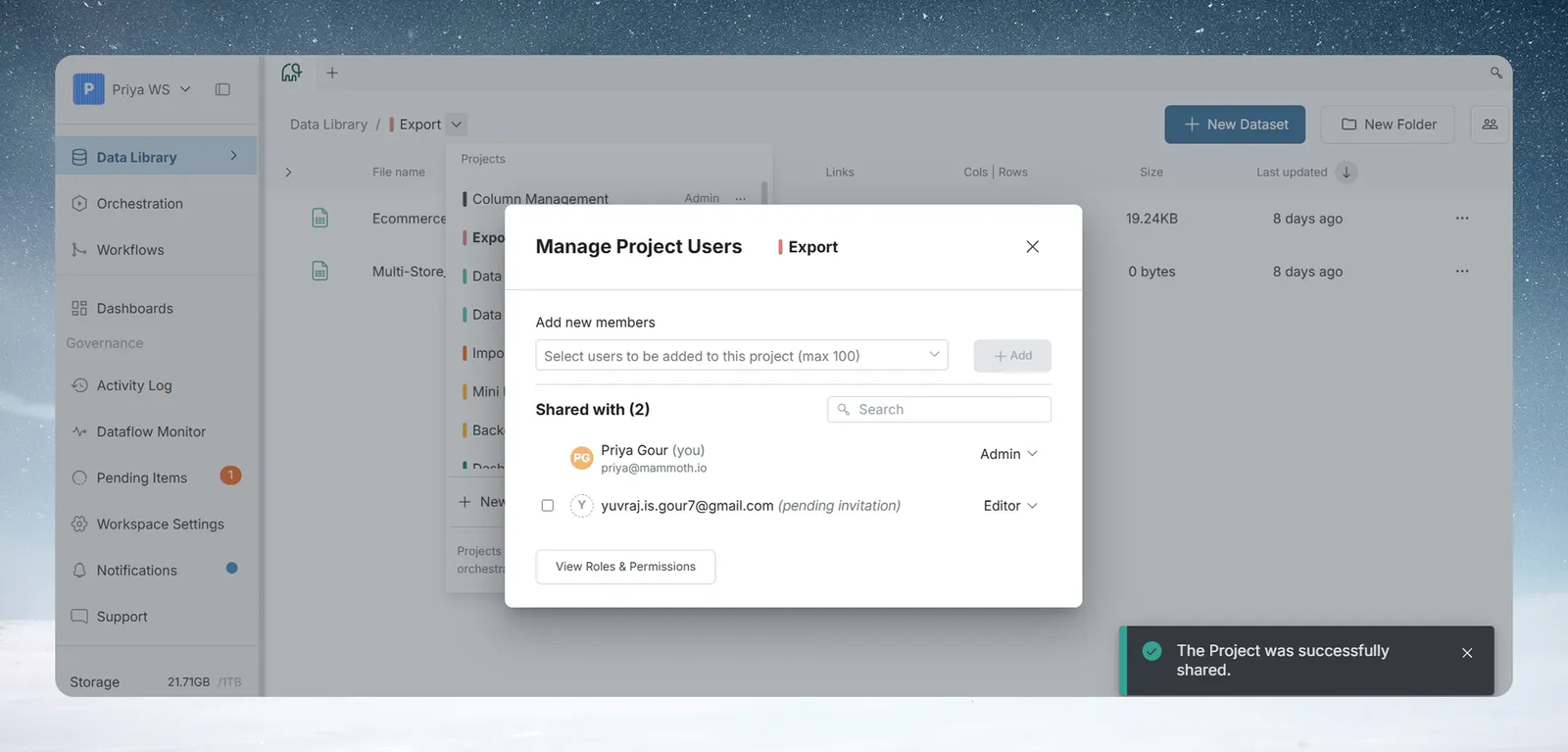
Mammoth sends them a workspace invitation and adds them to the project in the same step. They show in "Shared with" as User Name (pending invitation) until they accept. Their role is already set and takes effect when they accept; you can change it or remove them before then.
Only roles that can invite external users (Workspace Owners and Project Admins) can invite people who aren't in the workspace. Otherwise you see "Only workspace owners can add new users. You can only add existing users to this project."
Change someone's project role
- Find the user in the "Shared with" list.
- Click the role dropdown next to their name (it shows Admin, Editor or Viewer).
- Select Project Admin, Project Editor, Project Viewer or a custom project role.
The change takes effect at once.
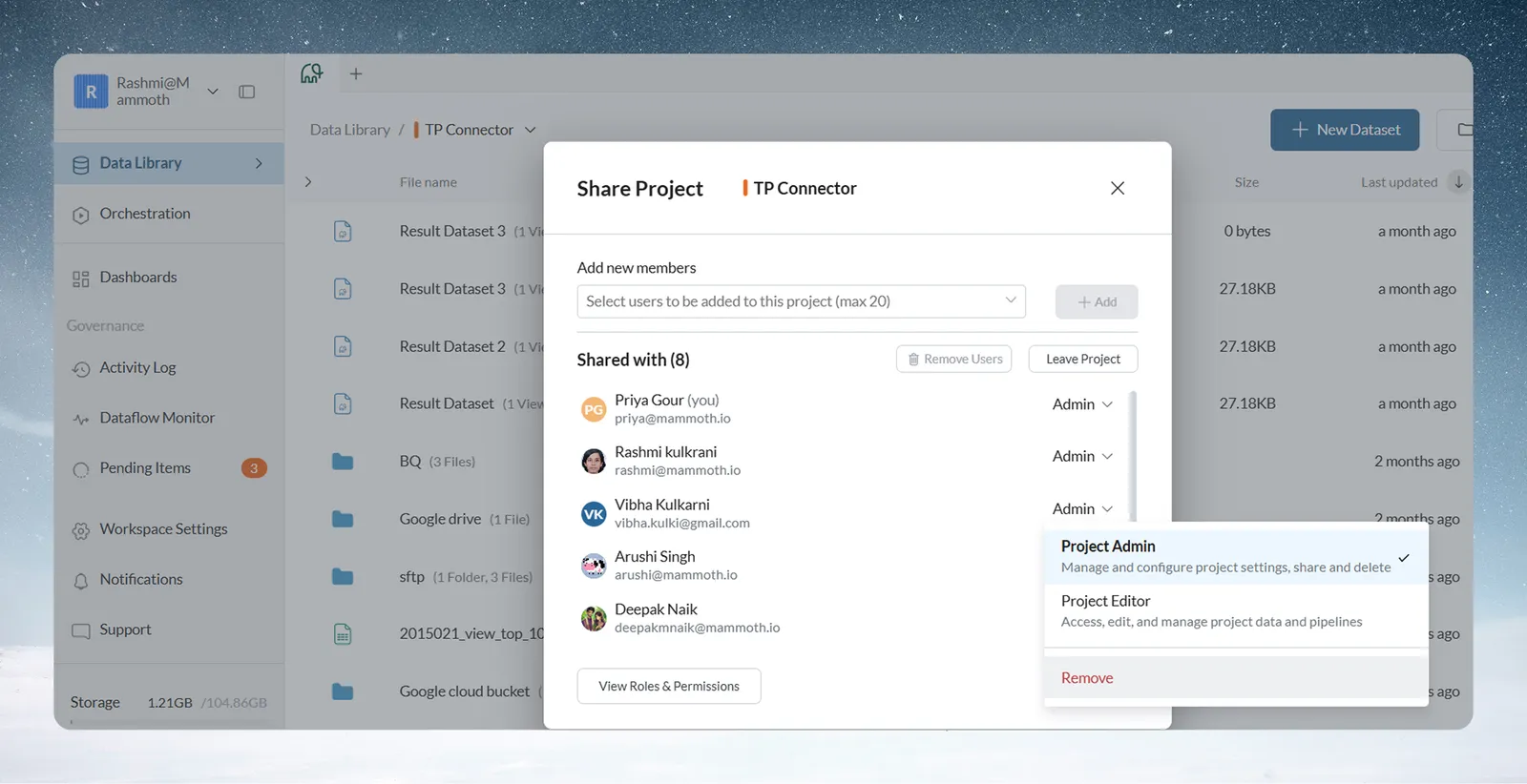
Roles can also be set when you create a project with Some people in this workspace, in Project Settings, and in each user's side panel in User Management.
To hand over Project Admin, change another user's role to Admin. There's no limit on the number of admins in a project, and having more than one avoids a gap if one leaves.
Remove people from a project
To remove one person, in either window:
- Click the role dropdown next to the user's name.
- Scroll to the bottom of the menu.
- Click Remove (shown in red).
The user no longer appears in "Shared with". On your own row, the last option reads Leave Project instead and starts the same leave flow as the project menu.
To remove several people, open Manage Project Users, tick their rows and click Remove Users. You see "The users were successfully removed from the Project." You can't tick your own row, and the Share window has no checkboxes. You can also pick people in bulk in Project settings under Some people in this workspace.
Removing someone revokes their access, but the datasets and automations they made stay in the project.
Give someone a custom project role
On plans that include custom roles (Pro), a Workspace Owner, or anyone whose workspace role has Manage custom roles (workspace and project), can build custom project roles in Workspace Settings → Roles & Permissions. A custom project role belongs to the workspace, so it's available in every project.
Custom project roles appear after Project Admin, Project Editor and Project Viewer in the role dropdown, with their description. You find them in the project's Manage Users list, the user list in Project Settings, and each project row in a user's side panel in User Management.
You can only give a custom role whose permissions your own role has. Other custom roles are greyed out with "You can't assign this role because it has permissions your own role doesn't have." Workspace Owners can assign any role. To create one, see Create a custom role.
Let people ask the agent about a project
The AI Agent and Ask mode are available on Enterprise plans.
Workspace Owners see one more list in Share Project and Manage Project Users: Can ask the agent about it, with a count, for example "Can ask the agent about it (3)". It lists people who can ask the agent about this project's data without opening it. "They ask the agent about this project's data without opening it. They don't take a seat."
- Click Give access… to pick people and the files they can ask about. It opens the same Invite to a room steps as AI Agent settings, without the room choice.
- Click Manage in AI Agent settings to open the full list.
The list appears only when agents are on for the workspace, and only for Workspace Owners. If it can't load, you see "Who can ask the agent about this project could not be loaded." See Invite guests to Ask.
See every project permission
At the bottom of the Share Project window, click View Roles & Permissions to open an in-app reference of what each project role can do.
How workspace roles affect project access
Workspace roles (Owner, Member) and project roles (Admin, Editor, Viewer) are separate. A workspace role doesn't set a project role, but Workspace Owners have overrides:
| Workspace role | Project override |
|---|---|
| Workspace Owner | Can add any user to any project, manage users on any project from the project menu, view all project names and delete any project, whatever their project membership or role |
| Workspace Member | None. Access depends only on project role |
A Workspace Member with no project role can't see a project set to Some people or Only me. Workspace Owners who aren't members see Join Project in the project menu, which adds them as Project Admin.
Limits
The Add new members field shows the most users your plan allows, for example "Select users to be added to this project (max 10)". If adding people would go over your plan's limit, Mammoth shows a seat-limit warning and blocks the addition. See Billing and plans.
Troubleshooting
| Symptom | Cause | Fix |
|---|---|---|
| No Add new members field; "Only Project Admins can share projects" | You're a Project Editor or Viewer | Ask a Project Admin or Workspace Owner |
| "Only workspace owners can add new users. You can only add existing users to this project." | Your role can't invite external users | Add existing members only, or ask a Workspace Owner |
| Seat-limit warning when adding | The plan's user limit would be exceeded | Remove someone or upgrade |
| The only Project Admin left | The project has no admin | A Workspace Owner can still add users and delete it, or join as admin and assign a new one. Assign a replacement before leaving |
Related
- Create, leave and delete projects: set initial members when you create a project.
- Project settings: change the access level.
- Workspace and project roles, permissions and custom roles: the full permission matrix.
- Invite and manage workspace members: manage people across all projects.
- Invite guests to Ask: Ask-only access to a project's data that takes no seat.
Something wrong? support@mammoth.io