Set how often and when a Mammoth automation runs
A schedule sets when an automation runs: a unit (Day, Week, Month or Year), how many units between runs, a First run and an optional End date. You set it on the Set Schedule step (Set trigger for Messaging) of the New automation window, or later with Edit schedule in the automation's Schedule row. Your plan sets the most frequent unit you can pick.
Where you set the schedule for each type
| Type | Where | Choices |
|---|---|---|
| Dataset Refresh | Set Schedule step | On schedule (you can still run it manually) or Manual only (it runs only when you trigger it manually or through the API) |
| File Collection | Set Schedule step | On schedule or Manual only |
| Scheduled Export | Set Schedule step | Always on a schedule, no Manual only |
| Messaging | Set trigger step | Always on a schedule, no Manual only |
| Data Consolidation | No schedule step | Runs when new files are added to its source folder |
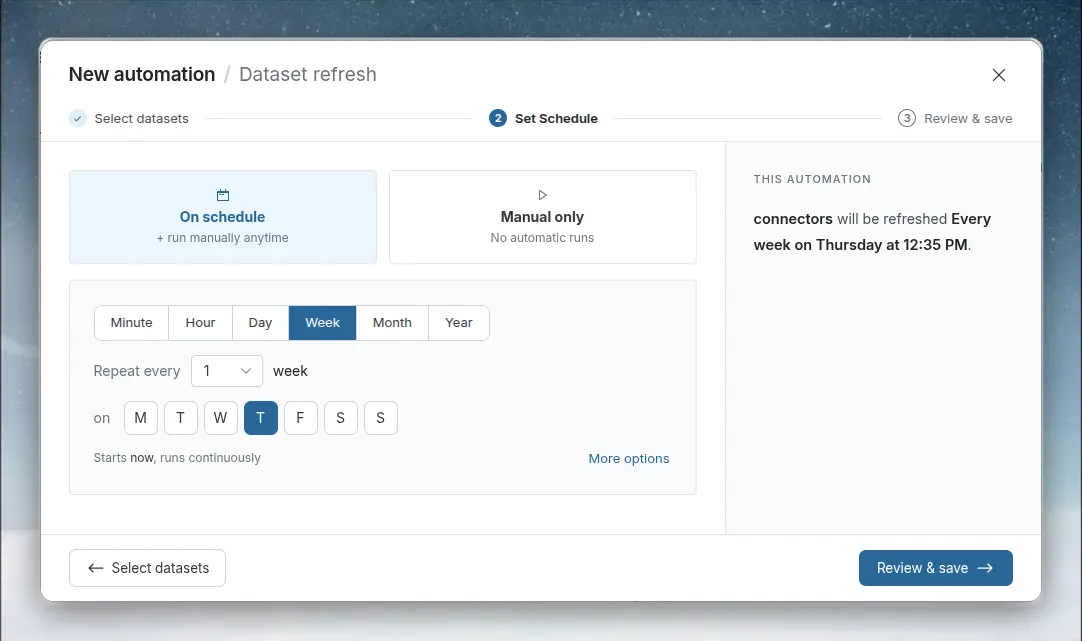
Set how often an automation repeats
- Pick a unit: Day, Week, Month or Year.
- Next to Repeat every, pick the number of units between runs.
- For Week, pick the weekdays to run on.
| Unit | Repeat every values |
|---|---|
| Day | 1 through 6 |
| Week | 1 through 3, on the weekdays you pick |
| Month | 1 through 12 |
| Year | 1 through 5 |
You can't create an hourly or every-few-minutes schedule. One saved earlier with an Hour or Minute unit still shows it when you edit it.
- Week: select at least one weekday button (hover for the full name). The first run can only fall on a day you pick.
- Month: runs on the day of the month of its first run. If that day doesn't exist in a month, Mammoth notes, for example, Months without a 31st day are skipped.
- Year: a schedule starting on 29 February shows Runs only in leap years, since other years have no Feb 29.
Plan limits on how often an automation runs
The scheduler offers no unit more frequent than your plan allows, for any type. With a weekly limit, only Week, Month and Year are offered; without scheduled refresh, none are.
For Dataset Refresh and File Collection, Mammoth also checks the schedule:
- On save, a schedule more frequent than your plan allows is refused with "Following frequency not allowed in your plan, please upgrade the plan".
- When a saved schedule is due but is now more frequent than the plan allows (for example after a plan change), that run is skipped.
Scheduled Export has no plan feature of its own but gets the same units. Data Consolidation has no schedule, so it is never limited. See Limits and quotas.
Set the first run and an end date
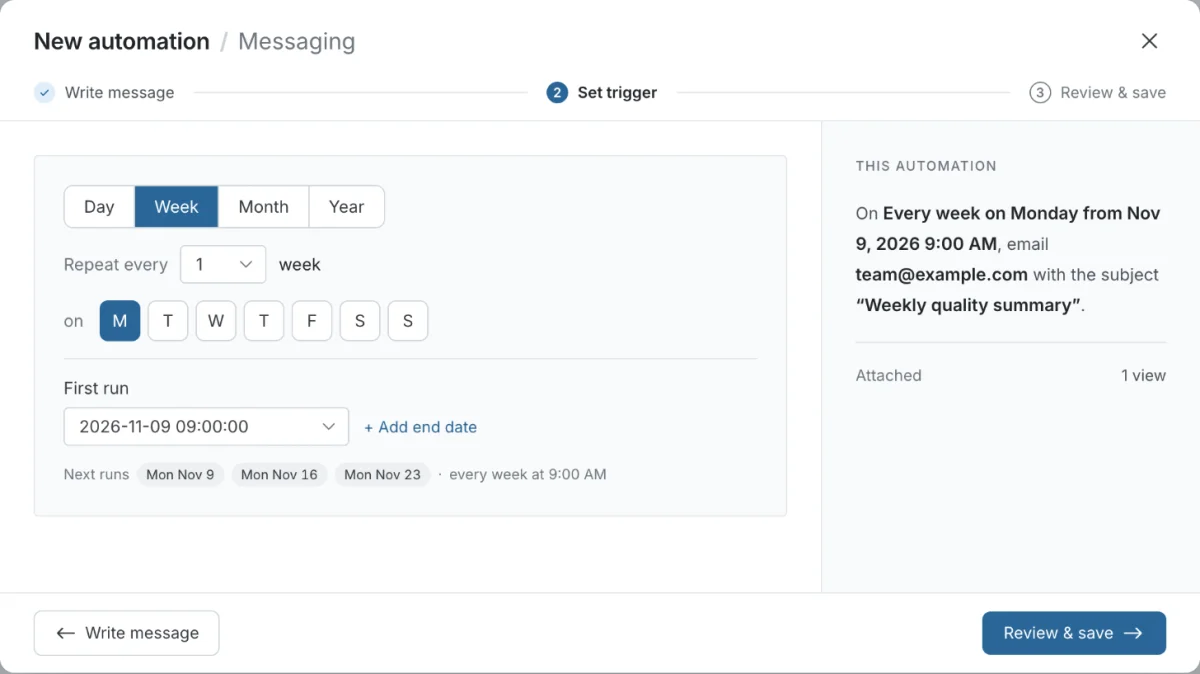
- Under First run, pick the date and time later runs repeat from (not a past date). A time less than 5 minutes away, or already gone today, moves to the next day (for Week, the next weekday you selected).
- Optional: click + Add end date and pick an End date no earlier than the first run. Remove end date removes it. Without one, the automation runs until you suspend or delete it.
Next runs lists up to the next 3 run times. If the end date leaves only a few runs, it shows All runs (or Only run).
| Message that stops you continuing | What to do |
|---|---|
| "Pick a first run to continue." | Choose a First run date and time |
| "Pick at least one day to continue." | For Week, select at least one weekday |
| "Pick an end date, or remove it, to continue." | Choose an End date, or click Remove end date |
Which time zone automation schedules use
Times you pick are in your browser's local time zone; there is no separate setting. Mammoth stores the schedule in UTC and shows run times in your local time, so a run can move by an hour when daylight saving time starts or ends, and a run near midnight can fall on another local day. Next runs shows the local times.
Example schedules
| Need | Configuration |
|---|---|
| Production metrics every morning | Dataset Refresh, Day, every 1, first run 6:00 AM; the pipeline runs after the data lands |
| Portfolio performance to leadership every Monday | Messaging, Week, every 1, Monday, first run 8:00 AM, executive summary Dataset View attached |
| Finance data on the 1st of each month | Dataset Refresh, Month, every 1, first run on the 1st, early enough to be ready before work starts |
| Month-end close runs late on the 1st | Month, every 1, first run on the 1st at 11:45 PM |
- Stagger concurrent automations: 5:30, 6:00 and 6:30 AM rather than every refresh at 6:00 AM.
- Schedule a dependent process at least 15 minutes after the first usually finishes, for example Dataset Refresh at 5:00 AM, pipeline at 5:15 AM, Messaging at 6:00 AM.
- Run non-urgent automations outside business hours so they don't slow down people working in Mammoth.
- Name automations with their timing, such as
Weekly Executive Summary - Mon 8am.
To refresh several datasets in a fixed order, put them in one Dataset Refresh and choose In a sequence. See Refresh several datasets in parallel or in a sequence.
Troubleshooting
| Symptom | Cause | Fix |
|---|---|---|
| Automation doesn't run at the expected time | It is suspended, the plan no longer allows the schedule's frequency, or the source's Live Connection is no longer authenticated | Confirm the status is Active and check Last run. A schedule finer than your plan allows (for example after a downgrade) stops until the plan allows it. Re-authenticate the source |
| Run times vary | Several heavy automations compete for resources | Stagger their schedules |
| Automation fails after a schedule change | Changes take effect from the next scheduled run | Use Run now to test the new configuration straight away |
Related
- Schedules and triggers: Run now, new files, webhooks and API triggers.
- Create an automation: where the schedule step sits in the wizard.
- Manage automations: read Next run and Last run, and edit a schedule.
Something wrong? support@mammoth.io