Query a database in Mammoth and choose how it refreshes
When you connect a SQL database, the connector workspace opens a SQL view: click a table, change the query that reads it, check the rows, and click Save as dataset. While saving you choose what each refresh does, such as Replace all rows or Add only new rows. The SQL view works on PostgreSQL, MySQL, SQL Server, Oracle Database, Amazon Redshift, Snowflake, Google BigQuery, Databricks, Apache Hadoop and SAP HANA. MongoDB lists collections only, without a SQL view.
Before you start
Connect the database first: see Connect a database or app. If it sits behind a firewall, see Allow Mammoth through your firewall.
How the SQL view is laid out
After you connect a database, the workspace shows two areas side by side, plus the chat when you open it:
- Tables on the left lists the tables the connection can read, grouped by schema or dataset where the database has them. Use Filter tables to narrow the list.
- The SQL query view on the right shows the open table's rows, with the query that read them above.
Click Ask AI to open the connector's chat beside them.
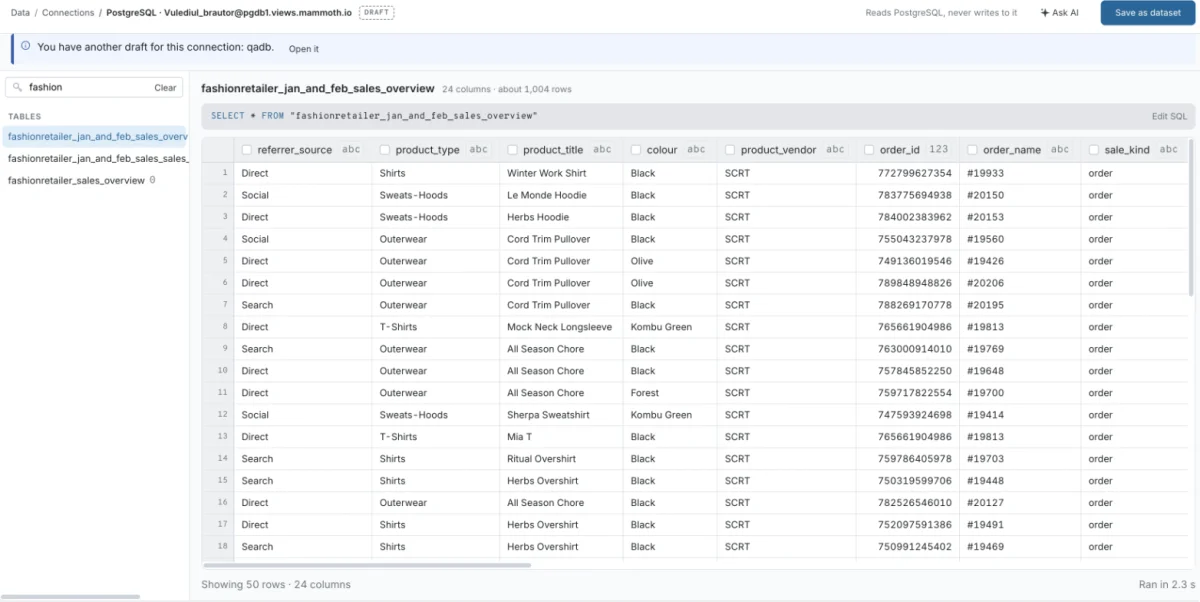
Open a database table
- In Tables, click a table.
- Mammoth puts a
SELECT * FROMquery for that table above the grid, runs it and shows the rows.
To bring in only some columns, tick them in the table's header. The query changes to read only those columns, and you can save without running it again.
Edit or write the SQL query
-
Click the query line, or Edit SQL beside it, to open the editor.
-
Change the SQL to filter rows, pick columns or join tables, for example:
SELECT order_id, customer_id, amount, created_at
FROM orders
WHERE created_at >= '2024-01-01'
Use the table and column names from your own database. Mammoth quotes names the way each database expects when it writes the query for you.
-
Click Run, or press Ctrl+Enter (⌘↵ on a Mac). Click Stop to cancel a long run.
-
Click Done to close the editor.
The status line shows how many rows came back and how long the query took, for example Ran in 1.2 s. If the query fails, the error appears under the editor. Click Fix with AI to send the query and the error to the chat.
Filter in the query. Bringing in only the rows you need makes the dataset faster to refresh and lighter on your database. See Speed up pipelines and connectors.
Write SQL from a plain-language description
On PostgreSQL, MySQL, SQL Server and SAP HANA, the editor has a Describe the data you need... box.
- Type what you want, for example "sales by region last quarter".
- Click Write SQL. Mammoth writes the query from your tables.
- Review it and click Run.
If it can't, it says Couldn't write SQL for that. Try describing it differently. On the other databases, write the SQL yourself or ask the chat.
Choose what happens on each refresh
- Click Save as dataset when the rows look right.
- In Save as a dataset, enter a Name and pick a folder.
- Under Keep it up to date, choose Daily at 06:00 or Only when I ask.
- The dialog states what each refresh does. Click Change to pick another option under On each refresh (see the table below).
- For Add only new rows and Keep only the newest rows, pick a Key column: a column whose values only ever go up, like an ID or a date.
- Click Save as dataset.
| Option | What it does | When to use |
|---|---|---|
| Replace all rows | Matches the source after every refresh | Most tables, lookups and snapshots |
| Add only new rows | Keeps what you have and adds rows that are new, told apart by a key column | Building up history from a table that only grows |
| Add every row again | Adds a full copy of the query result on each refresh. Shown when the result has no column that can serve as a key. | Rare: when you want a copy per refresh |
| Keep only the newest rows | Empties the dataset, then brings in rows since the last refresh. Needs a key column. | Keeping only the latest batch |
Without a key column, Add only new rows brings in a full copy each time, and Keep only the newest rows can't be saved.
Choosing Daily at 06:00 also creates a Dataset Refresh automation for the dataset, with its first run the next morning.
Worked example: keep a growing orders table up to date
Your orders table only ever gets new rows, and order_id always goes up. Choose Daily at 06:00, then Add only new rows with Key column order_id. Each morning Mammoth adds only orders with an ID above the last one it imported.
Change the update method after saving
A saved connector dataset has an Update method you can change later from the dataset's settings (see Dataset settings and history). The change applies from the next refresh; your current data stays as it is until then.
For connectors that support a key column (including PostgreSQL, MySQL, SQL Server, Amazon Redshift, Snowflake, Google BigQuery, Databricks, Apache Hadoop and MongoDB):
| Option | What it does |
|---|---|
| Replace all data | Rebuilds the dataset on every refresh, so it always matches the source |
| Add new rows only | Each refresh adds the rows that appeared since the last one, using a Key column |
| Keep only the newest rows | Each refresh empties the dataset and brings in only the rows since the last one |
For connectors whose refresh doesn't use a key column, including SAP HANA, Oracle Database, Microsoft Dynamics, Monday.com, NetSuite and Google Ads, the options are Replace all data and Add to existing data, which adds every row it brings in.
With a key column, only rows above the last value are imported. Rows changed or deleted at the source afterwards are not updated in Mammoth.
Troubleshooting queries and previews
| Symptom | Cause | Fix |
|---|---|---|
| No tables appear | The database user can't see any tables | Check its permissions in the database, then click Refresh list. If Mammoth can't list them at all, the list says Couldn't list the tables. |
| No rows came back. | The query ran but matched nothing | Check the WHERE clause |
| Still reading orders stays on screen | A large table takes a while to read | Click Stop and narrow the query with a WHERE clause |
| The query fails with an error | A SQL error | Read the error under the editor, or click Fix with AI |
| Couldn't write SQL for that. Try describing it differently. | Mammoth couldn't turn your description into SQL | Describe it differently, or write the SQL yourself |
Related
- Connect a database or app: the launcher, connection form and workspace.
- Allow Mammoth through your firewall: IP address and ports.
- Refresh a dataset: schedule refreshes.
- Batches: see and fix what arrived: each refresh adds or replaces batches.
- Speed up pipelines and connectors: incremental refresh and query filtering.
Something wrong? support@mammoth.io