Upload CSV, Excel and other files to Mammoth
Upload files from your computer to create datasets: open the Data Library, click New dataset, keep Upload selected, add your files and click Submit. You can upload one file, several files or a whole folder, as long as each upload is 50 MB or smaller. Mammoth detects the structure and column types after you submit, and asks you when it can't decide on its own.
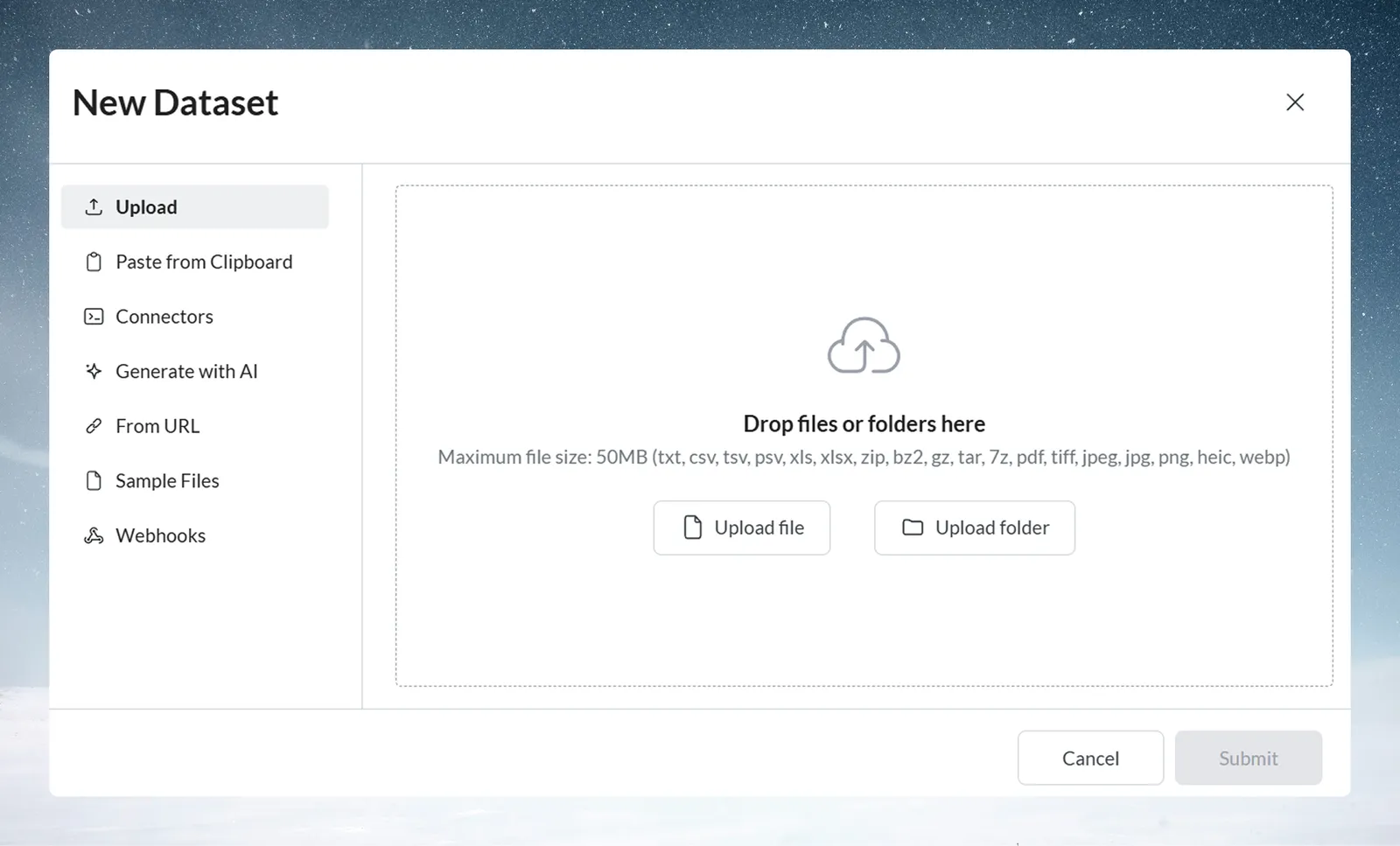
Supported file formats for upload
Mammoth detects your file type during upload.
Data files
Mammoth parses these straight into datasets, with automatic column and type detection.
| Format | Extension | Notes |
|---|---|---|
| Plain text | .txt | Delimiter auto-detected; custom delimiters supported |
| Comma-separated values | .csv | Most common and most reliable for data exchange |
| Tab-separated values | .tsv | Use when your data contains commas |
| Pipe-separated values | .psv | Pipes as delimiters, an alternative to CSV or TSV |
| Microsoft Excel | .xls, .xlsx, .xlsm | A file with several sheets shows an Extract sheets action after upload |
| XML | .xml | Read as a tree; Mammoth picks the repeating records as rows |
| JSON | .json | Read as a tree; Mammoth picks the repeating records as rows |
| JSON Lines | .jsonl, .ndjson | One JSON object per line |
When more than one set of records in a JSON or XML file could be the rows, Mammoth asks you to choose with Use as rows. See Review how Mammoth reads a file.
Compressed files
Mammoth extracts compressed files during upload and reads each file inside by its own format.
| Format | Extension |
|---|---|
| ZIP archive | .zip |
| Bzip2 compressed | .bz2 |
| Gzip compressed | .gz |
| Tar archive | .tar |
| 7-Zip archive | .7z |
An archive that holds one file becomes one dataset. An archive that holds several files becomes a folder named after the archive, with one dataset per file. If a folder with that name already exists, Mammoth adds a number to the new folder's name. Compressing is also a way to fit larger data inside the 50 MB limit.
Documents and images
Mammoth reads these with AI-assisted extraction, which turns their content into tables. See Extract tables from PDFs.
| Format | Extension |
|---|---|
.pdf | |
| TIFF image | .tiff, .tif |
| JPEG image | .jpeg, .jpg |
| PNG image | .png |
| HEIC image | .heic, .heif |
| WebP image | .webp |
CSV files are processed fastest and most reliably. When you export from another system, choose CSV over Excel where you can.
Which format to choose
- CSV: maximum compatibility, banking integrations, simple data structures.
- TSV: when your values contain commas.
- Excel: several related tables, multi-sheet data.
- Compressed: data close to the 50 MB limit, or several files in one upload.
- PDF: reports with tables, recurring document processing.
Upload a single file
- In the Data Library, click New dataset.
- Select Upload (the default option).
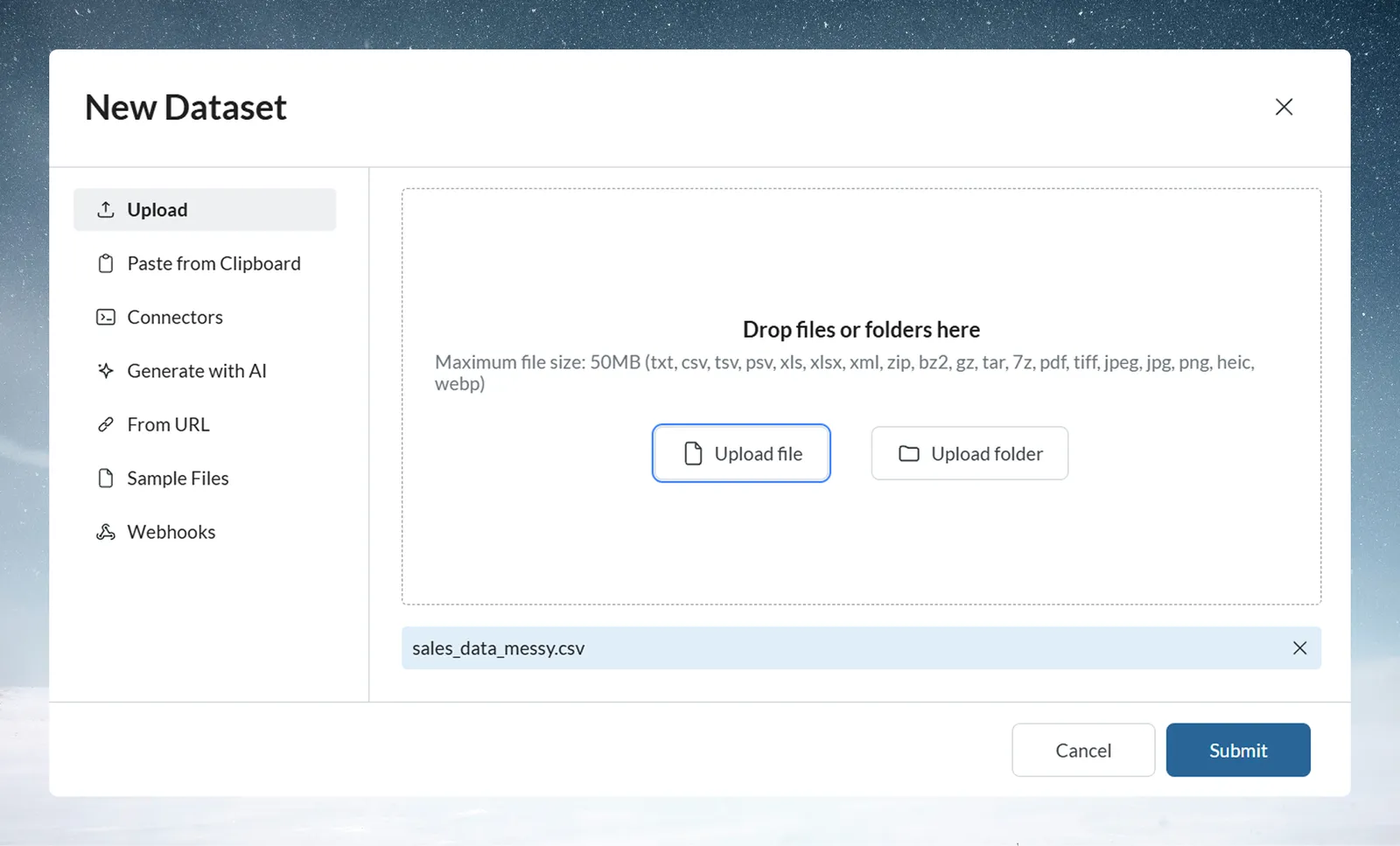
- Drag your file into the upload area, or click Upload file.
- Click Submit.
The dialog closes right away and the file appears in the Data Library as a pending item. Mammoth reads the file, scans it for security risks and creates the dataset. A progress header shows the upload count ("Uploading 3 items", then "Upload complete"). You can cancel uploads that are still running.
Upload several files at once
Select several files in the same dialog. Each file becomes its own dataset and is sent as its own upload. A file Mammoth can't accept is left out, and a message names it and says it "was not added: its file type is not supported, or it is too large."
You can select up to 1,000 files per upload. Mammoth sends them in groups of 50, with a 30-second pause between groups.
Upload a whole folder
- Click New dataset, then Upload.
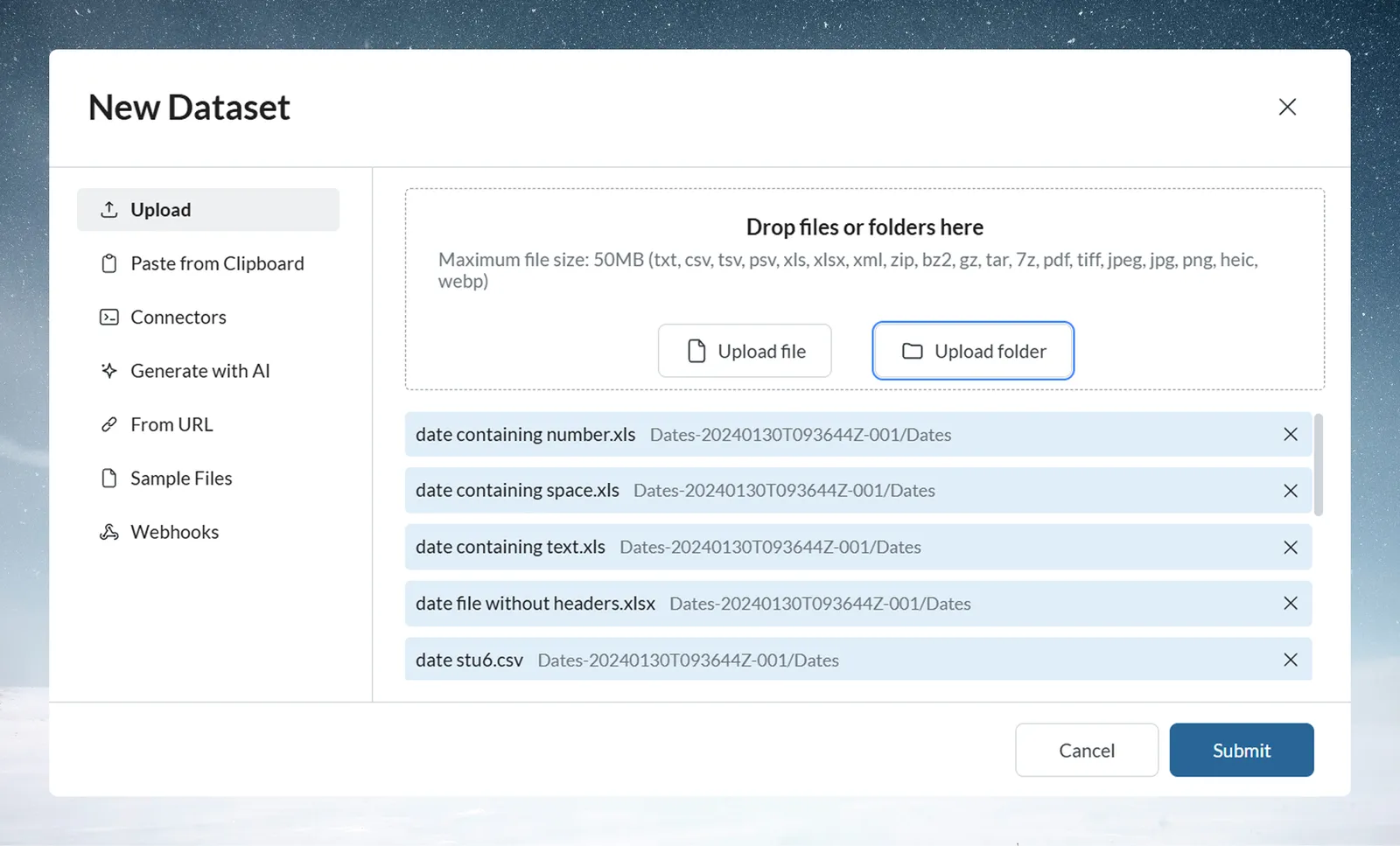
- Click Upload folder and select the folder.
- Click Submit.
Each file in the folder becomes its own dataset. Mammoth recreates the folder, and any subfolders inside it, as folders in your Data Library, with each dataset in its folder. Use it to bring in a set of related files with their folder structure intact.
- The whole folder must be under 50 MB, because it is uploaded as a single request.
- Only supported file types are added.
Upload into a folder that has automation rules
When you upload from inside a Data Library folder that has folder automation rules, a Where these files go box appears under the file list before you submit. It shows, for each group of files, which dataset a rule sends them to.
- The first matching rule wins. A file that matches more than one rule says, for example, "Also matches Monthly sales, but Sales by region comes first."
- A file no rule takes shows Stays here ("No rule takes it, so it becomes its own dataset here.").
- When a rule takes any file, the box adds "Added files leave this folder once they're in their dataset."
What you see after the upload
Open the new dataset from the Data Library to see its panel. The Overview section holds a summary of the dataset, the actions you can take (such as Explore and Add data), a Preview of your data, and Settings & history. Open Settings & history to reach:
| Section | What it holds |
|---|---|
| Settings | How the file was read, plus Update method, Unexpected columns and Cell editing for future batches |
| Batches | Every load of data into this dataset (see Batches) |
| Automations | Automations that use this dataset |
| History | What has happened to this dataset |
See The dataset panel.
When Mammoth needs your input before it creates the dataset
If Mammoth can't finish on its own, the dataset's panel says "We need your input before we process this file" and asks for one of these:
| Prompt | Why it appears |
|---|---|
| Choose how to read it | The file has more than one plausible way to be read |
| Extract sheets | An Excel file has several sheets ("This file has multiple sheets to be extracted.") |
| Which way round are these dates? | Mammoth can't tell whether dates are day first or month first |
| Extract Data | A PDF or image: choose what to import |
| Access to this file is protected by a password | Enter the File password |
| This file seems to be corrupt | The file can't be turned into a dataset |
Each prompt is explained in Review how Mammoth reads a file. PDFs and images are covered in Extract tables from PDFs.
If the virus scan flags a file, Mammoth rejects it as a dangerous file and doesn't import it. The upload shows "File couldn’t be uploaded due to possible corruption or security risks".
What gets imported from an Excel file
- All data values.
- The worksheets you choose to import.
- The data type of each column.
Charts, embedded images, macros and VBA code are not imported. Use the first row for column headers, avoid merged cells in data areas, and keep one data type per column.
When to upload, and when to use something else
Upload suits:
- Ad hoc analysis, such as a quick look at vendor files.
- Historical data, such as archives for trend analysis.
- External data, such as partner files or government data.
- A first exploration before you set up a connector.
- Small teams that share files by email or cloud storage.
Use another method when:
- You need daily updates or real-time data: use a connector with a Dataset Refresh automation.
- The upload is over 50 MB: use a connector to your database or storage, or split the file.
- The automation is complex: use Data Consolidation or a connector.
Prepare files for a clean upload
- Use the same template for recurring uploads.
- Put column headers in the first row.
- Keep dates, numbers and text formatted the same way within each column. ISO dates (YYYY-MM-DD) are detected most reliably.
- Remove empty rows at the top or bottom of the file.
- Save as UTF-8 if the file has special or international characters.
- Wrap values that contain commas in quotes ("Company, Inc."), or use TSV.
- For banking and financial files, remove comma thousand separators, because most banking portals do not accept them.
- Agree how blanks are written ("NULL", "N/A" or empty) and keep values consistent ("Yes/No", not a mix with "Y/N").
- Give datasets searchable names ("Q4 Sales Reports", not "Data") and put dates or versions in file names, because batch names come from file names.
- Use clear column names (
Customer_Name, notCust).
Tip: Create a "staging" project to test file uploads before you process them in your main project. You can check structure detection and data quality without affecting production datasets.
Limits
| Limit | Value |
|---|---|
| Upload size | 50 MB per upload request. Each file you select is its own request; a folder is one request |
| Files per upload | Up to 1,000, sent in groups of 50 with a 30-second pause between groups |
See Limits and quotas.
Troubleshooting file uploads
| Symptom | Cause | Fix |
|---|---|---|
| "Upload failed", or the spinner never finishes | The upload is over 50 MB, the format isn't supported, the file is damaged, or the connection dropped | Check the total is under 50 MB and the format is in the list above. Download and re-upload the file. Check your internet connection. Contact support if a supported file under the limit still fails. |
| "File couldn’t be uploaded due to possible corruption or security risks" | The file failed the security scan | The file can't be imported. Get a clean copy from its source. |
| Data appears in a single column, or headers are missing or wrong | Wrong delimiter detected, no header row, or unquoted commas | Put headers in the first row and use one delimiter. Set the delimiter and header row in the dataset's How it was read settings. |
| Special characters show as symbols | The file isn't UTF-8 encoded | Re-save the file as UTF-8 |
| Numbers show as text, or dates as text | Mixed formats in a column, or day-month order unclear | Answer Which way round are these dates? or use the How it was read settings. Change types later with Convert Column Type: account numbers and ZIP codes usually belong as Text, dates as Date. |
| Wrong data imported from Excel | The wrong worksheet was picked | Choose the right sheets in Extract sheets |
| PDF table data is incomplete | Complex or irregular layout | Review the extracted data and clean it as needed |
| Several files made several datasets, but you wanted one | Each uploaded file becomes its own dataset, including files in Upload folder | Use Add data on an existing dataset to add later files to it, or set up Data Consolidation. Make sure the files share the same columns and aren't empty. |
Related
- Review how Mammoth reads a file: fix a messy read, pick sheets, answer date prompts.
- Add or replace data in a dataset: add a newer file to a dataset you already have.
- Extract tables from PDFs: what happens when you upload a PDF or image.
- Connect a database or app: for data over 50 MB or data that changes often.
- Explore cards: look at distributions and quality once the data is in.
- Combine incoming data: add new files to a dataset on their own.
Something wrong? support@mammoth.io