Change dataset settings, columns, batches and history
Settings & history holds the reference information for one dataset: how it was read, how new data comes in, its columns, its batches, its automations and its history. Open a dataset's panel under Data in the left sidebar, then click the Settings & history door, or Settings (Edit settings for a connected dataset) in the icon strip. Changing settings needs edit access to the project.
Open Settings & history
Settings & history opens over the panel body. Back to Daily Sales (your dataset's name) returns you to the Overview. Each section shows a one-line summary while closed, so you can see the answer before you open it.
| Section | What it holds |
|---|---|
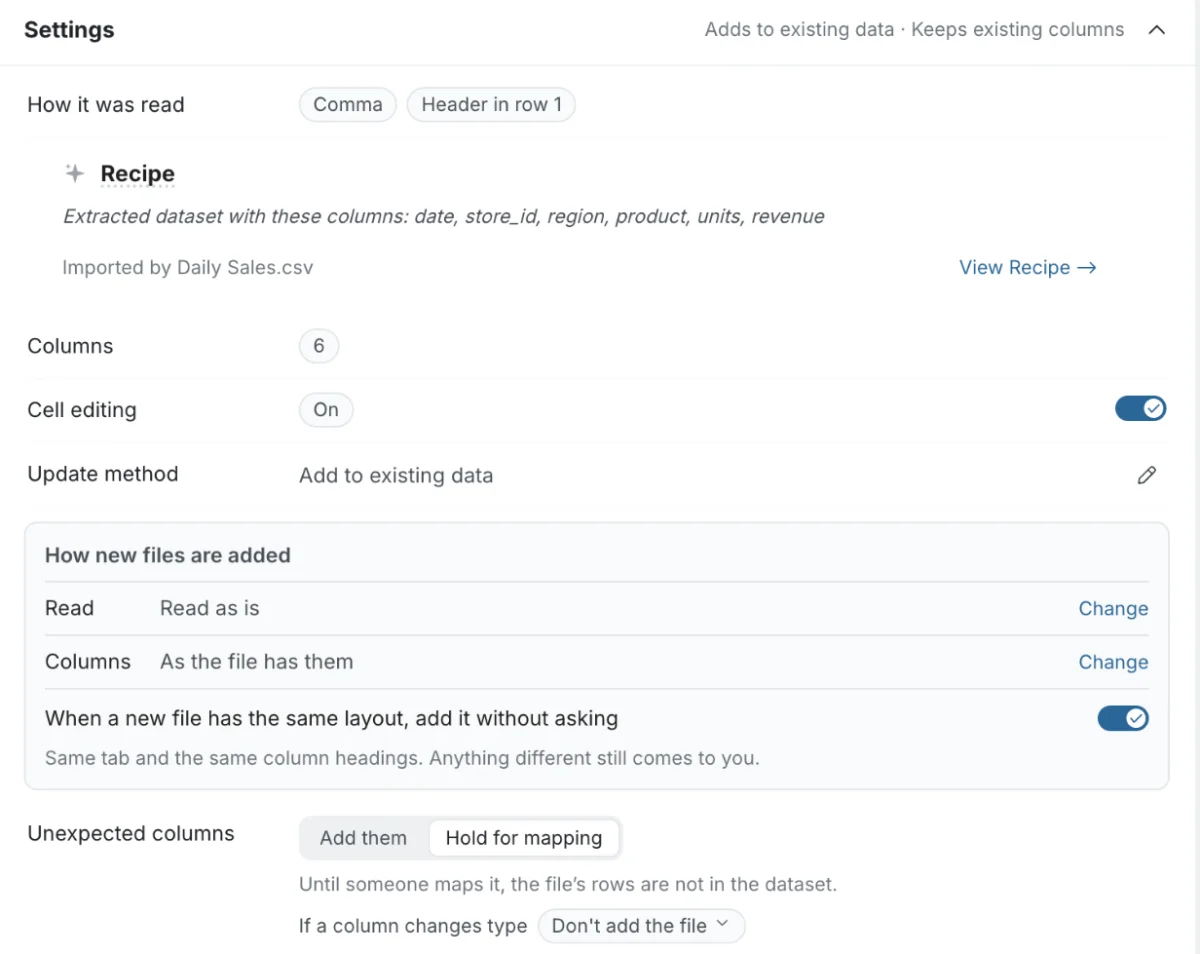
| Settings | How it was read, the source, update method, how new files are added, column rules, cell editing, and columns |
| Batches | Every data load, plus the retention policy |
| Automations | The automations that run on this dataset |
| History | This dataset's events from the last 30 days |
Choose the update method: add or replace
The Update method row decides what happens when new data arrives. Click its edit icon to change it, then click Save changes.
| Option | What it does | Best for |
|---|---|---|
| Add to existing data | New data is added as a new batch. All previous batches are kept. | Incremental loads such as daily sales, event logs, transaction feeds |
| Replace all data | New data replaces the existing data. | Full snapshots such as weekly inventory exports or complete dimension refreshes |
The closed section summarises the choice as Adds to existing data or Replaces all data.
The update method is separate from View-level Auto-sync (whether a View's pipeline reruns when new data arrives) and from export Auto-sync. See How Auto-sync works.
A change to the update method applies the next time data is retrieved. Your current data stays as it is until then.
Use a key column to add only new rows from a connector
Datasets from some connectors offer a Key column, so a refresh can tell new rows from ones you already have. For these connectors the options are:
| Option | What it does |
|---|---|
| Replace all data | "Your dataset is rebuilt from scratch on every refresh, so it always matches the source." |
| Add new rows only | Keeps your rows and adds the rows that appeared since the last refresh. Pick a key column. |
| Keep only the newest rows | Empties the dataset on each refresh and brings in only the rows that appeared since the last one. Needs a key column. |
Pick a key column whose values only ever go up, like an ID or a date. Only rows above the last value are imported, so rows changed or deleted at the source afterwards are not updated in Mammoth. If you choose Add new rows only without a key column, every refresh brings in a full copy of the source and repeats your rows.
The key column options are offered for Google BigQuery, Databricks, Facebook Ads Manager, Google Analytics Universal, Google Analytics 4, Apache Hadoop, HubSpot, Mailchimp, MongoDB, SQL Server, MySQL, Parquet, PostgreSQL, Amazon Redshift, Salesforce, SendGrid, Shopify, Snowflake, Xero and Zoom. Other connectors offer Replace all data and Add to existing data, where every refresh adds all the rows it brings in.
Facebook Ads Manager, Google Analytics Universal and Google Analytics 4 keep correcting recent days after first reporting them. With a date key column each day is imported once, so those corrections never arrive. Choose Replace all data if you need the corrected numbers.
See and edit the source of a connected dataset
For a dataset fed by a connection, the first Settings row is Pulled from, with the connector's name and a Retrieve button that pulls the latest now. Below Settings, a source block lists what only a connected dataset has:
| Row | What it shows |
|---|---|
| Connection | The connection the data comes from. See Manage saved connections. |
| Query | The query or report that pulls the data. Click the row (or its edit icon) to open Edit query and change it. |
| Datapull type | For SFTP sources: Pull same file or Pull next file based on name pattern. Click to edit. |
| Webhook URL, API key, Secure header | For webhook datasets. Click the URL or key to copy it. See Receive data by webhook. |
The Query row is disabled when refreshing is switched off for the dataset.
Choose how new files are added
For datasets you upload files into, How new files are added shows what the next file will reuse:
| Row | What it shows |
|---|---|
| Tab | The workbook tab the next file is read from. Change opens a Which tab dialog listing the last workbook's tabs; pick one and click Save. "A tab other than the one set up is read as it is." |
| Read | Read as is, The way you accepted it, or Saved recipe |
| Columns | As the file has them, or how many columns were renamed or ignored. Change opens the column mapping. |
Until a file has been added, the section says "Not saved yet. The next file you add will set it: the tab you pick, how it's read, and how its columns match."
Turn on When a new file has the same layout, add it without asking to skip the questions when the tab and column headings are the same. Anything different still comes to you.
Change the delimiter, rows to skip and date formats
How it was read shows the separator and header row of the original file, for example Comma · header in row 1. Its edit icon ("Edit file settings: change the delimiter, rows to skip and date formats") lets you change the delimiter, rows to skip, and date formats. It is not shown for data read out of a PDF.
Decide what happens when a new file's columns don't match
These rows decide what happens when a new file doesn't match the dataset's columns. They are not shown for datasets fed by a connection, where the query sets the columns.
Unexpected columns (summarised as Takes new columns or Keeps existing columns):
| Option | What it does |
|---|---|
| Add them | New columns are added to the dataset. Earlier rows stay empty in the new columns. |
| Hold for mapping | The file waits until someone maps its columns. Until then, its rows are not in the dataset. |
If a column changes type:
| Option | What it does |
|---|---|
| Turn the column into text | The column becomes Text so every value fits. |
| Leave those values empty | The column keeps its type, and values that don't fit are left empty. |
| Don't add the file | The load is cancelled. |
Map incoming column names to dataset columns
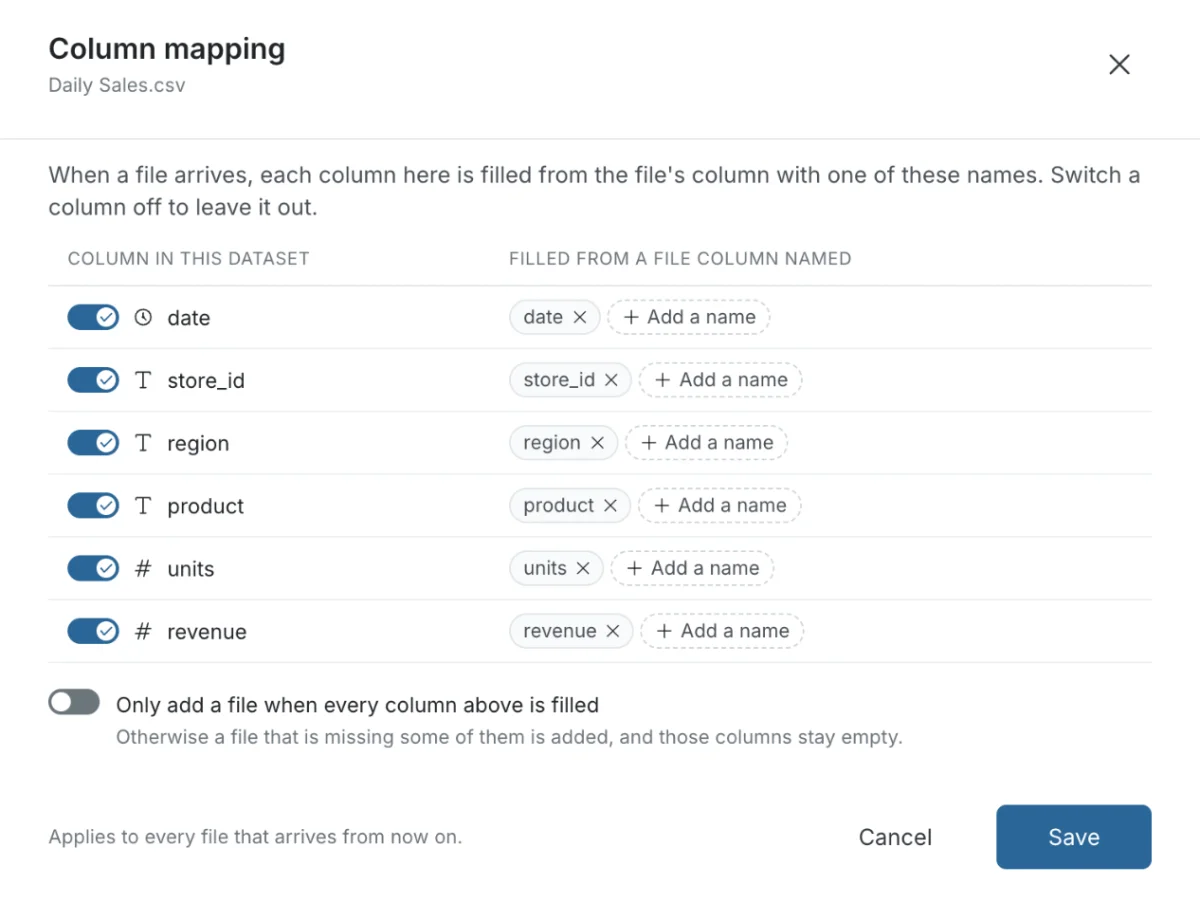
Edit column mapping (beside the column rules), or Change on the Columns row under How new files are added, opens the Column mapping dialog. There you can:
- set the incoming names (aliases) that feed each destination column;
- switch columns on or off;
- require that all destination columns are mapped.
Turn cell editing on or off
The Cell editing row turns inline editing on or off for every View built on this dataset.
- Click Turn on or Turn off.
- Confirm in the Turn on cell editing? or Turn off cell editing? dialog.
Turning it on re-runs the dataset's pipelines once. It is meant for datasets under 500K rows. You can turn it off only once no cells have been edited, or every edited cell has been removed.
Check whether a recipe can be edited
A dataset created from messy data or a PDF interpretation also shows its Recipe. "Recipes for datasets extracted from a PDF can't be edited." Other recipes can't be edited once a second batch was added or one of its Views has pipeline steps.
Rename, retype and reorder columns in the Column Manager
The Columns row lists the dataset's columns. Its edit icon ("Edit columns: rename them, change their types or add new ones") opens the Column Manager. The row appears for datasets built from files once their columns are known.
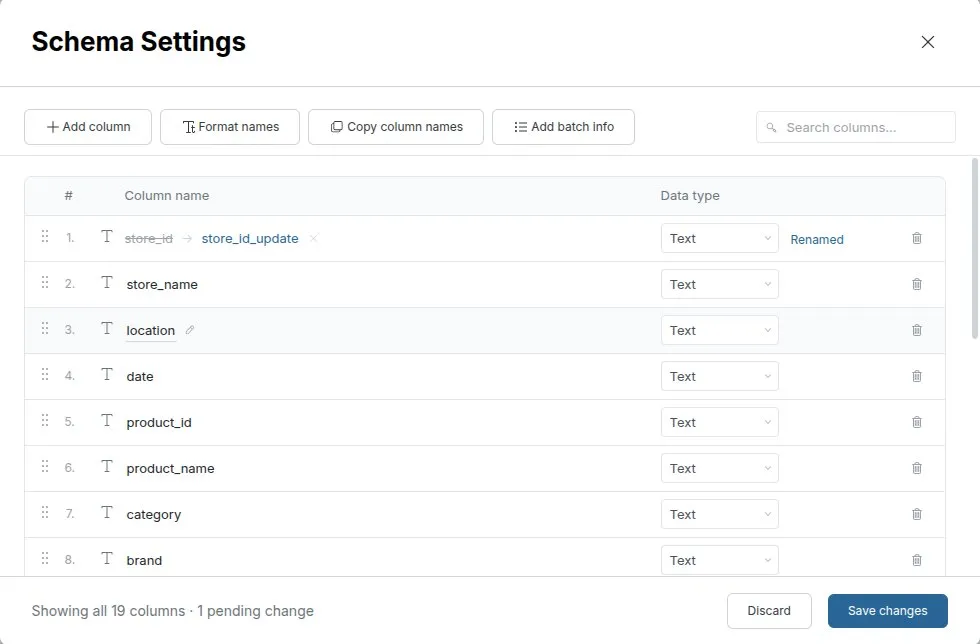
The Column Manager (titled Schema Settings) shows every column as a row, with a toolbar above it:
| Tool | What it does |
|---|---|
| Add column | Adds a new column. |
| Format names | Standardises names in bulk (see below). |
| Copy column names | Copies all names to your clipboard. |
| Add batch info | Adds batch metadata as columns (see below). All Views of this dataset are affected. |
| Search columns | Filters the list by name. |
On each row you can:
- Rename a column: edit its name. Empty or duplicate names block saving.
- Change a column's type: switch between Text, Number and Date, for example when a numeric ID should be Text. If a type change fails, a Failed to change type message lists the columns that kept their type.
- Reorder columns: drag a row up or down.
- Remove a column: removing is reversible until you save; use Restore column to bring it back. If a column is used in tasks, a warning explains the risk, and you can choose Delete anyway.
You can also select several columns at once (Select by filter, Invert selection).
Changes are staged. The footer shows how many pending changes you have, with Discard and Save changes buttons. Nothing changes until you click Save changes.
Rename all columns to snake_case or camelCase
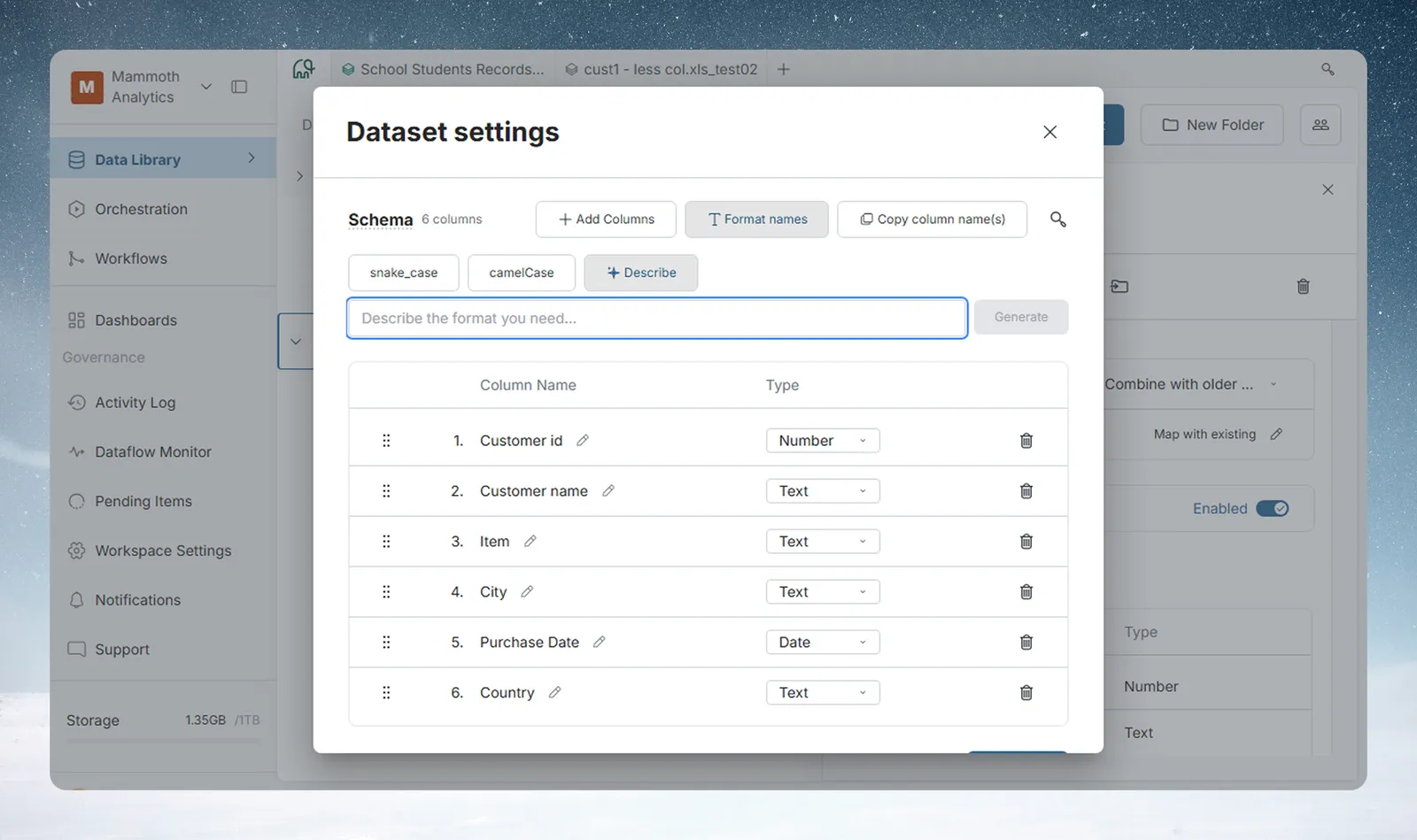
Click Format names to standardise inconsistent names in one step:
| Option | Example |
|---|---|
| snake_case | Purchase Date → purchase_date |
| camelCase | Purchase Date → purchaseDate |
| Title Case | Converts all names to Title Case |
| Describe | Type what you want in Describe the format you need... (for example, "Make all names lowercase and remove spaces") and click Generate. Mammoth uses AI to apply it across all columns. |
Add batch info as columns
Add batch info in the Column Manager adds batch metadata as new columns on the dataset. Once added, they flow into every View built on it, like any other column.
| Metadata column | What it contains |
|---|---|
| Batch ID | Internal identifier for the batch |
| Date | When the batch was created |
| Source (JSON) | Source details for the batch, as JSON |
| Name | Source file name or connector identifier |
| Row Count | Number of rows in that batch |
Columns are prefixed with batch_, for example batch_Row Count. All Views of this dataset are affected. Use them to trace which rows came from which upload, or to filter by batch date in a pipeline.
Manage batches: every data load
The Batches section lists every batch in the dataset. Each file upload, API sync or manual data load creates one batch. Click Add data (or Retrieve for a connected dataset) here to load more. For the full batch guide, see Batches: see and fix what arrived.
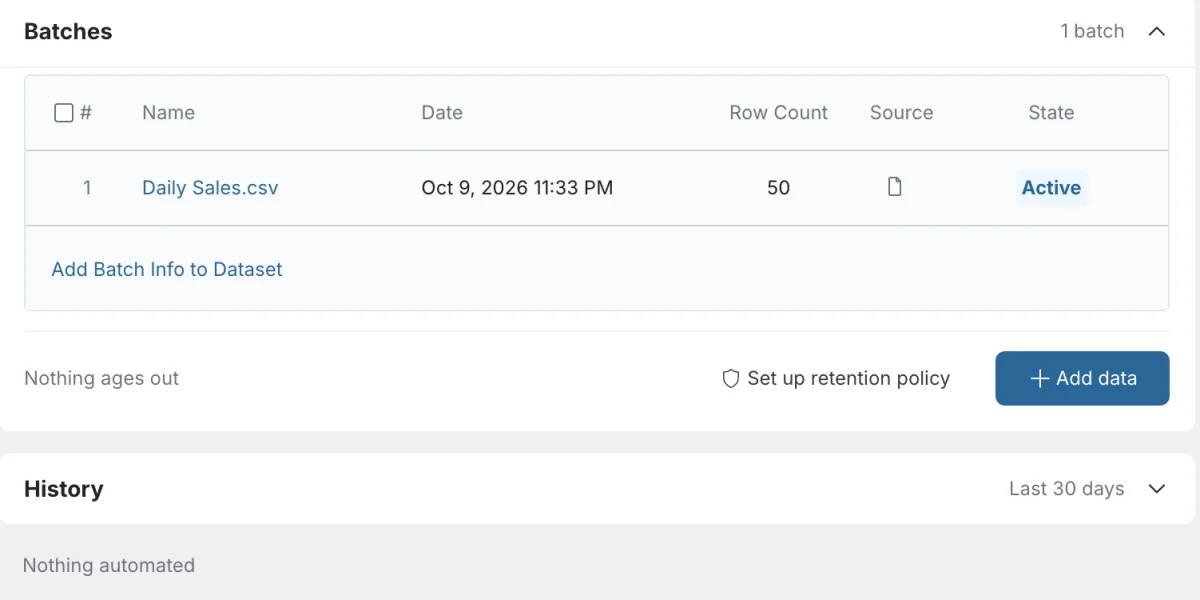
When an added batch needs review, a warning callout, Added batches require your input, appears with a Batch Settings button. Such batches sit at the top of the table with a Pending state (click it to open Batch Settings), or Applying recipe while a recipe runs.
| Column | Description |
|---|---|
| # | Checkbox with the batch's sequence number |
| Name | Source file name or connector identifier |
| Date | When the batch was created |
| Row Count | Number of rows in this batch |
| Source | Icon for the source type (file, API, connector) |
| State | Current batch state (see below) |
Click a batch name to open a full-screen preview of all its rows.
| State | Meaning |
|---|---|
| Active | Rows in this batch are included in all Views and pipeline runs |
| Suspended | Rows are excluded from Views and pipelines. The batch is kept and can be unsuspended at any time. |
| Pending Delete | A retention policy selected this batch and is waiting for approval. Use the row's Delete or Suspend button to carry it out. |
Suspend or delete a batch
- Tick the batches with their checkboxes.
- Choose an action:
- Suspend / Unsuspend: toggle a batch between Active and Suspended without losing the data.
- Delete: permanently remove the selected batches after a confirmation that lists them.
Set a retention policy for old batches
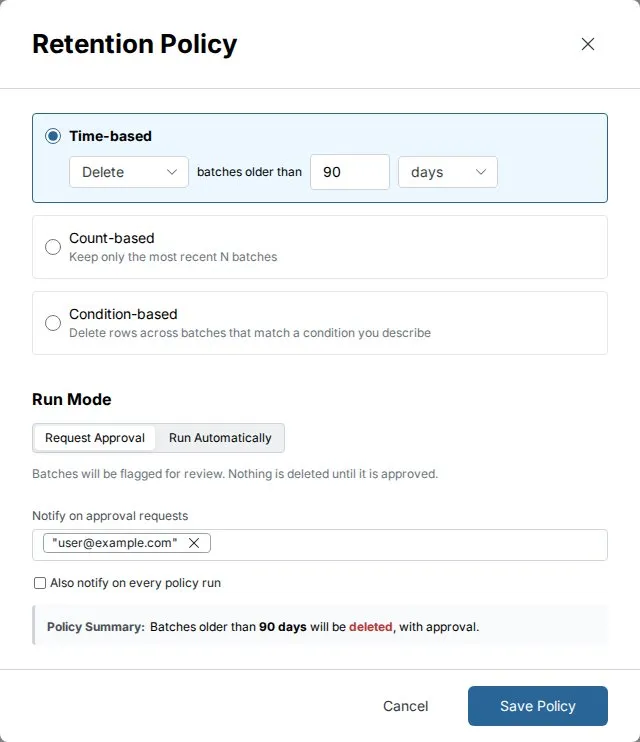
A retention policy deletes or suspends batches automatically, by age, by count, or by a condition you describe. When none is set, the section reads Nothing ages out, with Set up retention policy (on plans that include data retention). When a policy exists, its summary says what it does, for example Deletes old batches, with approval. See Batches: see and fix what arrived for the details.
See the automations on a dataset
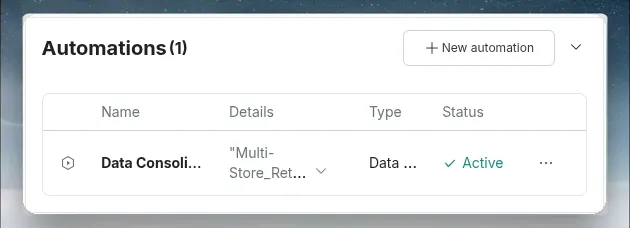
The Automations section lists every automation linked to this dataset, such as a scheduled refresh or a Data Consolidation that adds files to it. If there are none, the section collapses into a single grey line, Nothing automated, below the other sections. Create one from the Automate new data door or from Create an automation.
See what happened to a dataset in History
The History section lists this dataset's own events from the last 30 days. It includes related events in its Views, shown as In and the View's name, such as In Monthly totals.
When nothing has happened, it says "Nothing has happened to this dataset in the last 30 days." To see everything across the workspace, click See everything across the workspace in the Activity Log. See Activity log.
Limits
| Limit | Value |
|---|---|
| Cell editing | Meant for datasets under 500K rows |
| History | Last 30 days |
Troubleshooting
| Symptom | Cause | Fix |
|---|---|---|
| Every refresh repeats your rows | Add new rows only has no key column. | Pick a key column whose values only go up. |
| Corrected ad or analytics numbers never arrive | A date key column imports each day once. | Choose Replace all data. |
| Failed to change type | Some values could not convert. The message lists the columns that kept their type. | Clean the values, or keep the column as Text. |
| The Query row is disabled | Refreshing is switched off for the dataset. | Turn refreshing back on. |
| You can't turn cell editing off | Some cells have been edited. | Remove every edited cell first. |
| A file's rows are missing | Unexpected columns is set to Hold for mapping. | Map the file's columns, or switch to Add them. |
Related
- The dataset panel: the Overview, doors and downloads.
- Batches: see and fix what arrived: batch operations and retention in depth.
- Add or replace data: load more data into a dataset.
- Views: create, rename and delete: View Auto-sync, separate from the update method.
- Refresh a dataset: schedule refreshes for a connected dataset.
Something wrong? support@mammoth.io