Ask your data in plain words and get the SQL
Ask in plain words turns a request like "total net revenue by property, highest first" into SQL on your View, tests it, and adds it to your pipeline as a task. You don't need to read the SQL, but it's there to check or edit. It was called AI SQL Query before November 2026.
Ask in plain words step by step
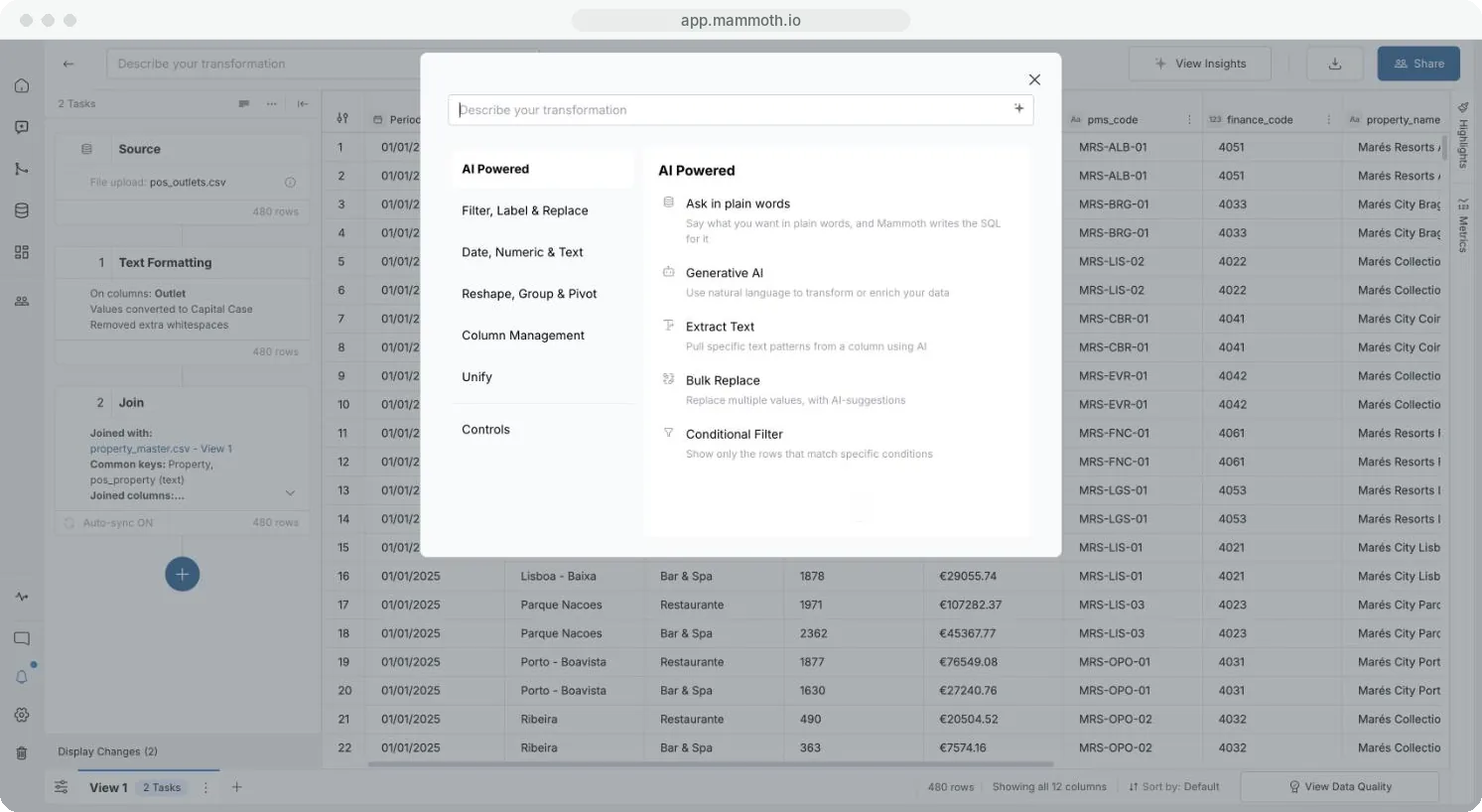
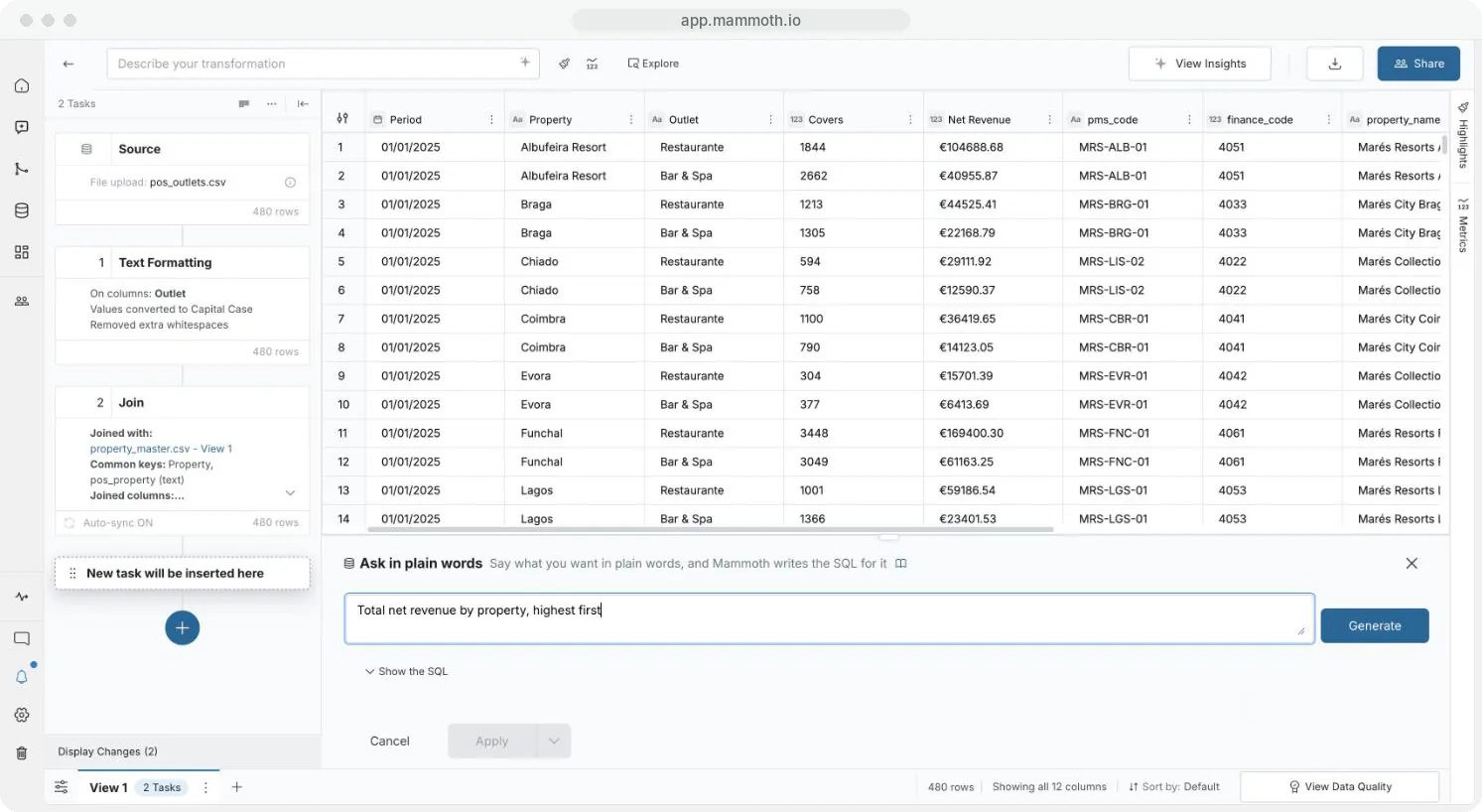
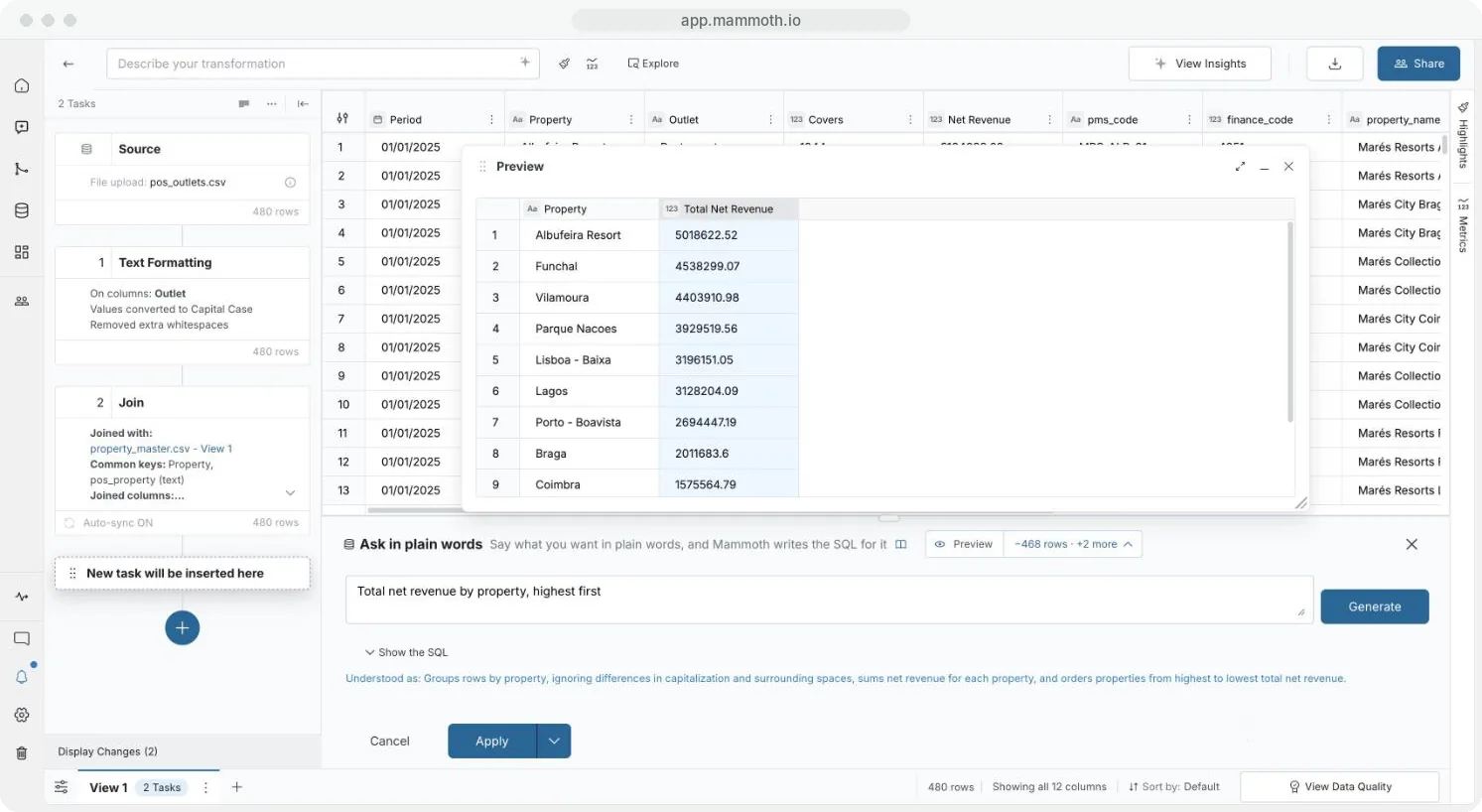
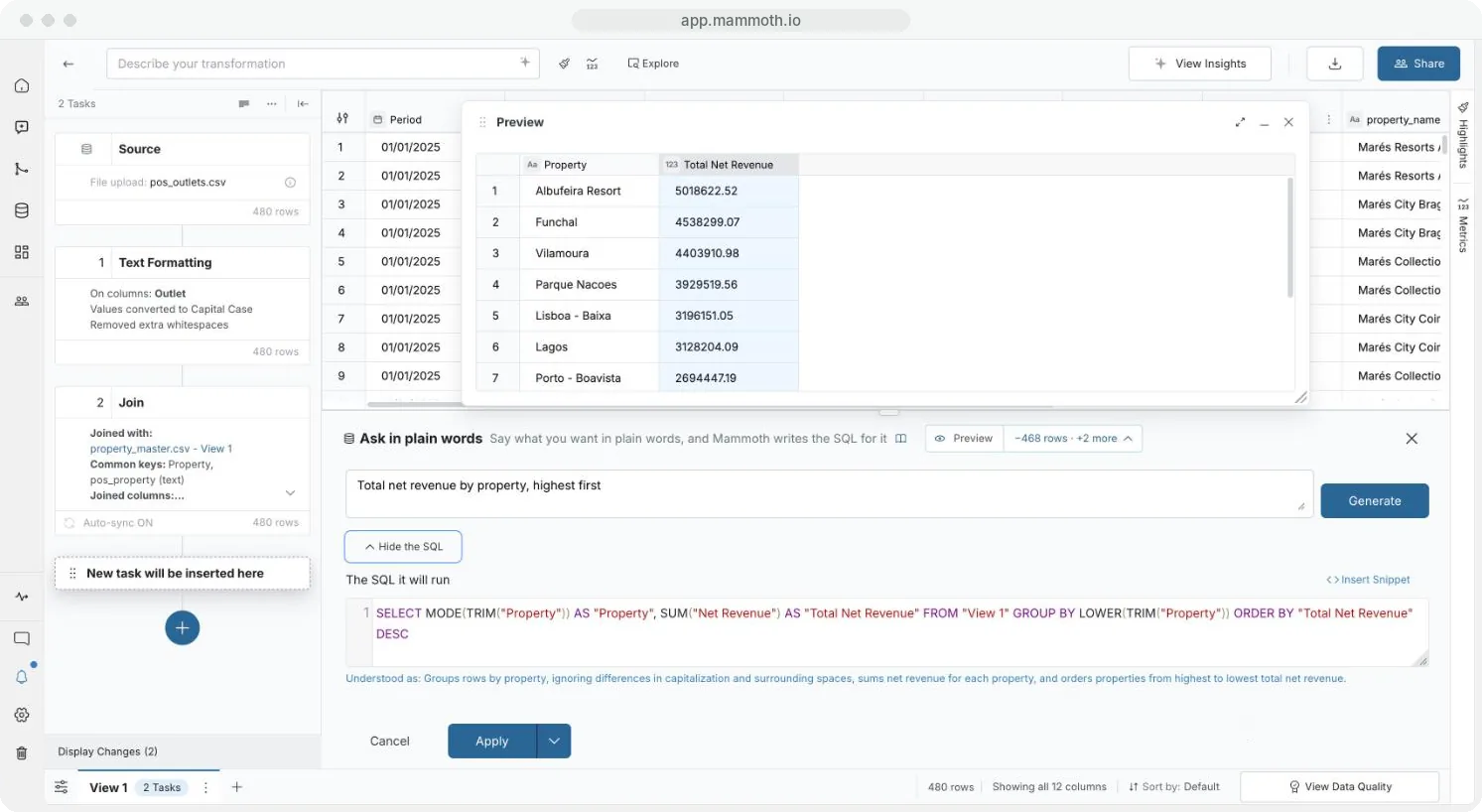
Step 1 of 5: Open Ask in plain words
Start from the transform box, with example requests
If you type your request in the Describe your transformation box first, Ask in plain words always appears in the results, and your text is carried into its prompt. Press Enter there and it starts generating at once.
Requests that work well:
- "Total net revenue by property, highest first"
- "Find the top 10 customers by order count"
- "Show all rows where the register is Online Orders and the transaction type is sale"
- "Count unique cashiers per register"
What's in the panel
| Element | What it does |
|---|---|
| Prompt box ("Describe what you want to query...") | Where you say what you want |
| Generate | Writes and tests the query. Turns on once you type a request; reads Generating... while it works. |
| Status line | Shows progress while the query is written, such as "Writing SQL query to match your request..." |
| Understood as | How Mammoth read your request, in plain words |
| Show the SQL / Hide the SQL | Unfolds or folds the query. It starts folded. |
| The SQL it will run | The SQL editor. Press Ctrl+Space for View and column name suggestions. |
| Insert Snippet | Adds saved SQL to the query (shown with the SQL) |
| Cancel | Closes the panel without changes |
| Apply | Adds the query to the pipeline as a task and runs it |
| Apply dropdown | Add to Pipeline: adds the task without running it |
If your View's pipeline doesn't run on its own, Add to Pipeline is the main button and Apply is in the dropdown.
What the status line shows
Mammoth works in several steps. The messages vary with your request, and extra ones appear if a query needs correcting.
| Phase | Status message |
|---|---|
| Start | Initializing..., then Starting SQL generation process... |
| Data | Preparing data and metadata... |
| Columns | Identifying relevant columns for your request... |
| Sample values | Fetching sample values for selected columns... |
| Writing | Creating SQL query based on your request... or Writing SQL query to match your request... |
| Testing | Testing query correctness... |
| Checking | Checking the result matches your request... |
| If needed | Correcting the query..., or Trying the query on your data (attempt 2)... |
When it finishes, the result shows in Preview and Apply turns on.
Check what Mammoth understood
After generation, the panel can show these notes:
| Note | What it means | What to do |
|---|---|---|
| "Understood as: Groups rows by property, ... and orders properties from highest to lowest total net revenue." | How Mammoth read your request | Check it matches what you meant. If not, rephrase and click Generate again. |
| "This query could not be confirmed to match your request, and it may not run. Review and test it before applying." | Mammoth wrote a query but couldn't confirm the results match. A reason may follow. | Click Show the SQL and review it, edit it, or generate again. A query with this warning is not previewed. |
| "This task moved after its query was generated, so its input columns can be different now. Generate the query again before you apply it." | The task changed position in the pipeline after generation | Click Generate again |
| "This task failed when the pipeline last ran: Column "Region" not found" | You are editing a saved task whose last run failed here | Fix the SQL using the message, then apply |
When you edit the SQL by hand, the Understood as line and the unconfirmed warning go away. The query is now yours.
Preview the result before you apply
Preview above the panel shows the result before you apply. A generated query is previewed straight away. A query you type is previewed once you pause typing and it looks complete. See How the pipeline works.
Read and edit the SQL
Click Show the SQL. Generated SQL uses your View's name and column names exactly as they are, in double quotes so spaces and special characters work. For "Total net revenue by property, highest first", Mammoth wrote:
SELECT MODE(TRIM("Property")) AS "Property", SUM("Net Revenue") AS "Total Net Revenue"
FROM "View 1"
GROUP BY LOWER(TRIM("Property"))
ORDER BY "Total Net Revenue" DESC
It grouped "Braga" and " braga " together, which the Understood as line says in words. Edit the SQL as much as you like before applying. Nothing locks generated SQL.
Write SQL yourself
- Open Ask in plain words and leave the prompt box empty.
- Click Show the SQL.
- Type or paste SQL in The SQL it will run.
- Click Apply.
Use this when you know the query you want, or to adapt a query from another tool. When you open a task you wrote by hand, the SQL is already shown.
SQL dialect: queries are DuckDB SQL. Put column names with spaces or special characters in double quotes. The View name is the table name.
Reuse SQL with snippets
A snippet is a saved piece of SQL you can insert into any query, such as a standard calculation or filter your team uses often. Click Show the SQL, then Insert Snippet.
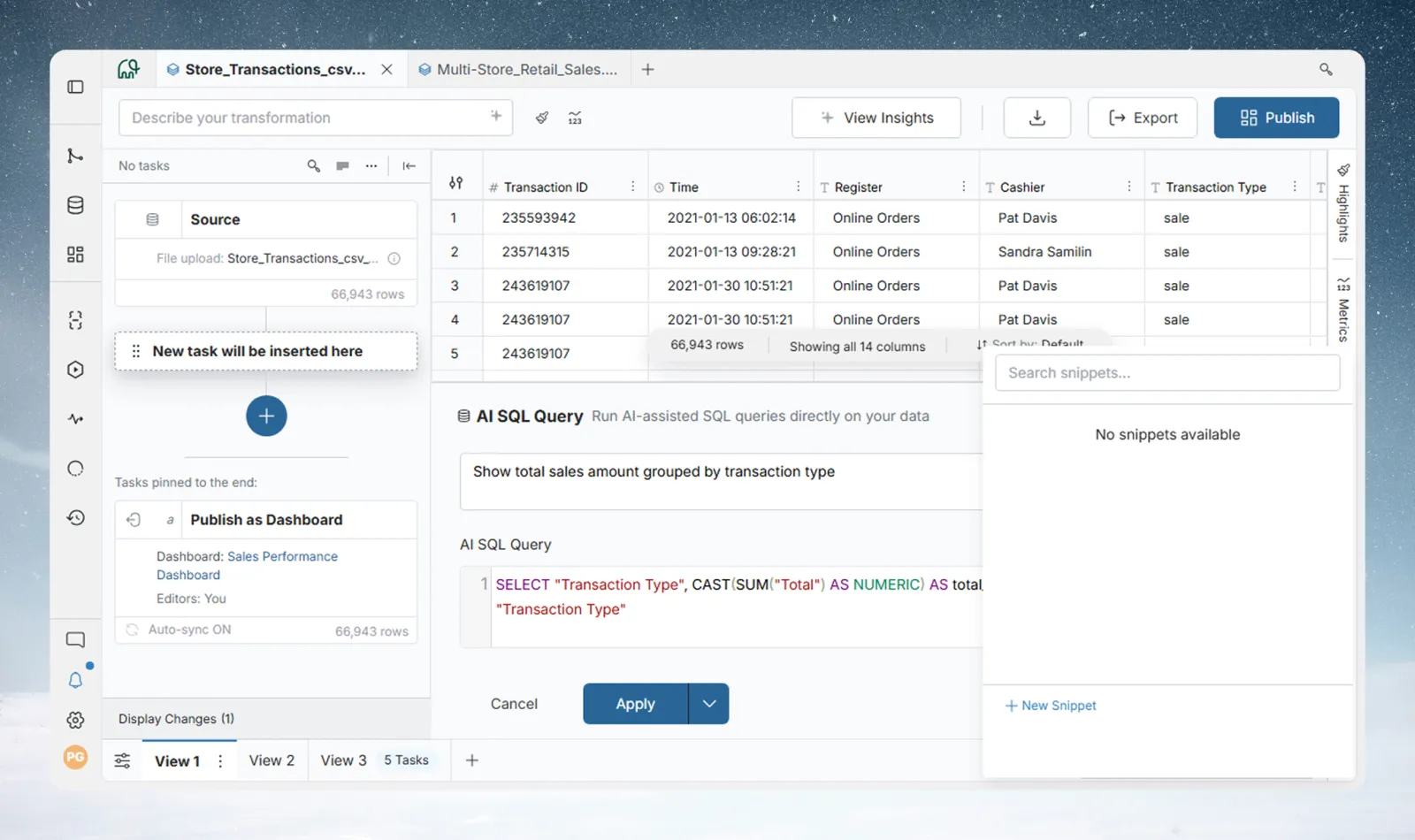
Create a snippet
- Click New Snippet in the snippets panel.
- Enter a name and the SQL in the value field. The name must start with a letter or underscore and contain only letters, digits and underscores. A description is optional.
- Click Create Snippet.
Snippets can't reference other snippets.
Insert a snippet into a query
| Option | What it inserts |
|---|---|
| Reference | The token {{snippet_name}}. It stays linked: Mammoth uses the snippet's current content when the query runs. |
| Paste value | The snippet's text, frozen, with no link back to the snippet |
If a snippet used by a saved query task changes, Mammoth marks that task as stale. Rerun the pipeline to use the new content. See Parameters and snippets.
Apply the query or add it without running
| Option | What it does |
|---|---|
| Apply | Adds the task to the pipeline and runs it now |
| Add to Pipeline (dropdown) | Adds the task without running it. It runs when you apply the pending pipeline changes. |
The task appears as a card in the Pipeline panel. You can reorder, edit, duplicate, suspend or restore it like any other task.
The task's position sets which data it queries. Placed after a filter, it queries the filtered data, not the original source.
Tips for better results
- Name columns exactly, for example "the Transaction Type column" rather than "type".
- Say the aggregation: "total", "count" or "average".
- Be specific. Instead of "sales by region", try "total quantity sold by region, highest first".
- If no column exists for your idea, describe the calculation, for example "revenue as quantity times price".
- Read the Understood as line before Apply.
- Save common calculations and filters as snippets so the team uses the same logic.
Troubleshooting
| Message | What it means | Fix |
|---|---|---|
| The "could not be confirmed" warning, with a reason under it such as "Query doesn't match intent" | Mammoth tried up to 3 times (the first query plus up to 2 corrections) and couldn't confirm the result matches. It stops sooner if a correction repeats a query that already failed. | Rephrase the request, or edit the SQL by hand |
| "Failed to generate SQL query" | The AI service request failed | Try again |
| "No SQL query was generated" | The AI returned an empty response | Try again or rephrase |
| "An error occurred while processing your SQL query" | An unexpected processing error | Try again |
| "Generating the SQL query took too long, so it was stopped. Try again." | Generation timed out | Try again, perhaps with a simpler request |
When Mammoth can't confirm a query, it still puts its last attempt in the editor with the warning above. Click Show the SQL to fix it, or rephrase and click Generate.
If the task runs but the result doesn't match what you meant, open it, make the request more specific, and compare the output on a few rows with what you expect.
Related
- Use AI on your columns: classify or rewrite values row by row.
- Calculate with formulas: SQL and formula expressions in Math Function.
- Parameters and snippets: manage snippets and parameters.
- How the pipeline works: task order, Draft mode and previews.
- Fix a failing step: when a SQL task errors.
Something wrong? support@mammoth.io