Fix how Mammoth reads a messy file or Excel workbook
Mammoth reads every file before it becomes a dataset: where the table starts, which row holds the headers, and how blocks or nested records turn into rows. When it is unsure, the dataset's panel in the Data Library asks for your input, for example Choose how to read it or Extract sheets. The reading is saved as the dataset's Recipe, and every later file added to the dataset is read the same way.
Reshape a messy file in Review data import
When a file has more than one plausible reading, the panel shows "This file has more than one plausible way to be read." Click Choose how to read it to open Review data import. The window has two panes:
| Pane | What it shows |
|---|---|
| Uploaded data | The file as it is. Use Zoom in, Zoom out, Fit to width and Maximize to look closer, and Back to the comparison to return. |
| Result dataset | The table Mammoth will make, under How Mammoth read this. The preview shows the first rows ("Preview shows the first 100 rows. All rows are imported."). |
To change the reading:
- Type an instruction in the box, for example "Each region is a separate block, stack them into one table with a Region column".
- Click Run. Mammoth shows "Reading the file with your instruction…" and updates the result.
- Choose one of the options below.
An instruction that only makes sense once the data is in (for example, a calculation) gets "That instruction can't be applied while reading the data. It may be possible once the dataset is created."
| Option | What it does |
|---|---|
| Looks right | Accepts the reading and goes to the save step |
| Import as is | Keeps the file exactly as uploaded, with no reshaping. Future files for this dataset are imported the same way. |
| Delete file | Removes the uploaded file |
Save the dataset and pick how it refreshes
On the save step you set the Dataset name and check What Mammoth read: each column, what it is Read as, and its First values. Then choose how it refreshes:
| Option | What it does |
|---|---|
| Manual | "Re-upload a new file when there is one. The same instructions replay over it." |
| When a new file arrives | "Watch a Mammoth folder for new files and add them to this dataset using the same instructions." You pick the folder to watch. This option depends on your plan. |
Click Create dataset, or Create dataset + automation when you chose When a new file arrives. Either way, "If a new file looks different from this one, Mammoth pauses the update and asks you, your data is never changed silently."
Choose the rows in a nested JSON or XML file
Mammoth reads a JSON or XML file as a tree and picks the repeating set of records as the rows. When more than one set could be the rows, the Uploaded data pane shows the tree:
- Each branch shows its item count and the columns inside it.
- The set Mammoth used has a Rows tag.
- Parts that don't become columns show Not imported.
Click Use as rows on another branch to read that one as the rows instead. Mammoth writes the instruction for you, for example "Use the top-level records as the rows". You can also type your own instruction, such as "One row per line item, with the order number and customer on each row".
Extract sheets from an Excel workbook
A workbook with several sheets shows "This file has multiple sheets to be extracted." Click Extract sheets.
- Under Sheets, tick the sheets to include. Mammoth reads each sheet when the window opens and shows how many tables it found (for example, "Reads as 2 tables").
- Click a sheet to see its Source next to the dataset it makes. A sheet is Read automatically by default.
- To change how a sheet is read, click Say how to read and the sheet name (for example, Say how to read Q1). Describe it, for example "row 3 is the header" or "rows 1 to 3 are a table", and click Run this instruction. Back to automatic read undoes your read.
- When tables share the same columns, Mammoth groups them: "Combining adds a Source column to tell them apart." Tick two or more and click Combine (for example, Combine 3 datasets), or keep them Separate.
- Click Looks right. The save step lists the Datasets to create with their Cols and Rows.
- Untick any you don't want, rename them, and click Save (for example, Save 3 datasets).
One recipe produces all the datasets, and every run updates them together.
Other parts of the window:
- Replace this file: drop or choose another workbook (.xlsx, .xlsm, .xls or .csv) to rebuild the recipe from it. If you already edited reads, renamed sheets or changed which datasets to save, Mammoth warns Replacing loses your edits, with Keep this file and Replace anyway.
- When a later file has different sheets, the window says "This file has different sheets from the last one." and names the sheets that are new or gone.
- When the workbook was uploaded to a watched folder, the save button reads, for example, Add 3 sheets to Monthly sales: "They go in as new batches, the way any file added to this folder does."
Tell Mammoth which way round your dates are
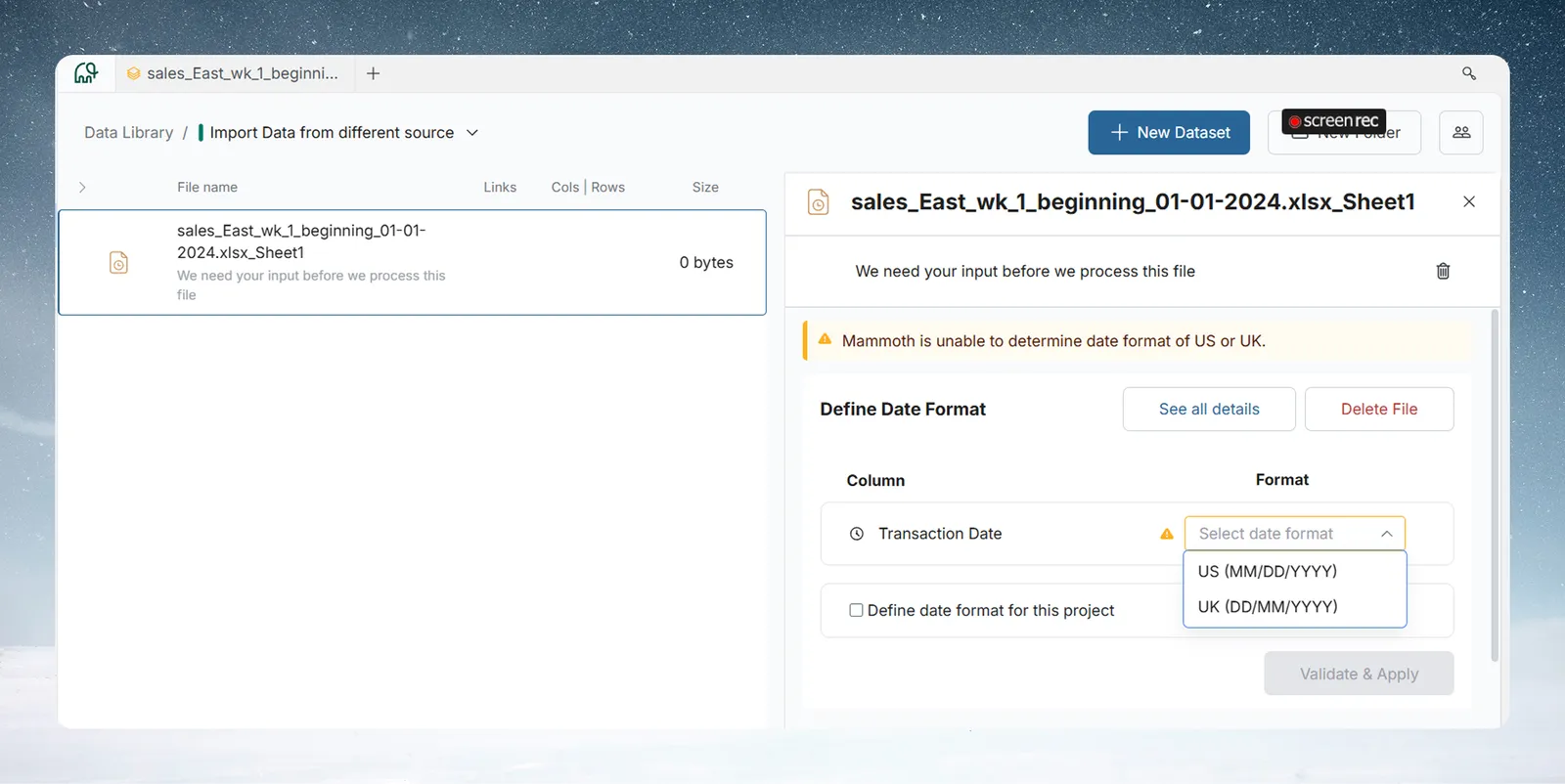
When Mammoth can't tell whether dates are day first (DD/MM/YYYY) or month first (MM/DD/YYYY), it pauses and the dataset's panel asks Which way round are these dates?
- Check each affected column and its sample value.
- Choose Day first or Month first for each column.
- Optionally select Use this reading for every file uploaded to this project.
- Click Import with this reading.
Fix the delimiter, header row or skipped rows
If columns look merged, or column names appear as data values, open the file settings. Click See all details (or Check the file settings) where the panel asks for your input. You can also click the How it was read row under Settings & history, then Settings, in the dataset's panel. There you can set:
- the delimiter;
- the column header row;
- the number of initial rows to skip;
- the date format.
Discard rows with missing or extra columns
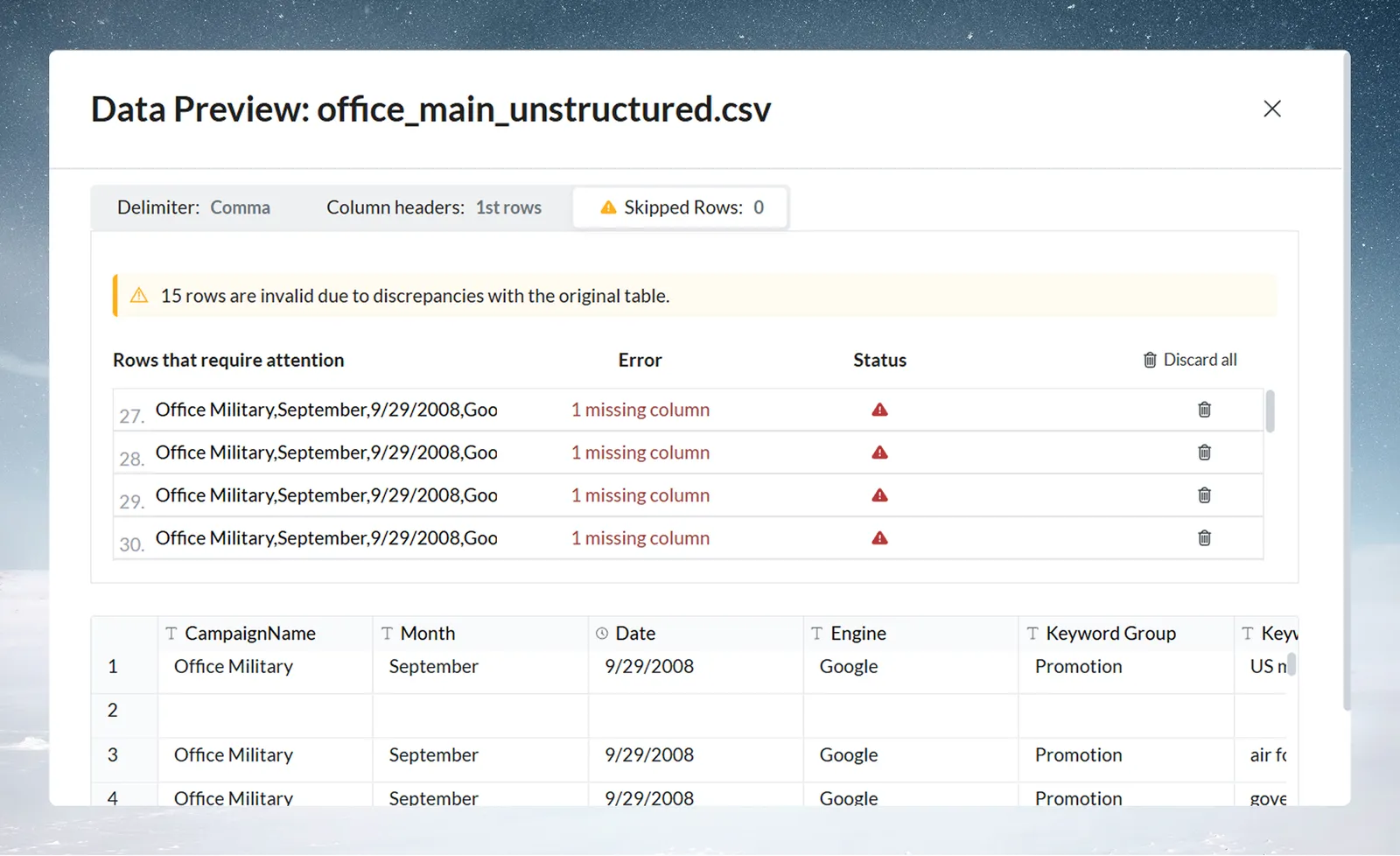
When rows in a new file have fewer or more columns than the dataset, Mammoth flags each invalid row with an error such as "2 missing columns" or "3 extra columns". You can discard them one by one or all at once.
Open a password-protected file
The panel shows "Access to this file is protected by a password".
- Enter the File password.
- Submit it.
A wrong password shows "Invalid password, please enter a valid password". Once Mammoth shows "Password accepted!", the file is read as usual.
What to do with a corrupt file
The panel shows "This file seems to be corrupt" and "It cannot be turned into a dataset. Delete it, then upload a corrected file."
Change a dataset's recipe later
- Open the dataset's panel, then Settings & history, then Settings. The Recipe card shows how the data is extracted from the original file.
- Click the pencil to open Review data import again (for example, "Editing recipe for sales_data_messy.csv").
- Change the reading and save. Mammoth confirms that the recipe is updated and the dataset is being restructured.
The pencil is disabled, with a "Can't be changed" note, when:
- more data has arrived since, or steps have been built on the columns the recipe produced;
- the tables were read out of a PDF, because that reading cannot be re-run.
Related
- Upload files: formats, size limits and the upload steps.
- Extract tables from PDFs: the same review window for PDFs and images.
- Add or replace data in a dataset: later files replay the saved recipe.
- Batches: see and fix what arrived: resolve a pending batch's column mapping.
- Column types, IDs, currency and percentages: change a column's type after import.
Something wrong? support@mammoth.io