Refresh a connected dataset on a schedule
A Dataset Refresh automation fetches the latest data for datasets from database and cloud app connectors (Google Sheets, Salesforce, PostgreSQL and so on), and for datasets that follow the link they came from, on a schedule or when you run it. Create one from Automations > New automation > Dataset Refresh, or choose Set-up auto refresh on a dataset. It is a plan feature, and your plan also sets how often it can run.
Without it, a connected dataset keeps the data from when it was saved. Use it for daily CRM or ERP pulls or Google Sheets you update often.
Which datasets you can refresh
The dataset step says: "Only datasets connected to an API or database, or that follow the link they came from, can be set up for refresh."
| Can be refreshed | Can't be refreshed |
|---|---|
| Datasets from API and database connectors, including Google Sheets and Azure Blob Storage | Uploaded files |
| Datasets fetched From URL that follow their link | Datasets saved from file connectors: Dropbox, Google Drive, Google Cloud Storage, SFTP, SharePoint, OneDrive, Email (IMAP) |
For new files from file sources, use File Collection with Data Consolidation. Uploaded files are listed greyed out, marked "Uploaded files can't be refreshed". If no dataset qualifies, the step shows No refreshable datasets ("Connect a dataset to an API or database to make it available for refresh.").
Plan rules for Dataset Refresh
Dataset Refresh needs the File Collection plan feature. If your plan has no scheduled refresh, the Dataset Refresh card shows a plan pill. See What each plan decides.
Set up a Dataset Refresh automation
- Open New automation from the Data Library header, a folder's or dataset's menu, the dataset panel's Automation section, or the Automations list.
- Under Bring data in, select Dataset Refresh. The steps are Select datasets, Set Schedule and Review & save.
- In Select datasets to refresh, tick the datasets. Each row shows its folder, column and row counts, and Update Method. Search datasets finds one; Clear all unticks all.
- Check each ticked dataset's update method and change it if needed (see below). Click Set Schedule.
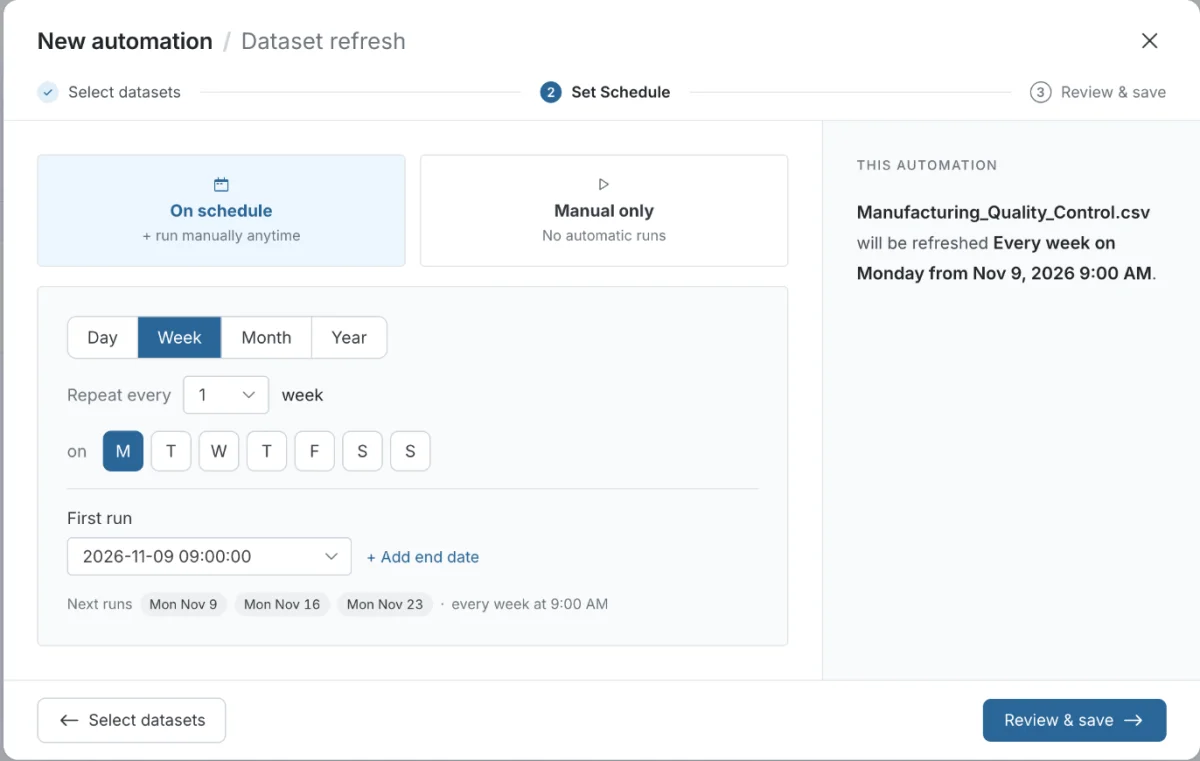
- Choose On schedule (you can still run it manually at any time) or Manual only (no automatic runs; it runs only when you trigger it manually or through the API).
- For On schedule, pick Day, Week, Month or Year and the number next to Repeat every, a First run, and optionally + Add end date for an End date. Check the Next runs preview. See Schedule options.
- On Review & save, enter a name and optional description, review the summary, and click Save automation.
Refresh several datasets in parallel or in a sequence
When you tick more than one dataset, a Refresh datasets option appears:
| Option | What it does |
|---|---|
| in parallel | Refreshes all the datasets at once |
| in a sequence | Refreshes them one after another, in the numbered order shown next to each dataset. Drag a dataset by its handle to reorder |
A sequence keeps dependent datasets in order, for example transaction data, then the customer master that depends on it, then product hierarchy reference data, then GL mappings.
Choose what a refresh does with your data
Click a ticked dataset's update method to change it. The change applies to the dataset itself, not only to this automation: "This changes what happens the next time data is retrieved. Your current data stays as it is until then."
| Option | What it does |
|---|---|
| Replace all data | Rebuilds the dataset from scratch on every refresh, so it always matches the source |
| Add new rows only | Keeps your rows and adds those that appeared since the last refresh, to build up history. Needs a Key column |
| Keep only the newest rows | Empties the dataset on each refresh and brings in only the rows that appeared since the last one. Needs a Key column |
| Add to existing data | Shown instead of Add new rows only for sources that can't use a key column: every refresh adds all the rows it brings in |
A Key column has values that only ever go up, like an ID or a date. Mammoth imports only rows above the last value it saw, so rows changed or deleted at the source afterwards are not updated. Without one, Add new rows only brings in a full copy each time, repeating your rows, and Keep only the newest rows can't be saved.
The options depend on the connector.
After you save, the automation appears with status Active and runs at each scheduled time. To read its summary, edit it or fix an error, see Check and fix a Dataset Refresh.
Related
- Check and fix a Dataset Refresh: Then sends, edits, trial suspension and errors.
- Schedule options: every schedule option and plan limit.
- Connect a database or app: create the connected datasets a refresh can update.
- Export on a schedule: send exports at fixed times instead.
Something wrong? support@mammoth.io