Connect an API source in Mammoth: Stripe, Jira, Zendesk and more
Every source on the API sources list connects the same way: you pick it in the launcher, give the key or sign in, and the agent lists what it can read.
Connect the source
- In the Data Library, click New dataset and choose Connectors (or go to Data → Connections and click New Connection).
- Type the source's name and pick it, or find it under its category in the left menu. The connector workspace opens with the chat on the left.
- If the chat asks for anything first, such as your site address or region, answer it. The Have ready column on the API sources list says what that will be.
- The chat shows a Connect card for the key, token or sign-in the source needs, with a link to the source's own page for making one. Fill it in and click Test and connect. For a source that signs in with Mammoth's own app, click Sign in with ... and approve access on the source's page.
- Where the agent already knows the source's tables, the Tables list shows them before you connect, marked not read yet. Once the key works, the agent reads each one and lists any others it finds.
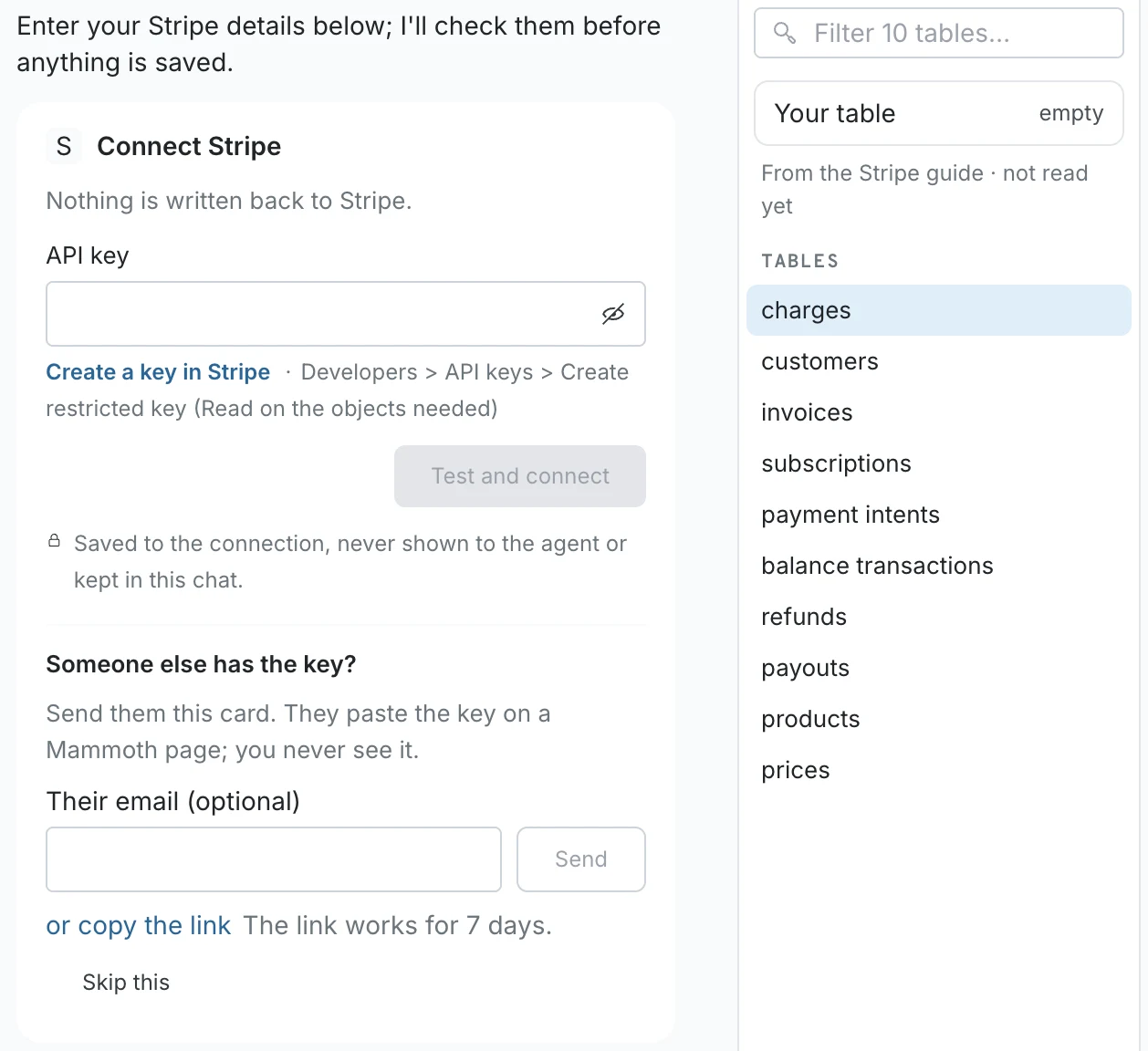
If someone else holds the key, use Someone else has the key? on the card: enter their email and click Send, or copy the link. They paste the key on a Mammoth page and you never see it. The link works for 7 days.
Pick tables and save the dataset
- Click a table to see its columns and sample rows, and tick the columns you want. They gather in Your table.
- Ask the chat for anything missing, for example a field from another table.
- Click Preview 100 rows to check the result.
- Click Save as dataset, enter a Dataset name, choose a folder under Save in, and under Keep it up to date choose Daily or Manual. Then click Save.
Choosing Daily creates a Dataset Refresh automation.
Where to find your key
Each row on the API sources list names the kind of key under How you sign in. The card's Create a key in ... link opens the source's own page for making one, with the menu path beside it. Give the key read access to the data you want; the agent tells you if the key can't read a table.
Refreshing
Sources marked Yes under New rows only fetch just what changed since the last run. For the rest, the agent checks for a field that marks new rows while it builds the connection; without one, each refresh fetches everything.
Related
- API sources the agent knows: every source this page covers.
- REST API: connect an API that isn't on the list.
- Connector workspace: the chat, the Tables list and what each table status means.
Something wrong? support@mammoth.io