Work with dates and financial years
Mammoth's date functions shift dates, pull out parts such as the month or weekday, add a financial year and measure the time between two dates. Open them from the Describe your transformation bar (or a + button in the Pipeline panel) and select Date, Numeric & Text. Each one is a pipeline task, so it changes your data and runs again every time the pipeline refreshes.
Before you start
Only Date columns appear in the date dropdowns. If your dates are stored as text, convert them first with Convert Column Type in Column Management. See Convert text to dates and numbers.
Add or subtract days, months or years from a date
Add / Subtract Date Values moves a date forward or back by the amount you set. Use it for deadlines, expiry dates or lining up dates across periods.
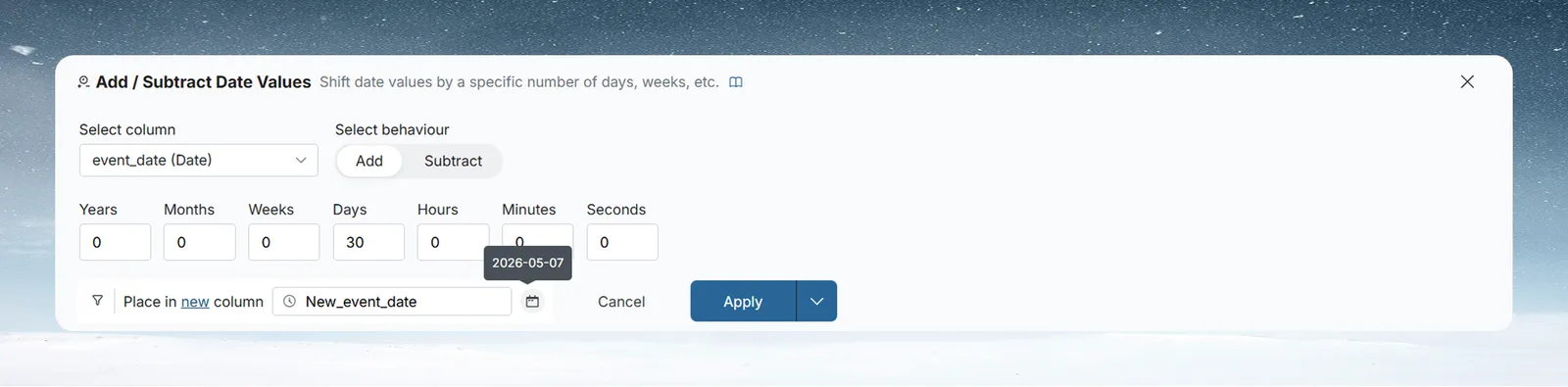
- In Select column, choose the date column.
- In Select behaviour, choose Add or Subtract.
- Enter an amount in one or more of the duration fields: Years, Months, Weeks, Days, Hours, Minutes or Seconds. Fields left at 0 are ignored.
- Optional: click Add Condition to shift only the rows that meet a condition.
- In Place in, choose New Column and type a name, or choose Existing Column and pick the column to overwrite.
- Optional: click the calendar icon next to the result column options to pick the date format. The formats come in Universal, US and UK groups.
- Click Apply.
Example: to set a review date 30 days after a contract starts, select contract_start, choose Add, enter 30 in Days and name the new column review_due.
Get the year, month, weekday or time from a date
Extract Date Part pulls one part out of a date, such as the year, month name, week number or hour, and writes it to a new column.
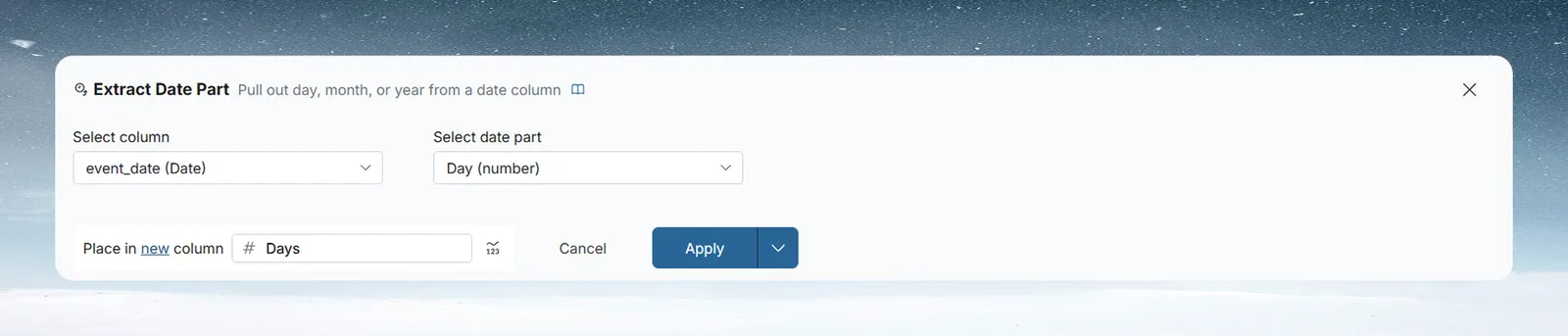
- In Select column, choose the date column.
- In Select date part, choose the part you want. Each part shows an icon for its result type (number, text or date).
- Name the result column and click Apply.
The pipeline card names the result type in brackets, for example "Month name (text)".
| Date part | Result type | Returns |
|---|---|---|
| Year | Number | For example 2024 |
| Quarter | Number | 1, 2, 3 or 4 |
| Month | Number | 1–12 |
| Month name | Text | For example "March" |
| Week of the year | Number | 1–52 |
| Weekday | Text | For example "Monday" |
| Day | Number | 1–31 |
| Day of year | Number | 1–365 |
| Hour | Number | 0–23 |
| Minutes | Number | 0–59 |
| Seconds | Number | 0–59 |
| Millisecond | Number | 0–999 |
| Time without milliseconds | Text | For example "14:40:45" |
| Time with milliseconds | Text | For example "14:40:45.123" |
| Year & Month | Text | For example "2024 March" |
| Year & Month Number | Text | For example "2024-03" |
| Date part without time | Date | The date with its time removed |
| Date part without time | Text | The same, returned as text |
Financial years are not in this list. Use Financial Year, below.
Example: to group sales by month, extract Month name from order_date. The new column holds values such as "January" and "February", ready to use as a group in Group, pivot and unpivot.
Add a financial year column
Financial Year adds a Number column with the financial year each date falls in, such as 2025. A financial year is named by the year it ends in. With a year that starts in October, October 2024 to September 2025 is 2025.
- In the Transform menu, select Date, Numeric & Text > Financial Year. The Extract Date Part panel opens with a Year starts in dropdown in place of Select date part. It is set to October.
- In Select column, choose the date column.
- In Year starts in, choose the month your financial year starts, from January to December.
- Check the hint under the form. It shows the last day of the old year and the first day of the new one, for example "Sep 30, 2025 becomes 2025, Oct 1, 2025 becomes 2026. The year is named by the year it ends in." The date format follows your browser.
- Name the result column (the default is "Financial year") and click Apply.
How the financial year number is worked out
The result is a whole number with no decimals and no thousands separator, such as 2026.
- A date in or after the start month belongs to the next year's number.
- A date before the start month keeps its calendar year.
- Choosing January gives the calendar year, the same as extracting Year.
| Year starts in | 15 Mar 2025 | 15 Jul 2025 | 15 Nov 2025 |
|---|---|---|---|
| January | 2025 | 2025 | 2025 |
| April | 2025 | 2026 | 2026 |
| July | 2025 | 2026 | 2026 |
| October | 2025 | 2025 | 2026 |
The pipeline card describes the step, for example "Financial year, starts in April (number)". To change the start month later, edit the step and pick another month in Year starts in. The value comes from each row's date, so it only changes between runs if the date does.
Calculate the number of days between two dates
Calculate Date Difference measures the time between two dates and returns a number. Each end can be a date column or the current time in UTC.
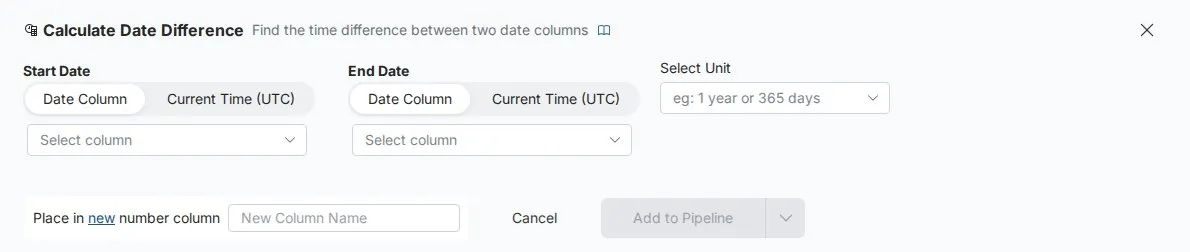
- In Start Date, select Date Column and choose a column, or select Current Time (UTC). With Current Time (UTC), the column dropdown goes away.
- Set End Date the same way.
- In Select Unit, choose Years, Months, Weeks, Days, Hours, Minutes or Seconds.
- In Place in, choose New Column and type a name, or choose Existing Column to overwrite one.
- Click Apply.
Examples:
- To measure shipping time, set Start Date to
order_date, End Date toship_date, the unit to Days and the name todays_to_ship. - To count the days since each customer signed up, set Start Date to
signup_dateand End Date to Current Time (UTC).
How each unit is counted
The result is End Date minus Start Date. It is negative when the end comes before the start.
| Unit | How it counts | Example: 2024-12-31 to 2025-01-01 |
|---|---|---|
| Years | The difference between the calendar year numbers. Months and days are ignored. | 1 |
| Months | The difference in calendar months (years × 12 plus months). Days are ignored. | 1 |
| Weeks | Whole days divided by 7, rounded toward zero | 0 |
| Days | Whole days between the two dates | 1 |
| Hours, Minutes, Seconds | Whole days converted to that unit, plus the remaining hours, minutes and seconds | 24 hours |
Years and Months only look at the calendar numbers, so 2024-01-31 to 2024-02-01 counts as 1 month. Use Days when you need an exact span.
Current Time (UTC) is the moment the step runs. A result that uses it changes on every run.
Troubleshooting
| Symptom | Cause | Fix |
|---|---|---|
| Your date column is missing from the dropdown | The column is stored as text, and only Date columns are listed | Add a Convert Column Type step before this one. See Convert text to dates and numbers. |
| A month difference looks too large | Months ignores days, so 31 Jan to 1 Feb is 1 month | Use Days for an exact span |
| A days-since value changes every day | The step uses Current Time (UTC), which is the time of each run | This is expected. Use a fixed date column if you need a stable number. |
| Dates arrive in mixed formats and sort wrongly | The column is text, not Date | See Fix a failing step for the date format fix |
Related
- Calculate with formulas: numeric calculations, window functions and ranking.
- Work with text and JSON: extract text, change case and expand JSON.
- Group, pivot and unpivot: group dates by year, month or weekday as you summarise.
- Column types, IDs, currency and percentages: how Mammoth sets a column's type.
- How the pipeline works: where tasks run and how to preview them.
Something wrong? support@mammoth.io