Receive data in Mammoth with a webhook
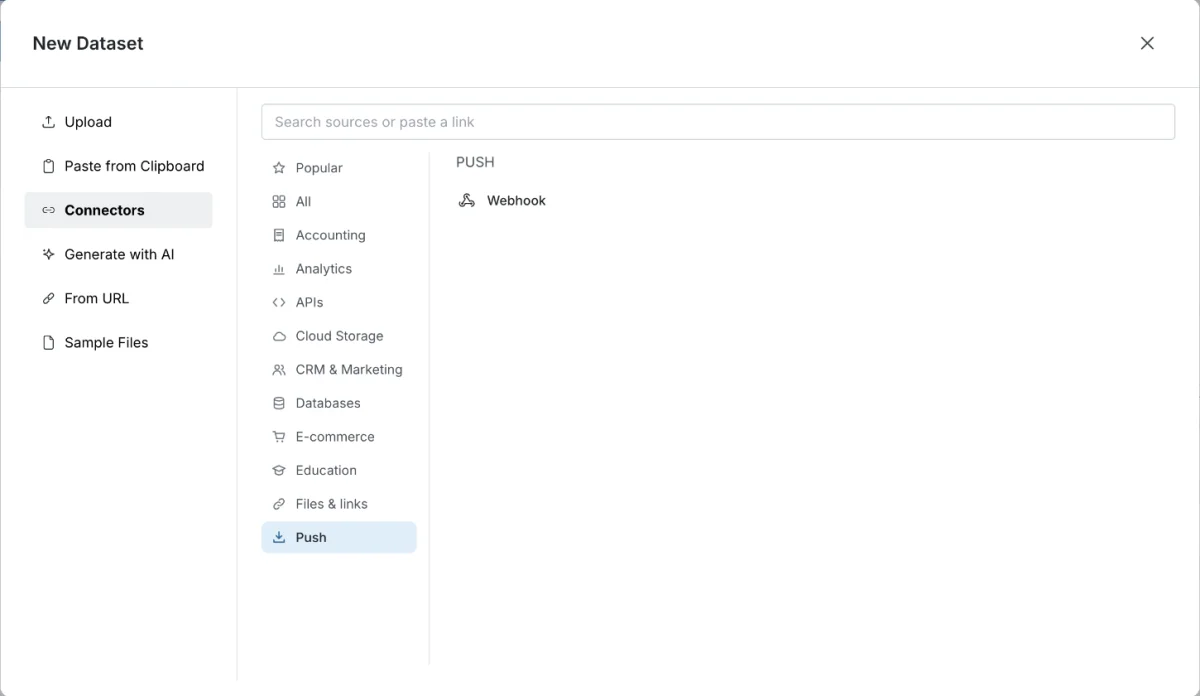
A webhook gives a dataset its own URL that other systems send data to whenever something happens, instead of Mammoth pulling data on a schedule. In the Data Library, click New dataset and choose Webhook, or open the Connectors launcher and choose Push, then Webhook. The dataset's Webhook card holds the URL, the secret and a log of what arrived.
When to use a webhook
Use a webhook when:
- an external platform supports outbound webhooks, for example a payment platform, a form tool, a CRM or your own app;
- your source sends data on events (a new order, a form submission, a status change) rather than making it available to read;
- another system sends data to Mammoth as one step of a larger workflow.
Use a connector instead when Mammoth should pull data from a database or API. Use Upload files when data arrives as files.
Create a webhook dataset
- Go to the Data Library and click New dataset.
- Choose Webhook ("Generate a URL to receive data from other applications").
- Enter the New dataset name (the box reads "New webhook name").
- Under Add new rows, pick how often arriving rows are added: 5 min (selected first), Hourly, Daily or By hand. You can change this later on the card.
- Click Create new dataset.
Mammoth creates the dataset and opens it on its Webhook card. As the window says, "Other systems POST JSON to it; each object’s keys become columns. Its URL and secret are on the dataset once it is made." A webhook made this way adds new rows to the rows already there.
Start a webhook from the Connectors launcher
In the Connectors launcher, choose Push, then Webhook, or type "webhook" in the search box. That opens the connector workspace, whose chat starts with "Create a webhook that adds the JSON it receives to a new dataset." and asks for details such as the dataset name.
Find the webhook URL and secret
Open the dataset's panel in the Data Library. The Webhook card shows everything a sender needs:
| Item | What it is |
|---|---|
| URL | The address your system sends data to. Click Copy URL. |
| Secret | The value your system must send in an X-SECRET request header. Click Copy secret. With no secret, the card says "None. Anyone with the URL can add rows." |
| Copy curl | Copies a ready-to-run curl command that posts a sample JSON row to the URL, with the X-SECRET header when there is a secret |
Paste the URL, and the secret if there is one, into your external system's webhook settings.
The URL looks like https://app.mammoth.io/api/v1/webhook/data/7fK2pQ9xLm4Rt8Vw3Yb6Nc1D, where the key at the end is 24 random letters and digits. The key is the only thing that identifies the webhook, so treat the URL like a password when the webhook has no secret.
Require a secret on the webhook
A new webhook has no secret: anyone with the URL can add rows. To require one:
- In the dataset's panel, open Settings & history, then Settings.
- Next to Secure header, choose Enabled.
Mammoth makes a 12-character secret and shows it beside the control as "(X-SECRET: ...)". The Webhook card then shows it under Secret.
Choose Disabled to remove the secret. Turning it off and on again makes a new secret, and the old one stops working at once, so update your sender straight away.
Send data to the webhook URL
Mammoth accepts:
- POST with a JSON body (
Content-Type: application/json); - POST with form fields, which are stored as JSON;
- GET with query parameters, which are stored as JSON.
Each request becomes one row. Send one JSON object per request. A JSON array arrives as a single row of raw JSON, not one row per item. Only a Content-Type of application/json (a charset parameter is fine) is read as JSON; any other body is read as form fields.
What the URL answers
200once it has taken the request, before anything is added to the dataset.200even when it turns a post away for a wrong secret or a site it does not allow. Check Recent deliveries rather than the status code.404for an unknown URL, or for a webhook in a workspace that is no longer active.
Send a test row
Until the first row arrives, the card shows "Waiting for the first row. Send one JSON object per row; its keys become the columns." with a sample curl command. To check the setup without your source system, click Send a test row while the card is waiting. Mammoth sends a sample row and shows "Test row sent. It is being added now."
Choose when new rows are added
Rows that arrive wait until they are added to the dataset. Pick how often under Add new rows:
| Option | When rows are added |
|---|---|
| 5 min | Every 5 minutes |
| Hourly | Every hour |
| Daily | Once a day. Used when no choice was saved. |
| By hand | Only when you click Add now |
While rows are waiting, the card says when they will be added, for example "New rows are waiting. They are added within the hour." Click Add now to add them straight away.
If the card says "Each add replaces the rows already here with the new ones.", each add replaces the dataset's rows instead of adding to them.
Turn JSON keys into columns
Turn JSON keys into columns gives each top-level JSON key its own column. It is on for a new webhook. A new key in a later row adds a column. When you turn it on, columns are added from the keys in the latest 500 rows already sent ("Saved. Columns are added from the rows already sent.").
With it off, each payload is stored as raw JSON that you can parse in a View. See Work with text and JSON.
Check deliveries and turned-away posts
The card shows the webhook's state, Waiting, Receiving or Failing, with the time of the last row and how many arrived today.
Click Recent deliveries to see the latest 10 posts, each marked Received or Turned away with its time:
- A received post shows the start of what was sent.
- A test row is tagged test.
- A turned-away post shows the reason.
Mammoth turns a post away, and adds nothing from it, when:
- the
X-SECRETheader is wrong or missing; - it was sent from a site this webhook does not allow.
When posts are turned away, the card leads with how many and why, for example "3 posts turned away today: wrong or missing X-SECRET. Nothing from them was added.", with a See them link. The first post turned away each day also sends the project a notification naming the webhook and the reason. See Notifications.
Limit which sites can post to the webhook
By default a webhook takes posts from any site. A post from a browser carries an Origin header, and you can limit the webhook to a list of origins through the API. Set origins to a comma-separated list of origins exactly as browsers send them, for example https://shop.example.com,https://forms.example.com, or to * for any site:
curl -X PATCH "https://app.mammoth.io/api/v2/workspaces/<workspace_id>/projects/<project_id>/webhooks/<webhook_id>" \
  -H "Authorization: Bearer $MAMMOTH_API_TOKEN" \
  -H "Content-Type: application/json" \
  -d '{"patch": [{"op": "replace", "path": "origins", "value": "https://shop.example.com"}]}'
A post from another origin is turned away. A request with no Origin header, such as one from a server, is not checked against the list.
Send data out of Mammoth instead
Mammoth has no outbound event webhooks: nothing calls your system when a pipeline finishes. To push a View's rows to your own HTTP endpoint after each run, use REST API Export (see Send data to a database or BI tool). To find out when a run is done, poll the API as described in API workflows.
Limits
| Limit | Value |
|---|---|
| Rows per request | One. A JSON array arrives as one row of raw JSON |
| Keys that become columns | Up to 200; a key longer than 100 characters is skipped |
| Rows read when you turn on Turn JSON keys into columns | The latest 500 rows already sent |
| Recent deliveries | The latest 10 posts |
| Secret length | 12 characters |
| Webhook key in the URL | 24 random letters and digits |
Troubleshooting webhooks
| Symptom | Cause | Fix |
|---|---|---|
| No data arriving | Your system sends to the wrong URL | Check it sends to the exact URL on the card |
| Recent deliveries shows Turned away | Wrong or missing X-SECRET, or a site the webhook doesn't allow | Fix the reason shown: send the secret from the card in an X-SECRET header |
| Posts show Received but the dataset hasn't changed | The rows are waiting to be added | Click Add now, or wait for the Add new rows schedule |
| Nothing shows in Recent deliveries | Your system isn't sending | Check your system's own delivery log or test button |
| Data looks wrong | Your system changed its payload | Check the latest rows. New keys add columns when Turn JSON keys into columns is on, so your pipeline may need updating for the new shape. |
Related
- Get data into Mammoth: compare webhooks with other ways in.
- Connect a database or app: the Connectors launcher and its Push group.
- Schedules and triggers: run automations when new data arrives.
- Batches: see and fix what arrived: how added rows are stored.
- Dataset settings and history: where Secure header lives.
Something wrong? support@mammoth.io