Edit single cells in the grid and turn on cell editing
Edit Cells is for one-off corrections where a rule would be overkill. Open it from Describe your transformation > Filter, Label & Replace, or double-click a cell. Your edits are saved together as one pipeline task.
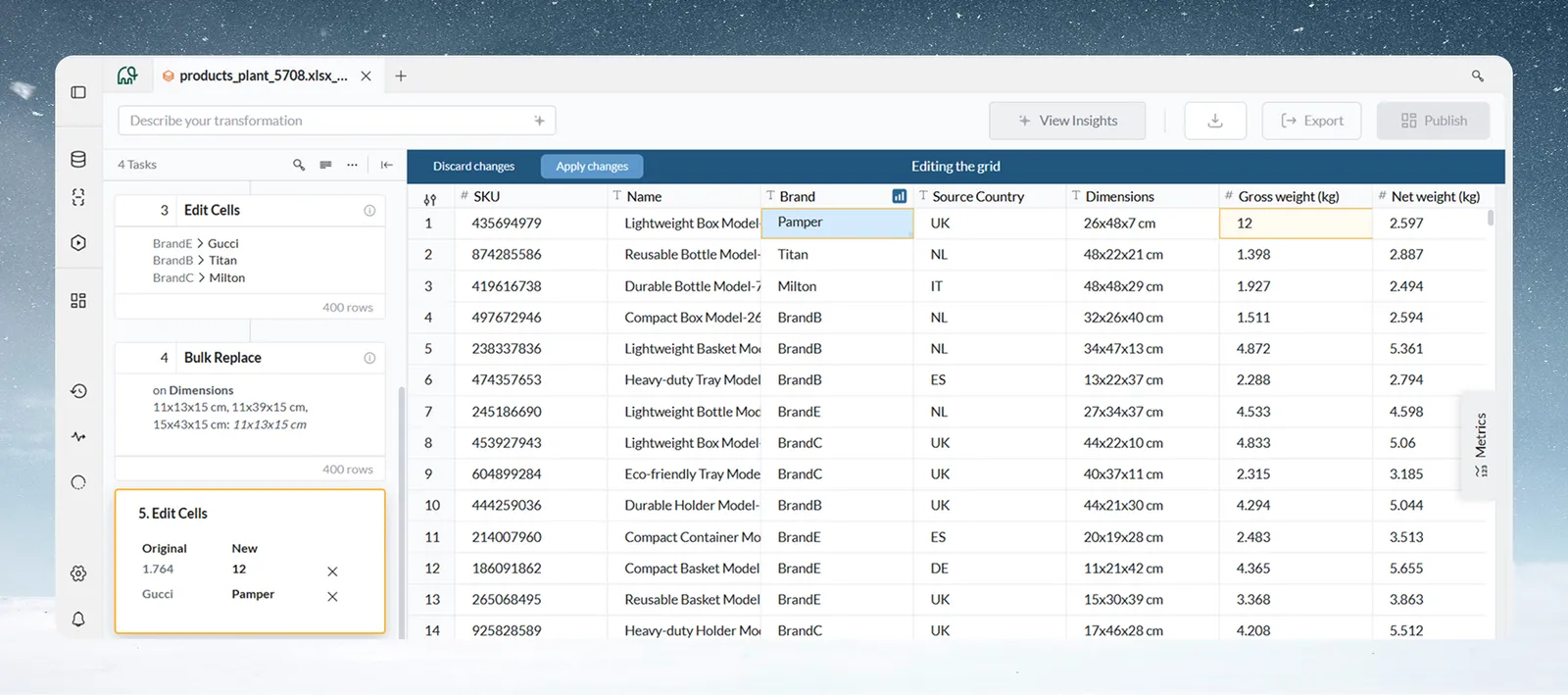
Edit cells and save them as a task
- Choose Edit Cells in the Transform menu, or double-click a cell. If cell editing is off for the dataset, a dialog asks you to turn it on first (see below).
- The View enters Editing the grid mode, with a blue bar at the top offering Discard changes and Apply changes.
- Double-click a cell and type the new value. Edited cells are highlighted.
- Check the task card in the Pipeline panel. It lists every edit as Original → New, each with an X to remove that change.
- Click Apply changes (or Add to Pipeline in Draft mode) to save all edits as one pipeline task, or Discard changes to cancel.
Edit Cells tasks can't be copied or duplicated.
Turn on cell editing for a dataset
Cell editing is a dataset setting and is off by default. It is meant for datasets under 500K rows.
From the dataset's settings in the Data Library:
- Open the dataset in the Data Library and go to its settings.
- Click the Cell editing switch (it shows On or Off).
- Mammoth asks "Turn on cell editing?" and notes that it "Re-runs this dataset's pipelines once, and stays on until every edit task is removed."
- Click Turn on.
From the data editor, double-click a cell, or choose Edit Cells. If editing is off, the Enable Cell Editing dialog opens. The same dialog opens from Cell editing (shown as Enabled or Disabled) on the dataset settings page that the settings icon at the start of the View tab bar opens. It notes that:
- Enabling cell editing will re-run the pipelines in the dataset.
- It will stay active, and you can disable it only if edit tasks are removed.
- It is recommended for smaller datasets (< 500K rows).
Click Enable Editing. While the pipeline re-runs, the blue bar at the top reads "Enabling cell editing while the pipeline re-runs". If it stops, the bar reads "Enabling cell editing did not finish", with a Try again button. When it's ready you see "Cell editing is now enabled. Double-click a cell to begin editing."
To turn it off, click the Cell editing switch again and confirm Turn off (on the dataset settings page, Disable Editing). This is "Only possible once no cells have been edited, or every edited cell has been removed." See Dataset settings and history.
Limits
| Limit | Value |
|---|---|
| Recommended dataset size for cell editing | Under 500K rows |
Troubleshooting cell edits
| Symptom | Cause | Fix |
|---|---|---|
| Double-clicking a cell opens Enable Cell Editing | Cell editing is off for the dataset | Click Enable Editing, or leave it off and use Label & Insert Values |
| Can't turn cell editing off | Some cells are still edited | Remove every edit (or the Edit Cells tasks), then turn it off |
Related
- Label rows, edit cells and fill blanks: set values by rule instead.
- Add, split, copy and delete columns: add an empty column to fill.
- Edit, reorder and copy pipeline tasks: review or remove an Edit Cells task.
Something wrong? support@mammoth.io