Import files from Google Cloud Storage into Mammoth
The Google Cloud Storage (GCS) connector opens a file from a bucket and saves it in Mammoth as a dataset. It signs in with a Google Cloud service account, with no OAuth popup. Open it from Data Library > New dataset > Connectors and search for Google Cloud Storage. Project Admins create the connection; Project Editors can start datasets from a connection the project already has. Which connectors you can add depends on your plan.
What you can bring in from Google Cloud Storage
Files in any bucket the service account can see, of these types: .txt, .csv, .tsv, .psv, .xls, .xlsx, .xlsm, .zip, .bz2, .gz, .tar, .7z, .parquet, .json.
A spreadsheet file opens to its tabs.
Before you connect Google Cloud Storage
You need:
- A GCS bucket with the files you want to import.
- A Google Cloud service account that can list buckets (the
storage.buckets.listpermission) and read the objects in your bucket. - The service account's JSON key file, downloaded to your computer.
Create a Google Cloud service account for GCS
- In Google Cloud Console, go to IAM & Admin → Service Accounts.
- Click Create Service Account and give it a name, for example
mammoth-gcs. - Grant a role that includes
storage.buckets.listand read access to the bucket's objects. - Under Keys, click Add Key → Create new key → JSON and download the file.
Connect Google Cloud Storage to Mammoth
- Go to the Data Library, click New dataset, and choose Connectors.
- Search for Google Cloud Storage and click its tile. The connector workspace opens with the Chat connecting Google Cloud Storage.
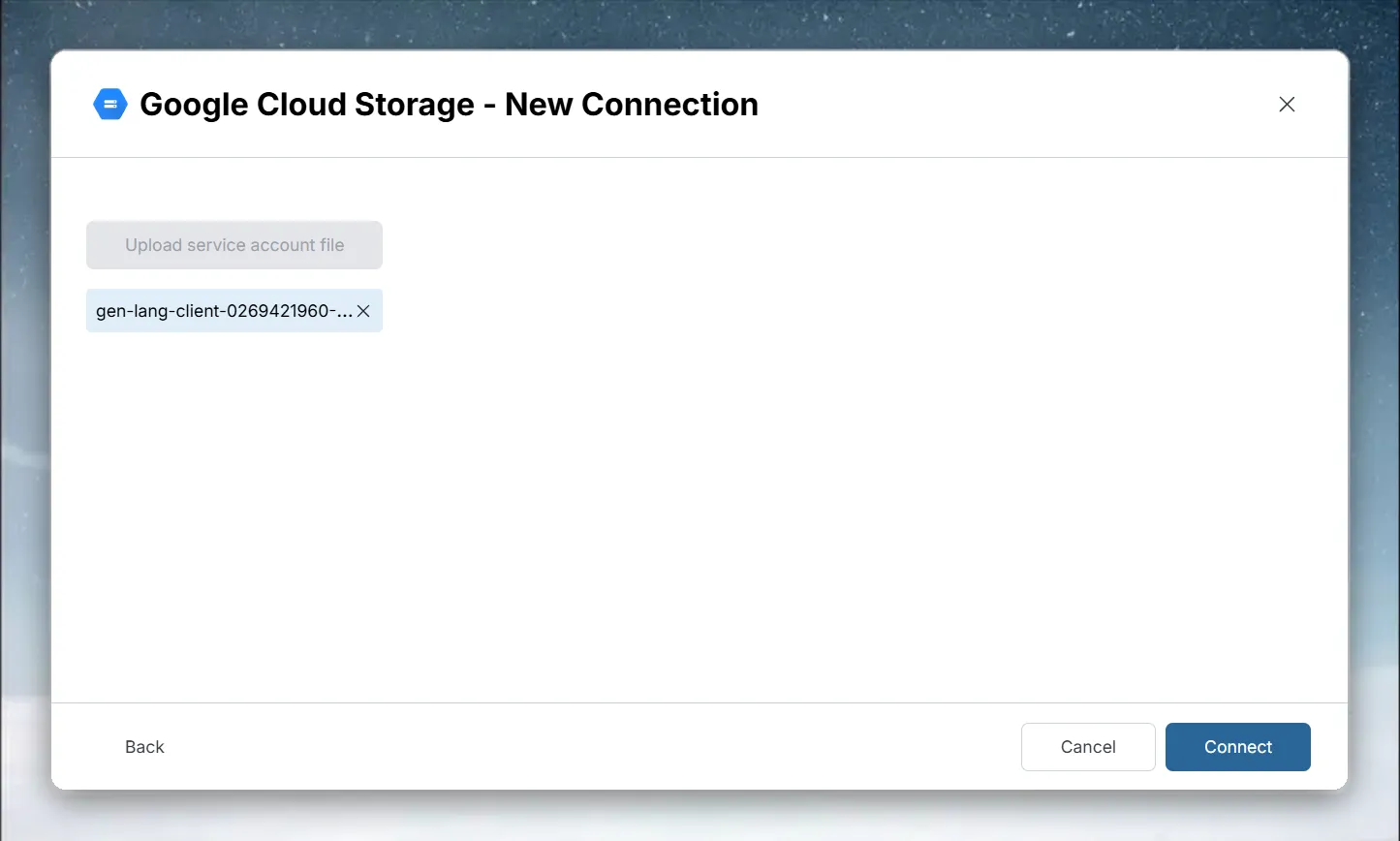
- Click Upload service account file, select the JSON key file, and connect.
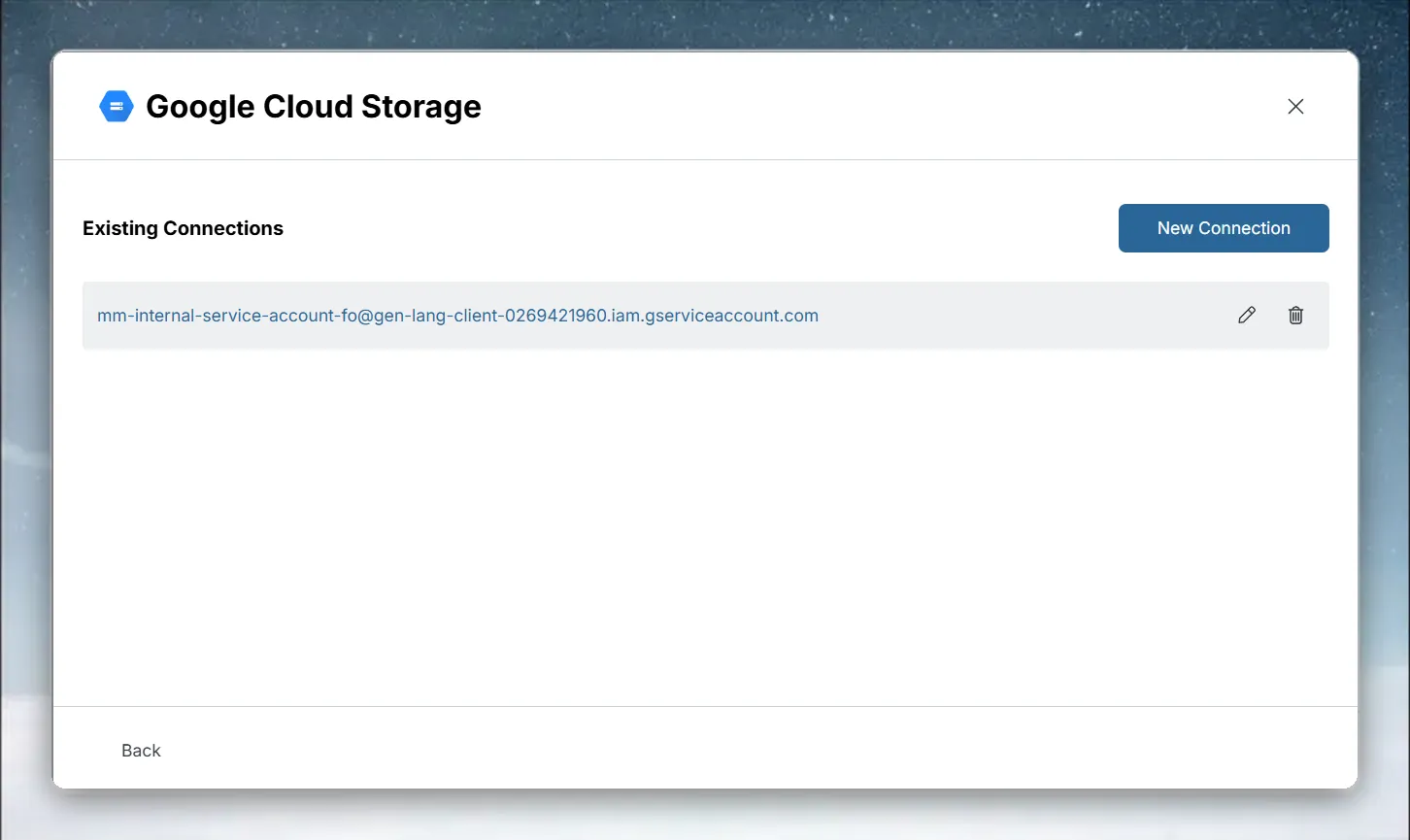
If you already have a GCS connection, pick it under Your connections in the launcher instead. See Connect a database or app for the shared steps.
Open a file from your GCS bucket
- In the left panel, open a bucket and browse to the file you want. A spreadsheet opens to its tabs.
- Tick the columns you want. They gather in Your table.
- If a file can't open in the panel yet, ask the agent in the Chat to import it.
Save a GCS file as a dataset
- Click Save as dataset.
- Enter a Dataset name and pick the folder under Save in.
- Click Save.
A dataset from a GCS file is saved once. Mammoth shows Saved once. Scheduled refresh for files is coming. A Dataset Refresh automation can't re-read GCS files.
Bring in new GCS files on a schedule
If your bucket receives new files regularly, such as daily exports named orders_2024-01-15.csv, use two automations:
- A File Collection automation collects new files from the bucket into Mammoth on a schedule. See What you can automate.
- A Data Consolidation automation adds the collected files to your dataset.
Future pulls mode in the older import dialog
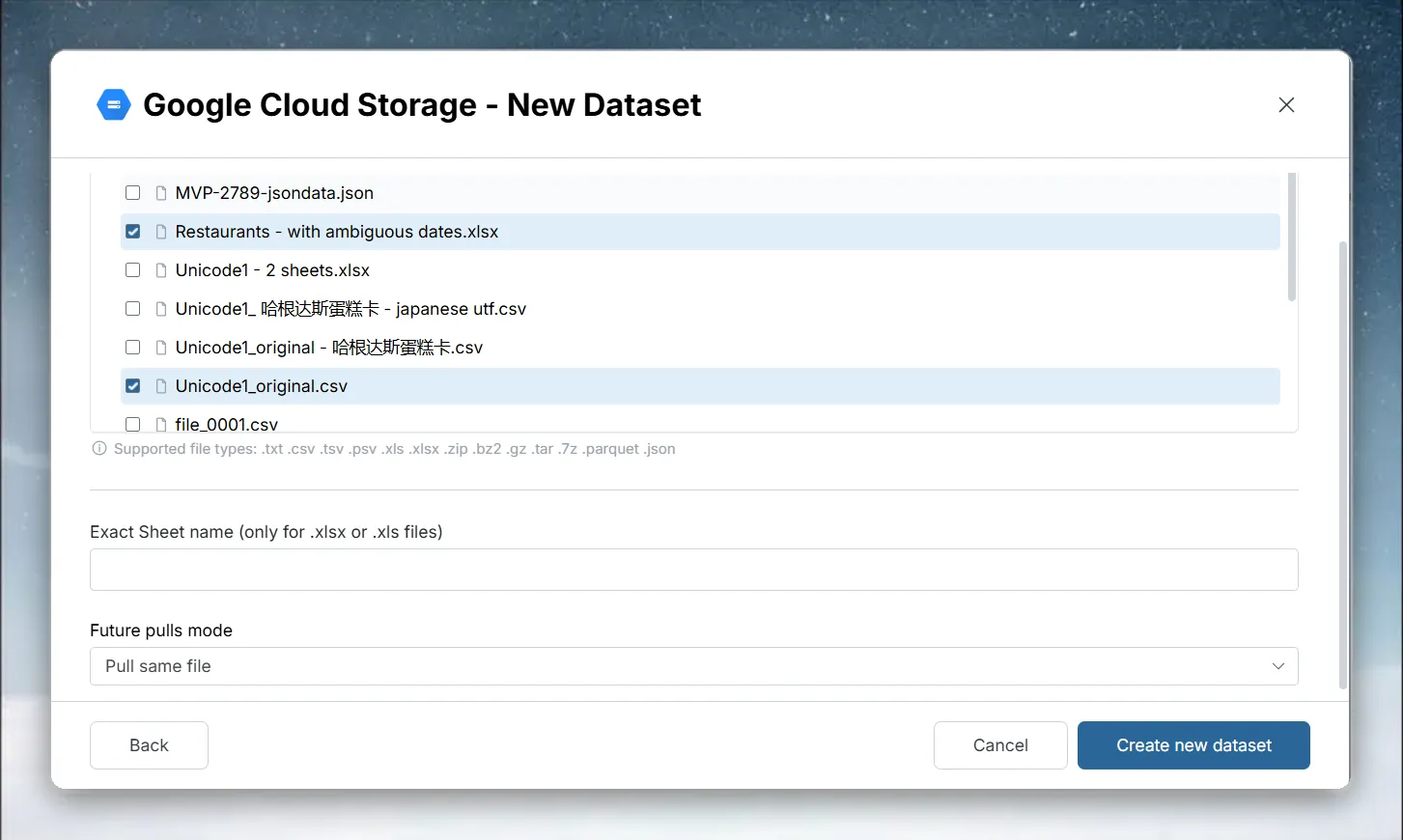
The older Google Cloud Storage - New Dataset dialog, which Mammoth still opens in some cases, shows a Future pulls mode list after you select a file:
| Option | What it does |
|---|---|
| Pull same file | Every refresh re-reads the file you selected |
| Pull next file based on name pattern | Available only when a single file is selected. Choose the Folder to pull from and enter a File pattern. |
In a file pattern, put a date format inside <>. For the file sftp_Tue-01-November-2022_daily.csv, the pattern is sftp_<dy>-<dd>-<mon>-<yyyy>_daily.csv.
- Supported date formats:
dd,mm,yyyy,yy,month,mon,day,dy,hh,miandss, in full lower case, upper case or capitalized. - The selected file name must contain at least one date format.
- The pattern must match the selected file name.
Troubleshoot Google Cloud Storage connections
| Symptom | Likely cause | Fix |
|---|---|---|
| "Permission denied" | The service account can't list buckets | Grant it a role that includes storage.buckets.list and access to the bucket's objects. Check permissions in GCS, then the bucket, then Permissions. |
| "Invalid service account file. Please upload a valid JSON key file." | The file isn't a service account JSON key | Download a new key from Keys in Google Cloud Console and upload it |
| "Authentication failed. Please verify your service account JSON file." | Google rejected the key | Confirm the key still exists and the service account is enabled |
| "No buckets found for this service account." | The service account can't see any bucket | Give it access to the bucket |
| "No supported files found in bucket" | The bucket is empty or holds only unsupported types | Add files of a supported type (see above) |
Related
- Google BigQuery: query warehouse tables with a service account.
- Connect a database or app: the shared connector workspace steps.
- What you can automate: set up a File Collection automation.
- Combine incoming data: add collected files to one dataset.
- Manage saved connections: reuse or remove this connection.
Something wrong? support@mammoth.io