Batches in Mammoth: see, suspend and fix what arrived
A batch is one load of data into a dataset: an uploaded file, a connector refresh or a consolidated file. Each batch keeps its name, date, row count and source, so you can see what arrived, take a batch out with Suspend, or remove it with Delete. Open the dataset's panel in the Data Library, then Settings & history, then Batches.
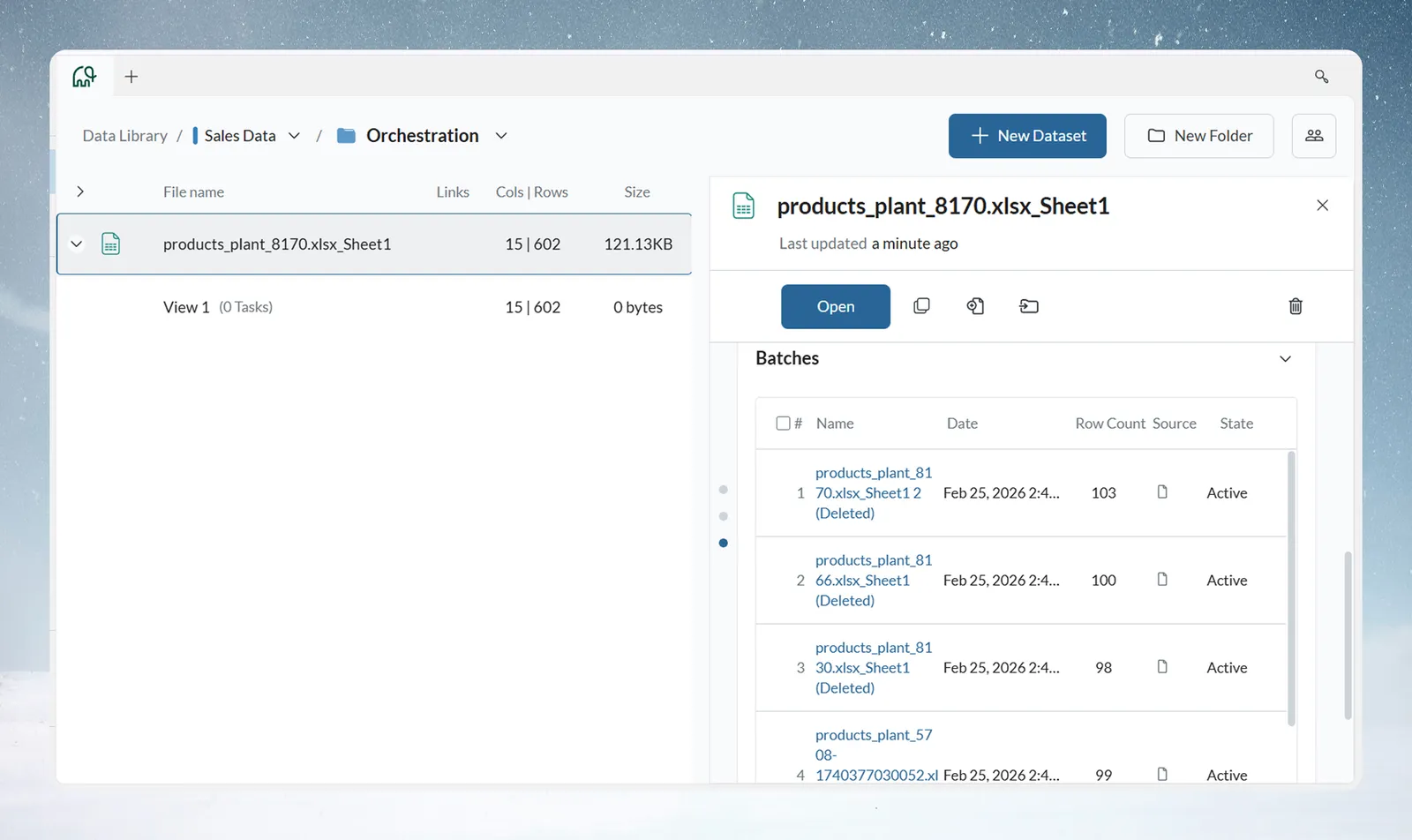
How batches make up a dataset
One dataset can hold many batches, each a separate source or time period. All batches in a dataset share the same columns, and Views show all batches combined by default. Pipeline steps apply to every batch.
Sales Dataset
├── April_Sales_North.csv (127 rows) - Batch 1
├── April_Sales_South.csv (143 rows) - Batch 2
└── June_Sales_Combined.csv (298 rows) - Batch 3
    Total Dataset: 568 rows across 3 batches
Batches give you:
- An audit trail: what data came from where and when, for compliance, debugging and trust.
- Versions: roll back, compare versions or follow how data changed, without separate backups.
- Flexible analysis: look at one batch, compare batches, or analyze by source while keeping one dataset.
Where batches come from
Batches are created for you; there is nothing to manage by hand.
| Source | What it adds |
|---|---|
| File upload or Add data | One batch per file, named after the file, with the time captured |
| Data Consolidation automation | One batch per source file, named from the file name |
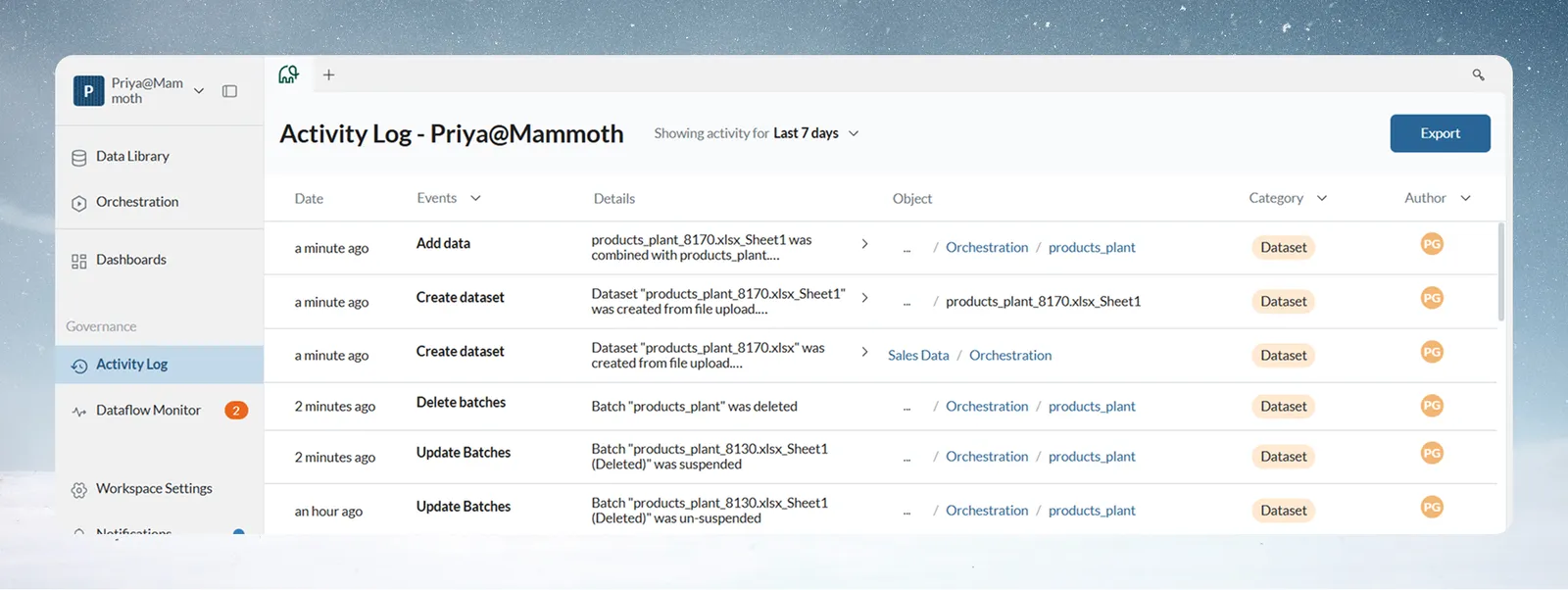
| Dataset Refresh | In Combine mode, a new batch per refresh, keeping history. In Replace mode, the previous batches are deleted and one new batch is added. The Activity Log keeps the lineage. |
Combine or replace: how new data joins old data
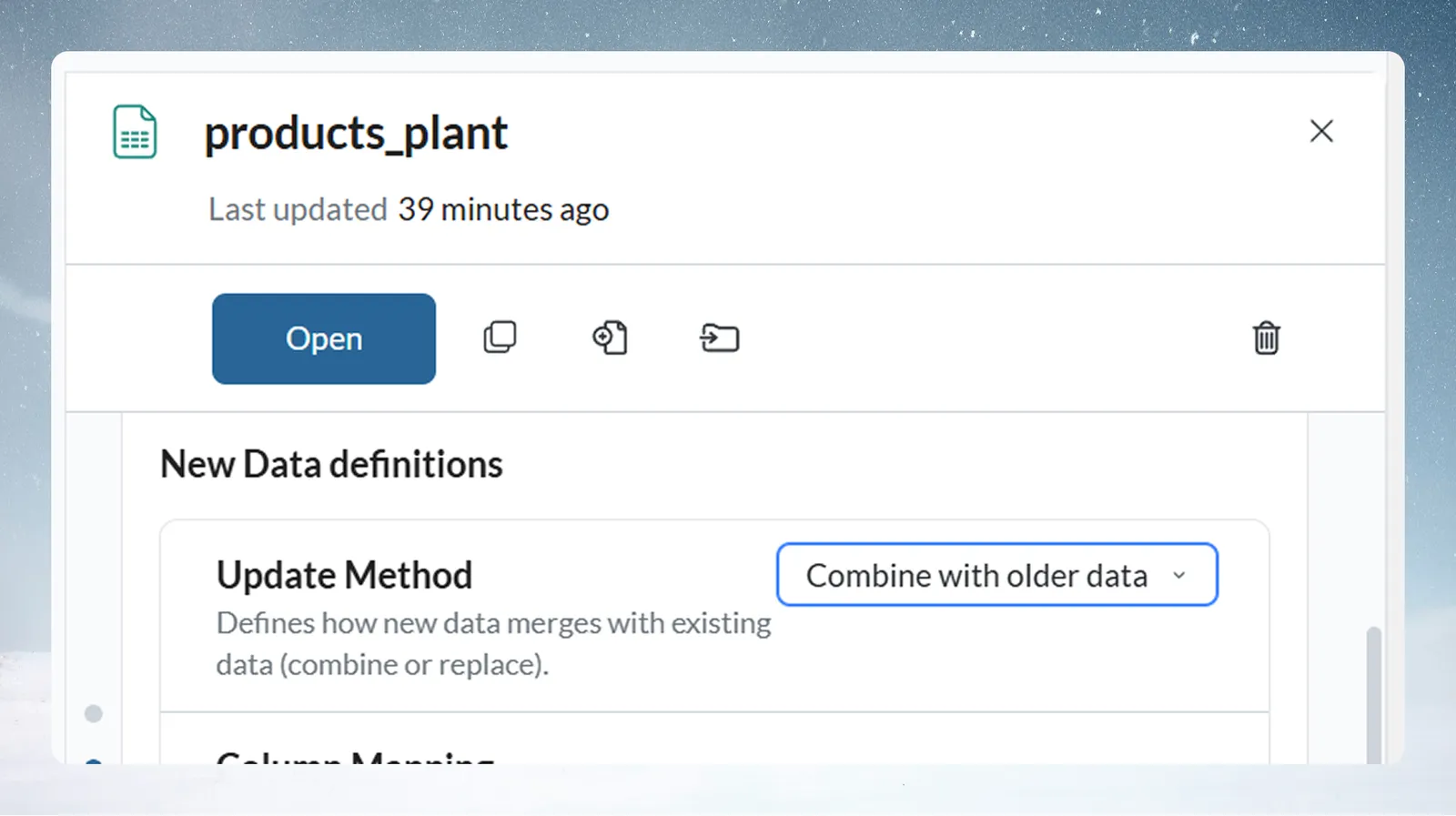
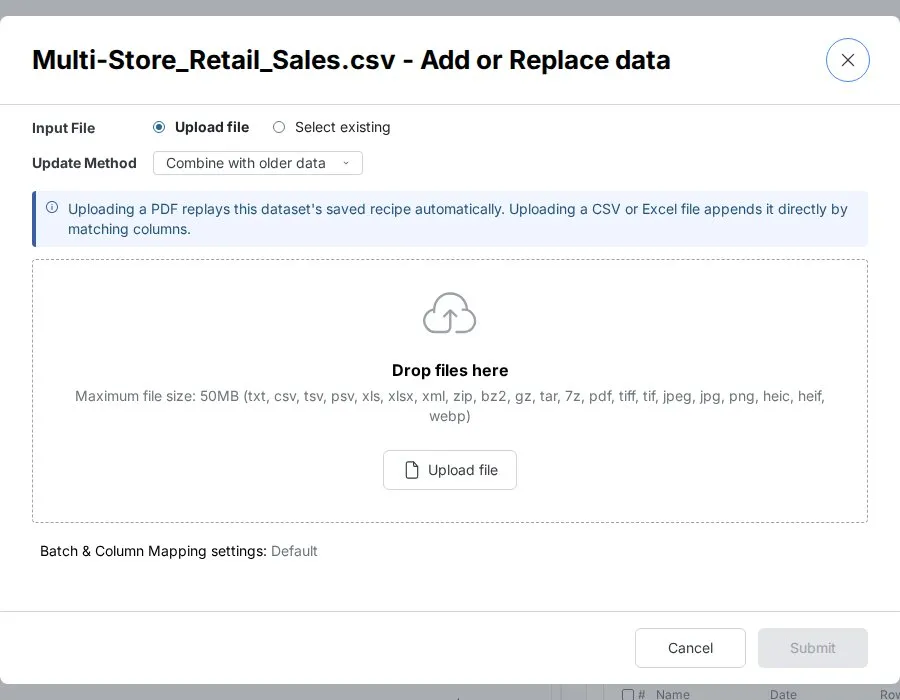
The most important batch decision is how new data joins existing data. It is the dataset's Update method, set in the Add data dialog or the dataset's settings.
Combine: add a batch and keep history
New data becomes another batch next to the existing ones. The dataset grows with each addition and keeps the full history.
Initial State: April_Sales_Data.csv (127 rows)
Add in Combine Mode: June_Sales_Data.csv (127 rows)
Result: Dataset with 254 rows
  ├── Batch 1: April data (127 rows)
  └── Batch 2: June data (127 rows)
Use Combine for:
- historical datasets, such as monthly sales building up year over year;
- transaction files building a full financial history;
- regional files combining into one company view;
- audit and compliance needs that require full lineage.
Replace: swap old data for new
New data replaces the dataset's content. Previous batches are deleted, so the dataset stays a consistent size. If every previous batch was suspended, the new batch is created suspended.
Initial State: Yesterday_Inventory.csv (1,000 items)
Replace Mode: Today_Inventory.csv (1,050 items)
Result: Dataset with 1,050 rows
  └── Only today's data (previous data removed)
Use Replace for:
- current-state reporting, such as daily inventory snapshots;
- latest-only data, such as price lists, staff directories and status reports;
- correcting a wrong upload;
- keeping the dataset a fixed size, and real-time dashboards that need only the latest data.
Use Replace with care: previous data can't be recovered once replaced. Keep a copy of important history first.
Read the batch list
Open the dataset's panel, then Settings & history, then Batches.
| Field | What it shows |
|---|---|
| Name | The source file name or a custom name. Select it to preview the batch. |
| Date | The exact creation date and time |
| Row Count | Rows this batch contributes |
| Source | An icon for where the batch came from: a file upload, a database connector, or a Combine Dataset operation |
| State | Active, Suspended, or Pending Delete (waiting for approval under a retention policy) |
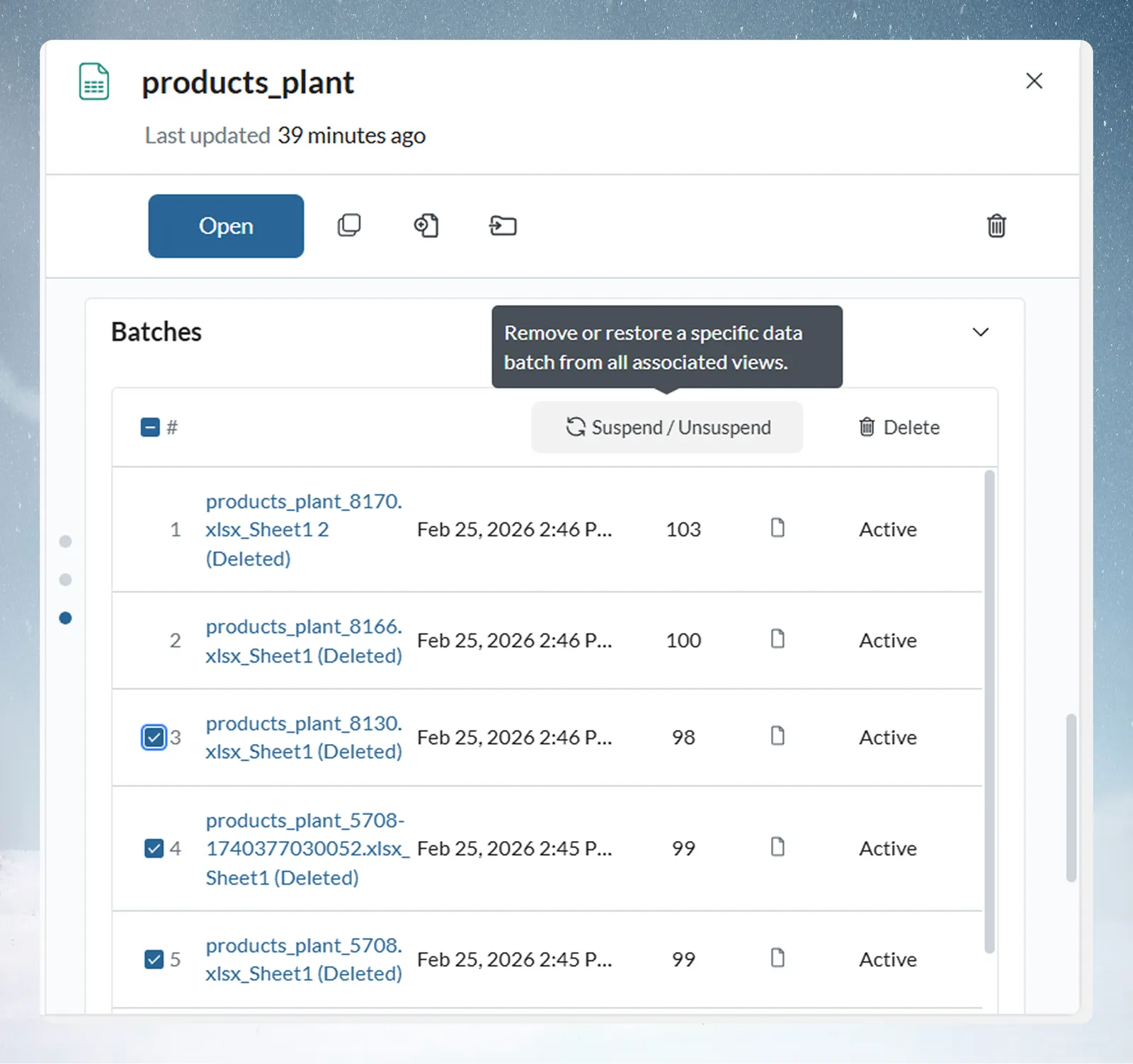
The list shows 10 batches per page. Use the previous and next arrows to move between pages.
Actions on the list:
- Delete: permanently deletes the selected batches. This can't be undone.
- Suspend / Unsuspend: takes batches out of use, or brings them back, without deleting them.
- Add data: a button below the batch list (file-based datasets only) that opens the Add data dialog.
Suspend a batch or delete it
Suspend removes a batch from Views and pipeline runs straight away, but keeps all its data and details. Select it again and choose Suspend / Unsuspend to bring it back. Use it to test the impact of a batch, quarantine bad data, leave out a season, or prepare a rollback before a permanent removal.
Delete removes a batch permanently and asks you to confirm ("Are you sure you want to delete the selected batches?"). Use it only when the data is no longer needed for analysis or compliance. A retention policy can also delete batches for you.
| Property | Suspend | Delete |
|---|---|---|
| Data kept | Yes | No |
| Details kept | Yes | Yes |
| Recovery | Instant, with one click | Not recoverable in the app. Batches removed by a retention policy are also permanent; their details stay in the Activity Log |
| Best use | Temporary exclusion, testing | Permanent exclusion |
Resolve a pending batch
After you add a file, its batch reads Applying recipe while Mammoth structures it, or Pending when it needs your input: a column mapping, a sheet selection or a file password. Applying recipe needs nothing from you: "This batch is messy data being automatically structured using your saved recipe." No action is needed, and it finishes shortly.
Select a pending batch to open its settings, titled with the file name, such as Settings - June_Sales_Combined.csv. A batch whose columns don't line up with the dataset is marked "Schema mismatch: column mapping required". The settings have two tabs:
| Tab | What it does |
|---|---|
| Column Mapping | Matches each Incoming column to a Destination column. The header says how many matched (for example, "9 of 11 columns matched by name.") and how many need you. Columns are split into Mapped and Unmapped. A suggestion names the column, such as Looks like Region, with why (same words, or same words, same type). Use Unmap to undo a match, or Ignore this column to leave a column out. |
| Data | How the file was read: Delimiter, Column headers, Initial rows to skip and the date format, plus any rows that didn't fit, with Discard all and Restore all |
Ignoring a column tells you what it costs, for example "Store ID will not be added" for an incoming column, or "Region will be empty for these rows. Existing rows keep theirs." for a destination column. If nothing lines up, Mammoth warns that the file was probably sent to the wrong dataset.
When other pending files have the same columns, tick Also apply to the other files (for example, Also apply to 2 other files with these columns) to add them all with this mapping. Click Apply changes. Mammoth saves the mapping so files like this go in on their own next time ("Saved to How new files are added. Files like this will go in from now on.").
Add the batch name, date or ID as columns
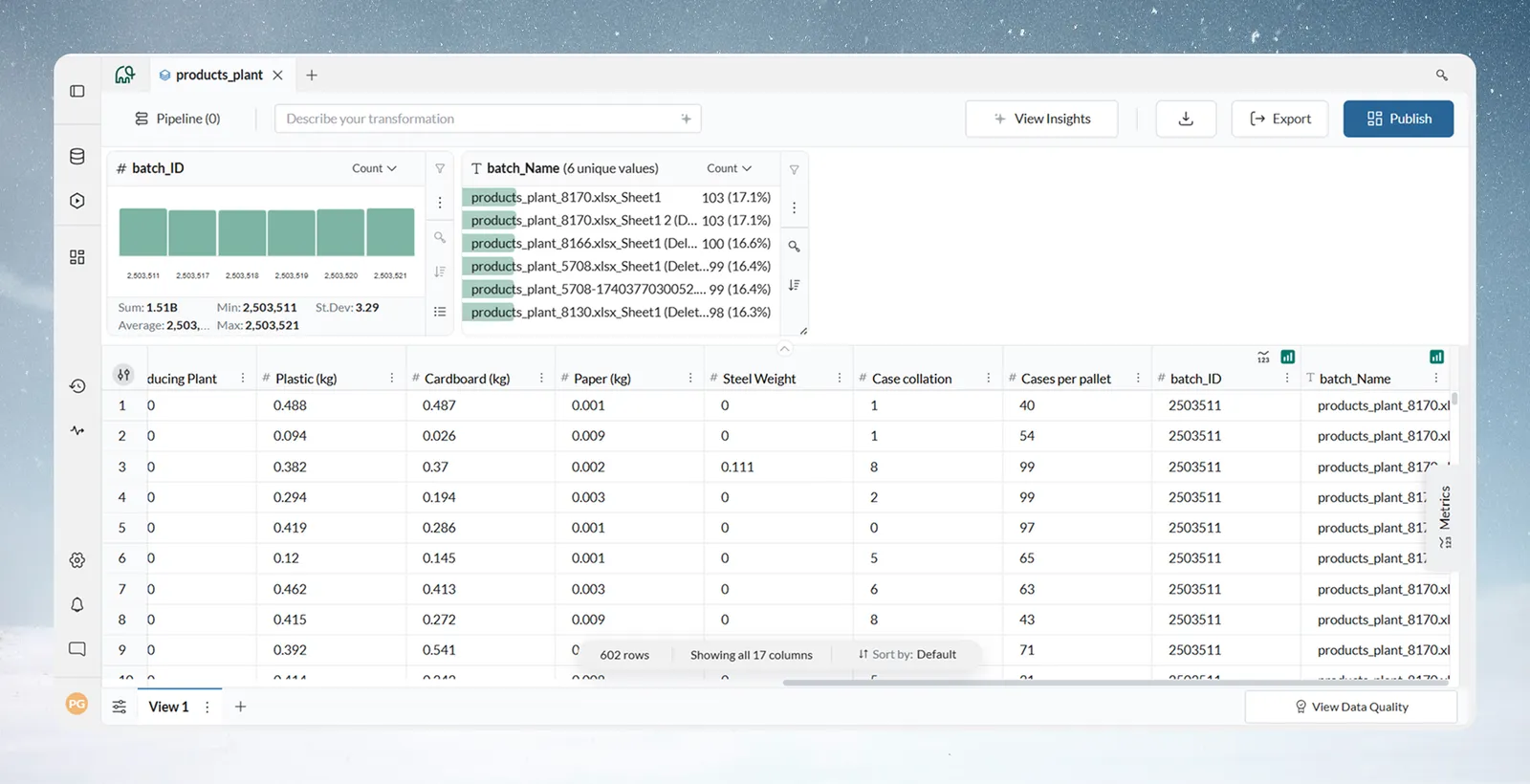
Batch details can become ordinary columns, so you can filter, group and analyze by batch in every View. This helps when you need to know which batch each row came from.
Open the batch info panel
You can reach it from four places:
- Data Library: open the dataset's panel, then Settings & history, then Batches. Below the batch list, select Add Batch Info to Dataset.
- Column Manager in the data editor: open the dataset's View and launch the Column Manager from the action bar at the left edge of the data grid. Click Add batch info. This opens the field selection only, not the batch list.
- Pipeline Source card: at the top of the pipeline panel, the Source step shows your file or connection. Click the ⓘ info icon on the right of the Source card to open a Batches window with the same batch list, Suspend / Unsuspend, Delete and Add Batch Info to Dataset. The icon is disabled until the dataset has been saved.
- Manage dataset settings: in the View tab bar at the bottom of the data editor, click Manage dataset settings. This opens the same dataset settings as the Data Library panel; select Batches.
Choose the batch fields
The same selection panel appears from every entry point. Choose one or more fields:
- Batch ID
- Date
- Source (JSON)
- Name
- Row Count
Fields already added are ticked; clear one to remove its column. Click Submit. Each added column is prefixed with batch_ (for example, batch_Name) and applies to all Views of the dataset, not only the current one.
Filter and compare data by batch
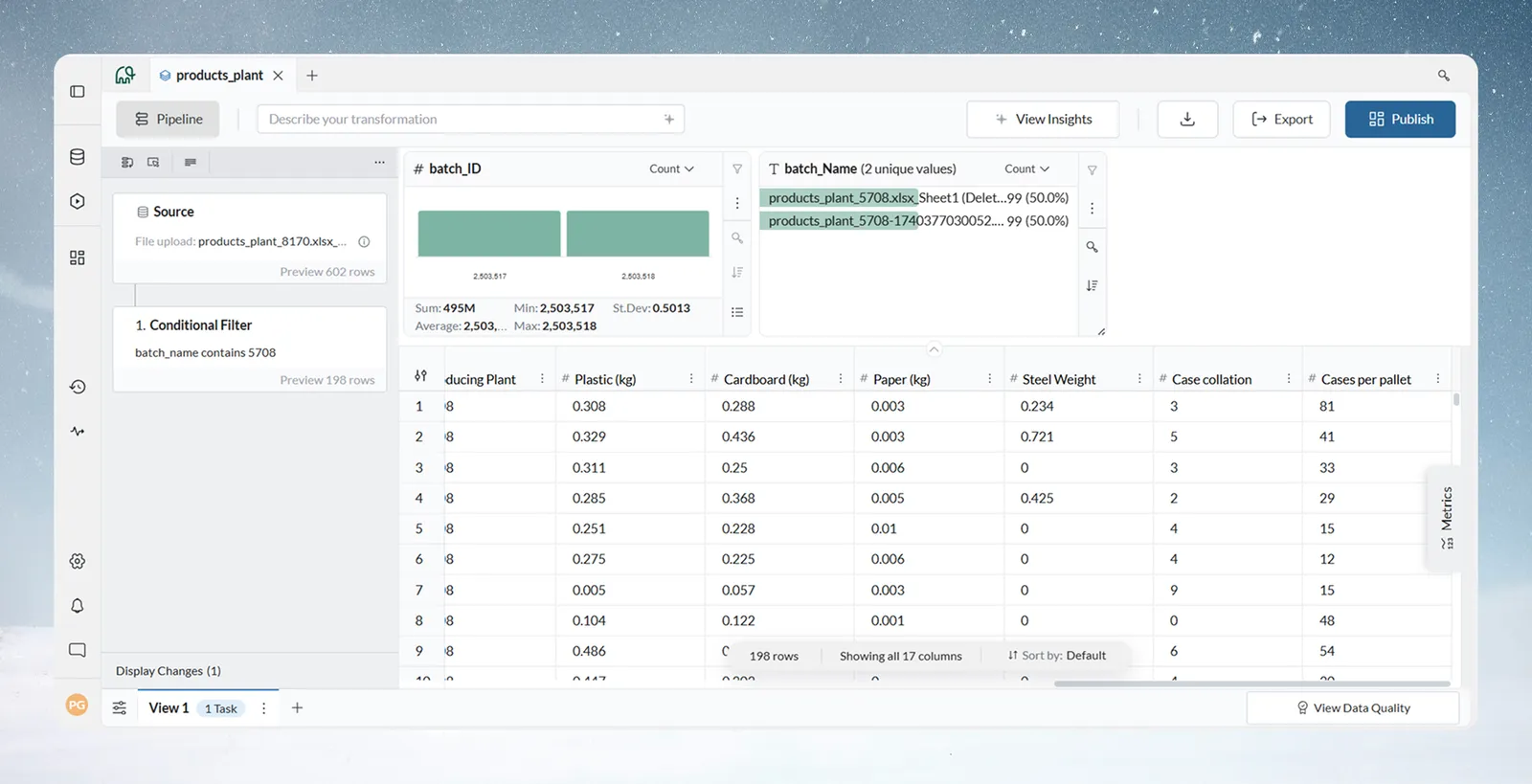
Once batch columns exist, use a Conditional Filter in the pipeline to isolate or compare batches (see Filter rows):
Filter: batch_name CONTAINS "2024_Q1"
Result: Shows only Q1 2024 data from combined dataset
Filter: batch_name IN ("Store_001", "Store_002", "Store_003")
Result: Analysis limited to specific store locations
Filter: batch_name NOT LIKE "test%"
Result: Removes all batches with names starting with "test"
Filter: batch_date >= DATEADD(month, -3, TODAY())
Result: Last 3 months of batches only
Tag batches with business labels
When batch names hold a region, period or vendor, make a cleaner column for grouping:
- Add the batch_name column.
- Create a "Period" or "Region" column with Label & Insert.
- Tag batches with labels such as "Q1", "Q2" or "North".
- Filter and group by those labels.
- Build period-over-period or region-over-region reports.
Common patterns with batches
| Pattern | How it works |
|---|---|
| Store comparison | One batch per store. Add batch_name, then Group & Aggregate by batch to compare stores. A dashboard drills down by region to each store. |
| Vendor quality scoring | One batch per vendor. Calculate error rate and completeness per batch. Suspend low-quality batches for clean-up, then unsuspend them. |
| Time-series trends | Monthly batches over several years. Window functions calculate rolling averages and period-over-period changes. |
| A/B tests | Control and treatment batches share a dataset. Suspend the control batches to isolate the treatment, then unsuspend or delete them. The Activity Log keeps the history. |
| 24-month rolling report | Add one month per cycle in Combine mode, with a count-based retention policy removing the oldest batches. |
| Multi-shift quality data | Three batches a day, tagged by shift, with separate Views for daily and per-shift analysis. |
| Multi-property revenue | A Data Consolidation automation adds a batch per property per day; batch_name identifies the property, and the pipeline calculates portfolio KPIs. |
How batches work with automations
| Automation | What it does with batches |
|---|---|
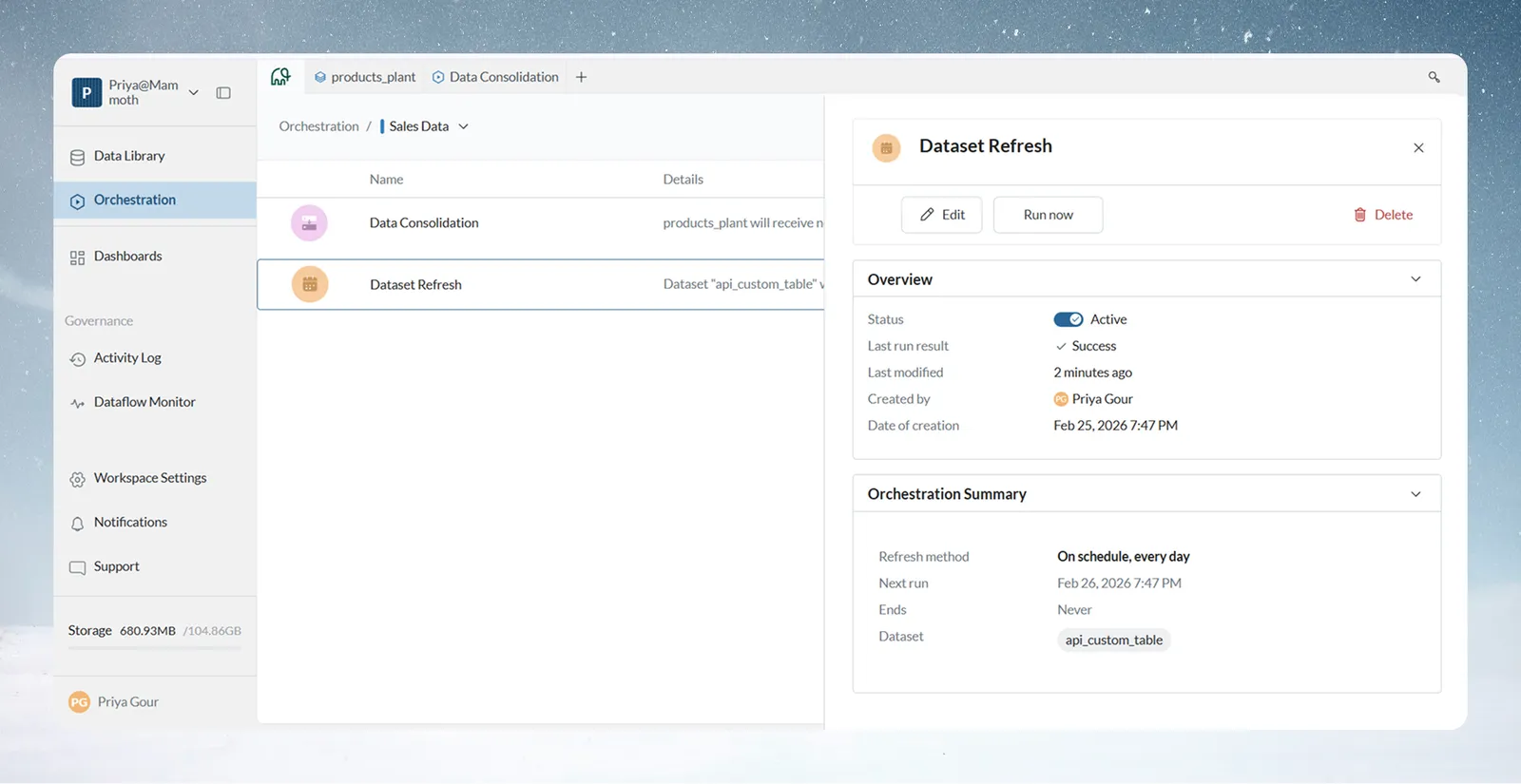
| Dataset Refresh | Pulls the latest data from a connector on a schedule (daily, weekly or monthly). Each run follows the dataset's mode: Replace deletes the previous batches (only their details stay in the Activity Log); Combine adds a new batch. |
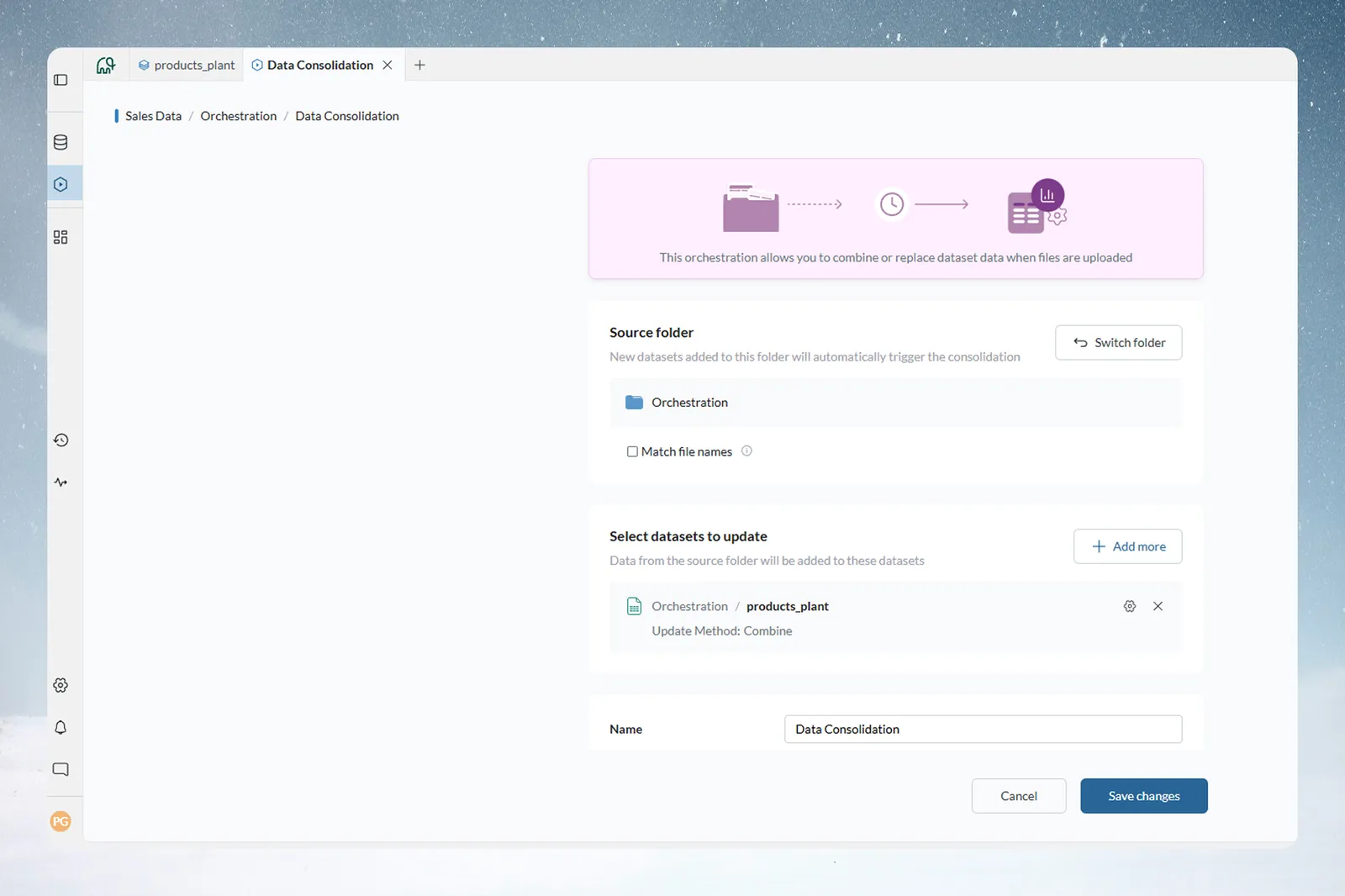
| Data Consolidation | Adds new files from a monitored Data Library folder to a dataset as they arrive. Each file becomes its own batch, named from the file name, after a schema check. |
To set up Dataset Refresh: go to Automations, then Dataset Refresh; select the dataset(s) with a live connection; set the schedule (frequency, weekday, start and end date); and for several datasets choose Sequential or Parallel. Sequential lets you drag to set the order.
To set up Data Consolidation: go to Automations, then Data Consolidation; select a source folder to monitor (a folder in your Mammoth Data Library, not an external folder); select the destination dataset (optionally filtered by file name pattern); then review and save. Combine or Replace is not chosen here. It is the destination dataset's Update method, which you can change at any time.
When a file lands in the folder, Mammoth checks its columns against the destination, adds it as a new batch per the dataset's Combine or Replace setting, runs the pipeline, and delivers exports to their destinations.
The Activity Log records every batch operation, manual or automated: additions, suspend and unsuspend, deletions and data retention runs. See Activity log.
Views that don't update after a new batch
Auto-sync is a setting on each View's incoming link. When it is off, the View is not rerun when its dataset gets a new batch, and the new data stays pending. A warning triangle (⚠) with "Data may be inconsistent" appears in the dataset's Views list. Monitor's Needs Attention tab shows "new batch received, auto-sync off" with Preview and Process buttons. See Views: create, rename and delete and Activity log.
Keep batches easy to work with
- Use Replace for latest-only data, so batches don't pile up.
- Set up a retention policy to delete or suspend old batches by age, count or condition.
- Name files before upload, because batch names come from file names.
Sales_North_Region_Q2_2024.csvis descriptive and sortable;data_export_final_v3.csvhas no context or date. A pattern such asLocation_YYYY_MM_DD.csvmakes batches easy to filter by place or date. - Apply a Conditional Filter early in pipelines on large datasets to reduce processing.
Limits
| Limit | Value |
|---|---|
| Batch size from a file upload | Up to 50 MB per file (see Limits and quotas) |
| Batches per page in the list | 10 |
Troubleshooting batches
| Symptom | Cause | Fix |
|---|---|---|
| Columns don't line up when combining ("Schema mismatch: column mapping required") | Column names differ (case and spacing count), types are incompatible, or columns are missing | Check names exactly, map columns in the pending batch's Column Mapping tab, and use the same export template for every source |
| Unexpected row counts | Combine or Replace wasn't what you expected, or batches duplicate each other | Check the dataset's update method and each batch's row count |
| A batch isn't in the analysis | It is suspended, or transformations didn't rerun | Check it shows Active, and that the pipeline reran after the batch was added |
| Historical data is missing after adding a batch | Replace was selected (can't be undone), batches were suspended, or a retention policy removed them | Check suspended batches and the retention policy, and review the Activity Log for removals |
| Data doesn't look updated after Replace | Your browser shows an old copy | Hard-refresh (Ctrl+Shift+R on Windows, Cmd+Shift+R on Mac) and check the Activity Log shows the Replace completed |
| A suspended batch still shows in a View | The status hasn't refreshed | Check the batch shows as suspended, close and reopen the dataset, and clear cached pipeline results. If it still appears, contact support. |
| Data Consolidation doesn't combine files | The file landed in the wrong place, failed the schema check, or the automation didn't run. A file with different columns is added as a separate file. | Check the Activity Log for the run, confirm the file went to the right folder, review schema errors, and try a manual Combine with the same files. Standardize file formats and check the automation's schedule and trigger. |
Related
- Add or replace data in a dataset: add a batch from a file or another dataset.
- Keep fewer batches with a retention policy: delete or suspend old batches on a rule.
- Combine incoming data: add new files as batches automatically.
- Refresh a dataset: scheduled refreshes that add or replace batches.
- Dataset settings and history: update method and other dataset settings.
Something wrong? support@mammoth.io