Import data from any REST API into Mammoth
The REST API connector brings data from any REST API into Mammoth. You describe the data you want, and Mammoth's agent reads the API's documentation, connects with your key and lists the endpoints it can read; you pick the columns and save them as a dataset. Start it from Data Library > New dataset > Connectors. Use it for SaaS tools without a built-in connector, internal services and public APIs. Project Admins create the connection; Project Editors can start datasets from a connection the project already has.
What you can bring in from a REST API
- Records from any endpoint your key can read, with nested JSON flattened into columns.
- Data from several hundred known API sources the launcher lists by category, including APIs and Education. Each is built the same way.
- Data from an API Mammoth doesn't list, from its name or URL.
The dataset can refresh daily or only when you ask.
Before you connect a REST API
You need:
- The name or base URL of the API, for example
https://api.example.com. - Credentials, if the API requires them: an API key, a bearer token, a username and password, or an OAuth 2.0 app's client ID and secret.
Start a REST API connector with the agent
- In the Data Library, click New dataset, then choose Connectors.
- Start the connector in one of these ways:
- Click APIs in the left menu and pick the service, if it's listed.
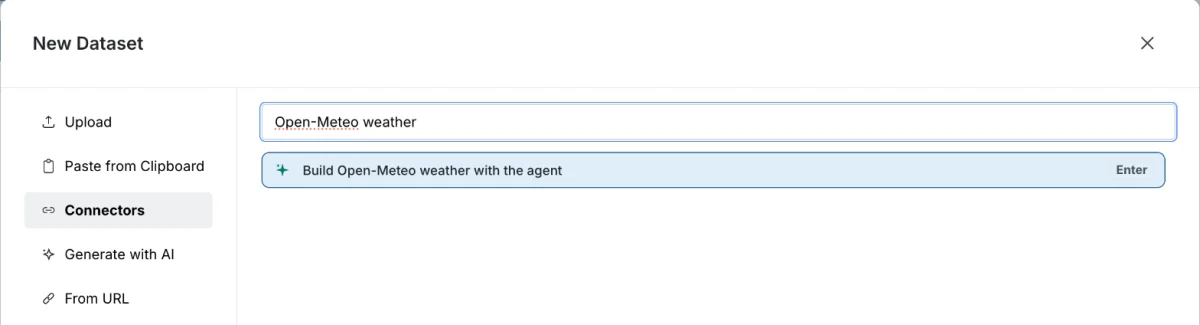
- Type the service name or what you need (for example, "open GitHub issues for our repo") and pick the Build ... with the agent result, such as Build Open-Meteo weather with the agent.
- Paste the API's URL and pick It's an API: build it with the agent.
- The connector workspace opens with the chat. See Connect a database or app for the shared steps.
Connect to the API in the chat
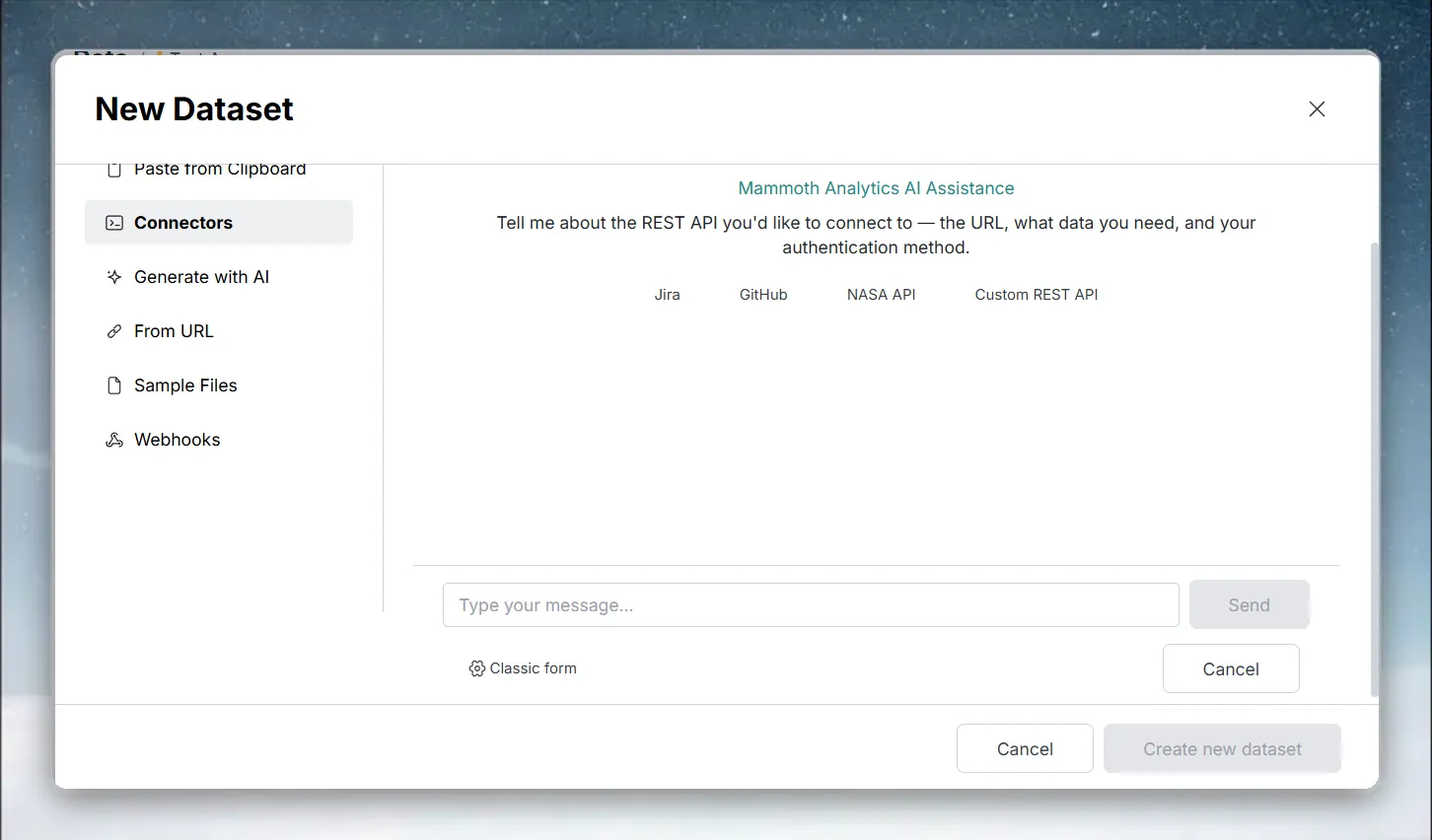
- In the chat, describe what you want in the table, or answer the agent's questions about the API.
- When the agent needs a key, it shows a card that asks for it. Fill it in and connect. For an API that uses an OAuth sign-in, the card has a button that takes you to the provider to approve access.
- The agent tests the key and shows what it can see.
Pick API endpoints and columns
- The Tables list fills with the API's endpoints as the agent finds them. Each shows whether Mammoth could read it, for example Returned rows or 403: this key can't read it.
- Click an endpoint to see its columns and sample rows, and tick the columns you want. They gather in Your table.
- Ask the chat for anything missing, for example a field from another endpoint.
- Click Preview 100 rows to check the result.
Save REST API data as a dataset
- Click Save as dataset.
- Enter a Dataset name and choose a folder under Save in.
- Under Keep it up to date, choose Daily or Manual.
- Click Save.
Connect a database or app explains what happens while it saves. Choosing Daily creates a Dataset Refresh automation.
Reference: the classic REST API form
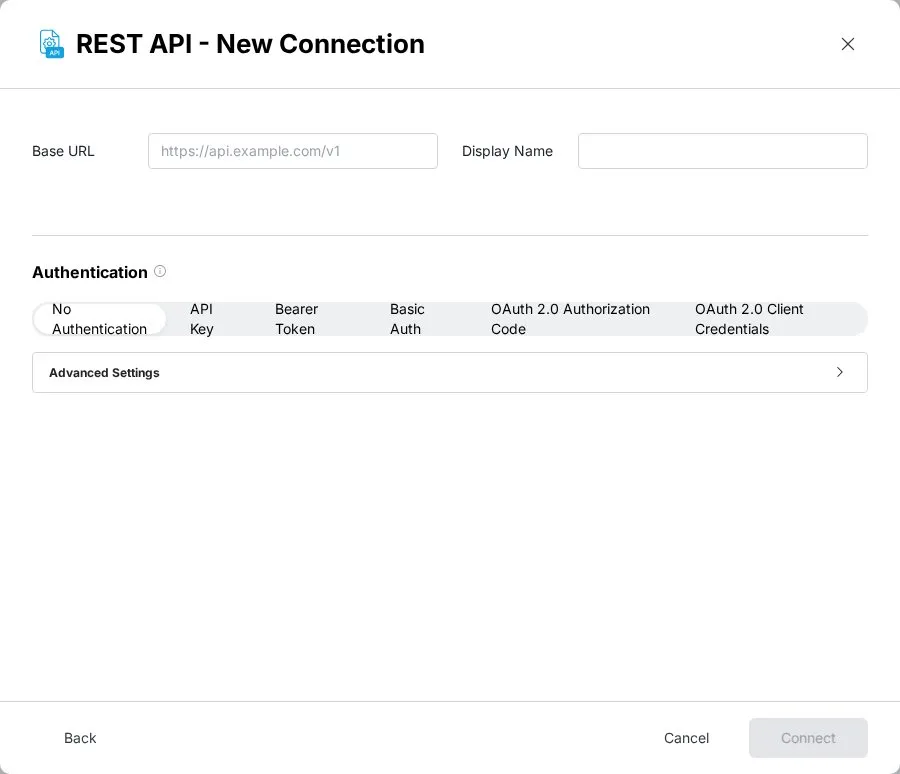
The field-based REST API - New Connection form belongs to the older connector dialog. New connectors are built in the connector workspace, so you only meet this form where the older dialog still opens. For example, after returning from some sign-ins, Classic form switches the older AI chat to it. The settings below explain each field.
Basic settings
| Field | What it does | Example |
|---|---|---|
| Base URL | The root URL for all requests; endpoint paths are added to it | https://api.example.com/v2 |
| Display Name | A label for this connection. Defaults to the Base URL if left blank | Example API |
Choose an API authentication type
| Auth type | When to use it | Fields required |
|---|---|---|
| No Authentication | Public APIs with no sign-in | None |
| API Key | APIs that accept a key in a header or query parameter | Key Name and Key Value (Param Name and Param Value for a query parameter); choose Header or Query Parameter |
| Bearer Token | APIs that use Authorization: Bearer <token> | Bearer Token |
| Basic Auth | APIs that use HTTP Basic authentication | Username and Password |
| OAuth 2.0 Authorization Code | APIs that need a full OAuth 2.0 login | Client ID, Client Secret, Authorization URL, Token URL, and optional Scopes |
| OAuth 2.0 Client Credentials | Server-to-server APIs that issue a client ID and secret | Client ID, Client Secret, Token URL, and optional Scopes |
API key placement:
- Header sends the key as a request header, for example
X-API-Key: your-key-here. - Query Parameter adds the key to the URL, for example
?api_key=your-key-here.
OAuth 2.0 Authorization Code adds three fields under Advanced Settings:
- Redirect URI: defaults to
https://redirect.mammoth.io/redirect/oauth2if left blank. - Client Auth Method: Client Secret POST or Client Secret Basic.
- Use PKCE (Proof Key for Code Exchange): a toggle for providers that require or support PKCE.
With this auth type, clicking Connect sends you to the provider's login page in the same browser tab, not straight to saving. OAuth 2.0 Client Credentials has no browser sign-in: Mammoth requests the access token from the Token URL.
Advanced settings
Expand Advanced Settings to set:
| Setting | What it does | Default |
|---|---|---|
| Timeout (sec) | How long Mammoth waits for a response before timing out | 30 |
| Rate Limit (req/s) | The most requests per second to send, to stay under API rate limits | Unlimited |
| Verify SSL Certificate | Checks the server's SSL certificate | On |
Click Connect to save the connection, or to start the OAuth redirect for OAuth 2.0 Authorization Code. If saving fails, the error appears at the bottom of the dialog.
Configure the endpoint
In the classic form, the Endpoint Configuration screen sets the endpoint to import from.
| Field | What it does | Example |
|---|---|---|
| Endpoint Path | The path added to your base URL | /users or /reports/daily |
| HTTP Method | The request method | GET (default) or POST |
| Request Body | JSON body for POST requests | {"start": "2024-01-01"} |
As you type the endpoint path, a callout shows the full URL (base URL plus endpoint path).
Set the data root path
The Data Root Path tells Mammoth where the array of records sits in the JSON response. Most APIs wrap their data in an outer object.
| Response structure | Data Root Path |
|---|---|
Top-level array: [{...}, {...}] | $ (default) |
Nested: {"data": [{...}, {...}]} | $.data |
Deeply nested: {"result": {"items": [...]}} | $.result.items |
After you test the endpoint, Mammoth suggests root paths from the real response. Click a suggestion to apply it.
The Flatten Nested JSON toggle (on by default) turns nested objects into flat columns with dot notation. For example, {"address": {"city": "NYC"}} becomes a column named address.city.
Set up API pagination
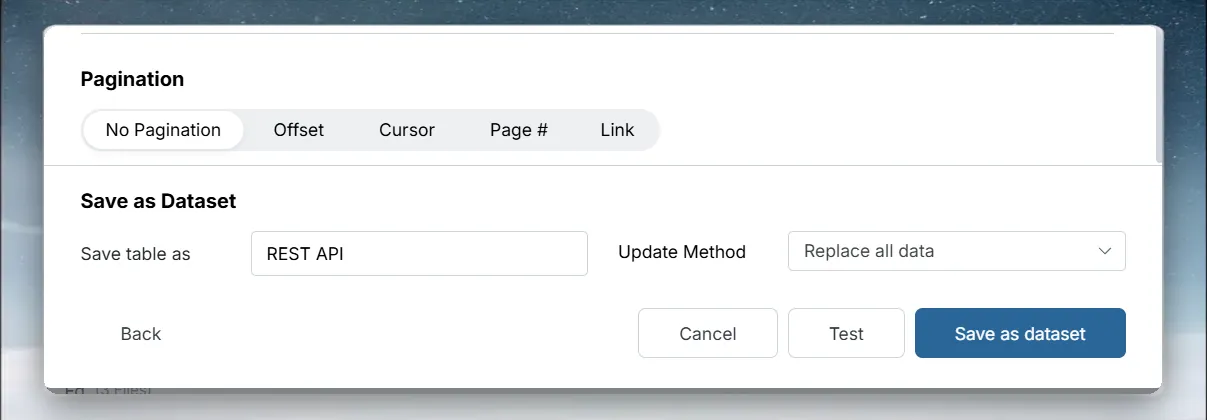
If the API returns data across several pages, set pagination so Mammoth fetches every record.
| Type | Use when | Required settings |
|---|---|---|
| No Pagination | The API returns all data in one response | None |
| Offset | The API uses limit and offset query parameters | Page Size (default 100) |
| Cursor | The API returns a cursor token for the next page | Cursor Path (where the next cursor sits in the response) |
| Page # | The API uses a page query parameter | Page Size (default 100) |
| Link | The API returns pagination links in the Link HTTP header (RFC 5988) | None |
Click Advanced options to set:
- Limit Param and Offset Param: for APIs with non-standard names, such as
countinstead oflimit. - Cursor Param: the query parameter name for the cursor value.
- Page Param: the query parameter name for the page number.
- Max Pages: stop after this many pages, which helps while testing. Leave it empty to fetch all pages.
Test and save in the classic form
- Click Test to run a sample request. Mammoth shows the HTTP status code, a success or error message, and Suggested data paths you can click to use as the Data Root Path.
- Name the dataset and choose its update method.
- Click Save as dataset.
REST API configuration examples
Public API with no authentication
Base URL:        https://api.open-meteo.com
Endpoint Path:   /v1/forecast?latitude=40.71&longitude=-74.01&hourly=temperature_2m
Data Root Path:  $.hourly
Pagination:      No Pagination
SaaS API with a bearer token and cursor pagination
Base URL:        https://api.example.com/v2
Auth:            Bearer: your-token-here
Endpoint Path:   /events
Data Root Path:  $.data
Pagination:      Cursor, cursor path: $.next_cursor
Internal API with an API key header and offset pagination
Base URL:        https://internal.mycompany.com/api
Auth:            API Key → Header → X-API-Key: secret-key
Endpoint Path:   /records
Data Root Path:  $.results
Pagination:      Offset, page size: 500
REST API defaults and limits
| Setting | Default |
|---|---|
| Timeout (sec) | 30 |
| Rate Limit (req/s) | Unlimited |
| Page Size (Offset and Page #) | 100 |
| Max Pages | Empty: fetch all pages |
Troubleshoot REST API connections
An endpoint shows 403 or 404 in the Tables list
Each endpoint in Tables shows what happened when Mammoth read it.
- 403: this key can't read it means your key has no access to that endpoint. Give the key access in the API's own settings, or ask the agent to try another endpoint.
- 404: not found means the address is wrong.
Click Refresh list. If an admin must grant access, click Copy a note for your admin.
An endpoint needs more information
A status such as Needs your repository name to read it means the endpoint needs a value, such as an ID, before it returns rows. Tell the agent in the chat, or answer its question.
Other REST API problems
| Symptom | Likely cause | Fix |
|---|---|---|
| Test returns 401 or 403 | Wrong auth type or credentials | Check the authentication type and credentials. For API Key, check whether the key goes in a Header or Query Parameter in the API's documentation. |
| The request times out | The API is slow, or not reachable from the internet | Increase Timeout (sec) in Advanced Settings. Check the Base URL is reachable; some internal APIs need a VPN or IP whitelisting. |
| Data root path not found | The path doesn't match the response | Use the suggested paths shown after a successful test, or check the raw JSON in the API documentation or a tool like Postman |
| Only part of the data is imported | Pagination parameter names don't match | Under Pagination, click Advanced options and match the parameter names. Set Max Pages to a small number, such as 5, to check pagination before a full import. |
| SSL certificate error | An internal API uses a self-signed certificate | Turn off Verify SSL Certificate in Advanced Settings |
Related
- Connect a database or app: the shared connector workspace steps.
- Receive data by webhook: let a system push data to Mammoth instead.
- Allow Mammoth through your firewall: open an internal API to Mammoth.
- Manage saved connections: reuse, edit or delete this connection.
- Refresh a dataset: change when the dataset refreshes.
Something wrong? support@mammoth.io