Set up projects in a new Mammoth workspace
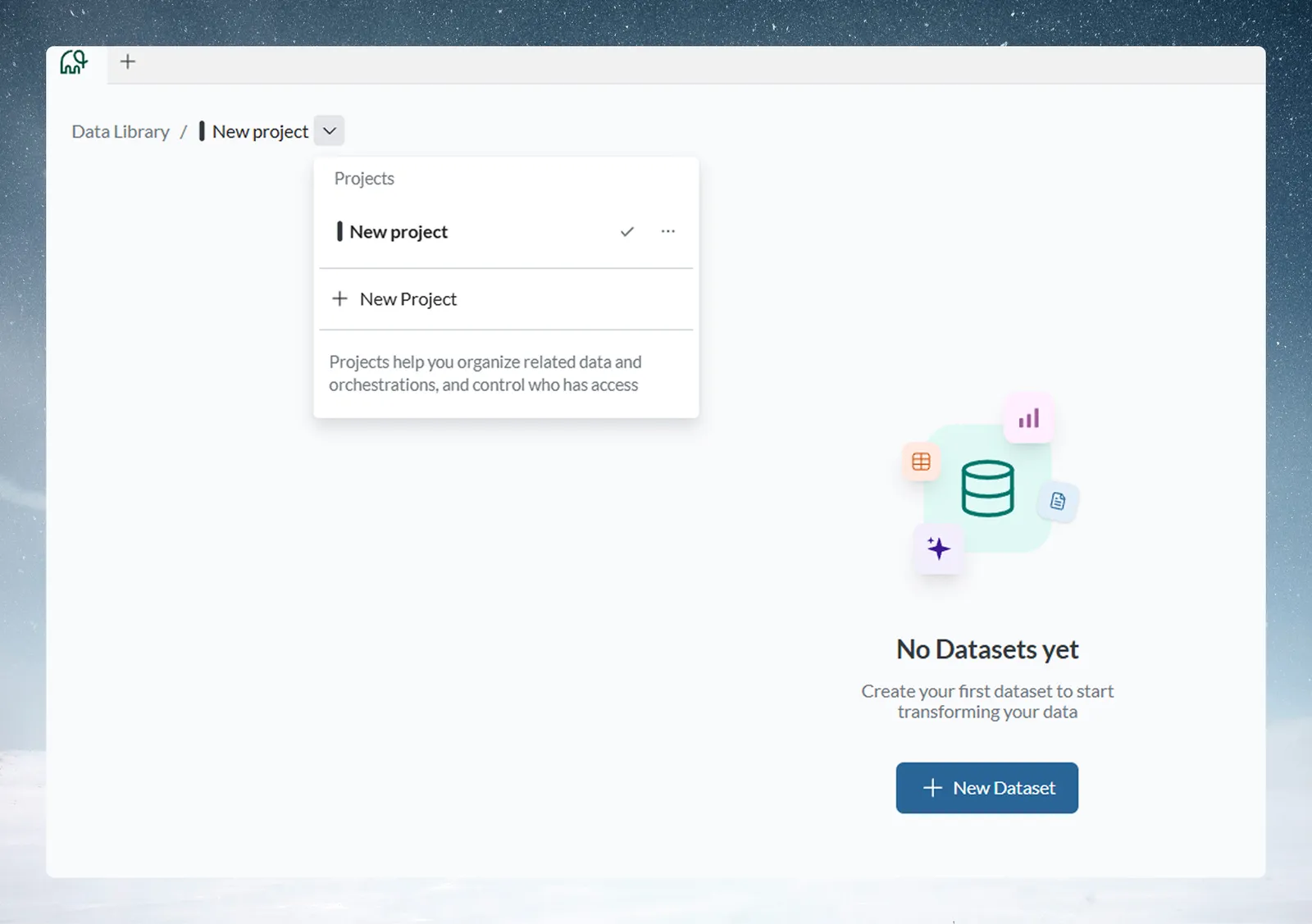
A project is where one team keeps its data, connections and members. You set it up from the project selector in the Data Library: a Project Admin opens Project Settings to name it and choose its date handling and who can access it. Every new workspace has a default project named New project; you are its Project Admin and can rename, manage or delete it from the project menu.
Choose a project structure
| Pattern | Example projects | Best for |
|---|---|---|
| Department-based | Sales, Finance, Operations | Teams that work independently on their own data |
| Client-based | Client_A, Client_B, Internal | Consulting firms and agencies with several clients |
| Process-based | Raw_Data, Transformation, Reporting | Central data teams running organisation-wide workflows |
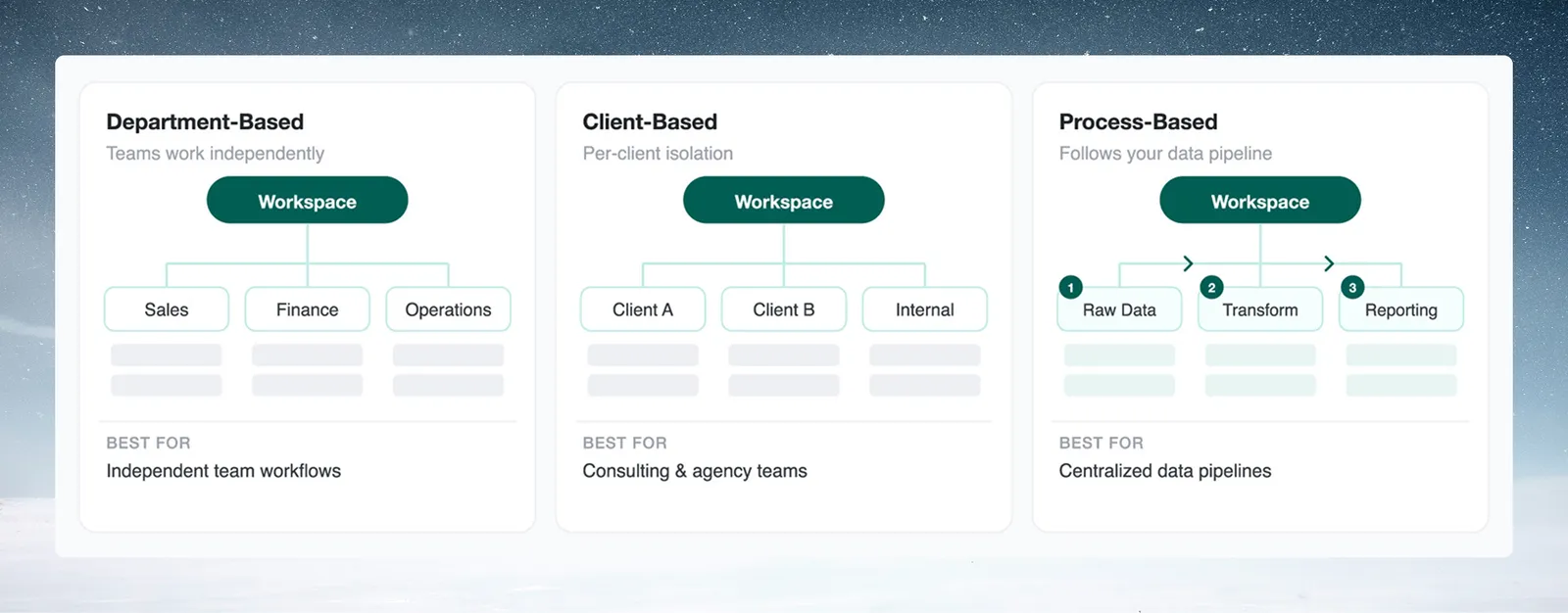
Start with two or three projects. You can add more later.
Open the project menu
In the Data Library, click the project selector (the dropdown arrow next to the project name) and hover a project for its overflow menu (...):
| Your role | Menu items |
|---|---|
| Project Admin | Project Settings (rename, colour, Dates, who can access), Manage Users (add or remove workspace members and assign project roles), Leave Project, Delete Project |
| Project Editor | Leave Project, and Delete Project greyed out |
| Workspace Owner not in the project | Manage Users and Join Project, so you can add people to any project |
No Project Settings or Manage Users? You're an Editor; ask your Project Admin for a role change.
Configure project settings
- Open the project's overflow menu and click Project Settings.
- Edit the Project Name, for example
SALES_Pipeline,CLIENT_AcmeorQ3-Analysis. - Pick a Project colour so the project is easy to spot in lists.
- Under Dates, click Set (or Change) and pick a preset (see the table).
- Under Who can access, pick an option (see the table).
- Click Save changes.
| Dates preset | What it does |
|---|---|
| US | Reads 06/12 as 12 Jun |
| UK / Europe | Reads 06/12 as 6 Dec |
| International (ISO) | Reads 06/12 as 6 Dec |
| Not set | No project default. Uploads are read day first, and new date columns keep their own format |
For sources with different date conventions, Customise reading and display… sets the two parts separately. Reading dates in uploaded files (Day first or Month first) applies to CSV, Excel and PDF uploads. Showing dates sets the format for new date columns; any column can override it.
| Who can access | Who gets in | Use it for |
|---|---|---|
| Everyone in this workspace | All workspace members, without an invitation | Shared reference data, company-wide reporting |
| Some people in this workspace | Only the people you tick in the user list, each with a role (Project Admin, Project Editor or Project Viewer) | Department or client projects with restricted data |
| Only me | Only you | Personal analysis, experiments, sensitive work in progress |
See Projects.
Starter projects and naming
- A Sandbox or "Testing" project to practise and test pipelines away from production data.
- At least one production project for your pattern: first department, first client, or raw data ingestion.
- A "Shared Resources" project for data several teams need, such as reference data, organisational hierarchies or lookup tables.
Name projects for their purpose, with department or client identifiers and prefixes that group them: SALES_Pipeline, SALES_Reports, CLIENT_Acme, CLIENT_Beta.
Connections and datasets in one project can't be opened from another. To move data across, a pipeline pushes its output into another project's dataset with Send to Dataset.
Related
- Set up your workspace: the other setup steps, from naming the workspace to inviting people.
- Workspaces and projects: what a project holds and what each role can do.
- Projects: create, share and configure projects.
Something wrong? support@mammoth.io