Standardise spelling variants with Bulk Replace
Bulk Replace replaces every value in a group with the group's name, to merge variants such as company names, product categories, status codes or location labels. Values in no group stay as they are. Open it from Replace, from the AI Powered shortcuts, or from Bulk Replace in a text column's 3-dot menu.
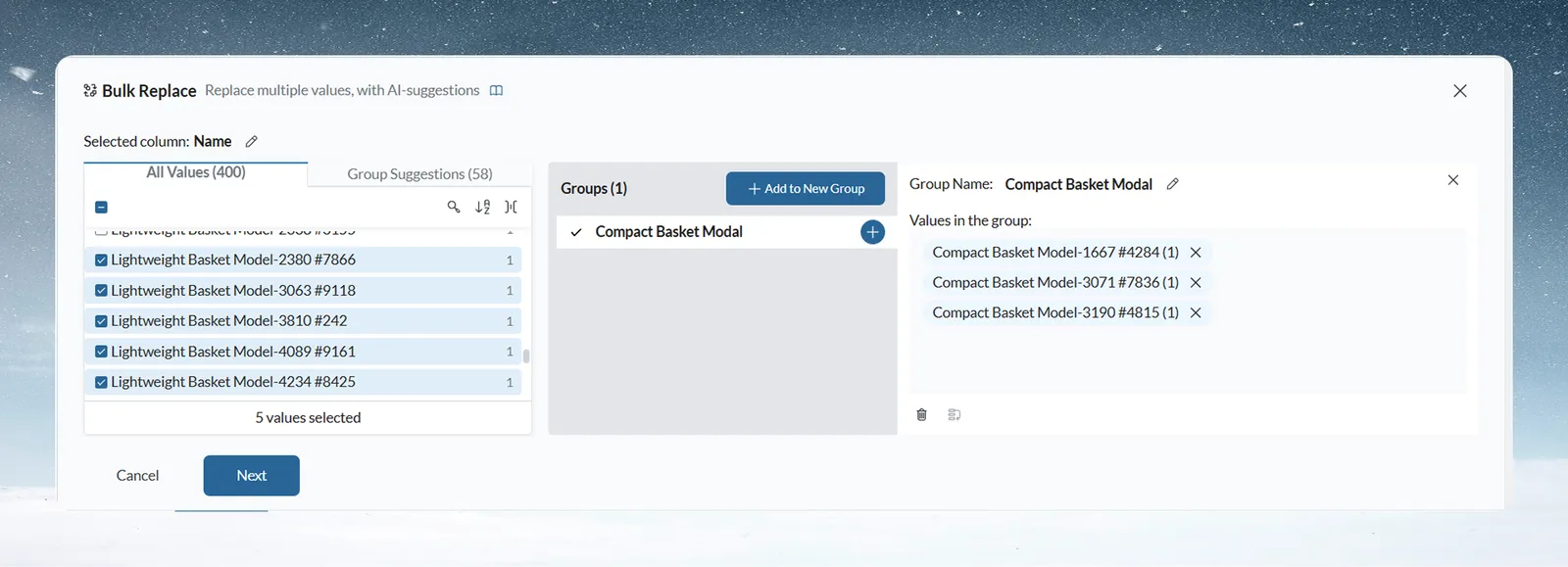
Group variants and replace them
- Pick the text column. The left side shows two tabs: All Values lists every unique value with its row count, and Group Suggestions proposes groups of values that look like variants of each other.
- Build groups. Each group has a Group Name, which becomes the replacement, and the values it replaces.
- Click Next to review the groups.
- Choose Place in a new column or the existing column. To touch only some rows, click the filter icon and add a condition.
- Click Apply, or Previous to go back.
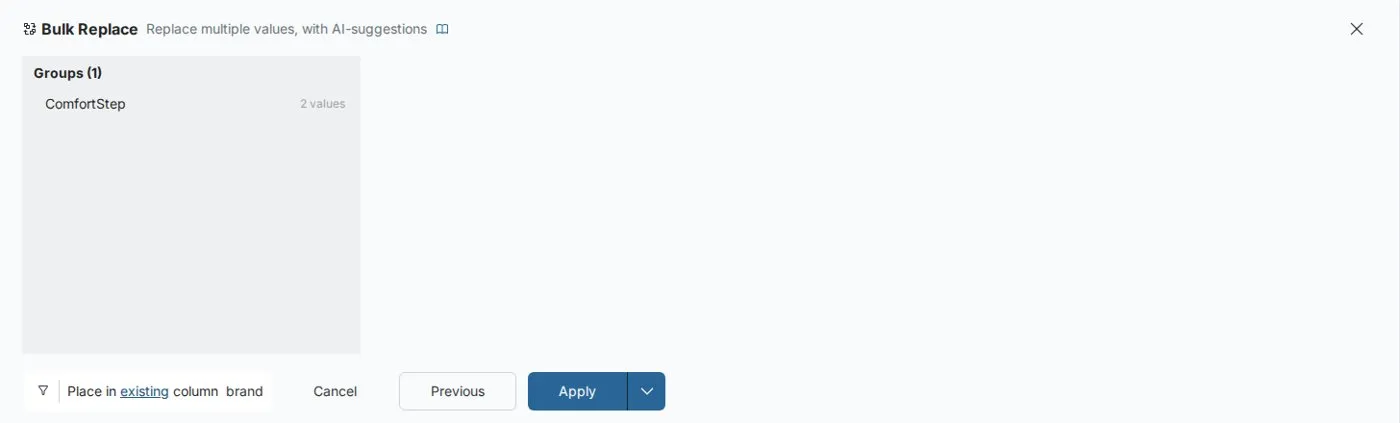
Bulk Replace has no live preview: check the summary after Next before you apply.
Pick values from the All Values list
Search the list, tick values, then add them to a group. Sort Alphabetically or Sort by Quantity orders the list. The Show Whitespaces button marks every space, so values that differ only by extra spaces stand out.
Let Mammoth suggest groups
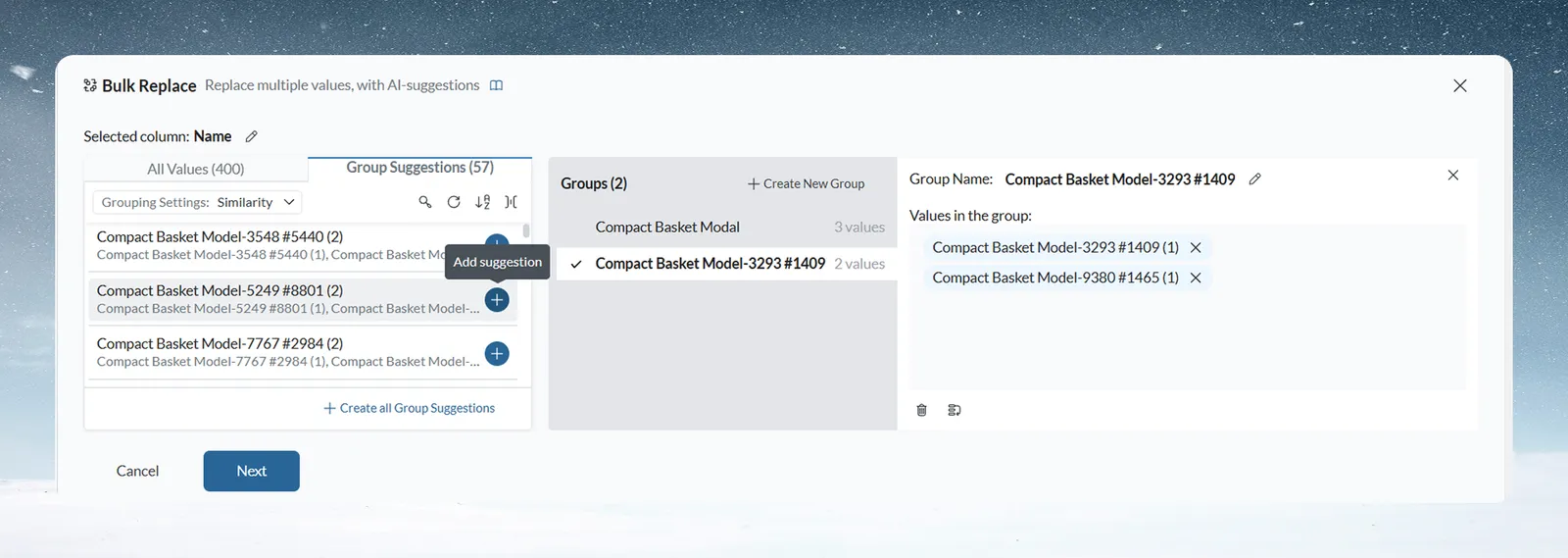
The Grouping Settings menu at the top of the Group Suggestions tab sets how suggestions are made:
| Setting | How it groups | Use it for |
|---|---|---|
| Smart | Understands meaning and context (AI) | Synonyms and abbreviations, such as "NYC" and "New York" |
| Spelling Match | Groups words with similar spelling | Typos and small spelling differences |
| Similarity (default) | Groups by calculated similarity | A general first pass |
| Common Patterns | Groups common word variations | Values that share most of their words, such as "Acme Inc" and "Acme Incorporated" |
- Add suggestion turns one suggestion into a group.
- Create all Group Suggestions adds every suggestion at once.
- Reload suggestions asks for a fresh set, for example after you change the grouping setting.
A value that already belongs to a group shows added to "West Coast" (with that group's name) beside it.
Create, rename and merge groups
The Groups list shows each group with its value count. Click a group to open it.
| Control | What it does |
|---|---|
| Create Group | Adds an empty group named "Untitled Group". With values ticked, the button reads Add to New Group and puts them in the new group. |
| + on a group | Adds the ticked values to that group (Add selected values to this group). |
| Edit icon beside Group Name | Renames the group. Names must be unique: "Please enter a unique group name". |
| Trash icon (Remove Group) | Takes the group out of the replacement without losing it. The restore icon (Restore Group) brings it back. |
| Reorder icon (Move values to another group) | Starts selection mode. Pick values in the open group, then click + on the target group (Move values to this group). Exit ends selection mode. |
If the same value sits in two groups, both are flagged: "This group has conflicting values with another group". Move or remove the value so it sits in one group only.
Catch new variants automatically with dynamic values
A dynamic value is a rule that adds every matching value to a group, including values that only appear in later runs. Open a group and click Add Dynamic Value ("Set a rule so matching values are added to this group").
| Part | What it does |
|---|---|
| Operator | contains (default), is, is NOT, does NOT contain, starts with, ends with, does NOT start with, does NOT end with or is Empty |
| Type New Value | The text to match. Not shown for is Empty. |
| Case sensitive | When unticked, "CAT" matches "cat". |
Each rule shows how many values it matches now, for example Matches 4 values. Expand it to see them, and click the X on a match to exclude that value from the rule. The group's count shows how many values come from rules, for example "12 values (5 dynamic)".
Rules are checked every time the pipeline runs, so a new spelling that arrives next month is replaced without editing the step. A value you listed in a group always stays with that group, even if another group's rule also matches it.
For example, a group named "Acme" with the rule contains acme (Case sensitive unticked) catches "Acme Inc", "ACME Corp" and any new "acme" spelling that arrives later.
Troubleshooting Bulk Replace
| Message or symptom | Cause | Fix |
|---|---|---|
| "Please enter a unique group name" | Another group has that name | Choose a different name |
| "This group has conflicting values with another group" | One value is in two groups | Move or remove it so it sits in one group |
| "This Dynamic Value already exists." | The same rule was added twice | Keep one copy |
Related
- Find and replace values: swap known values in one or more columns.
- Filter rows: the same conditions you add with the filter icon.
- Convert text to dates and numbers: fix separators, then convert.
Something wrong? support@mammoth.io