Edit a dashboard with AI in the dashboard editor
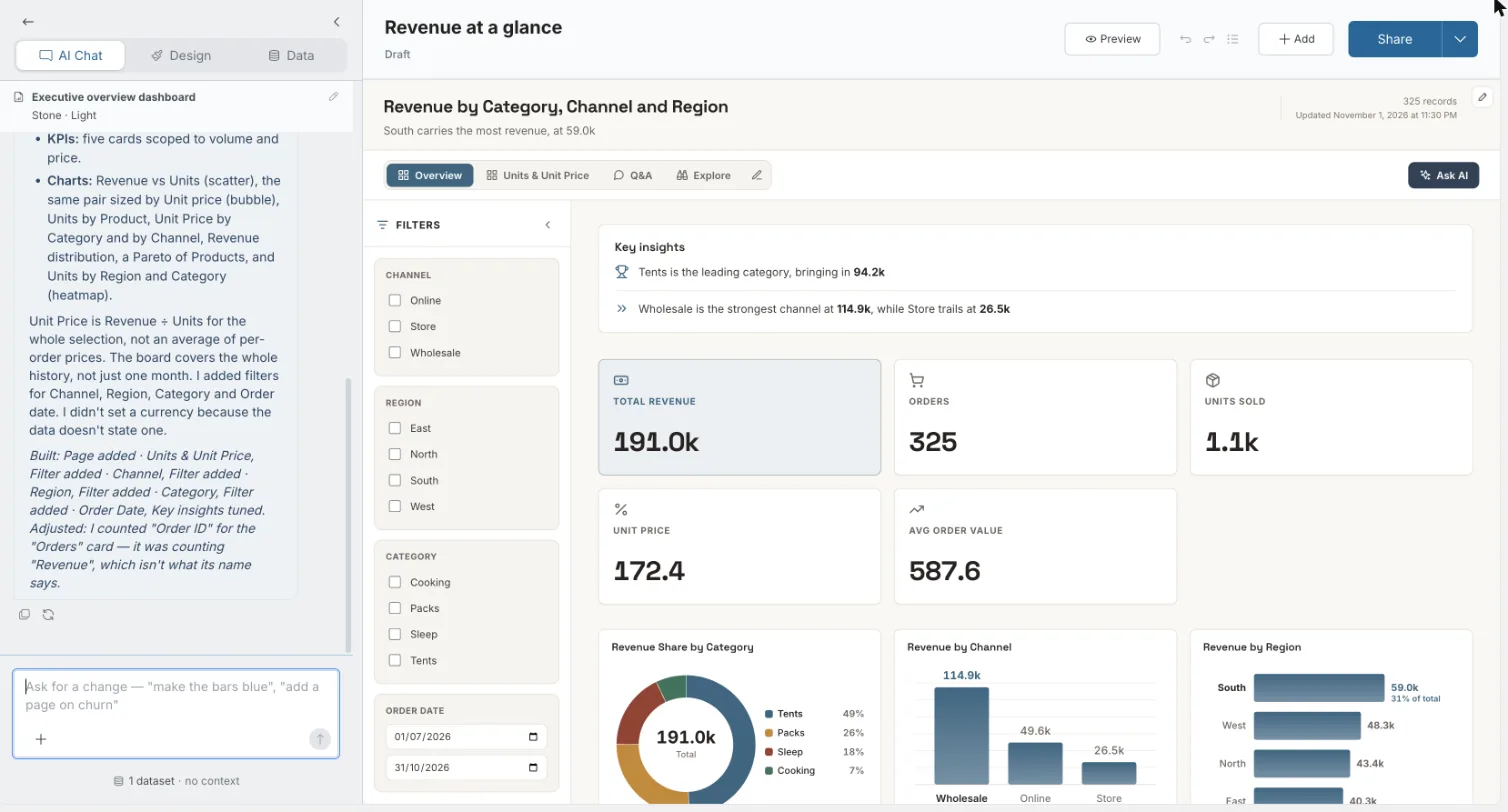
The dashboard editor opens when you create a dashboard, and whenever you open one you can edit. It has a side panel on the left (AI Chat, Design and Data) and a live preview of the dashboard, as viewers will see it, on the right. Anyone who can edit the dashboard can use it, and AI editing in the chat is available on every plan.
Find your way around the dashboard editor
The side panel has three tabs:
| Tab | What it's for |
|---|---|
| AI Chat | Describe changes in plain language. |
| Design | Format, page structure, navigation, style and signature. See Themes. |
| Data | The sources behind the dashboard. See See the data behind a dashboard. |
The header holds:
- The dashboard's name (click it to rename), its save state, and the unpublished changes chip.
- The Add menu: add a Chart, Page or Filter. A new page can be a Q&A page, an Explore page or a Cover. See Add and change charts, Filters and Pages and navigation.
- Undo, Redo and History.
- A Desktop / Tablet / Mobile preview switch, Full view and Preview.
- Save and Publish. Saving is explicit: while you have unsaved edits, the header shows Unsaved changes, and you can't publish until you save. See Publish and share a dashboard.
Cards on a page line up on their own: every row fills the width and shares one height. Drag a card to move it, or drag the edge between two cards to resize them. Moving cards never changes your data or wording. Click a chart or block to select it and open its settings. See Set up a chart.
When a dashboard has a Q&A page, an Ask AI button appears in the bar above its pages. It jumps to the Q&A page, and it's hidden while you're on that page.
Change a dashboard by chatting with the AI
Open the AI Chat tab and describe a change, for example "make the bars blue" or "add a page on churn". Each request updates the dashboard. The AI keeps your earlier choices unless you ask to change them.
Start from a suggested prompt
A new conversation shows Edit with AI and a few starters. Clicking one fills the message box, so you can review it before you send.
| Format | Starters |
|---|---|
| Dashboard | Summarize the key trends, Add a chart, Change the color theme, Highlight what stands out |
| Doc or slides | Make it punchier, Lead with the biggest risk, Shorten the takeaways, Make the tone more formal |
| A blank doc or deck you haven't touched yet | Build briefs, such as Write a one-page summary of this data or Build a short deck on the key findings |
On a doc or deck, the chat rewrites the content; visual styling lives in Design. See Docs and slides.
Queue more requests while one runs
You can send another message while a change is still running. It waits in the thread marked "Queued — edit or remove before it runs". Edit it, or click Remove queued prompt.
Undo or revert an AI change
- Revert one change: Click the revert icon (Revert this change) on any AI reply. The reply then shows Reverted.
- Undo and redo: Use Undo and Redo in the header to step back and forward through your edits, whether you made them in the chat or by hand.
The thread also records edits you make by hand, for example "Added the Region filter", "Renamed "Sales" to "Revenue"" or "You made 4 edits". The chat is a full log of how the dashboard got here.
When an AI change doesn't apply
| Message | What to do |
|---|---|
| "Something went wrong and your last message wasn't applied…" | Click Retry. |
| "You have unsaved format changes, so I held off on content edits…" | Save or discard your format change in Design, then ask again. |
In a long thread, Jump to latest scrolls back to the newest message.
Ask the AI about one chart or block
To focus the chat on a single chart, KPI or text block:
- Click the item on the canvas.
- In its settings panel, click Ask AI ("Ask AI about this").
The chat shows Editing and the item's title (for example "Editing Revenue by region"), with a count of edits made to that item. The message box reads, for example, "Ask about Revenue by region…".
- Quick steers appear: Show only the top 5, Use average instead of total and Break it down differently.
- If you've discussed the item before, the chat picks up where you left off.
- Edit controls opens the item's settings again.
- Each item you've asked about gets a tab above the chat, beside All.
- Press Esc or click ✕ (Close and clear selection) to go back to editing the whole dashboard.
Attach a brief, PDF or picture to the dashboard chat
You can give the chat a file to work from: a picture, PDF, Word file or text. Click the attach button ("Attach a picture, PDF, Word file or text"), drop files on the chat, or paste. Long pasted text becomes a Pasted text chip.
Accepted types are .png, .jpg, .jpeg, .webp, .gif, .pdf, .docx, .txt and .md. Each attachment becomes a card where you choose how to use it:
| Use it as | What happens |
|---|---|
| Brief | The card shows what it read: For, Must cover, Tone, Length, Call out and Left out. Click Rewrite this board to the brief (Rewrite to this brief on a doc, Rewrite the deck to this brief on slides). Figures in the brief are checked against your data. Where they differ, the card says so and the dashboard uses your data. Tick Also save this brief as a context for this board to keep it as context. |
| Look like | Restyles the dashboard like the picture. The card shows Layout, Chart types, Colours and Font. Numbers in the picture aren't used: your data fills every chart. The colours are saved as a style you can edit in Design. |
Each card also offers Change something, Something else… and Not now, and Undo after it's applied.
- Data file (CSV or Excel): The chat offers to make it this dashboard's source and check how its columns map. See Replace a template's sample data.
- Power BI or Tableau workbook: The chat points you to Open the import. See Import an existing report.
Limits for chat attachments
- Up to 5 attachments per message. Extra files show "Up to 5 attachments per message. The rest weren't added."
- PDF and Word files up to 20 MB. The chat reads the first 50 pages.
- Text is read up to 60,000 characters.
- Large pictures (over 2 MB) are scaled down before upload.
Errors when attaching a file
- "data.zip isn't a picture, PDF, Word file or text, so the chat can't read it." (with your file's name)
- "The chat can't read that file."
- "Couldn't attach this. Remove it and try again."
Preview and restore earlier versions with History
Click History in the header, next to Undo and Redo. Each version shows a thumbnail, a label, when it was made, and the prompt that made it. Tags mark the Current version and versions that are Undone or Ahead of where you are.
Click a version to preview it. A banner over the canvas reads "Viewing an earlier version" (or "Viewing the original version"), with who made it and when.
- Restore makes that version current.
- Back to current closes the preview.
A version from before you swapped the dashboard's data shows "This version used a different dataset". It isn't previewed, because drawing it against the current data would show the wrong numbers.
| Message | What it means |
|---|---|
| "Couldn't load that version." | The version can't load. |
| "Someone else changed this dashboard — we've refreshed it. Please try that again." | Someone changed the dashboard while you were restoring. Try again. |
Rename a dashboard and add a sub-line
Click the dashboard's name in the header, or the pencil (Rename).
| Field | What it's for |
|---|---|
| Name | How it appears in your library and tabs. |
| Sub-line | One sentence on what the report is for. Leave it empty for no sub-line. Avoid figures: a reader with restricted rows can't be shown them. |
Click Save, or Cancel to keep the old name.
Hide the panels with Full view
Click Full view (the expand icon in the header) to hide the side panel and header, so only the dashboard shows. Click Exit full view or press Esc to come back. Full view isn't available while a change is running or before the dashboard has rendered.
Discard unpublished changes to a dashboard
After a dashboard is published, the edits you save stay in a draft. Viewers keep seeing the last published version until you publish again. The header shows a chip such as 3 unpublished changes. Click it to open Changes since last publish, which lists each edit and who made it (for example "Edited Revenue by region", "Assistant edit" or "4 edits").
To throw the draft away:
- Click the chip, then Discard changes….
- Confirm with Discard changes.
The draft goes back to the published version, the one viewers see now. Viewers aren't affected. You see "Draft reset to the published version", and you can undo this straight after. If the draft changes while you're deciding, Mammoth asks you to check the list again before you discard.
Edit a dashboard with other people at the same time
Several people can edit a dashboard at once. Nothing is locked.
See who else is editing
- Avatars in the header show who else has the dashboard open (for example "Editing now: Priya and Sam").
- Click them to open Editing now. Each person shows which page they're on, or On this dashboard or Idle. Go to jumps to their page.
- Rings on the canvas show which chart someone is working on.
- When someone's assistant is running, you see, for example, "Priya · assistant working".
If you select a chart someone else is editing, you see, for example: "Priya is editing this chart too. Nothing is locked, but if you both save, the second save is refreshed onto the first."
What happens when you both save
Other people's saves merge into your view, and a message tells you what happened:
| Message | What it means |
|---|---|
| "Priya changed this dashboard" or "Priya made 3 changes to this dashboard" | Their change is in, and you're seeing the latest version. |
| "… just before you. Your change was saved on top of theirs." | Both changes are kept. |
| "… Save or discard your changes to see the latest version." | You have unsaved edits, so their change waits until you save or discard. |
| "… just before your last change, so yours wasn't saved. You're now seeing the latest version." | Make your change again on the latest version. |
If you both changed the same thing, a window asks you to choose, for example "Priya also changed the title". Click Keep theirs or Use mine. Whichever you keep, everything else either of you changed is saved too.
When someone archives or deletes the dashboard
- Archived: "This dashboard was archived. You can keep editing; it's hidden from the library."
- Moved to trash, for example: "Priya moved this dashboard to trash. Changes you make now won't be kept."
Related
- See the data behind a dashboard: the Data tab, column browser and data banners.
- Add and change charts: use the Add menu.
- Set up a chart: edit a chart by hand instead of in the chat.
- Themes: everything in the Design tab.
- Give the AI context: definitions and goals the chat writes from.
- Publish and share a dashboard: send your saved changes live.
Something wrong? support@mammoth.io