Change a dashboard's theme, style and dark mode
A dashboard's look is set by its format, its style and a light or dark mode. You change all of them in the Design tab of the dashboard editor. Anyone who can edit the dashboard can change the design; removing or replacing the signature depends on your plan.
The default style for new dashboards is Stone, unless your workspace has set a different default.
Switch a dashboard to slides, a doc or Q&A
Open Design → Format. The Format control has four options:
| Format | What it is |
|---|---|
| Dashboard | Live tiles and charts you scan and filter. |
| Slides | One idea per slide: present live or share as a deck. |
| Doc | A written narrative with grounded figures, read top to bottom. |
| Q&A | A grounded chat surface: ask questions, get data-backed answers. |
Changing the format re-composes the canvas from the same data. Explore isn't a format here: add it as a page instead (see Explore and Q&A pages). For the options inside Doc and Slides, see Docs and slides.
Save or discard a format preview
A new format starts as a preview. While it runs you see a working banner such as "Applying Slides…". When you change a dashboard page's structure instead, the banner reads, for example, "Recomposing for Operational monitor…". It's followed by "3 charts updated" or "This data already fits this layout".
While the preview is unsaved:
- The canvas shows Previewing an unsaved format: "Editing is paused — save this format to continue, or discard it." Click Save, or Discard format to go back.
- When you change a dashboard page's structure and the page has your own edits, Apply to a copy also appears, so the new structure goes to a duplicate. See Pages and navigation.
- The Design panel footer shows Unsaved changes with Discard all and Save.
- You can't edit content. Opening the content panel shows "Save this format to edit its content. Content edits apply to the saved format — save or discard your format changes first." If you ask the AI chat for a content edit, it waits and asks you to save or discard the format first.
Show or hide Key insights and the filters bar
For the Dashboard format, Design → Format → Sections has two chips:
| Section | What it does |
|---|---|
| Key insights | Shows or hides the Key insights block. On a multi-page dashboard, this chip shows only while you're on the first chart page. |
| Filters bar | Shows or hides the filters bar. See Filters. |
Sections isn't shown for Doc, Slides or Q&A. To add or remove a data table, use Add in the editor header.
Apply a dashboard style
- Open your dashboard in the editor.
- Click the Design tab in the left panel.
- Under Style, pick a style from System styles or Workspace styles. The preview updates as you choose.
- Save the dashboard to keep the change.
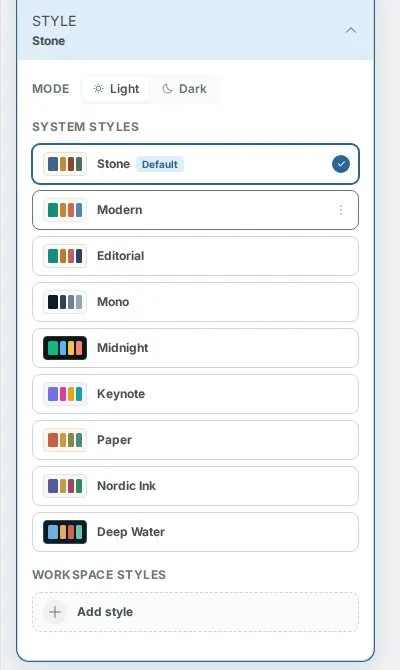
Mammoth includes these system styles:
- Stone (default)
- Modern
- Editorial
- Mono
- Midnight
- Keynote
- Paper
- Nordic Ink
- Deep Water
Switch between light and dark mode
Mode is separate from the style. Choose Light or Dark to switch any style. Some styles work in only one mode and show Dark only or Light only.
Change how KPI cards and Key insights look
The look of the KPI cards and the Key insights block is set on the canvas, not in the Design tab.
- Click the KPI cards section (or the Key insights section) to open its panel.
- Pick an option under Look.
It applies to that section on every page, and saves as soon as you pick it.
| Section | Options |
|---|---|
| KPI cards | Cards (default), Accent, Tinted, Strip |
| Key insights | List (default), Tinted, Cards, Numbered, Banner |
For the rest of what you can change on KPI cards and insights, see Tables, KPI cards, insights and text.
Create a workspace style from your logo or website
Workspace styles are custom styles shared in your workspace.
- Click Add style. The New style editor opens.
- Let the editor read your brand from a logo, an uploaded image, or a website address (From a website).
- Adjust it from there, then save.
In the style editor:
- Feel sets the overall spacing and shape in one click: Compact, Default or Spacious.
- Advanced token editing (collapsed by default) holds the detailed controls: chart colours, backgrounds, text colours, gradient, and these shape controls:
| Control | Options |
|---|---|
| Corners | Sharp, Rounded, Round |
| Density | Compact, Default, Spacious |
| Card style | Flat, Bordered, Elevated |
Edit, rename or set a default workspace style
On a style you can Edit, Rename, Delete, Duplicate to customize, or Set as default. Deleting a style makes dashboards that use it fall back to the default.
Add your logo and footer as a signature
The signature is the logo and footer at the bottom of your dashboard. Open Design → Refine → Signature and pick one:
- Mammoth Signature (default)
- None
- A saved workspace signature, with Edit and Delete
- Add signature to create a new one
When you add or edit a signature, fill in these fields, then click Save:
| Field | What it does |
|---|---|
| Signature name | The name you see in the list. |
| Logo | Add logo, Replace or Remove. Any image file. |
| Footer | The footer text, for example "Acme Inc. · Confidential". |
| Link | An optional link URL, for example acme.com. |
| Layout | Inline (default) or Rules. |
| Alignment | Left (default), Center or Right. Hidden when Layout is Rules. |
Deleting a signature asks you to confirm: "Delete this signature (logo + footer)? This can't be undone."
Which plans can remove the Mammoth Signature
| Plan | What you can do |
|---|---|
| Free and Starter | Keep the Mammoth Signature. None shows an upgrade prompt. |
| Team | Choose None to remove the Mammoth Signature. |
| Pro and above | Remove it, and add, edit and use your own signatures. |
Workspaces on a trial keep the Mammoth Signature, whatever plan they are trying. If your plan can't add signatures, the panel says "Changing or adding signatures is available on the paid Pro plan." See Billing and plans.
Troubleshooting dashboard design changes
| Symptom or message | Cause | Fix |
|---|---|---|
| "Couldn't apply the format change. Please try again." | The format preview failed. | Try again. |
| "Couldn't discard the format change. Your changes are still applied — try Discard again." | The discard failed; the preview is still on. | Click Discard format again. |
| You can't edit content, and the panel says "Save this format to edit its content…" | A format or structure preview is unsaved. | Click Save or Discard format first. |
| A dashboard's style changed on its own. | Its workspace style was deleted, so it fell back to the default. | Pick another style under Design → Style. |
| None shows an upgrade prompt. | Your plan keeps the Mammoth Signature. | See the plan table above. |
Related
- Docs and slides: options inside the Doc and Slides formats.
- Title band and cover page: backdrops and accents that follow the style.
- Tables, KPI cards, insights and text: everything else on KPI cards and insights.
- Pages and navigation: page structure and navigation in the Design tab.
- Filters: the filters bar the Sections chip hides.
Something wrong? support@mammoth.io