Check, edit and fix a Dataset Refresh automation
After you save a Dataset Refresh, it appears in the Automations list with status Active. Click its row to read what it refreshes and which exports it sets off, or choose Edit from the three-dot menu to change it. This page also covers refreshing by hand after a trial and fixing errors.
Check what a refresh will do and when
The row's summary reads like "Dataset products replaces the data every day at 6:00", or "adds new rows" when the update method adds rows. You can also run it at any time with Run now from the detail panel or the three-dot menu.
The detail panel's Summary section shows:
| Field | What it shows |
|---|---|
| Refresh method | The schedule, for example "On schedule, every day" |
| Next run | When the next refresh is scheduled |
| Ends | The end date, or "Never" |
| Then sends | The export steps a refresh sets off |
| Dataset | The datasets being refreshed |
See which exports a refresh sets off (Then sends)
If Views of a refreshed dataset have export steps that run after their data updates, the row and the detail panel list them after Then sends:, one per export, with an icon for its destination. Paused or deleted export steps aren't listed. An export with a Send at most limit shows (at most daily) or (at most weekly) after its name, since it won't send on every refresh. A Scheduled Export's own list doesn't show these labels, because it sends on its own schedule.
Edit a Dataset Refresh
Open the automation from the Automations list (or a dataset's preview panel Automation section) and choose Edit from the three-dot menu. The edit window opens over the page you are on; there is no separate edit page.
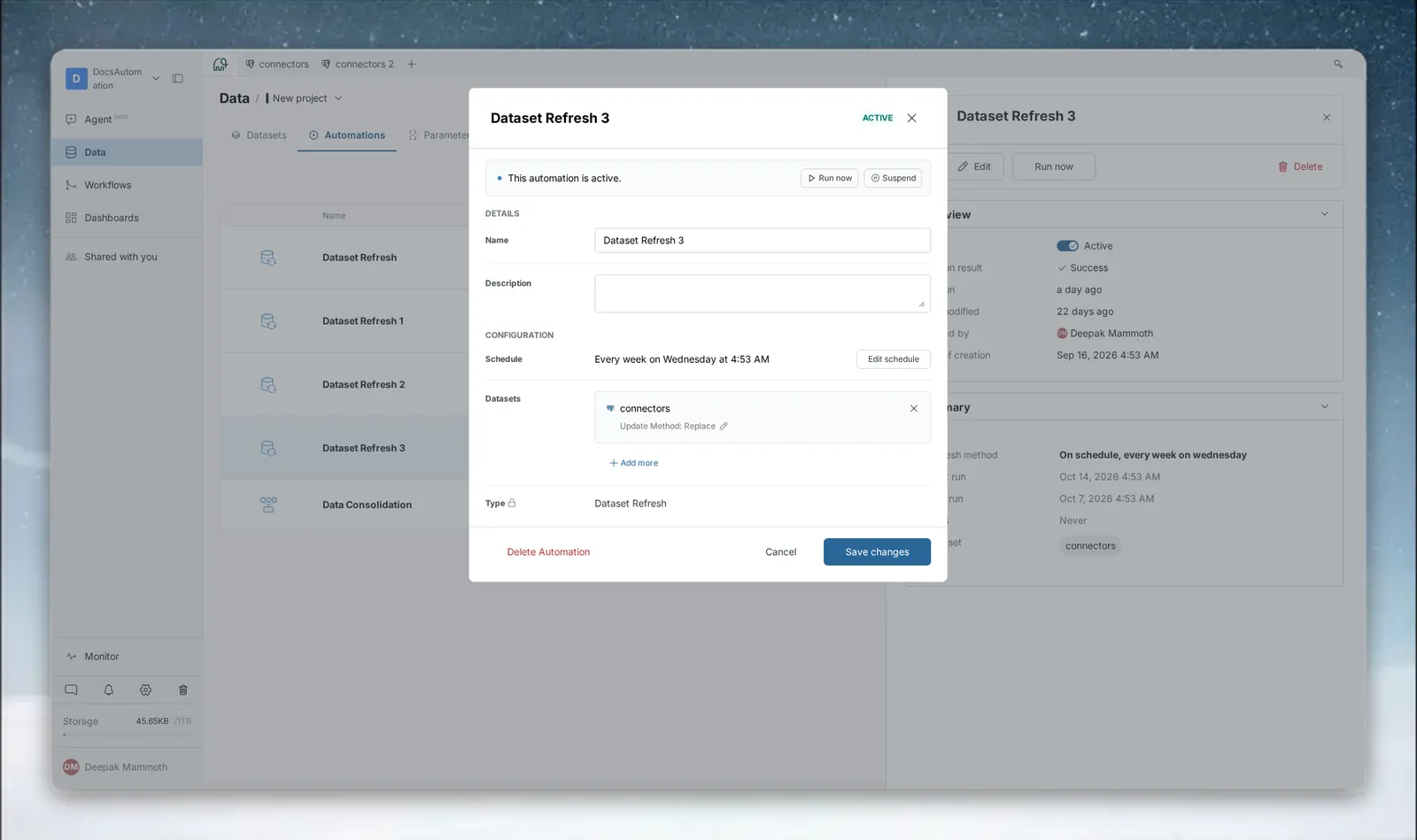
The banner shows the status:
- Active: runs on its schedule. Click Run now for an immediate run, or Suspend to pause scheduled runs.
- Suspended: scheduled runs are paused. Click Resume to reactivate it.
- Error: the automation has an error.
In DETAILS, rename it or update its description. In CONFIGURATION:
- click Edit schedule in the Schedule row to change the unit, Repeat every, weekdays, First run and End date;
- add datasets with Add more, or remove one;
- with several datasets, drag to reorder them and choose In parallel or In a sequence;
- change each dataset's update method inline.
The Type can't be changed. Click Save changes, or Delete Automation to move it to Trash. Changes take effect from the next scheduled run.
Refresh a dataset by hand after a trial ends
When a trial ends and your plan doesn't include Dataset Refresh, the automation is suspended. Its row and detail panel show Refresh Manually ("This automation got suspended after trial. Refresh manually by retrieving latest data.").
- Click Refresh Manually. The dataset's settings open in the Data Library.
- Retrieve the latest data once.
The automation stays suspended. If the dataset no longer exists, Mammoth shows "The dataset this automation refreshes is no longer available." Refresh Manually appears only when the plan suspended it; one you suspended yourself shows Resume.
Troubleshooting
| Symptom | Cause | Fix |
|---|---|---|
| Status shows Error | The source connection expired or changed, or the source's structure no longer fits the existing schema | Re-authenticate the connection in your Data Library. If the structure changed, check the source columns against the dataset |
| The automation runs but the data doesn't change | The source has not updated since the last refresh. This is expected | Check the source for new data, or use Run now after it updates |
| Your rows are repeated after each refresh | Add new rows only has no Key column, so it brings in a full copy each time | Pick a key column whose values only go up, or use Replace all data |
| A dataset is greyed out with "Uploaded files can't be refreshed" | Uploaded files and file-connector datasets can't be refreshed | Use File Collection and Data Consolidation |
| Saving fails with "This feature is not included in your current plan." but the card shows no plan pill | A plan check refused the save | Contact Mammoth support |
| Saving fails with "Following frequency not allowed in your plan, please upgrade the plan" | The schedule is more frequent than your plan allows | Pick a coarser unit. See Plan limits on how often an automation runs |
Related
- Refresh a dataset: set up a Dataset Refresh.
- Manage automations: suspend, resume, run or delete any automation.
- Schedules and triggers: run a refresh from the API.
- Export on a schedule: send exports on their own schedule.
Something wrong? support@mammoth.io