Prepare CSV and Excel files for a clean upload to Mammoth
A file that is well formatted before you upload it reads cleanly the first time. This page helps you pick a format, shows what an Excel import keeps, and lists what to fix in a file first. To upload, see Upload CSV, Excel and other files.
Which format to choose
CSV files are processed fastest and most reliably. When you export from another system, choose CSV over Excel where you can.
| Format | Choose it for |
|---|---|
| CSV | Maximum compatibility, banking integrations, simple data structures. The most common and most reliable format for data exchange. |
| TSV | When your values contain commas |
| PSV | Pipes as delimiters, an alternative to CSV or TSV |
| Excel | Several related tables, multi-sheet data |
| Compressed | Data close to the 50 MB limit, or several files in one upload |
| Reports with tables, recurring document processing |
What gets imported from an Excel file
Mammoth imports all data values, the worksheets you choose to import, and the data type of each column. Charts, embedded images, macros and VBA code are not imported. Use the first row for column headers, avoid merged cells in data areas, and keep one data type per column.
Prepare files for a clean upload
- Use the same template for recurring uploads.
- Put column headers in the first row.
- Keep dates, numbers and text formatted the same way within each column. ISO dates (YYYY-MM-DD) are detected most reliably.
- Remove empty rows at the top or bottom of the file.
- Save as UTF-8 if the file has special or international characters.
- Wrap values that contain commas in quotes ("Company, Inc."), or use TSV.
- For banking and financial files, remove comma thousand separators, because most banking portals do not accept them.
- Agree how blanks are written ("NULL", "N/A" or empty) and keep values consistent ("Yes/No", not a mix with "Y/N").
- Give datasets searchable names ("Q4 Sales Reports", not "Data") and put dates or versions in file names, because batch names come from file names.
- Use clear column names (
Customer_Name, notCust).
Tip: create a "staging" project to test file uploads before you process them in your main project. You can check structure detection and data quality without affecting production datasets.
Fix files that read wrongly
| Symptom | Cause | Fix |
|---|---|---|
| Data appears in a single column, or headers are missing or wrong | Wrong delimiter detected, no header row, or unquoted commas | Put headers in the first row and use one delimiter. Set the delimiter and header row in the dataset's How it was read settings. |
| Special characters show as symbols | The file isn't UTF-8 encoded | Re-save the file as UTF-8 |
| Numbers show as text, or dates as text | Mixed formats in a column, or day-month order unclear | Answer Which way round are these dates? or use the How it was read settings. Change types later with Convert Column Type: account numbers and ZIP codes usually belong as Text, dates as Date. |
| Wrong data imported from Excel | The wrong worksheet was picked | Choose the right sheets in Extract sheets |
| PDF table data is incomplete | Complex or irregular layout | Review the extracted data and clean it as needed |
When to upload, and when to use something else
Upload suits ad hoc analysis (a quick look at vendor files), historical data such as archives for trend analysis, external data such as partner files or government data, a first exploration before you set up a connector, and small teams that share files by email or cloud storage.
| Your need | Use instead |
|---|---|
| Daily updates or real-time data | A connector with a Dataset Refresh automation |
| An upload over 50 MB | A connector to your database or storage, or split the file (or compress it) |
| Complex automation, or adding new files on their own | Data Consolidation or a connector |
Compare the ways to create a dataset
| Method | Best for | Size limit | Recurring updates | Authentication |
|---|---|---|---|---|
| Upload | Files from your computer | 50 MB per upload | Manual, or a Data Consolidation automation | None |
| Paste from Clipboard | Quick tests, small datasets | Browser memory, and 50 MB once sent | Manual only | None |
| Connectors | Recurring, large or live data | Depends on the source | Dataset Refresh for databases, apps and APIs. Files from drives are saved once; use File Collection for new files | Saved connection |
| Generate with AI | Testing and prototyping | User-defined (max 500 rows) | Manual only | None |
| From URL | File links | None stated; larger files take longer to fetch | Get the latest, or a Dataset Refresh automation | None (signed URLs supported) |
| Sample Files | Exploring Mammoth, training, demos | Fixed sample datasets | No | None |
| Webhook | Event-driven pushes from other systems | Rows wait until they are added | The source pushes; rows are added every 5 min, hourly, daily or by hand | Optional X-SECRET header |
Upload and connectors keep a history of batches (each load is one batch). Paste, AI data and From URL start as a single snapshot. A webhook dataset can combine or replace its rows. If you start with uploads and later need automation, move to a connector or a webhook.
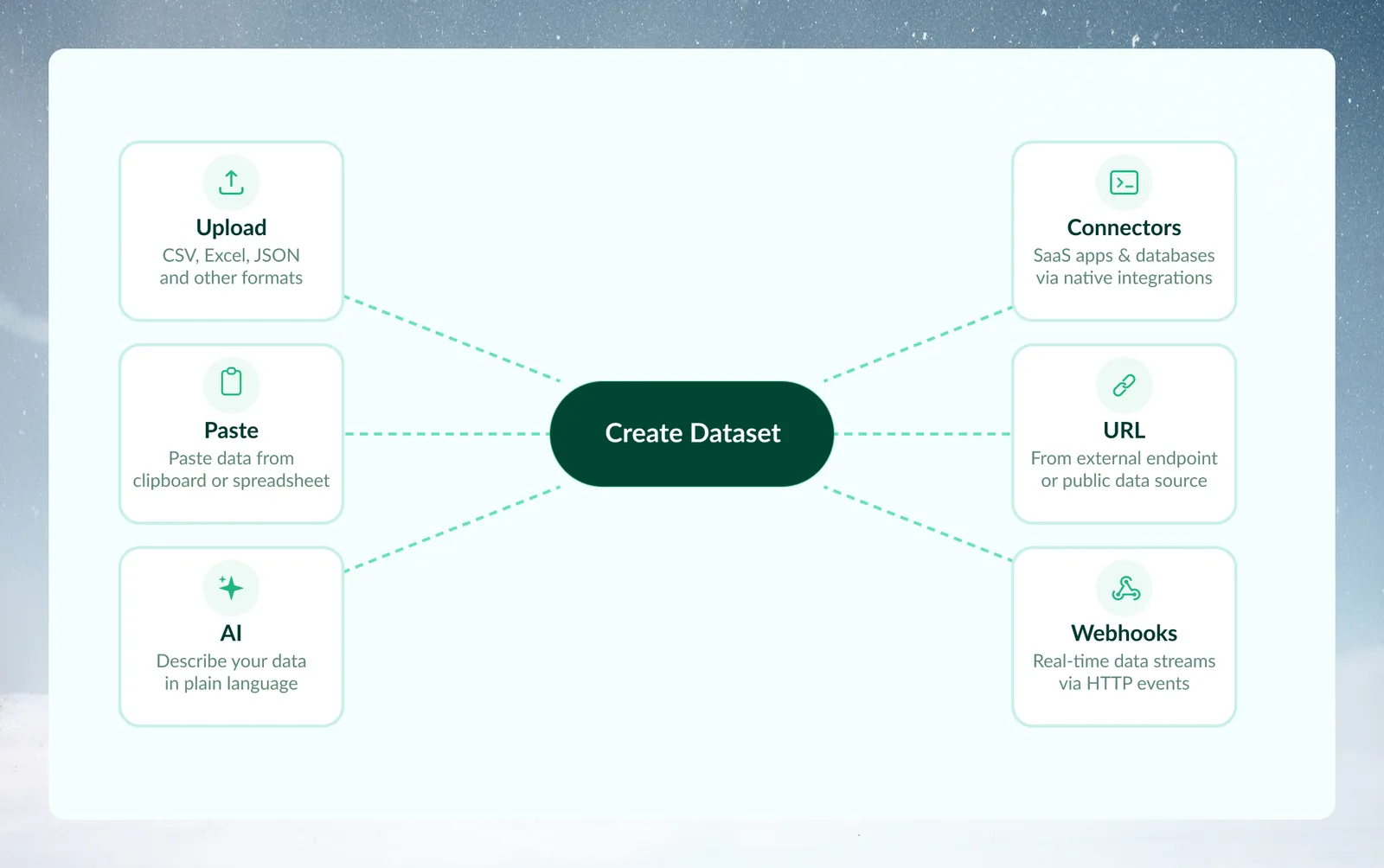
The diagram shows six of the seven ways; Sample Files is the seventh.
Pick a method for your situation
| Situation | Use |
|---|---|
| "I got an Excel file from my colleague" | Upload (drag the file into Mammoth) |
| "I need to analyze data from our SQL database every week" | Connectors (create a connection, then a Dataset Refresh automation) |
| "I want to test my pipeline before the real data arrives" | Generate with AI (describe the expected structure) |
| "I'm looking at data in Excel and want to try one transformation" | Paste from Clipboard (copy the range, paste it into Mammoth) |
| "I found a public dataset on GitHub" | From URL (paste the raw file URL) |
| "I need to combine 50 CSV files from different regional offices" | Upload them, then combine them with Add data on one dataset or a Data Consolidation automation. Upload folder makes one dataset per file. |
| "Our CRM sends a record every time a lead is submitted" | Webhook (point your CRM at the webhook's URL and pick how often rows are added under Add new rows) |
Related
- Upload CSV, Excel and other files: the upload steps, limits and errors.
- Review how Mammoth reads a file: fix a file that read wrongly.
- Connect a database or app: for data over 50 MB or data that changes often.
- Combine incoming data: add new files to a dataset on their own.
Something wrong? support@mammoth.io