Filter rows in Mammoth: keep or remove by condition
Conditional Filter keeps or removes rows that match one or more conditions. Open it from Describe your transformation (or a + in the Pipeline panel) › Filter, Label & Replace › Conditional Filter; it is also a shortcut under AI Powered. The same Filter group has Remove Duplicate Rows and Show Top/Bottom Rows. Put filters early in the pipeline to cut the rows later tasks must process.
Filter rows step by step
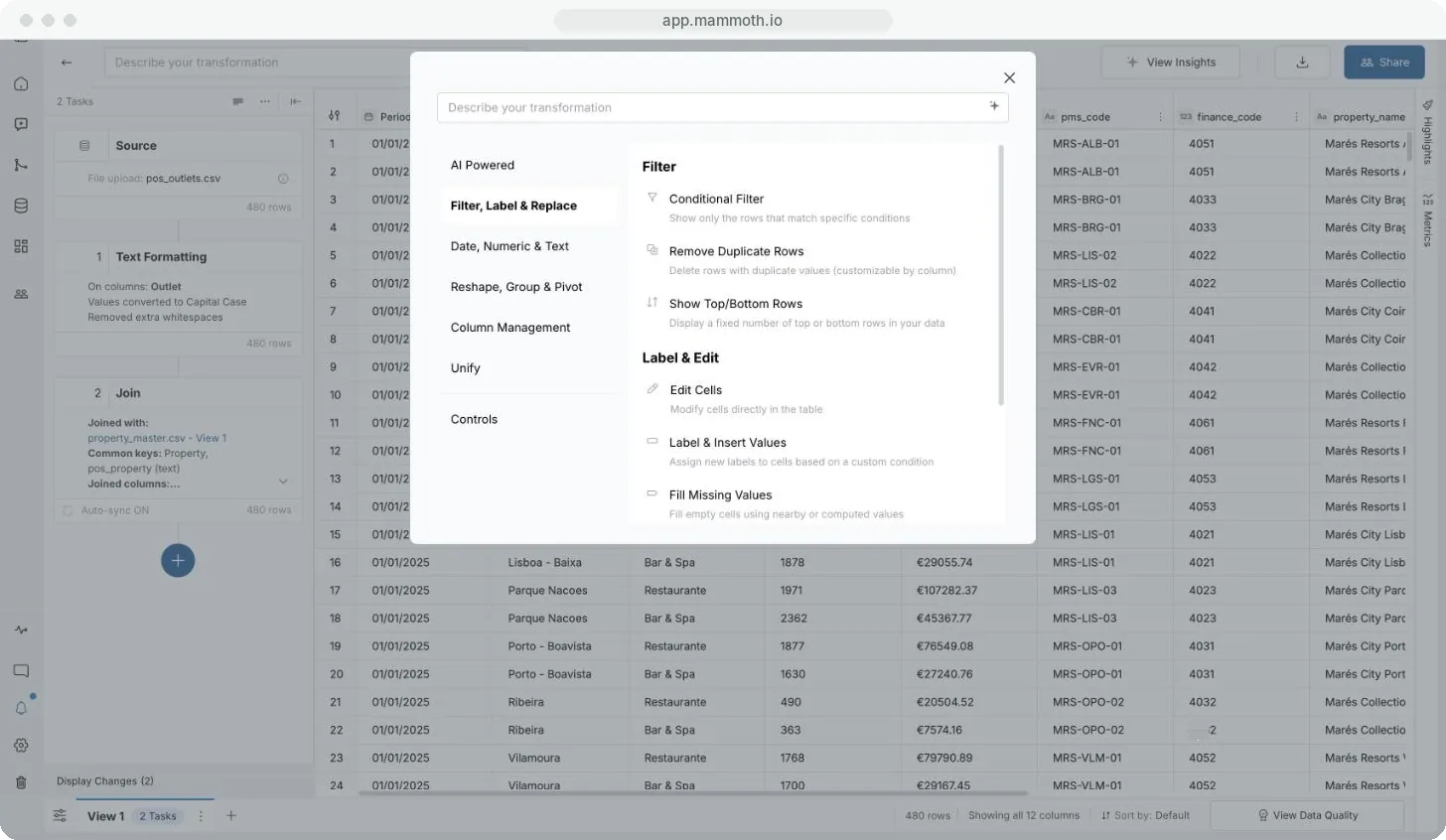
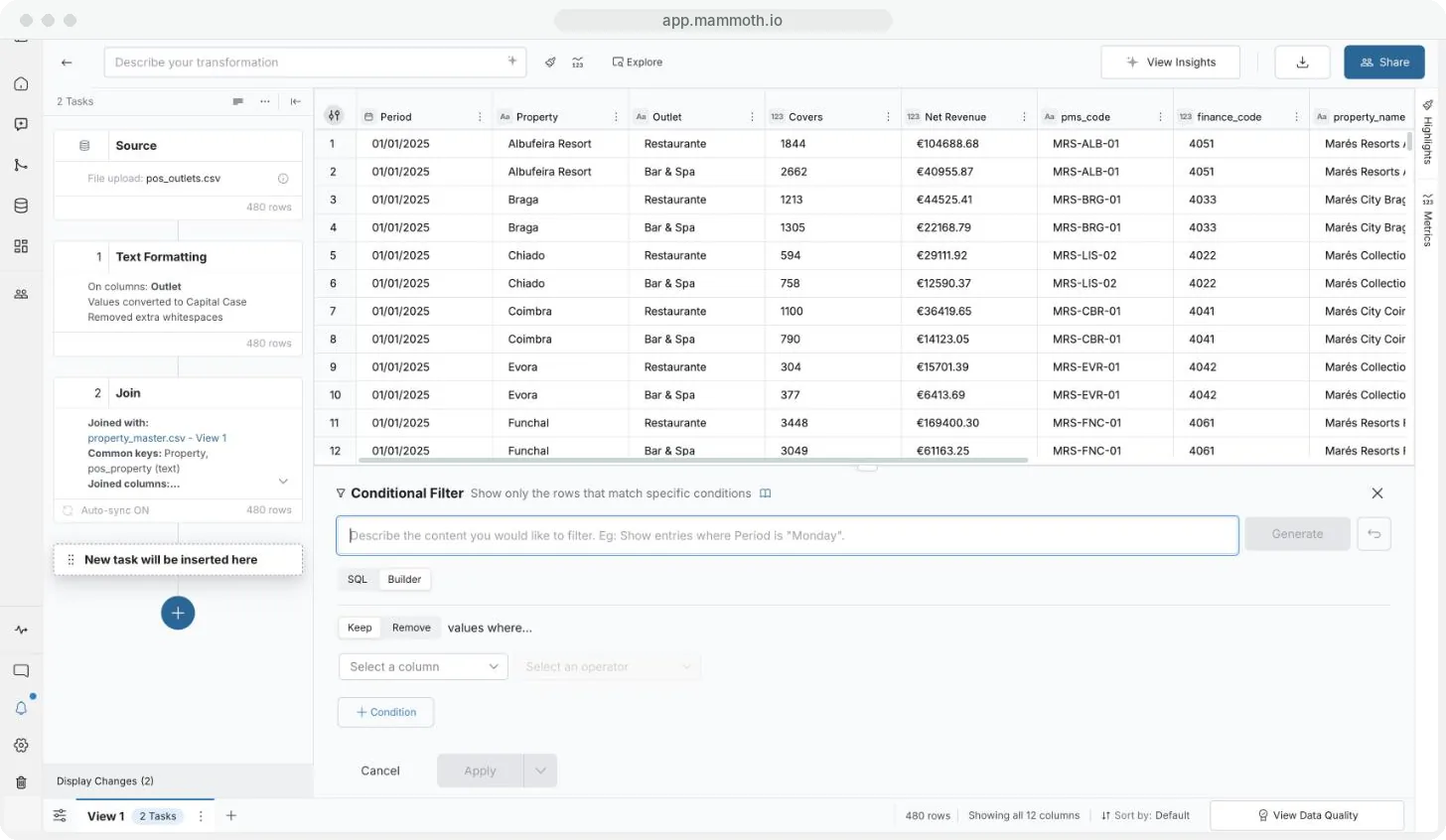
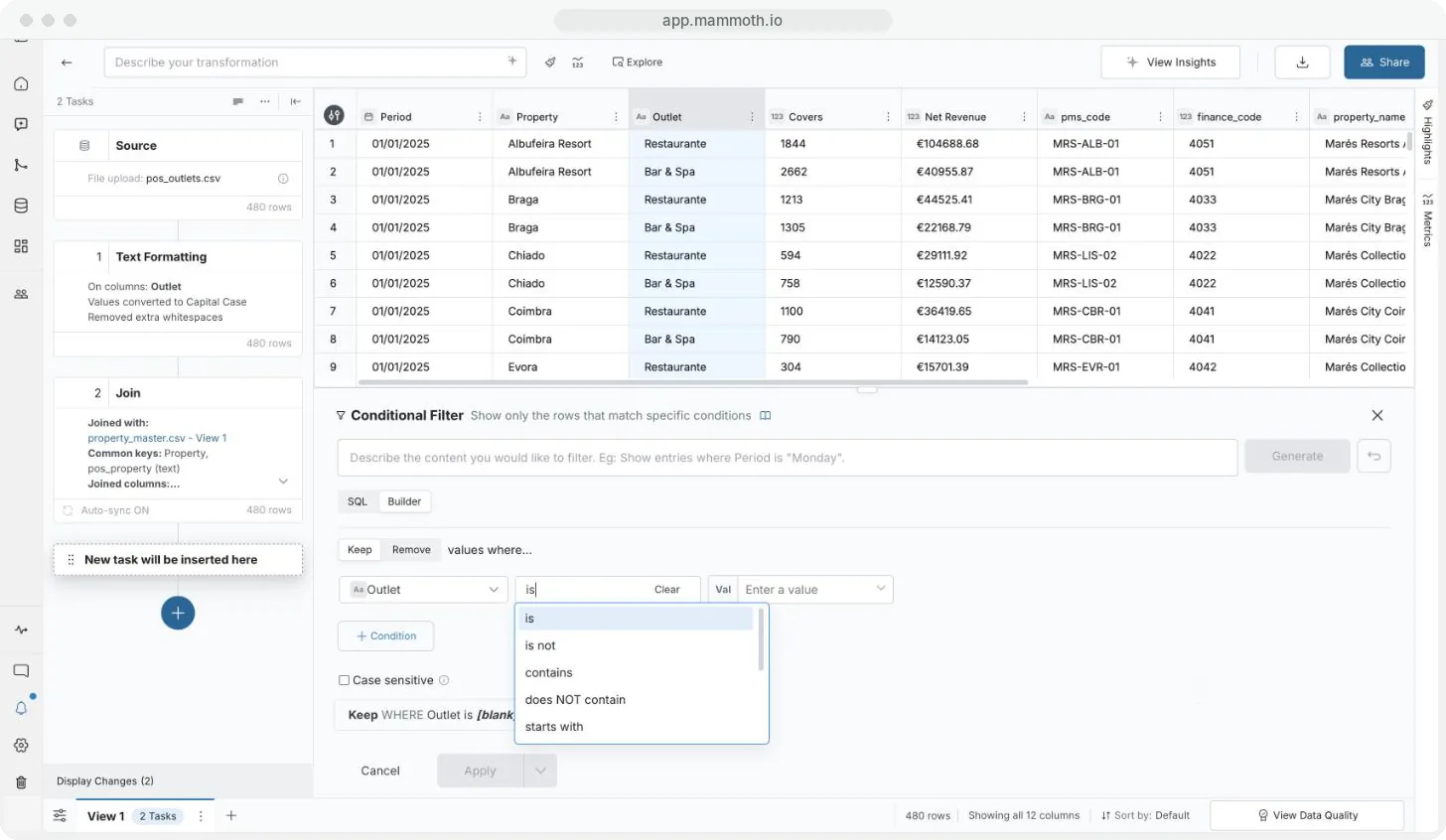
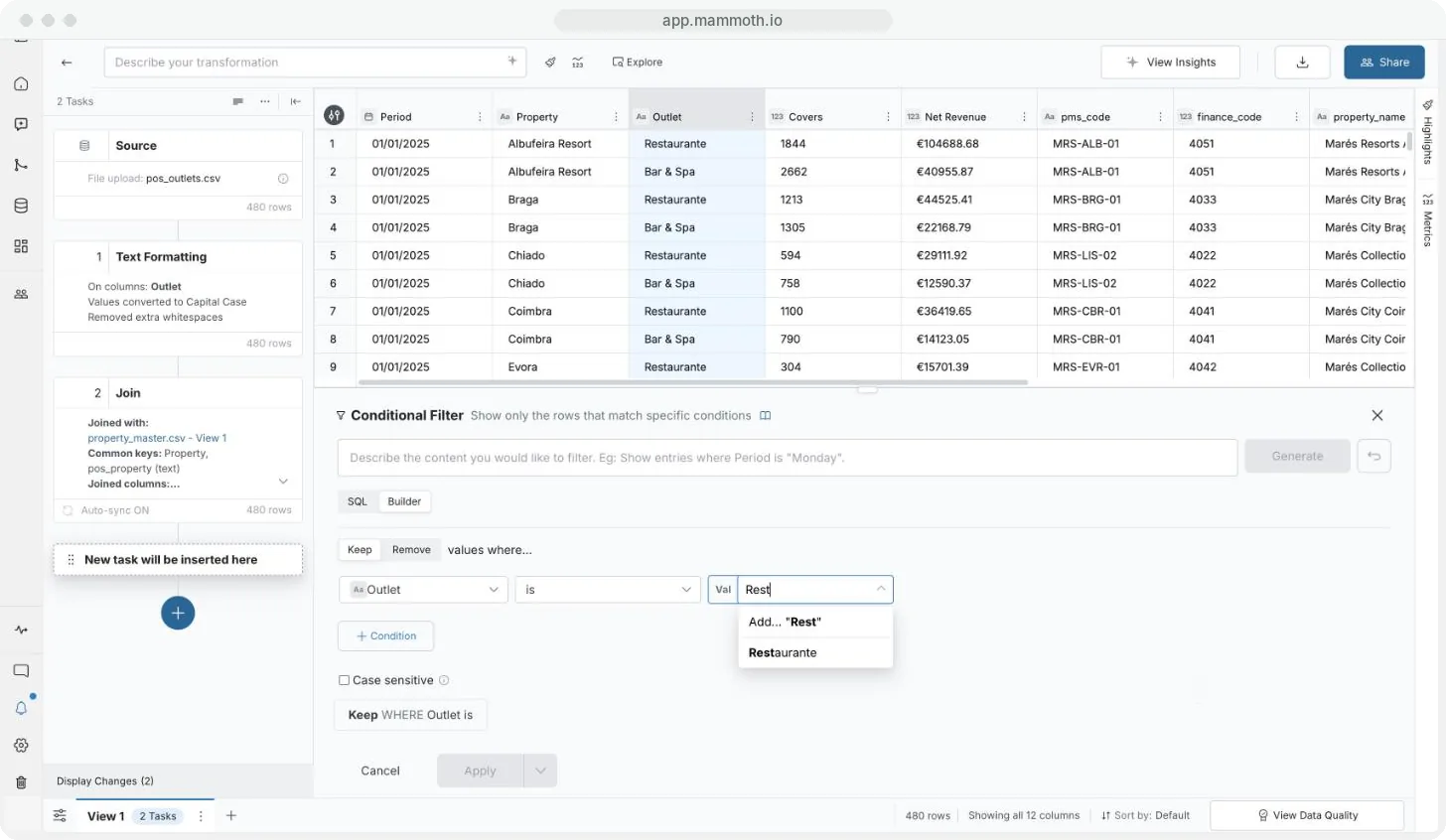
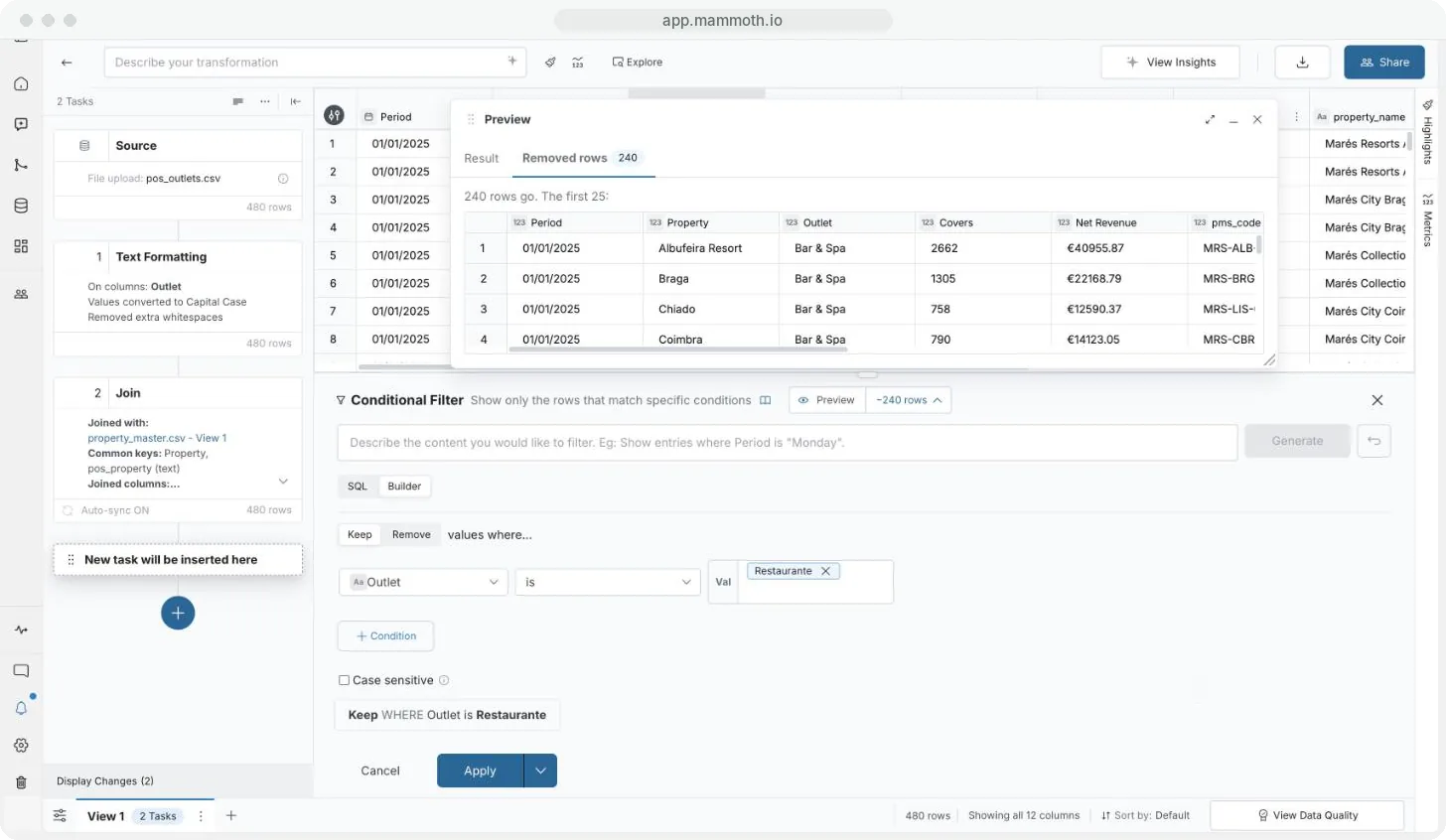
Step 1 of 6: Open Conditional Filter
Describe a filter in plain English
- Open Conditional Filter.
- Click the prompt bar at the top (Describe what you want to generate in SQL mode).
- Type what you want, for example "Show entries where hotel class is 5-Star and region is Europe".
- Click Generate. Mammoth builds the condition in whichever mode is active.
- Check the result, then click Apply.
Use the revert button beside Generate to go back to the previous result.
A saved filter reopens in the mode it was built in.
Compare with a value, a column or a parameter
Click the chip in front of the input (Val, Col or #) to choose what the column is compared with.
| Comparison type | Use it to |
|---|---|
| Value | Compare against a fixed value you type. Suggestions come from the column's real data. |
| Column Value | Compare against another column in the same row, for example keep rows where actual_sales is greater than target_sales. |
| Parameter | Compare against a project parameter. The picker lists parameters whose type matches the column, and each run uses the parameter's current value. See Parameters and snippets. |
A Case sensitive checkbox appears below the conditions once at least one Text condition exists. Unticked (the default), comparisons like is, contains and starts with ignore case. Tick it when exact casing matters.
Operators for each column type
The column's type decides the operators you can pick.
Operators for text columns
| Operator | Keeps rows where the value… |
|---|---|
| is | exactly equals the value, or any one of several values you enter |
| is not | doesn't equal the value, or any of several values you enter |
| contains | includes the text, or any one of several texts you enter, anywhere |
| does NOT contain | doesn't include the text anywhere |
| starts with | begins with the text |
| ends with | ends with the text |
| does NOT start with | doesn't begin with the text |
| does NOT end with | doesn't end with the text |
| is Empty | is null or blank |
| is NOT Empty | has any non-null, non-blank value |
Operators for number columns
| Operator | Keeps rows where the value… |
|---|---|
| is | exactly equals the number, or any one of several numbers you enter |
| is not | doesn't equal the number, or any of several numbers you enter |
| is less than | is strictly less than the number |
| is less than or equal to | is less than or equal to the number |
| is greater than | is strictly greater than the number |
| is greater than or equal to | is greater than or equal to the number |
| is MAX value | equals the column's maximum |
| is NOT MAX value | doesn't equal the maximum |
| is MIN value | equals the column's minimum |
| is NOT MIN value | doesn't equal the minimum |
| is Empty | is null |
| is NOT Empty | has any non-null value |
| in between (exclusive) | falls between two numbers, not including the endpoints |
On a Number column marked as an ID, starts with and does NOT start with are also offered, near the top after is and is not. They match on the digits, so starts with 40 keeps 4012 and 40877.
Operators for date columns
| Operator | Keeps rows where the date… |
|---|---|
| is | equals the date |
| is NOT | doesn't equal the date |
| is later than | is after the date |
| is on or later than | is on or after the date |
| is earlier than | is before the date |
| is on or earlier than | is on or before the date |
| in between (exclusive) | falls between two dates, not including the endpoints |
| is Empty | is null |
| is NOT Empty | has any non-null value |
Filter dates by month, weekday, year or a rolling window
On a Date column with the Value comparison type, a Select time interval dropdown appears before the value. It sets how precisely dates are compared and what you enter. in between (exclusive) skips it and shows a date-time picker for each end.
| Time interval | You enter | The condition compares |
|---|---|---|
| Date | A date | The date, ignoring the time of day |
| Date - Time in seconds | A date and time to the second | Date and time, to the second |
| Date/Minute | A date and time | Date and time, to the minute |
| Date/Hour | A date and hour | Date and time, to the hour |
| Year/Month | A year and a month | Year and month only |
| Year | A year | Year only |
| Day of Month | A day from 1 to 31 | The day of the month in any month and year |
| Month | A month name | The month in any year |
| Weekday | A weekday | The day of the week |
| Earliest single value | Nothing | The earliest date in the column |
| Latest single value | Nothing | The latest date in the column |
| Earliest Date - Time | A number and a unit (Year to Second) | The earliest date in the column plus that amount |
| Latest Date - Time | A number and a unit (Year to Second) | The latest date in the column plus that amount. Enter a negative number to go back. |
| Current Date (UTC) | A number and a unit (Year, Month, Week or Day) | The UTC date the step runs, plus that amount |
Earliest, latest and current date options are worked out again each time the pipeline runs.
To keep the last 30 days, choose is on or later than, set the interval to Current Date (UTC), and enter -30 Days. The window moves forward on every run.
Combine conditions with AND, OR and brackets
- Click Condition to add another condition row.
- On the second row, choose And (both must be true) or Or (either is enough) in the dropdown.
- To build compound logic such as (A AND B) OR (C AND D), click Group (available with two or more conditions) to wrap the last condition and a new one in brackets; each group has its own And/Or. The AND/OR inside a group is worked out first, then combined with the outer conditions.
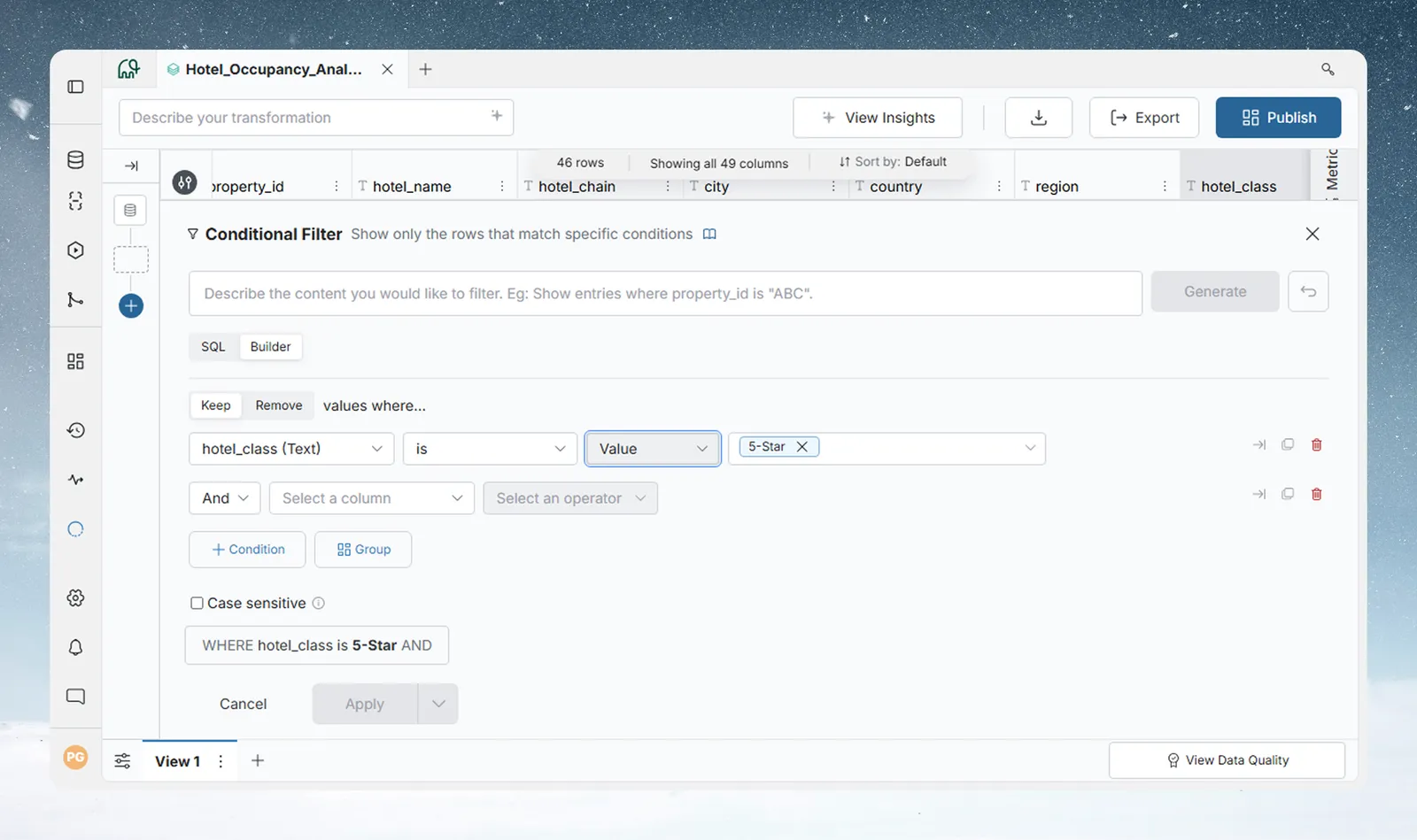
With more than one condition, each row has icons on the right:
| Icon | Action |
|---|---|
| Nest | Place inside parentheses: move this condition into a nested group |
| Unnest | Place outside parentheses: move it out of its group (only inside a group) |
| Copy | Duplicate this condition row |
| Trash | Remove this condition row |
Write a filter as a SQL WHERE clause
SQL mode is where a new filter opens. Type any valid SQL WHERE expression in the SQL Expression area, using your column names.
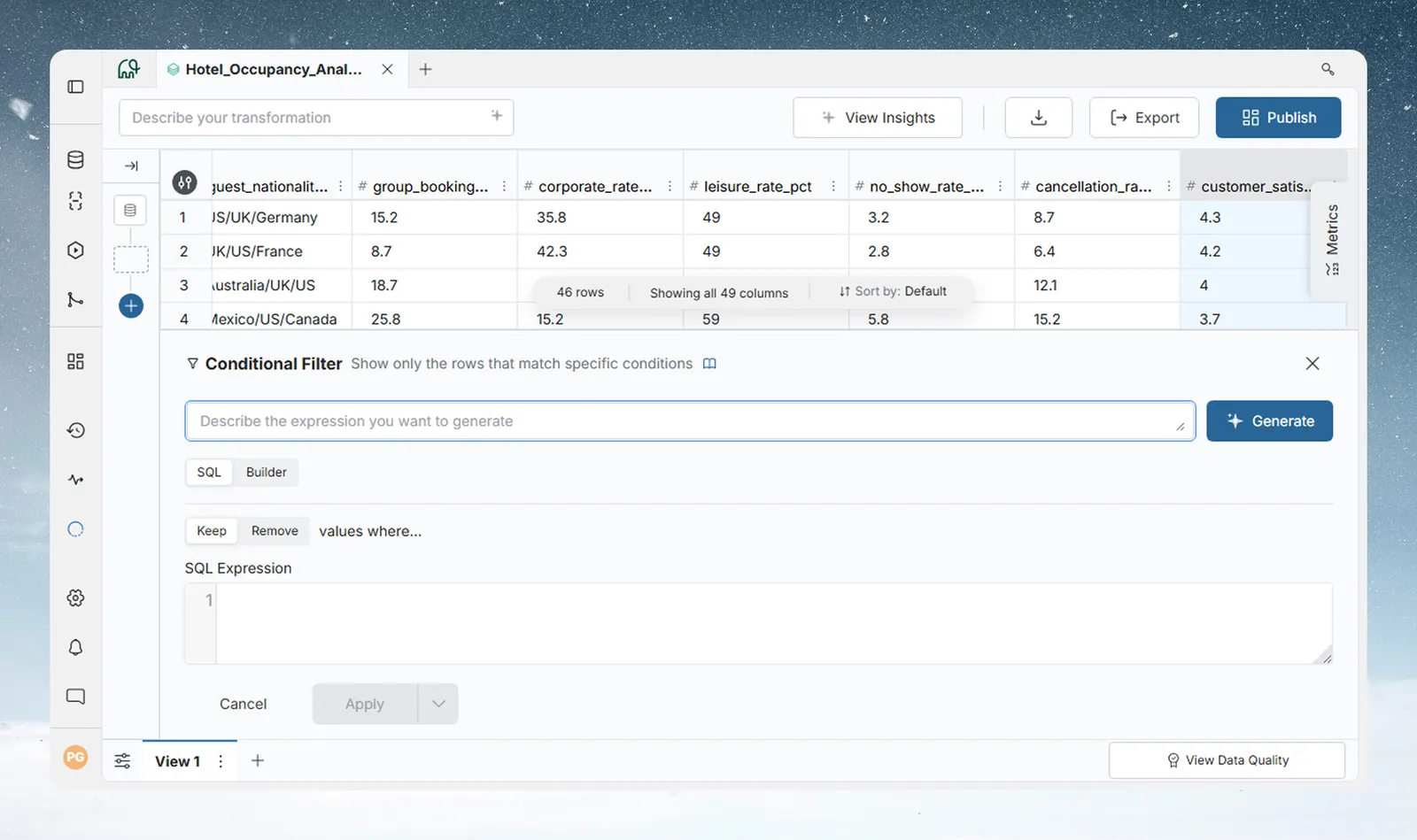
- Pipeline steps run on DuckDB, so write DuckDB SQL. Put column names in double quotes and text in single quotes, for example
"region" = 'Europe' AND "amount" > 100. - The Describe what you want to generate bar still works: Generate fills the SQL Expression field.
- Keep / Remove sits under the SQL / Builder toggle here too. Write the condition for the rows to match, then pick whether they stay or go.
- SQL mode has no Insert Parameter button, and
{Region}text in a filter's SQL isn't read as a parameter. To compare against a parameter, switch to Builder and use the Parameter comparison type.
Use SQL mode when the Builder can't express the logic, when you want to paste a ready-made condition, or when you are moving logic from another tool. More on SQL expressions in Calculate with formulas.
Filter from an Explore card
In a column's Explore card, select one or more values and choose Keep all values like this or Remove all values like this from the card's menu. A Conditional Filter opens in Builder with those values filled in. On a Text column, Case sensitive comes ticked. See Explore cards.
You can also choose Apply Filter with this Column in a column's 3-dot menu to open a filter set to that column.
Remove duplicate rows
Remove Duplicate Rows sits in the same Filter group. It drops rows that match on all columns, all columns except some, or only the columns you pick, and keeps the last row of each set. Settings and an example are in Remove duplicate rows and add data quality checks.
Keep only the top or bottom rows
Show Top/Bottom Rows keeps a fixed number of rows from the top or bottom of your data.
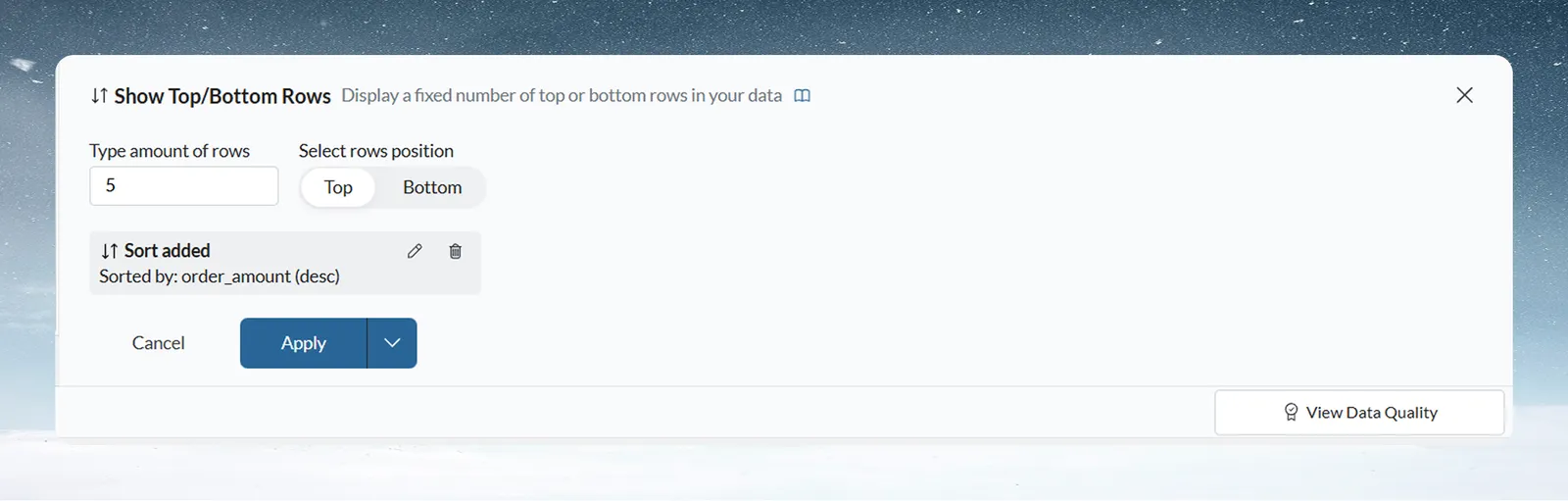
- In Type amount of rows, enter how many rows to keep. To use a Number parameter, click the Val chip and choose Parameter.
- In Select rows position, choose Top for the first rows or Bottom for the last.
- Check the Sort added chip, if shown. It shows the column the data is sorted by, which decides what "top" means. Sorted by order_amount ascending, Top 10 gives the 10 lowest values. Edit or remove the sort from the chip.
- Click Apply.
Troubleshooting filters
| Symptom | Cause | Fix |
|---|---|---|
| The preview reads "No rows in the result." | The condition matches nothing (with Keep) or everything (with Remove) | Check the operator, the value and the Keep / Remove choice |
| A text filter misses rows that differ only in case | Case sensitive is ticked | Untick it |
| A text filter catches rows with different casing | Case sensitive is off by default | Tick Case sensitive |
{Region} in a SQL filter isn't replaced | Filter SQL doesn't read parameters | Use Builder with the Parameter comparison type |
| Top 10 returns the lowest values | The sort is ascending | Edit the Sort added chip to sort descending |
Related
- How the pipeline works: preview a filter and see the removed rows before applying.
- Label rows, edit cells and fill blanks: use the same conditions to label rows instead of removing them.
- Remove duplicates and check data: quality gates on pipeline output.
- Work with dates and financial years: shift or extract dates before filtering.
- Parameters and snippets: filter on a value you can change in one place.
Something wrong? support@mammoth.io