Rename, format and sort columns
Renaming, formatting, sorting, hiding and reordering columns are Display Changes: they change how a View looks, never the data, and they add no pipeline task. You make most of them from a column's 3-dot menu in the data grid, and review or undo them in Display Changes (n) at the bottom of the Pipeline panel. Text formatting (case and whitespace) is the exception: it adds a Text Formatting task.
How Display Changes differ from pipeline tasks
- View-specific: each View has its own Display Changes. A new View starts with none.
- They apply at once in most cases. Number format changes need Apply in the formatting panel.
- They add no pipeline tasks: the Pipeline panel is unaffected.
- Renamed columns show their new names in the grid, pipeline task dropdowns and exports.
- They aren't part of automation: they are presentation only and don't run in scheduled pipelines.
For pipeline tasks, see How the pipeline works.
Rename a column
There is no Rename Column function in the Transform menu. Rename from the grid instead:
- Double-click the column header, or open its 3-dot menu and choose Rename Column.
- Type the new name in the inline box.
- Press Enter.
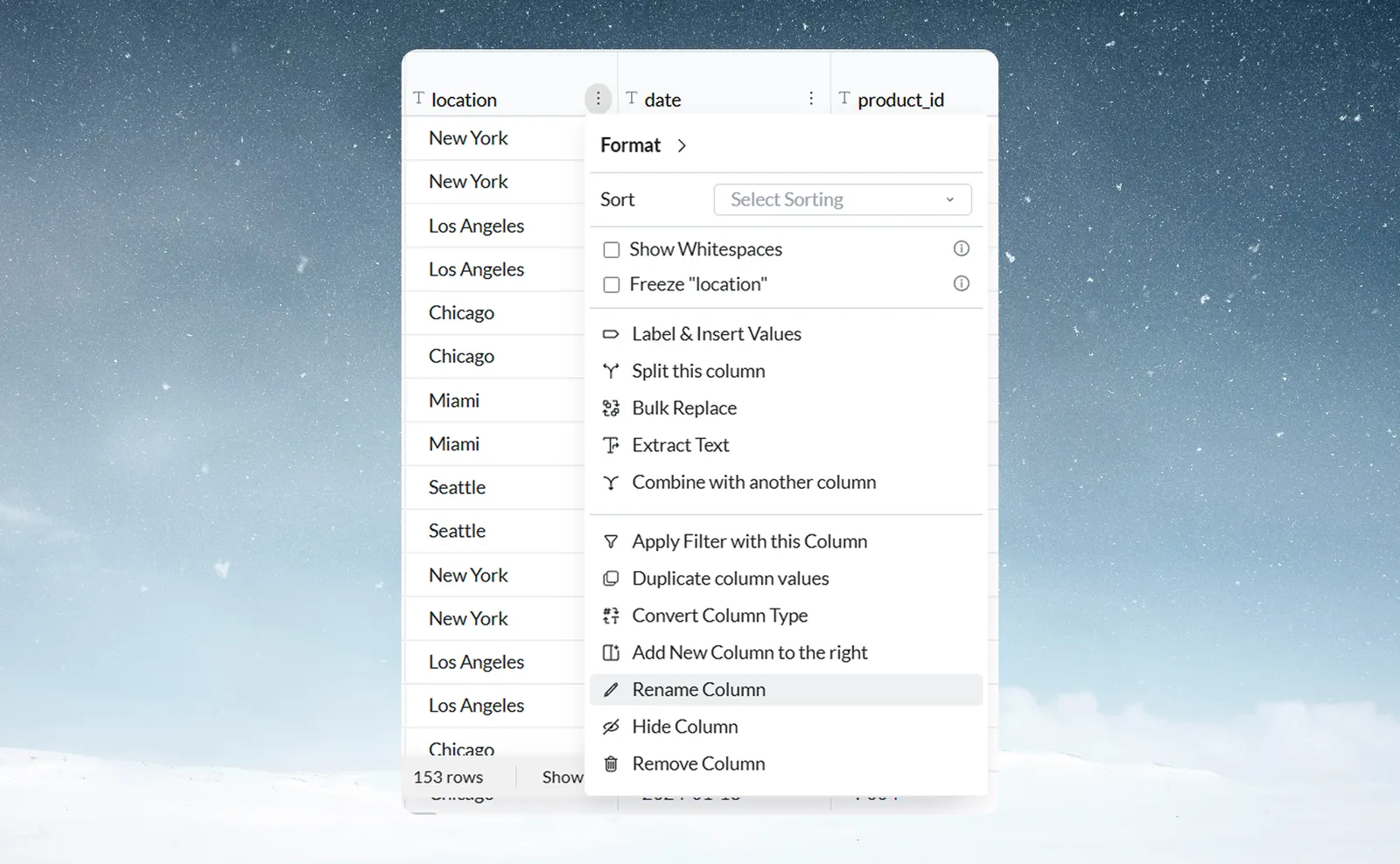
The new name applies at once, in this View only. Other Views still use the original name. Renaming here and in the Column browser is the same thing: both set a display name for this View.
To undo it, open the column menu and choose Revert to original column name. That option appears only after a rename.
Rename Column is disabled while the transformation info panel is open or while any pipeline task is in error. Hide Column and Revert to original column name are also disabled while a task is in error.
Format a number column as currency, percent or decimals
On a NUMERIC column, the formatter sits inline in the column menu under Formatting. It has a row of icon buttons with no text labels.

| Control | What it does |
|---|---|
| Separator | Turns thousand separators on or off (1,234,567 or 1234567). On by default. |
| Percentage | Shows numbers as percentages (0.45 shows as 45%). |
| Currency | Opens a picker: $ (USD), € (EUR), ¥ (YEN), £ (GBP) or ₹ (INR). |
| Decimal precision | Left and right chevrons step the visible decimal places, up to 5. The default is 2. |
| Apply | Saves the format. Enabled only when the settings differ from the saved format. |
| Reset | Puts back the defaults: separator on, no currency, no percentage, 2 decimals. Shown only when the format differs from the default (tooltip "Reset to original formatting"). |
Currency and percentage can't be used together: turning one on turns the other off.
On a Currency, Percentage or ID column, some buttons are greyed out with the note "Set by the column's type". For example, a Currency column can't show as a percentage, and an ID column has no thousands separator. Apply leaves those settings alone, and Reset brings back what the type decides. To change them, change the column's type. See Column types, IDs, currency and percentages.
Number formatting changes only how values look in this View. Other Views keep their own formatting.
Change how a date column is displayed
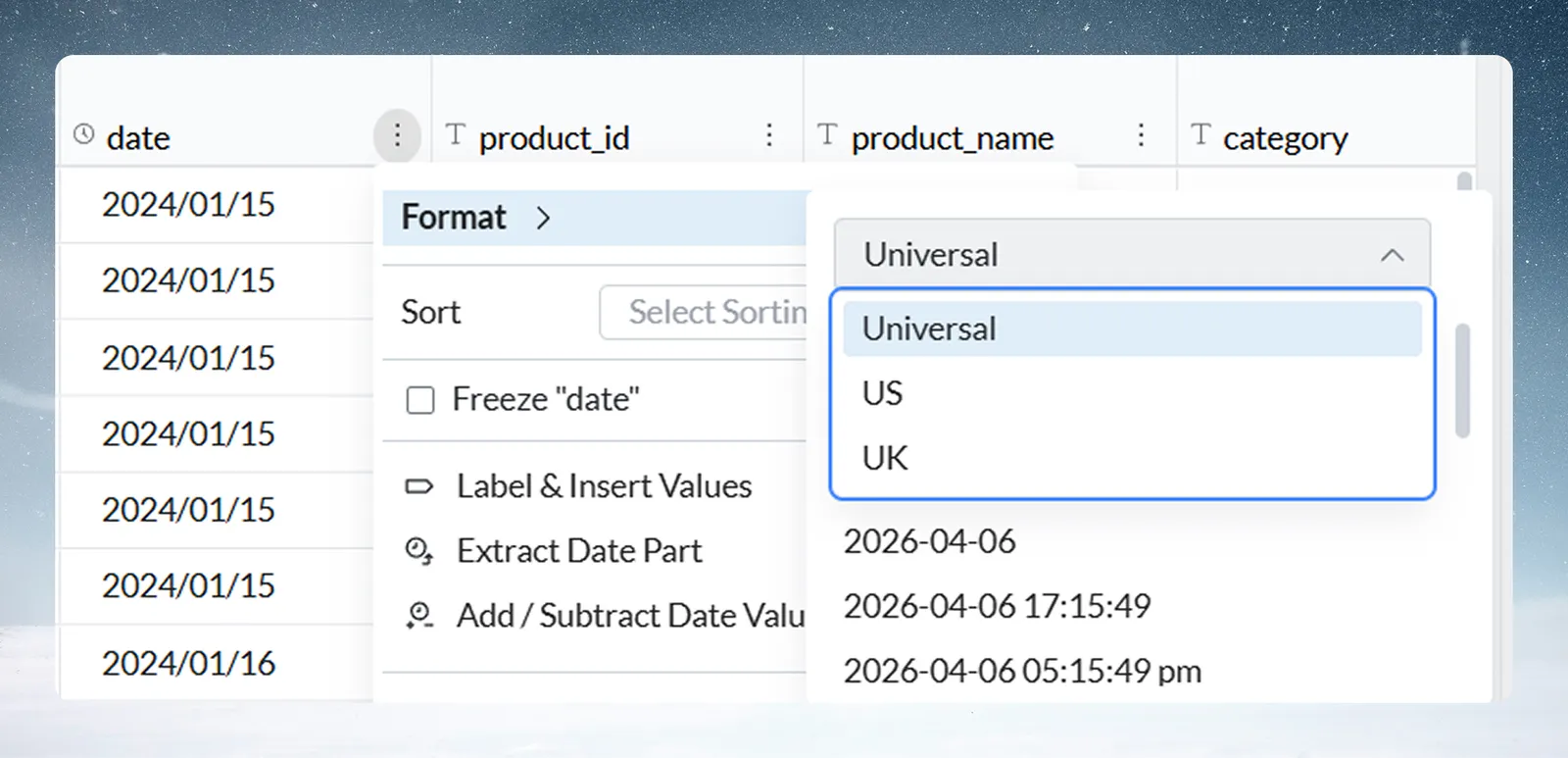
- Open the date column's 3-dot menu and hover or click Format.
- Choose a date type: Universal, US or UK.
- A list of formats appears, each showing today's date as a live preview. Click one to apply it at once.
To turn text into real dates, use Convert Column Type instead. See Convert text to dates and numbers.
Change text case or trim spaces from the column menu
On a TEXT column, Format opens a flyout. Unlike number and date formatting, this adds a Text Formatting task to the pipeline and changes the column's values. Everyone using this View sees the result.
To change text case:
- Tick Change case to.
- Pick UPPER, lower or Capitalized.
- Click Apply.
To remove extra spaces and tabs:
- Tick Normalize whitespace.
- Click Apply.
Apply stays disabled until you tick at least one option. More options opens the full Text Formatting panel with your choices filled in. See Work with text and JSON.
Show hidden spaces in a text column
Show Whitespaces is a checkbox in the main column menu (not in the Format flyout), on TEXT columns only. Tick it to show spaces and special characters as visible symbols throughout the column. Untick it to hide them. It helps when leading spaces or tabs are spoiling a match.
Sort rows by one or more columns
To sort by one column:
- Open the column's 3-dot menu.
- Choose Ascending or Descending in the Sort dropdown. The grid reorders at once.
The column menu sorts by one column at a time; a sort on another column replaces it. To sort by several columns, click Sort by in the grid footer. It shows the active sort (or "Default") and opens the Sort Columns dialog, where Add another sort adds a level. An X beside Sort by clears the sort without opening Display Changes.

Sorting is a Display Change, not a pipeline task. It is saved with the View, stays after a refresh, and is listed under Grid Changes in Display Changes. There is no Sort pipeline task. If a calculation needs a row order, use Add Sort inside functions such as Fill Missing Values or Window Function; that order is saved with the task.
Freeze a column so it stays visible
- Open the column's 3-dot menu.
- Tick Freeze "order_id" (the label shows the column's name).
- The column is pinned to the left of the grid and stays visible as you scroll right.
Untick it to unfreeze. You can freeze more than one column, though each one leaves less room to scroll the rest.
Freezing isn't a Display Change. It is your personal setting for this View: it stays after a refresh, doesn't appear in Display Changes, and other users don't see it.
Hide or reorder columns
- Hide a column: open its 3-dot menu and choose Hide Column. The data stays and the column is still available in pipeline task dropdowns. Exports leave out hidden columns unless the export's Include hidden columns option is selected. Other Views are unaffected.
- Unhide a column: use the Column browser (click the column count at the bottom of the View) or revert it in Display Changes.
- Reorder columns: drag a header left or right. It applies at once.
To take a column out of the data for later tasks, use Remove Column instead. See Add, split, copy and delete columns.
Review and undo changes in Display Changes
Display Changes (n) appears at the bottom of the Pipeline panel once at least one Display Change is active. Hover it for a breakdown, for example "Column Rename (1), Format Changes (2), Grid Changes (2)."
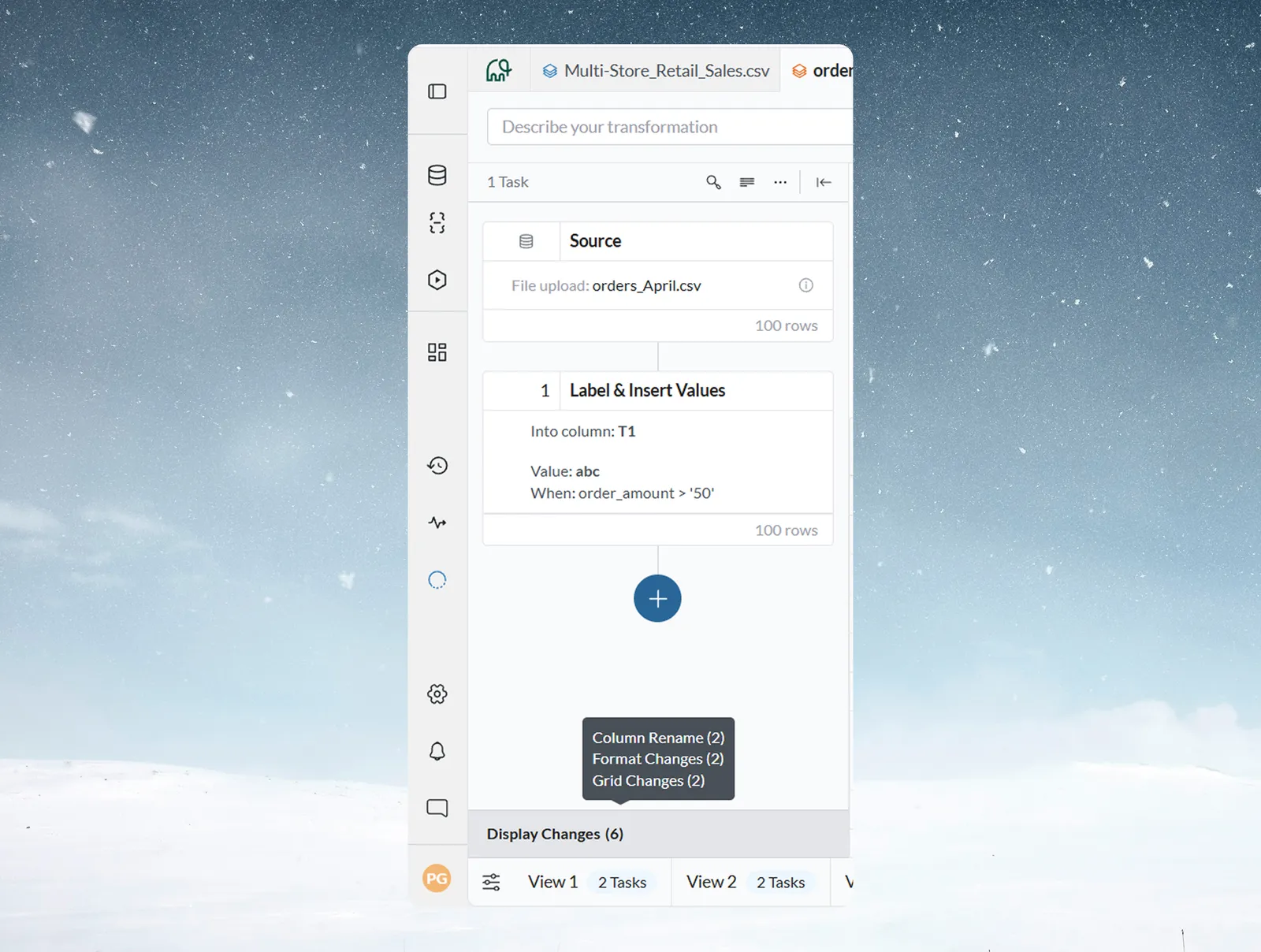
Click it to open the dialog. It has three sections:
| Section | What it lists |
|---|---|
| Column Rename | Every renamed column as original name → new name |
| Format Changes | Every column with a display format, with before and after |
| Grid Changes | Active sorting, column order and hidden columns |
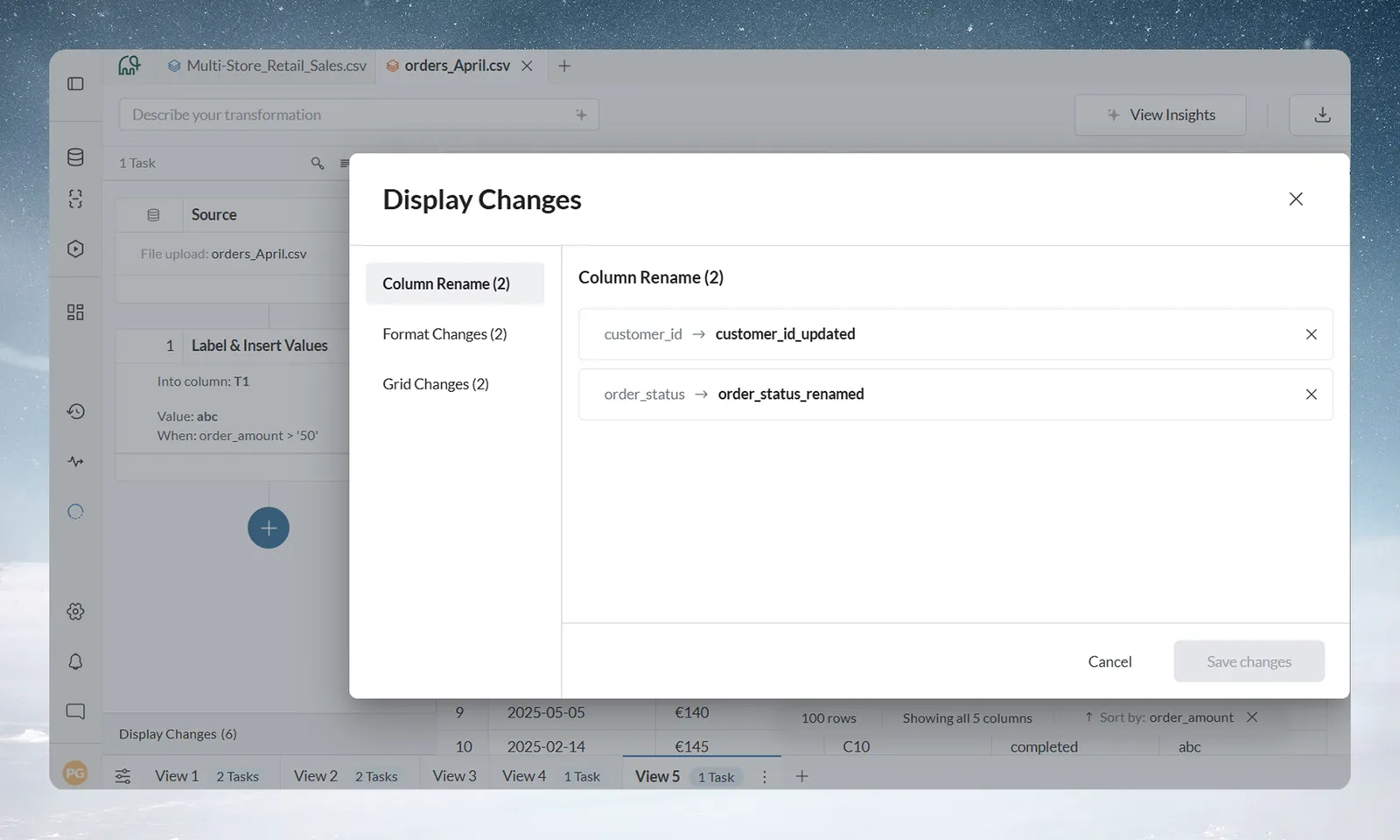
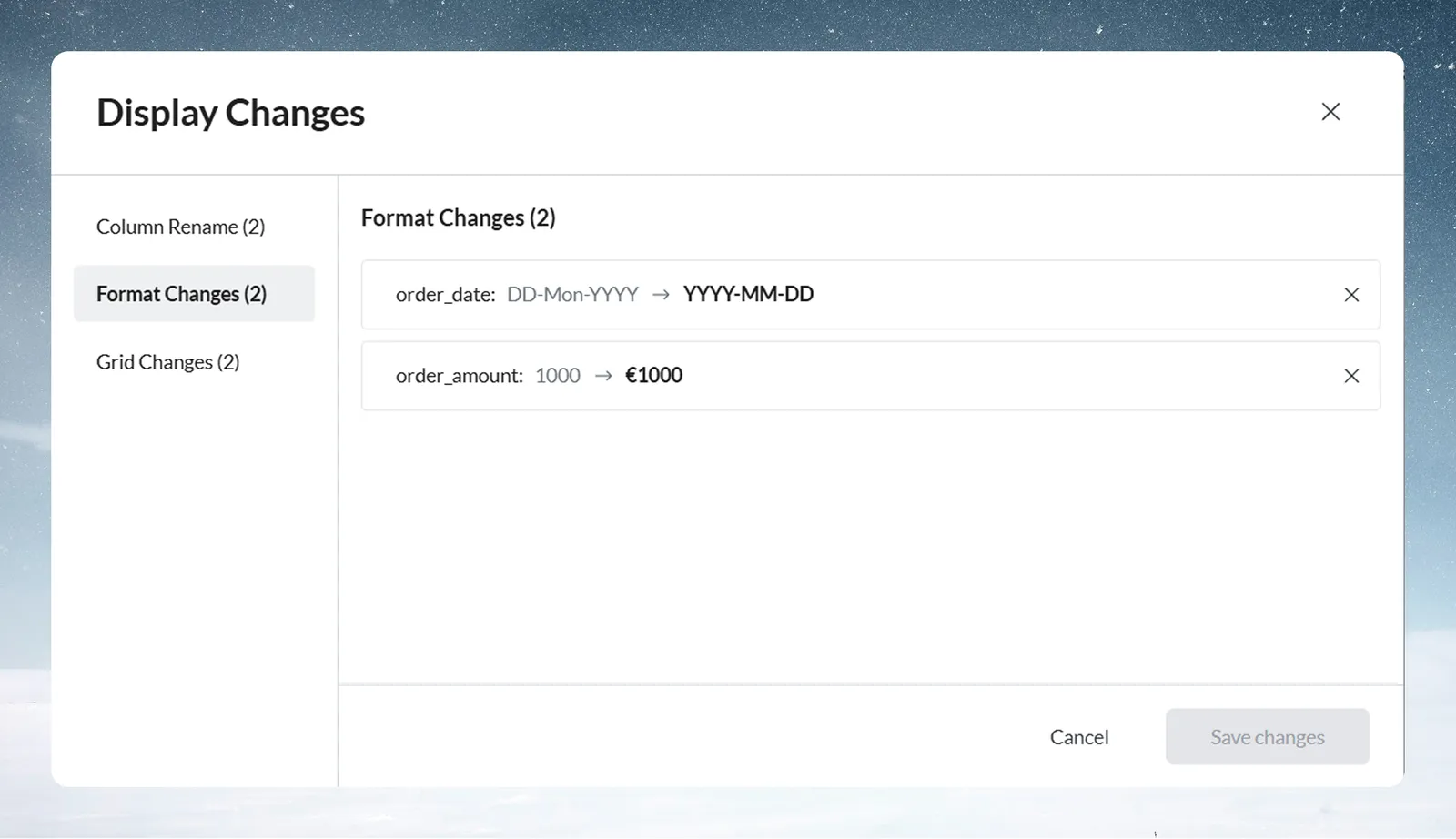
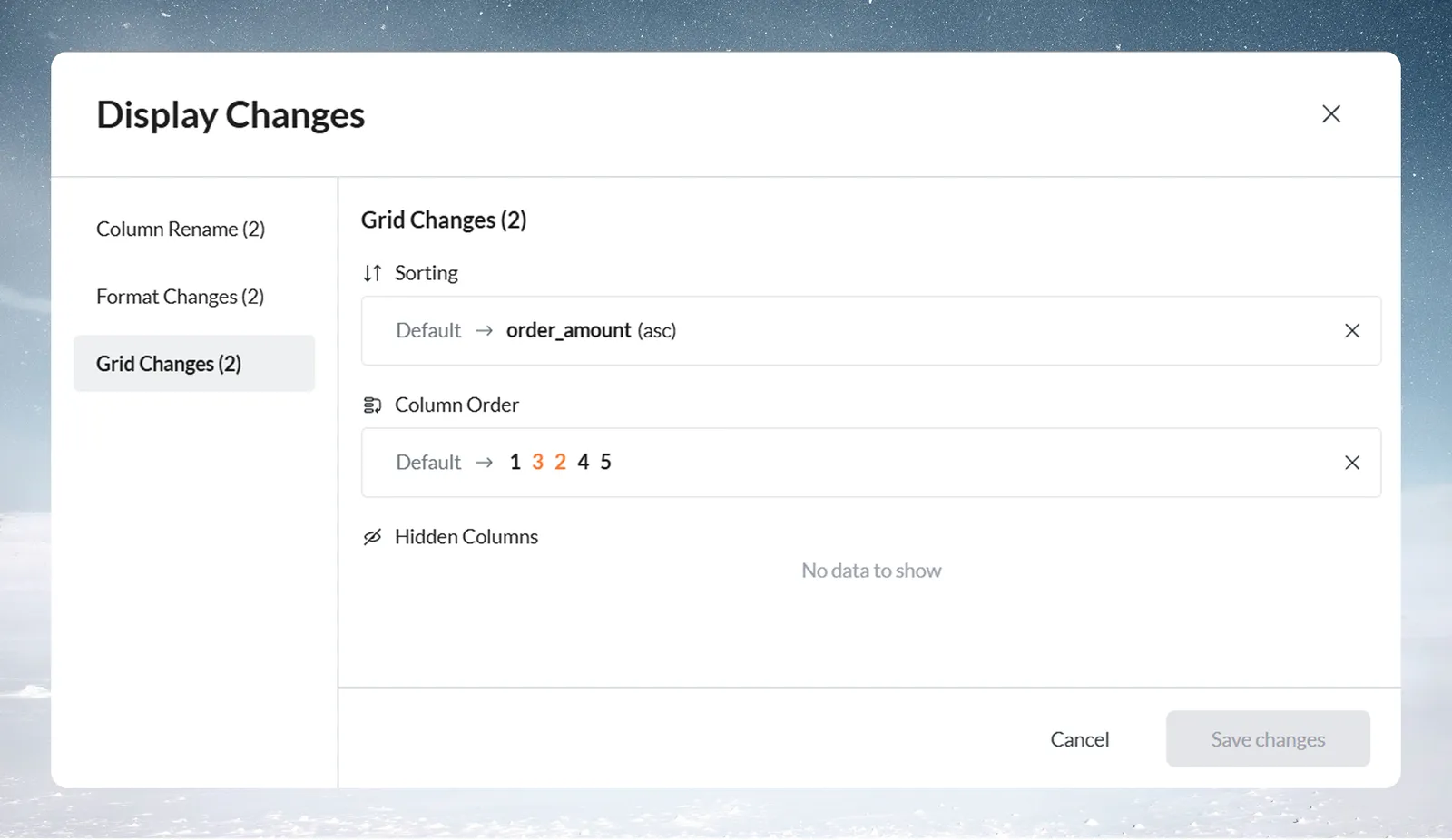
To undo changes:
- Click the X on an entry to revert it, or click Undo changes to revert a whole section.
- Click the submit button. It reads Save changes and is disabled until you change something; after that it reads, for example, Apply 2 changes.
Troubleshooting display changes
| Symptom | Cause | Fix |
|---|---|---|
| A sort disappeared after a refresh | It should persist as a Display Change | Check Grid Changes in Display Changes |
| Rename Column is greyed out | The transformation info panel is open, or a task is in error | Close the panel, or fix or remove the failing task |
| Format or sort changes are ignored | A pipeline task is in error | Fix or remove the failing task, then try again |
| Number format didn't change | Apply wasn't clicked | Reopen the menu and click Apply |
| Currency and percentage won't both stay on | They can't be used together | Pick one |
| A number format button is greyed out with "Set by the column's type" | The column is a Currency, Percentage or ID column | Change the column's type |
Related
- Work in the data grid: the full column menu and bulk actions on several columns.
- Column types, IDs, currency and percentages: why some format buttons are locked.
- Browse columns: show, hide and reorder all columns at once.
- Download data: how hidden columns and new names reach an export.
- Highlight values with colour: colour cells by rule without changing data.
Something wrong? support@mammoth.io