Manage saved connections on Mammoth's Connections page
A connection is a saved sign-in to a source or destination: a database login, an app you signed in to, or an API key. Go to Data and click the Connections tab (beside Datasets) to see every connection in the project, its health and what uses it. Everyone in the project sees the list; only Project Admins create, edit or delete connections.
You create a connection the first time you connect a source in the connector workspace, or when you set up an export. After that, the connection belongs to the project. To change, repair or remove one, see Edit, repair or delete a connection.
Read the Connections list
The list has two groups: Mammoth Managed (connections Mammoth runs for you, such as a managed PostgreSQL or Google BigQuery database you export to; see Send data to a database or BI tool) and External (connections you or a teammate created, to your own databases, apps, drives and APIs).
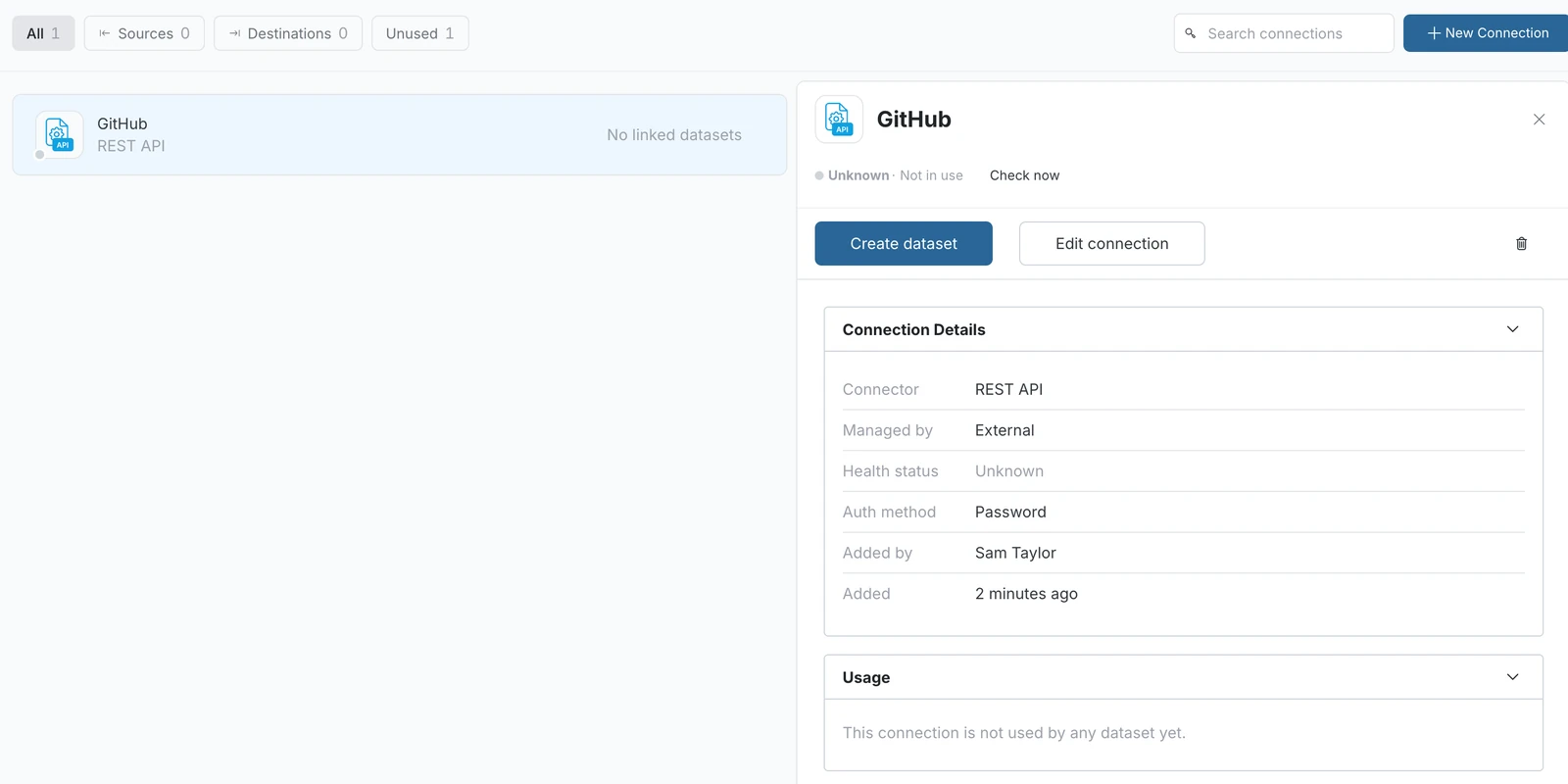
Each row shows the connection's name, its connector, a health dot, and how it is used:
- a source count (datasets that import from it) and a destination count (Views that export to it). Hover over a count to see them by name, and click one to open it;
- No linked datasets for a connection nobody uses;
- the number in setup, such as 1 in setup, when a dataset is still being set up.
Who can see and change connections
Everyone who can open the project's Data area sees the same list. Passwords and keys of your own connections are never shown on the page.
| Action | Who can do it |
|---|---|
| See the list, a connection's details and its usage | Everyone in the project |
| Start a dataset from an existing connection (Create dataset) | Project Admins and Project Editors |
| Create, edit or delete a connection, discard a draft | Project Admins |
| See a Mammoth-managed database's credentials | Project Admins |
If you can't change connections, the buttons are disabled and a banner says why:
- "You don't have permission to create or change connections in this project. Ask a Project Admin to add a connection or to give you Admin access."
- In a workspace without an active plan: "This workspace is in view-only mode, so connections can't be created or changed. Choose a plan to continue working." (see Billing and plans).
See Projects for the roles.
Search and filter connections
Type in Search connections to match a connection's name or its connector (for example, postgres). The tabs above the list filter it, and each shows a count.
| Tab | Shows |
|---|---|
| All | Every connection, plus unfinished drafts and the Links group (datasets that follow a link; see See every dataset that follows a link) |
| Mammoth | Mammoth-managed connections |
| External | Connections you or a teammate created |
| Sources | Connections at least one dataset imports from, plus drafts and Links |
| Destinations | Connections at least one View exports to |
| Issues | Connections whose health is Error |
| Unused | Connections nothing imports from or exports to, and with no dataset in setup |
All, Sources and Destinations always show; the other tabs appear only when they have something in them, and Mammoth and External are hidden when every connection is external. When connections or links are failing, a line above the list shows how many "need attention". If nothing matches, you see "No connections match your search." with Clear search or Clear all filters.
Check a connection's details and health
Click a connection to open its details beside the list. The top shows its health and, depending on its state, when it was last checked, Not in use, or how many datasets are In setup.
| Health status | What it means |
|---|---|
| Connected | The connection's last read worked |
| Error | The key expired, the source refused it, or Mammoth could not reach the source |
| Unknown | Mammoth has not checked this connection yet |
Health comes from a daily check and from real reads. A table that returns rows in the connector workspace marks the connection Connected; a source that refuses the key, or a failing export to the connection, marks it Error.
- Connection Details: the Connector, Managed by (Mammoth Managed or External), Health status and Auth method, plus, where the connection has them, Auth fields, Host, Port, Database, Username and Encryption. Added by and Added say who created it and when.
- Usage: the SOURCES (datasets that import through the connection) and DESTINATIONS (Views that export to it), each with its folder path. Click one to open it. An unused connection says "This connection is not used by any dataset yet."
Start a dataset from a saved connection
- Click the connection.
- Click Create dataset. A new draft opens in the connector workspace with nothing to re-enter (see Pick tables and columns in the connector workspace).
When one dataset from this connection is still in setup, the button Continue and the draft's name (such as Continue HubSpot deals) reopens that draft, and Create dataset reads New dataset.
Add a new connection
Click New Connection. A project with no connections yet shows "No connections yet" and a New Connection button.
- On any tab except Destinations, it opens the Connectors launcher, where you pick a source and connect it.
- On Destinations, it opens a picker of connectors. Select one, click Next: Configure, and fill in the connection form (or sign in). When it's saved, Connection Created offers Create a dataset or Go to Connections.
Continue or discard a draft
A source you started in the connector workspace but didn't save is a draft. On All and Sources, drafts that are not connected yet are listed at the top under Not connected yet (a draft whose key the chat already checked shows Key checked); a draft on a saved connection sits under that connection's row.
Click Continue to reopen a draft. Project Admins can click Discard: Discard this draft? warns "The draft and its chat go away. Nothing in your data changes."
Related
- Edit, repair or delete a connection: new keys, deletes and managed credentials.
- Connect a database or app: add a connector in the connector workspace.
- Send data to a database or BI tool: exports that create destination and managed connections.
- Projects: Project Admin and Project Editor roles.
Something wrong? support@mammoth.io