Diagnose a Mammoth problem and contact support
Run these checks before you open a specific guide: they resolve many common issues. If the problem remains, email support@mammoth.io or open the support chat from the sidebar. The checklist is for anyone who builds pipelines, connections, automations or dashboards.
Run a quick diagnostic checklist
- Check platform status. Visit https://status.mammoth.io for active incidents or degraded services.
- Check the Activity Log. Open Monitor → Activity Log for your project or workspace to see who changed what and when. It records changes, not errors (see below).
- Look for error indicators. A pipeline error shows a This pipeline has errors banner. A failed automation shows an Error status, with the failure in Last run result. A failing connection shows Error on the Connections page. Monitor → Needs Attention gathers errors for the project. None of these appear in the Activity Log.
- Try a hard refresh. Press
Ctrl+Shift+R(Windows/Linux) orCmd+Shift+R(Mac) to bypass the browser cache. - Check your permissions. Confirm your project role allows the action. See Members, roles and custom roles.
What the Activity Log records and what it doesn't
| Records | Doesn't record |
|---|---|
| Dataset create, edit, rename and delete events | Connection authentication failures (expired tokens, invalid credentials) |
| Combine, replace and duplicate dataset operations | Pipeline task-level errors (individual task failures within a pipeline) |
| Pipeline task changes | Schema mismatch errors during data import |
| Connection changes | |
| Automation edits, and batches being suspended or resumed | |
| Workspace invitations and two-factor enforcement changes | |
| Dashboard publish, unpublish, share, access and export events | |
| Moving items to Trash and restoring them |
For errors, check the indicators on the affected connection, pipeline or automation. See Activity log for the full list of events.
What to do in an emergency
| Situation | Action |
|---|---|
| Platform outage or degraded service | Check https://status.mammoth.io |
| Data emergency: you need help now | Email support@mammoth.io with your workspace ID and a description |
| You're locked out of your account | Email support@mammoth.io with your user email and workspace name |
| You suspect data corruption | Suspend your scheduled automations immediately, then contact support@mammoth.io |
After a failed automation, fix the root cause of the data or authentication failure first, then use Run now on the automation.
Contact Mammoth support
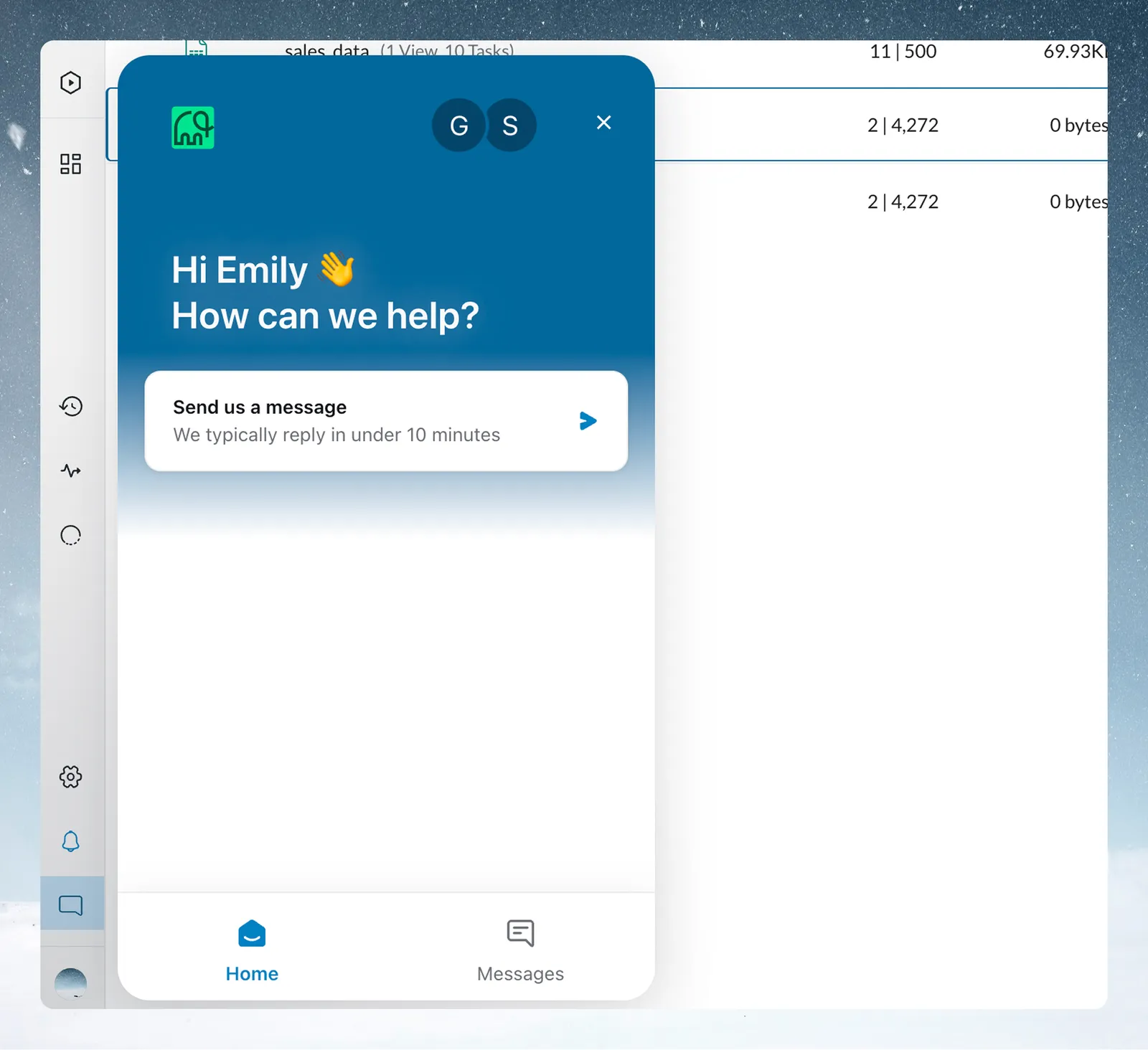
Email support@mammoth.io with your workspace name, the feature area (connection, pipeline, dashboard), the steps to reproduce the issue, and any error messages. You can also open the support chat from the sidebar.
Refresh more often than your plan allows
How often an automation can run depends on your plan. See Schedules and triggers for the options and Limits and quotas for each plan's shortest interval. A Workspace Owner can change the plan to refresh more often.
Related
- Fix a failing step: fix a red pipeline task, from missing columns to join problems.
- Fix dashboard problems: blank dashboards, stale data, AI build failures and share links.
- Data quality report: the six DAMA dimensions and fixes for duplicates, missing values and outliers.
- Error messages: what each on-screen message means.
Something wrong? support@mammoth.io