Change or remove people in a Mammoth project
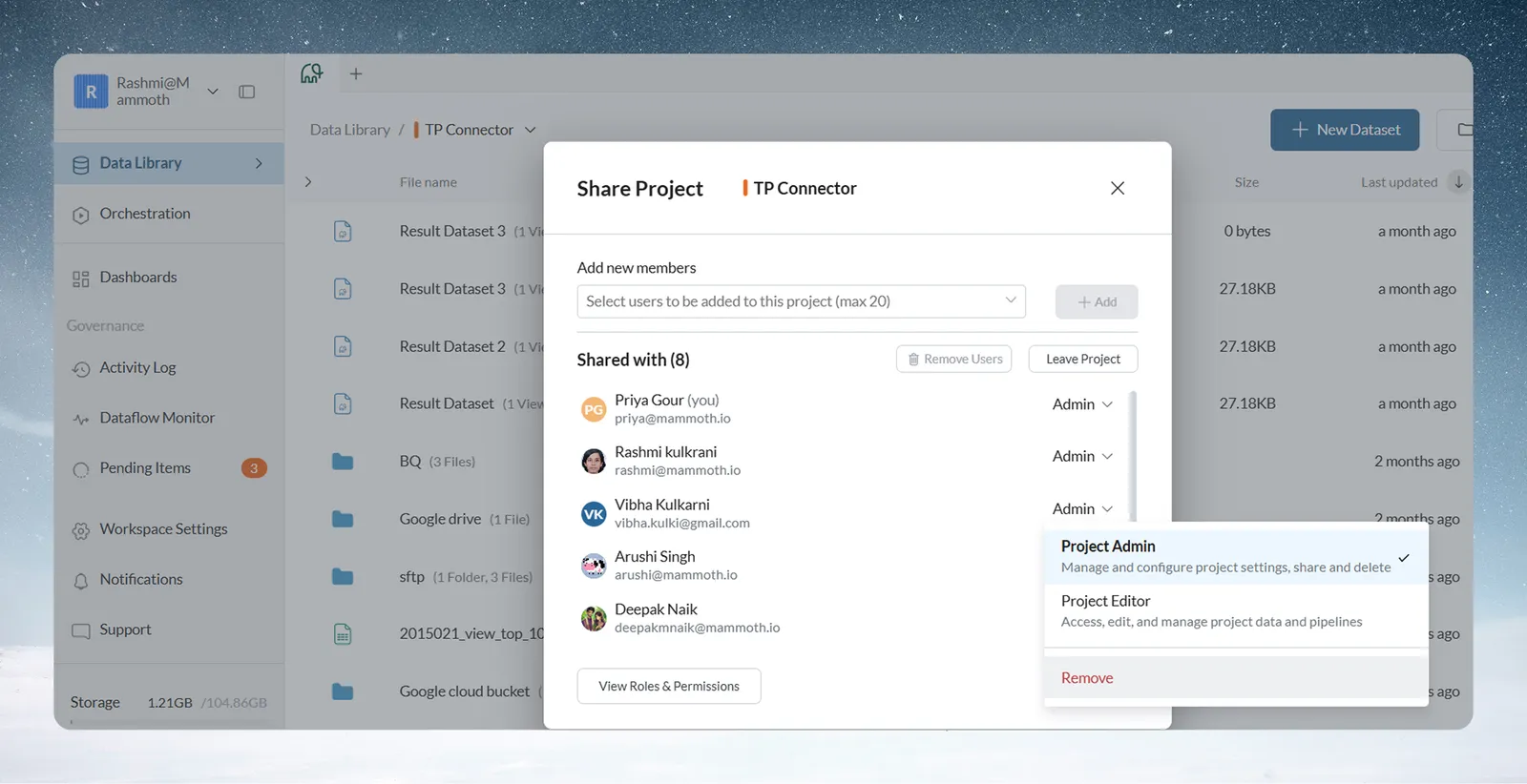
You change project roles and remove people in the project's Share Project or Manage Project Users window: the Share icon at the top right of the Data Library, or Manage Users in the project menu. You need to be a Project Admin on the project or a Workspace Owner. To add people, see Share a project and set project roles.
Change someone's project role
- Find the user in the "Shared with" list.
- Click the role dropdown next to their name (it shows Admin, Editor or Viewer).
- Select Project Admin, Project Editor, Project Viewer or a custom project role. The change takes effect at once.
You can also set roles when you create a project with Some people in this workspace, in Project Settings, and in each user's side panel in User Management. To hand over Project Admin, change another user's role to Admin. There's no limit on admins per project, and more than one avoids a gap if one leaves.
Remove people from a project
To remove one person in either window, click the role dropdown next to their name, scroll to the bottom and click Remove (in red). On your own row, the last option reads Leave Project instead and starts the same leave flow as the project menu.
To remove several people, open Manage Project Users, tick their rows and click Remove Users. You see "The users were successfully removed from the Project." You can't tick your own row, and the Share window has no checkboxes. You can also pick people in bulk in Project settings under Some people in this workspace.
Removing someone revokes their access, but the datasets and automations they made stay in the project.
Give someone a custom project role
Custom project roles appear after the three built-in roles in the role dropdown, with their description, in every project of the workspace. You can only give one whose permissions your own role has; Workspace Owners can assign any. To build one (Pro plans), see Create, edit and delete custom roles.
See every project permission
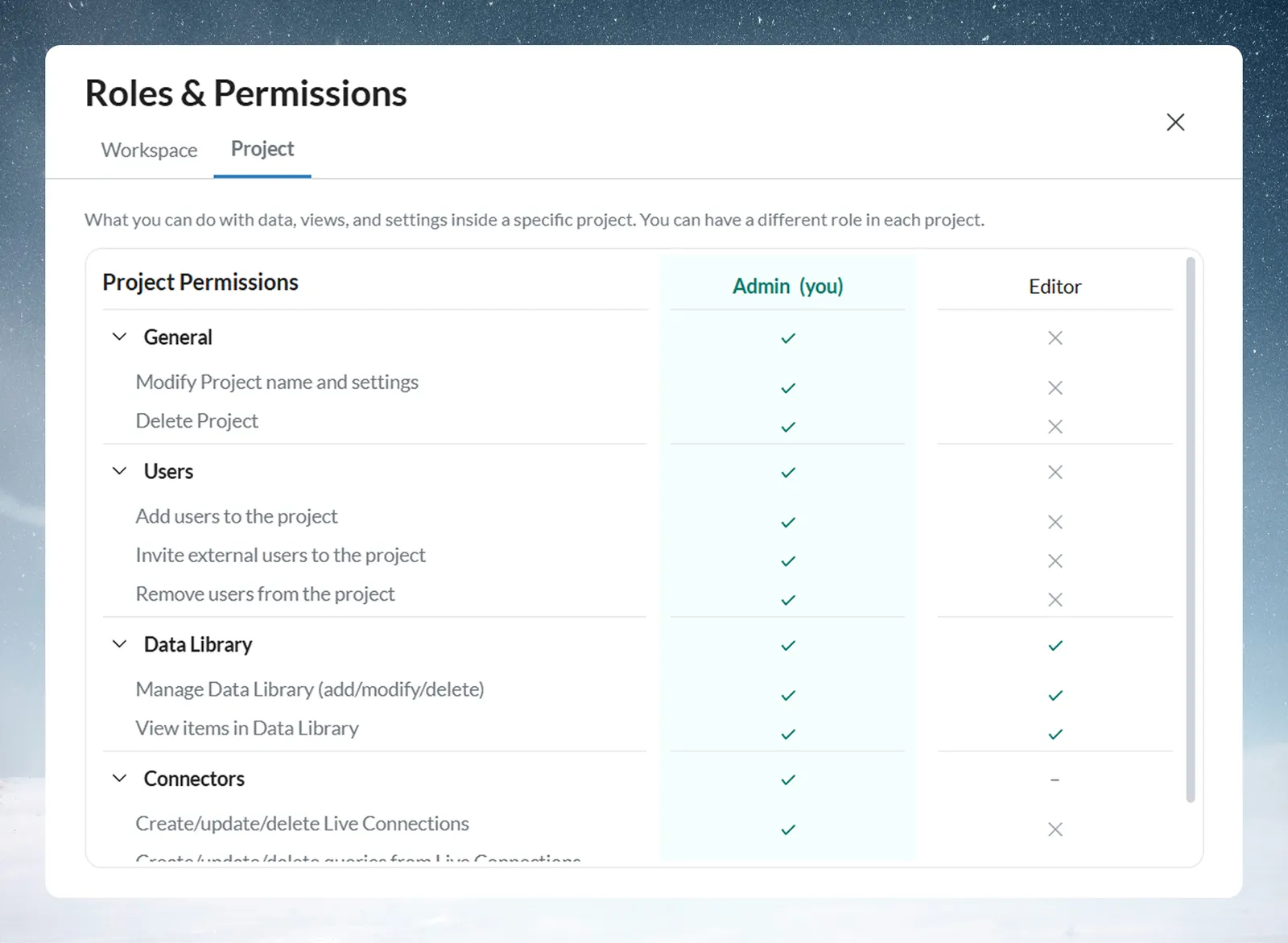
At the bottom of the Share Project window, click View Roles & Permissions for an in-app reference of what each project role can do.
How workspace roles affect project access
Workspace roles (Owner, Member) don't set a project role, but Workspace Owners have overrides:
| Workspace role | Project override |
|---|---|
| Workspace Owner | Can add any user to any project, manage users on any project from the project menu, view all project names and delete any project, whatever their project membership or role |
| Workspace Member | None. Access depends only on project role |
A Workspace Member with no project role can't see a project set to Some people or Only me. Workspace Owners who aren't members see Join Project in the project menu, which adds them as Project Admin.
Troubleshooting
| Symptom | Cause | Fix |
|---|---|---|
| A custom role is greyed out: "You can't assign this role because it has permissions your own role doesn't have." | Your role lacks some of its permissions | Ask a Workspace Owner |
| The only Project Admin left | The project has no admin | A Workspace Owner can still add users and delete it, or join as admin and assign a new one. Assign a replacement before leaving |
Related
- Share a project and set project roles: add people and invite new ones.
- Create, edit and delete custom roles: build a custom project role.
- Change a member's role or remove them: manage people across all projects from User Management.
- Roles and permissions: the full permission matrix.
Something wrong? support@mammoth.io