Use AI to classify, enrich or translate a column
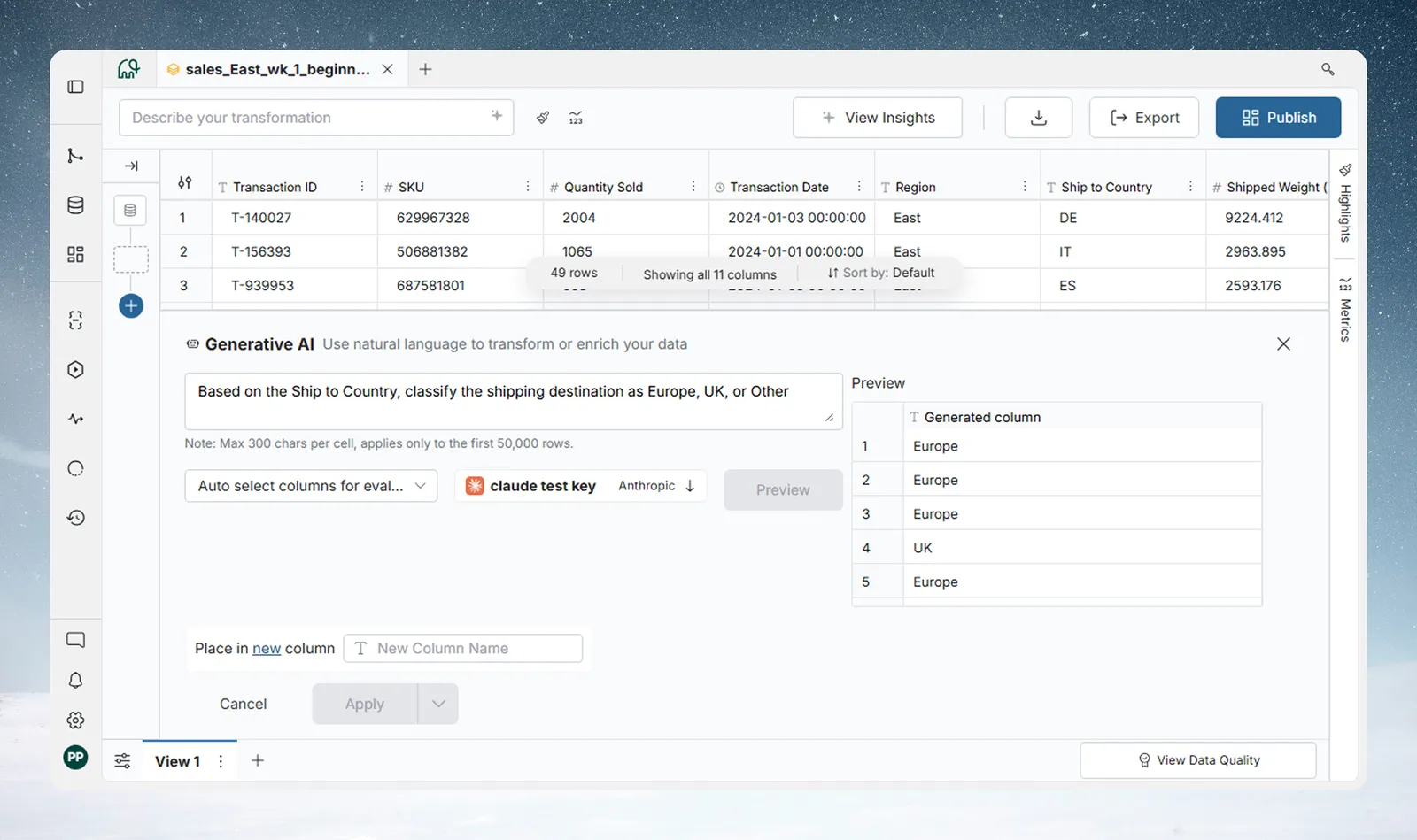
Generative AI writes values into a column from a plain-English prompt, so you can classify, enrich, summarise, translate or reformat rows without leaving the Data Editor. Open a View, click the blue + button and choose Generative AI in the AI Powered category. The result is saved as a pipeline task, so it runs again whenever your data refreshes.
Before you start
You don't need your own AI key. If your workspace has no external keys, Generative AI uses a key that Mammoth provides, and the panel shows no key selector. To choose the provider and model yourself, a Workspace Owner adds a key for OpenAI (ChatGPT), Anthropic (Claude), Google (Gemini) or xAI (Grok) in Workspace Settings > API Keys (Add your own AI provider key). The panel then shows an API key selector.
Open Generative AI
- Open a View in the Data Editor.
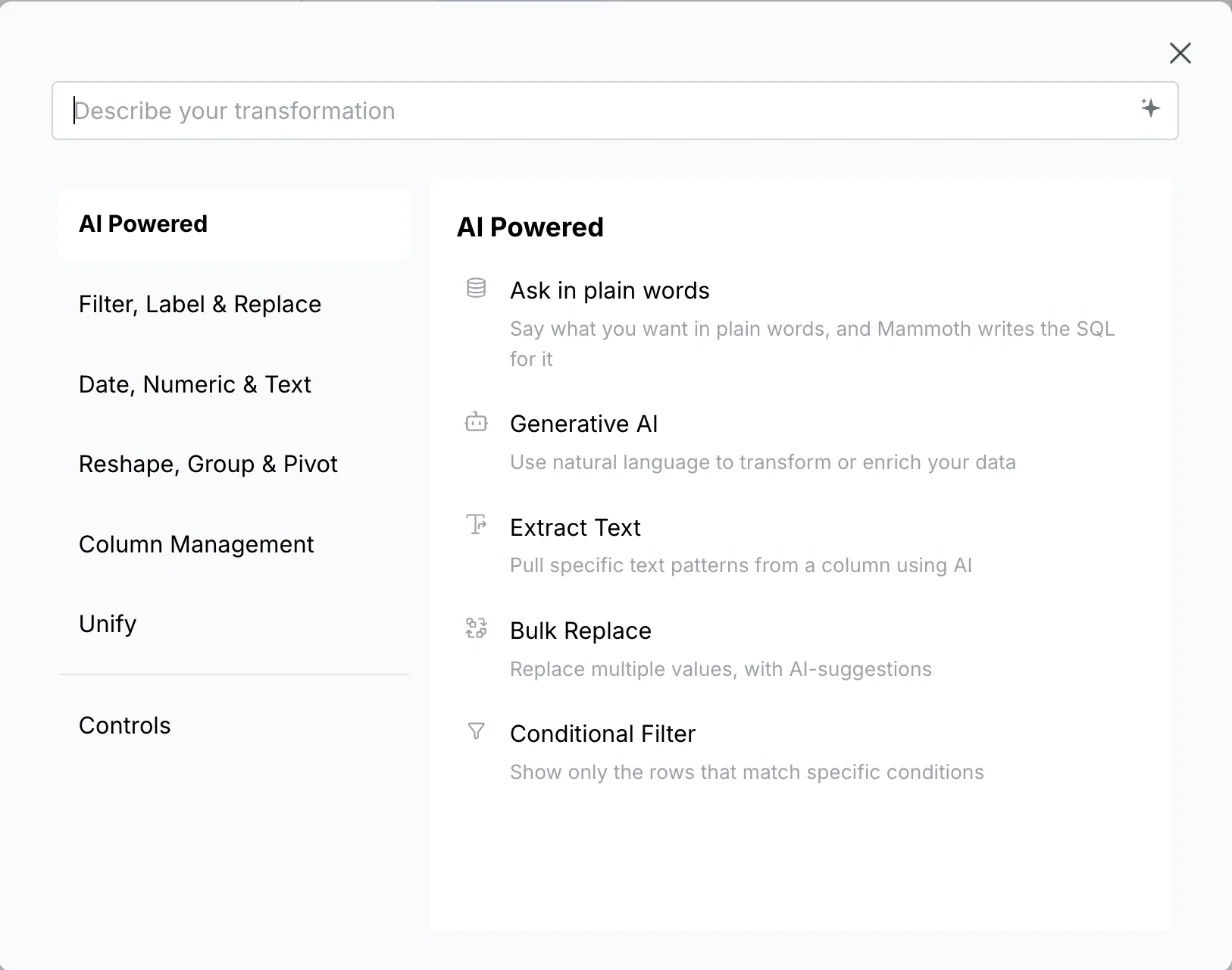
- Click the blue + button (tooltip "Add a task") in the action bar, or a + button in the Pipeline panel. The Transform menu opens on the AI Powered category.
- Click Generative AI. The panel opens at the bottom of the View.
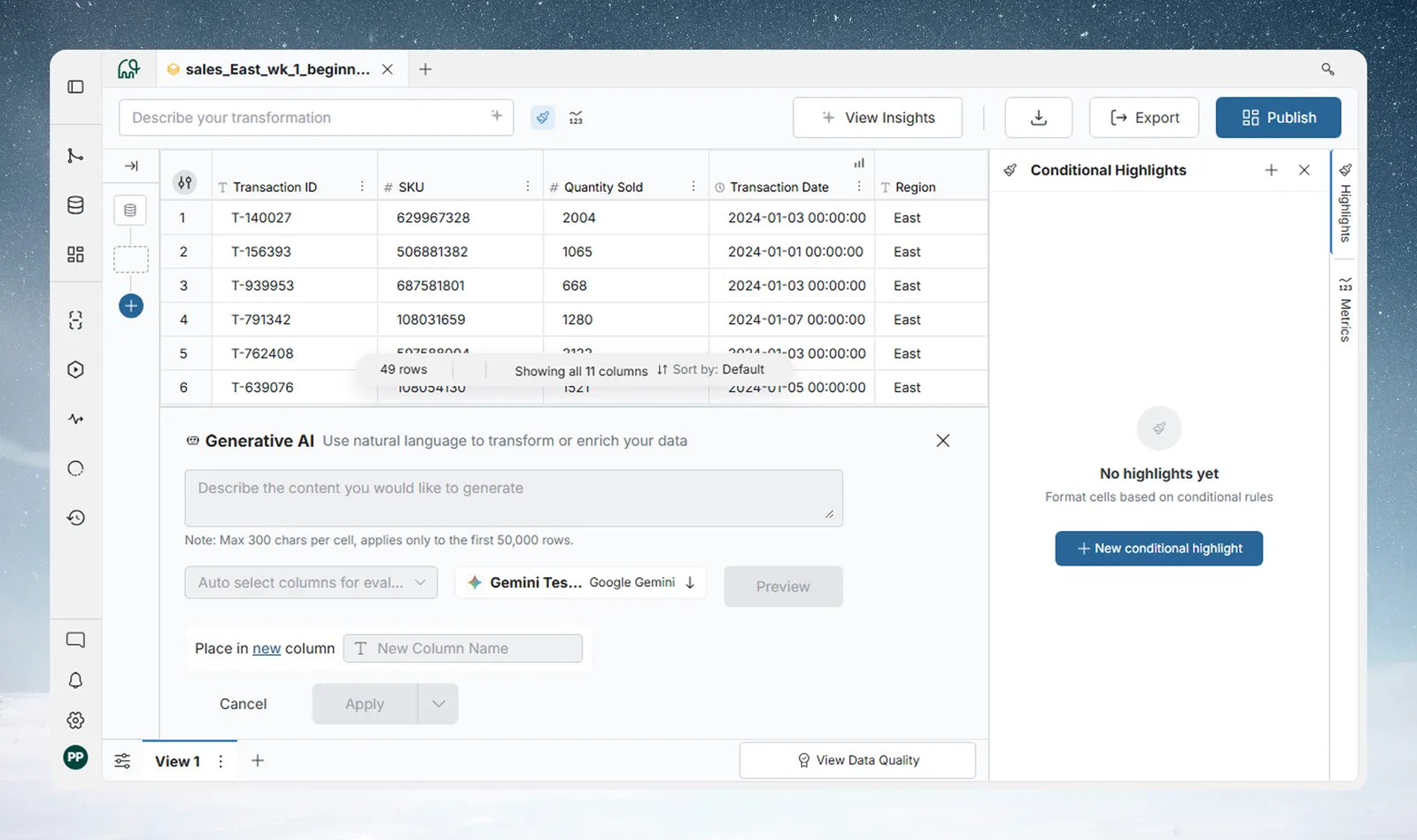
| Element | What it does |
|---|---|
| Prompt box | Describe the values you want in plain English |
| Limit note | "Max 300 chars per cell, applies only to the first 50,000 rows." |
| Column selector | Chooses which columns the AI sees as context (automatic or manual) |
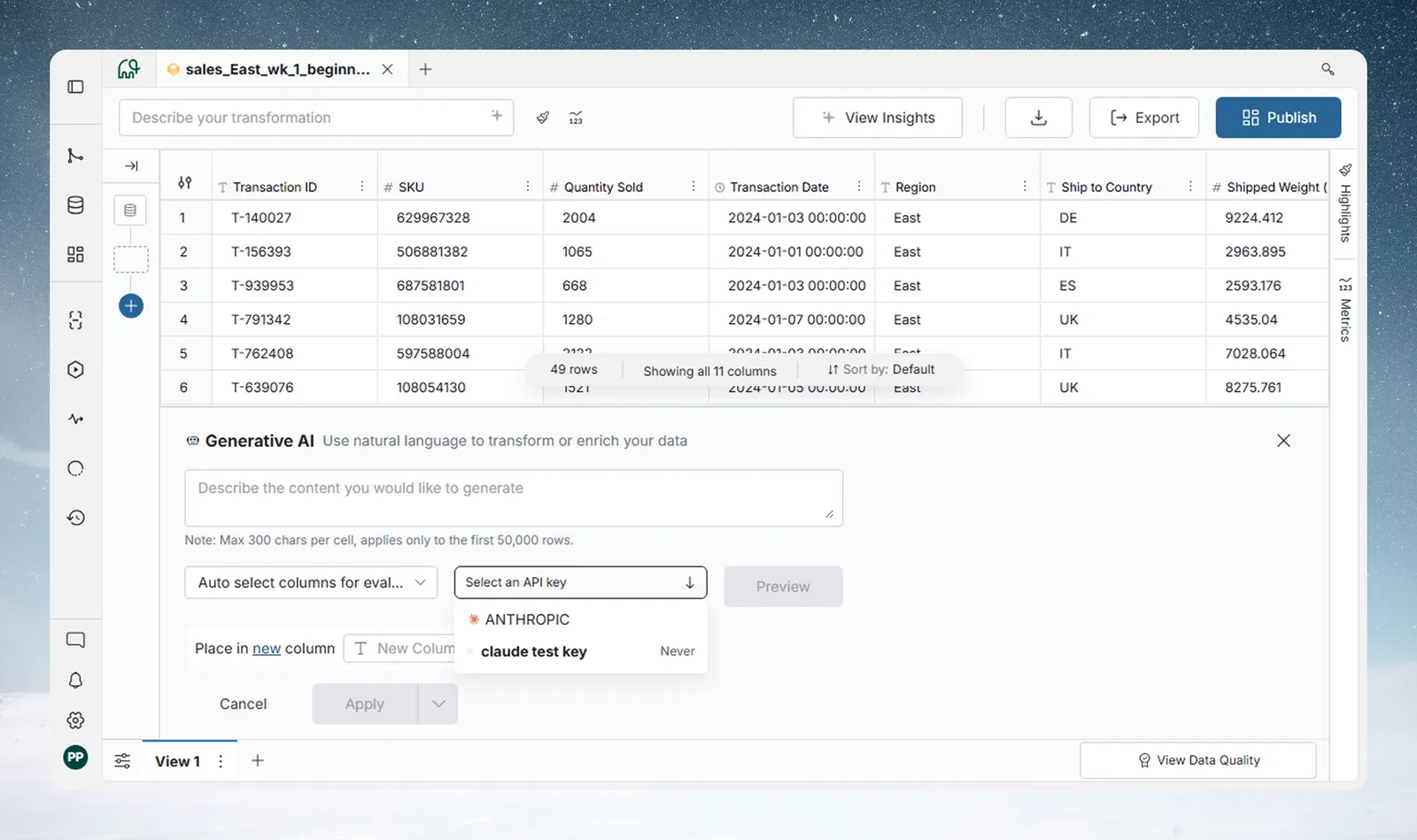
| API key selector | Picks a saved external key and its provider. Shown only when the workspace has external keys. |
| Preview | Generates a sample without changing the dataset. Active once there is a prompt (and a key, if the workspace has keys). |
| Apply results into | Sets the destination column and whether it is new or existing |
| Apply | Runs on the full dataset and adds the pipeline task |
Fill a column with AI from a prompt
- Type your instruction in the prompt box: what you want and what the output should look like.
- Choose the context columns, or leave automatic selection on.
- If the workspace has keys, pick one in the API key selector. Keys are grouped by provider, with the provider's logo and name and the key's display name. A key problem, such as a rate limit, shows as a banner at the top of the panel.
- Click Preview and check the 10 sample rows.
- Under Apply results into, choose New Column and type a name, or choose Existing Column and pick one to overwrite.
- Click Apply.
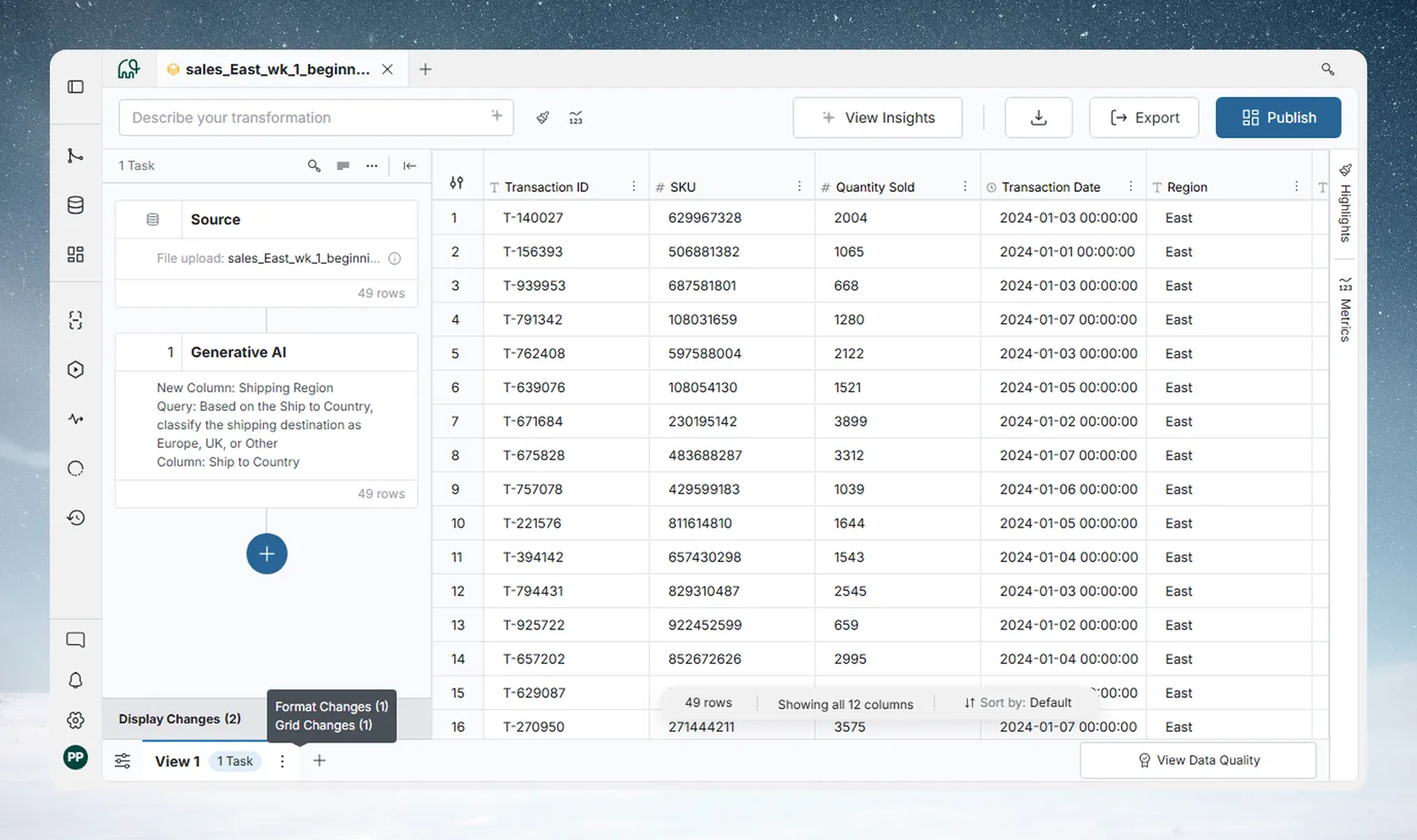
On Apply, Mammoth sends the prompt and context columns for each row to the AI provider (with the selected external key, or a key Mammoth provides) and writes the returned values into the output column. The column appears in the grid and a Generative AI task card in the Pipeline panel. How long it takes depends on the number of rows, the provider and the model. The task re-runs on future refreshes and whenever the pipeline runs again.
Example prompts for Generative AI
| Goal | Example prompt |
|---|---|
| Classify | Based on the Ship to Country, classify the shipping destination as Europe, UK, or Other |
| Categorise | Categorize the product description into one of: Electronics, Apparel, Home, Food |
| Enrich | Generate a short 1-sentence description of this product based on its name and category |
| Translate | Translate the customer comment from Spanish to English |
| Normalise | Standardize the company name: remove Inc, Ltd, LLC suffixes and trim whitespace |
| Score | Rate the sentiment of this review as Positive, Neutral, or Negative |
Each value must be 300 characters or fewer. If the model returns longer values, the run fails with an error.
Choose which columns the AI reads
- Auto select columns for evaluation: Mammoth picks the columns most relevant to your prompt. If your prompt mentions "Ship to Country", that column is selected.
- Manually select columns for evaluation: pick them yourself, when automatic selection picks columns that could confuse the model, you want more consistent results, or column names are similar.
More columns take longer to process. You can select up to 20. With more, the panel shows "25 columns selected. Max 20 allowed" until you remove some.
Preview AI results before you apply
Preview generates 10 sample rows in a Generated column, without changing your dataset or adding a task. Generative AI doesn't use the live preview most functions show above the panel: its Preview runs only when you click it, because each preview calls the AI provider.
Generative AI limits
| Limit | Value |
|---|---|
| Output per cell | 300 characters |
| Rows processed | The first 50,000 rows of the View. Rows after that are not processed. |
| Context columns | 20 |
See Limits and quotas for all Generative AI limits.
Troubleshooting Generative AI
| Symptom | Cause | Fix |
|---|---|---|
| The run fails with an error about length | A returned value is over 300 characters | Ask for shorter output in the prompt |
| Only part of the View has values | Only the first 50,000 rows are processed | Filter the View to 50,000 rows or fewer before this step |
| Apply stays off | No column name, no prompt, or no key selected in a workspace with keys | Fill in the missing item |
| Results don't match what you meant | The prompt is unclear | Make it more specific, check a few rows, and compare with a manual step |
Key messages (rate limits, invalid keys, no quota): see Add your own AI provider key.
Related
- Write SQL with AI: query and reshape the whole View in plain English.
- Extract text, change case and parse JSON: pattern-based text work, including Custom Prompt.
- How the pipeline works: how tasks re-run on refresh.
Something wrong? support@mammoth.io