Control when Views update with Auto-sync
Auto-sync decides whether new data flows into a View, and out of it to its destinations, without anyone acting. Turn it on or off from the View's Auto-sync menu item, or in the data editor under More Pipeline options > Auto-sync options. Changing it needs edit access to the project; it is disabled in a View-only workspace.
For the rest of the View Settings menu, see Views: create, rename and delete.
How Auto-sync works
Auto-sync is a setting on each link between a View and the data it receives or sends. It controls whether data passes along that link automatically.
- Auto-sync ON: new data passes along the link, and the View reruns without action.
- Auto-sync OFF: data stops at that link. On a View's incoming link, the View is not rerun when its dataset receives a new batch, and the new batch stays pending until you release it.
The Auto-sync controls may not be available in every workspace.
Turn Auto-sync off for Views that feed compliance or executive reports, where output should be reviewed before delivery. Turn it off for Views connected to production systems, where an unchecked pipeline change should not spread, and anywhere a person needs to approve data before it reaches its destination.
Turn Auto-sync on or off for all of a View's links
- Open the View in the data editor.
- Select More Pipeline options in the pipeline toolbar.
- Select Auto-sync options. The dialog has two tabs: Incoming data (the sources the View receives data from) and Outgoing data (the destinations the View sends data to).
- Each row shows the source or destination, its type, the last sync and the Auto-sync state (ON or OFF). Tick rows and select Enable auto-sync or Disable auto-sync.
- Select Apply changes.
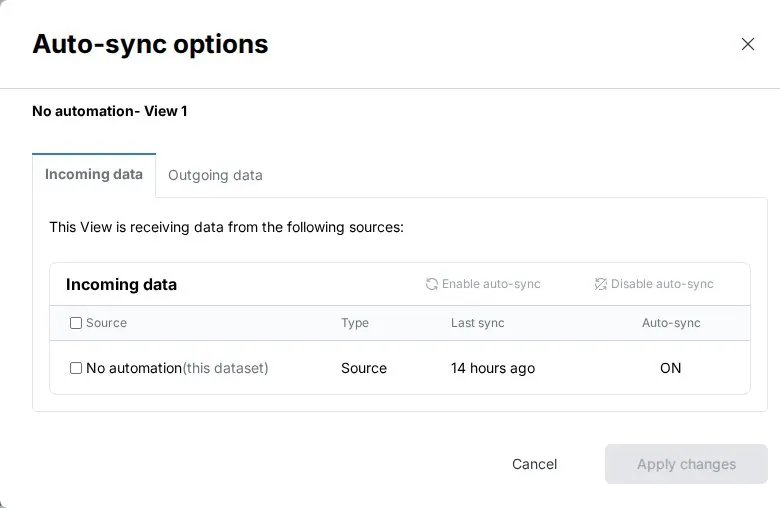
You can also turn a single View's incoming Auto-sync on or off from its menu (Auto-sync).
Turn Auto-sync on or off for one destination step
Each step that sends data out of the View (Send to Dataset and other export steps, and dashboard steps) has its own Auto-sync switch. Open the step's More options (three-dot) menu in the Pipeline panel. The Auto-sync toggle sits at the top of the menu.
The step card's footer shows the state, Auto-sync ON or Auto-sync OFF. Hover it for details. On a Send to Dataset step that feeds another View, ON reads "Destination view is automatically updated through this view."
| Step | When the toggle is limited |
|---|---|
| Export step | Shown only once the step has run. Hidden while the step is being reordered, or while Draft mode has changes that are not applied yet. Disabled in a View-only workspace and while Draft mode is applying changes. |
| Dashboard step | You need edit access to the dashboard to change it. |
To hold every destination while you edit and check a change, use Pause sends while you edit instead of switching steps off one by one.
Release data held while Auto-sync is off
When a View's incoming Auto-sync is OFF and its dataset receives a new batch, the View does not rerun. The batch is held as pending in Monitor, on the Needs Attention tab, and the item reads "new batch received, auto-sync off".
To release pending data:
- From Monitor: go to the Needs Attention tab and select Process on the item (use Preview to look at the batch first). For a pending update to a destination, the main button is Update.
- From the pipeline panel: open the three-dot menu on the Send to Dataset task card and choose Run now.
Monitor also has a Paused tab that lists items paused through Auto-sync controls. Select Turn Auto-sync ON there to resume them. See Activity log.
What the View status chips mean
In the Data Library, turn on Show views under List settings to list the Views of each dataset that has more than one. The Status column of a View's row shows a chip when the View needs attention:
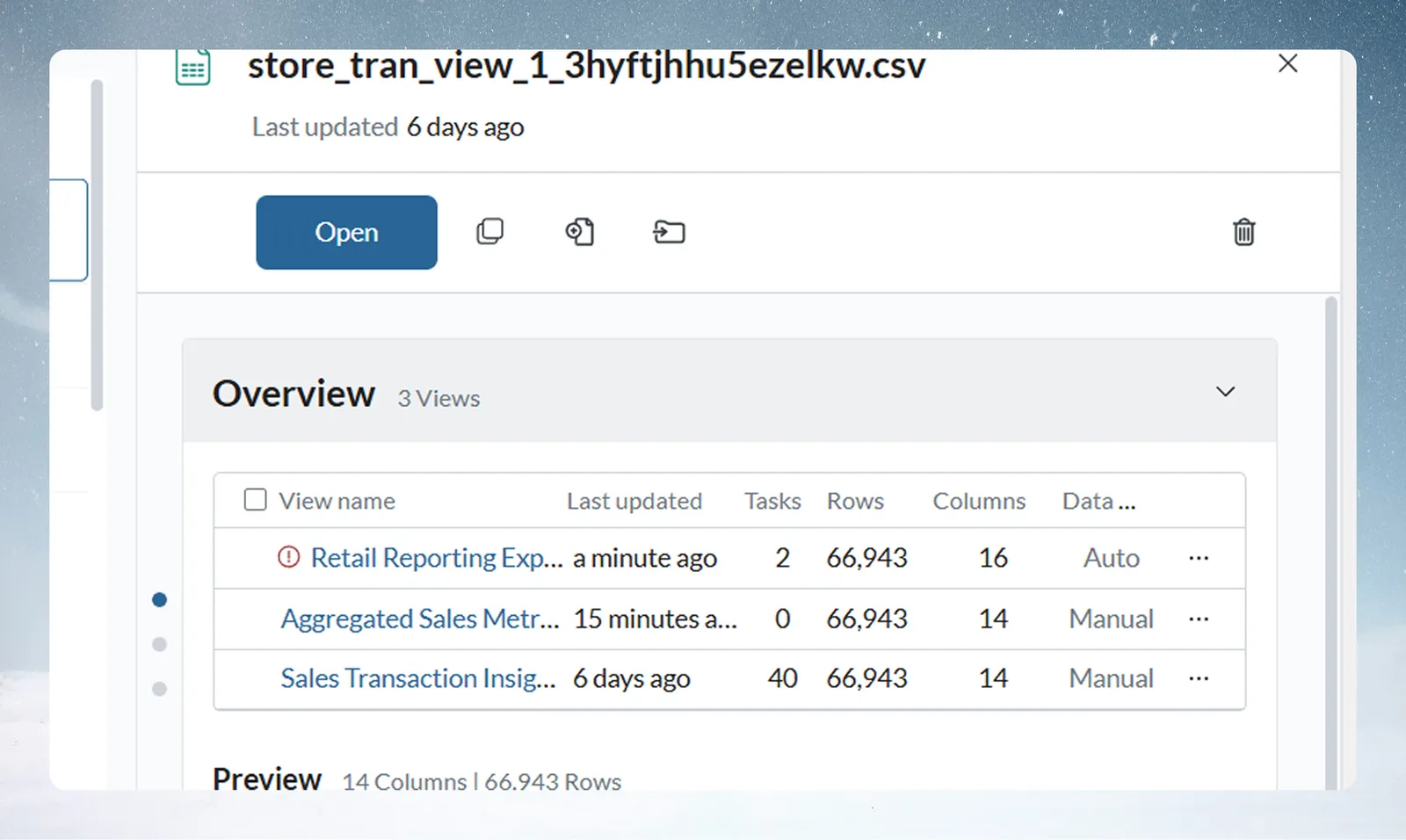
| Chip | Meaning |
|---|---|
| Failing | The View's pipeline hit an error on its latest run. |
| Out of date | New data is pending for the View and hasn't been processed yet. |
| Sync off | The View's Auto-sync is OFF, so new data is held until you release it. |
The dataset's own row adds these up, for example "1 failing" or "2 batches behind". When you open a dataset, its panel names the problem in a banner, such as "A task failed on the last run." or "Auto-sync is off, so this view stays frozen when the dataset refreshes."
Data may be inconsistent
Inside the data editor, the bottom bar shows the same problem as a warning chip. When a View has data updates waiting, it shows a yellow Data may be inconsistent chip with a warning icon. Its tooltip reads "Check Dataflow Monitor to manage Pending data updates."
Click the chip to open Monitor with this View highlighted. Process or update the pending items there, and the chip goes away.
Troubleshooting
| Symptom | Cause | Fix |
|---|---|---|
| Destination not updating although the pipeline runs | Auto-sync is OFF (a crossed-out sync icon shows in View Settings), so the output is held. | Open Monitor, go to Needs Attention, and select Process (or Update for a pending destination update). Or turn Auto-sync ON. |
| Data may be inconsistent in the data editor | The View has data updates waiting. | Click the chip to open Monitor, then process or update the pending items. |
| Failing chip on a View | The View's pipeline hit an error on its latest run. | Open the View and fix the highlighted task. See Fix a failing step. |
| The Auto-sync toggle is missing on an export step | The step hasn't run yet, it is being reordered, or Draft mode has changes not applied yet. | Run the step, or apply your Draft mode changes. |
Related
- Views: create, rename and delete: the View Settings menu and View tabs.
- Pause sends while you edit: hold every destination at once.
- The dataset panel: the banners that name a View's problem.
- Dataset settings and history: the update method, separate from Auto-sync.
- Activity log: Monitor, pending items and the Paused tab.
Something wrong? support@mammoth.io