Import files from OneDrive into Mammoth
The OneDrive connector imports files from Microsoft OneDrive into Mammoth as datasets, and you can also export a View's results back to OneDrive. It signs in with Azure app credentials (Tenant ID, Client ID, Client Secret) tied to one user's drive, not a per-user sign-in. Open it from Data Library > New dataset > Connectors and search for OneDrive. Project Admins create the connection; Project Editors can start datasets from a connection the project already has. Which connectors you can add depends on your plan.
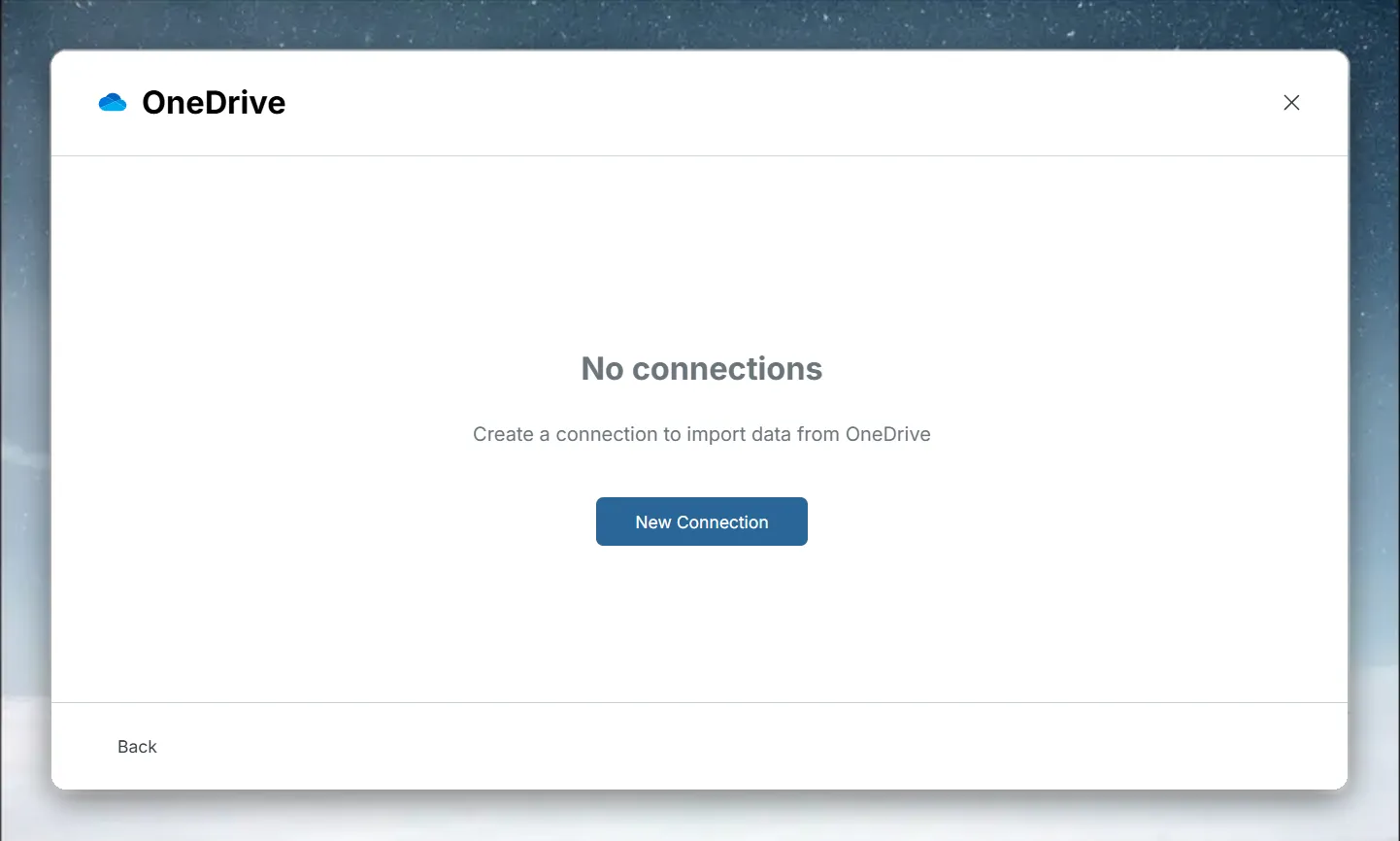
What you can bring in from OneDrive
Files in the connected user's own OneDrive, starting at the root, of these types: .txt, .csv, .tsv, .psv, .xls, .xlsx, .xlsm, .xml, .json, .jsonl, .ndjson, .zip, .bz2, .gz, .tar, .7z.
Files only shared with that user don't appear.
Before you connect OneDrive
You need an Azure Active Directory app with Microsoft Graph access to the OneDrive account. A Microsoft 365 admin usually does this once. You also need the email address / User Principal Name of the OneDrive account Mammoth should read. You enter it as User ID.
Register the Azure AD app for OneDrive
- Go to Azure Portal → Azure Active Directory → App registrations.
- Click New registration, name it (for example
Mammoth OneDrive), and click Register. - Copy the Application (client) ID. This is your Client ID.
- Copy the Directory (tenant) ID. This is your Tenant ID.
- Go to Certificates & secrets → New client secret, add a description, set an expiry, and click Add.
- Copy the secret Value at once; it won't be shown again. This is your Client Secret.
- Go to API permissions → Add a permission → Microsoft Graph → Application permissions.
- Add the Files application permission that covers the target user's drive.
- Click Grant admin consent.
Connect OneDrive to Mammoth
These steps follow the shared flow in Connect a database or app.
- Go to the Data Library and click New dataset.
- Choose Connectors.
- Search for OneDrive and click its tile. The connector workspace opens with the Chat showing.
- In the Chat, Mammoth shows a card that asks for the connection details. Fill in all four fields below.
- Click Connect. There's no sign-in step, because the connector uses the app credentials. If the check fails, the card shows the error.
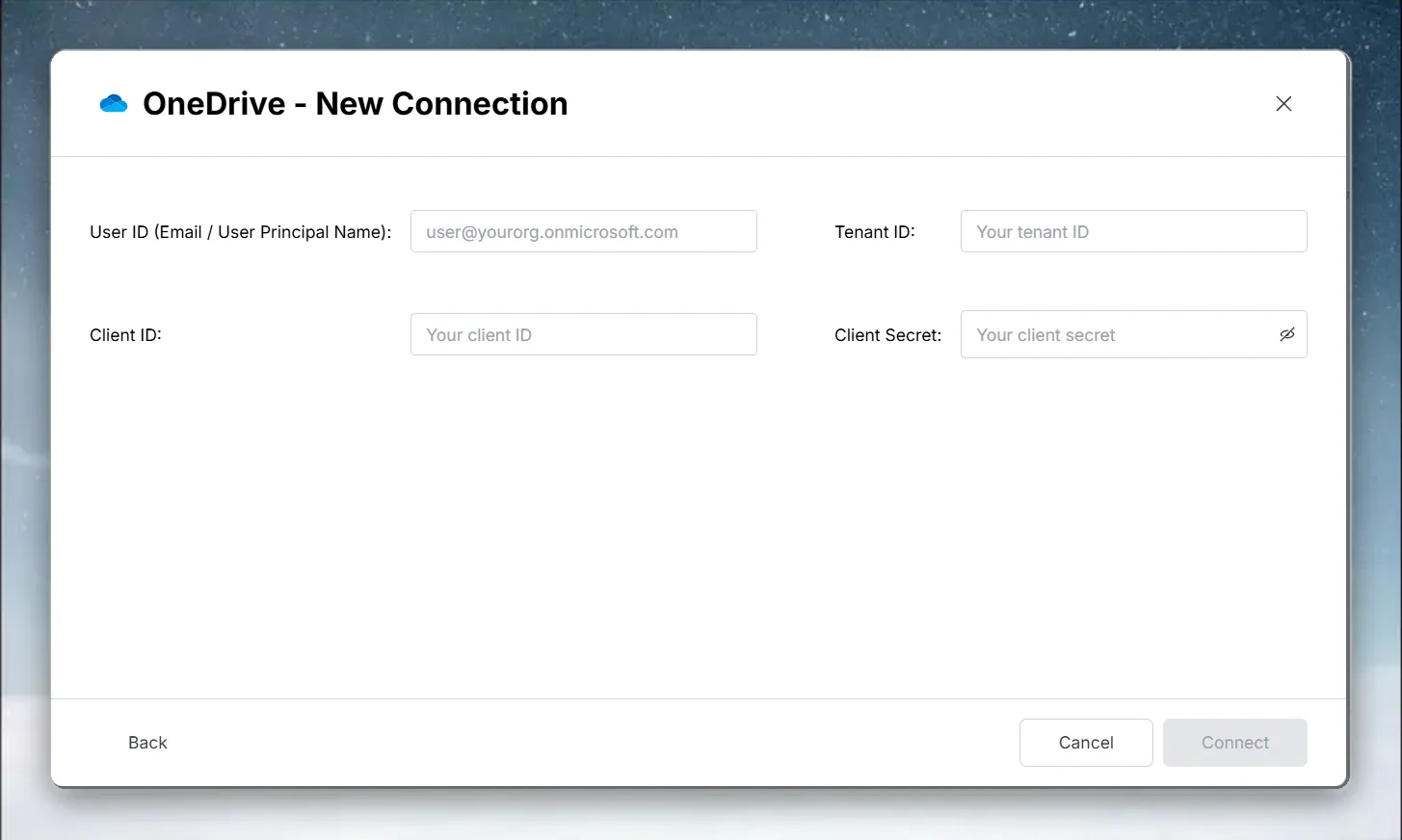
| Field | What to enter | Example |
|---|---|---|
| User ID (Email / User Principal Name) | The OneDrive account Mammoth should read | user@yourorg.onmicrosoft.com |
| Tenant ID | Azure AD Directory (tenant) ID | xxxxxxxx-xxxx-xxxx-xxxx-xxxxxxxxxxxx |
| Client ID | Azure AD Application (client) ID | yyyyyyyy-yyyy-yyyy-yyyy-yyyyyyyyyyyy |
| Client Secret | The app secret value you created |
Open a OneDrive file and pick columns
- In Tables, browse the folders and click a file to see its rows. A spreadsheet opens to its tabs.
- Tick the columns you want. They gather in Your table.
- Click Preview 100 rows to check the result.
If a file can't open in the panel yet, ask the agent in the Chat to import it.
Save a OneDrive file as a dataset
- Click Save as dataset.
- Enter a Dataset name and choose a folder under Save in.
- Click Save. When the dataset is ready, click Open dataset.
Bring in new OneDrive files on a schedule
Mammoth saves a file from this connector once and shows Saved once. Scheduled refresh for files is coming. A Dataset Refresh automation can't re-read it. To bring in new files as they arrive:
- Set up a File Collection automation that collects them into a folder. See What you can automate.
- Set up a Data Consolidation automation that adds that folder's files to a dataset.
Export a View to OneDrive
Separately from importing, you can send a View's output to OneDrive:
- In the data editor, click Export, choose External Destinations, and select Export to OneDrive.
- Fill in Tenant ID, Client ID, Client Secret and User ID.
- Set a Folder Path (the default is the root of the user's OneDrive) and a File Name.
- Optionally turn on Include hidden columns.
See Send data to a database or BI tool for other export destinations.
Troubleshoot OneDrive connections
| Symptom | Likely cause | Fix |
|---|---|---|
| Authentication fails | A value is copied wrong, or consent is missing | Check User ID, Tenant ID, Client ID and Client Secret, and confirm admin consent for the Graph permission |
| "OneDrive not found for the specified user" | The User ID doesn't match a mailbox or drive in the tenant | Check the email or UPN for typos |
| Authentication stops working later | The client secret expired | Generate a new secret in Azure Portal and update the connection in Mammoth |
| A file doesn't appear | Unsupported type, or the file is only shared with the user | Use a supported type, and keep the file in the user's own OneDrive |
Related
- SharePoint: import files from a site's document library.
- Connect a database or app: the shared connector workspace steps.
- Manage saved connections: update the connection when a secret expires.
- Combine incoming data: add collected files to one dataset.
- Send data to a database or BI tool: other places to export a View.
Something wrong? support@mammoth.io