Import files from Dropbox into Mammoth
The Dropbox connector opens a file from your Dropbox account and saves it in Mammoth as a dataset. You sign in to Dropbox, so there are no API keys or credentials to manage. Open it from Data Library > New dataset > Connectors and search for Dropbox. Project Admins create the connection; Project Editors can start datasets from a connection the project already has. Which connectors you can add depends on your plan.
What you can bring in from Dropbox
Files of these types: .txt, .csv, .tsv, .psv, .xls, .xlsx, .xlsm, .xml, .json, .jsonl, .ndjson, .zip, .bz2, .gz, .tar, .7z.
A spreadsheet file opens to its tabs.
Before you connect Dropbox
You need a Dropbox account with the files or folders you want to import.
Connect Dropbox to Mammoth
- Go to the Data Library, click New dataset, and choose Connectors.
- Search for Dropbox and click its tile. The connector workspace opens with the Chat connecting Dropbox.
- Dropbox needs you to pick folders, which the chat can't do, so the chat's card hands you off. Click Set up in the Data Hub.
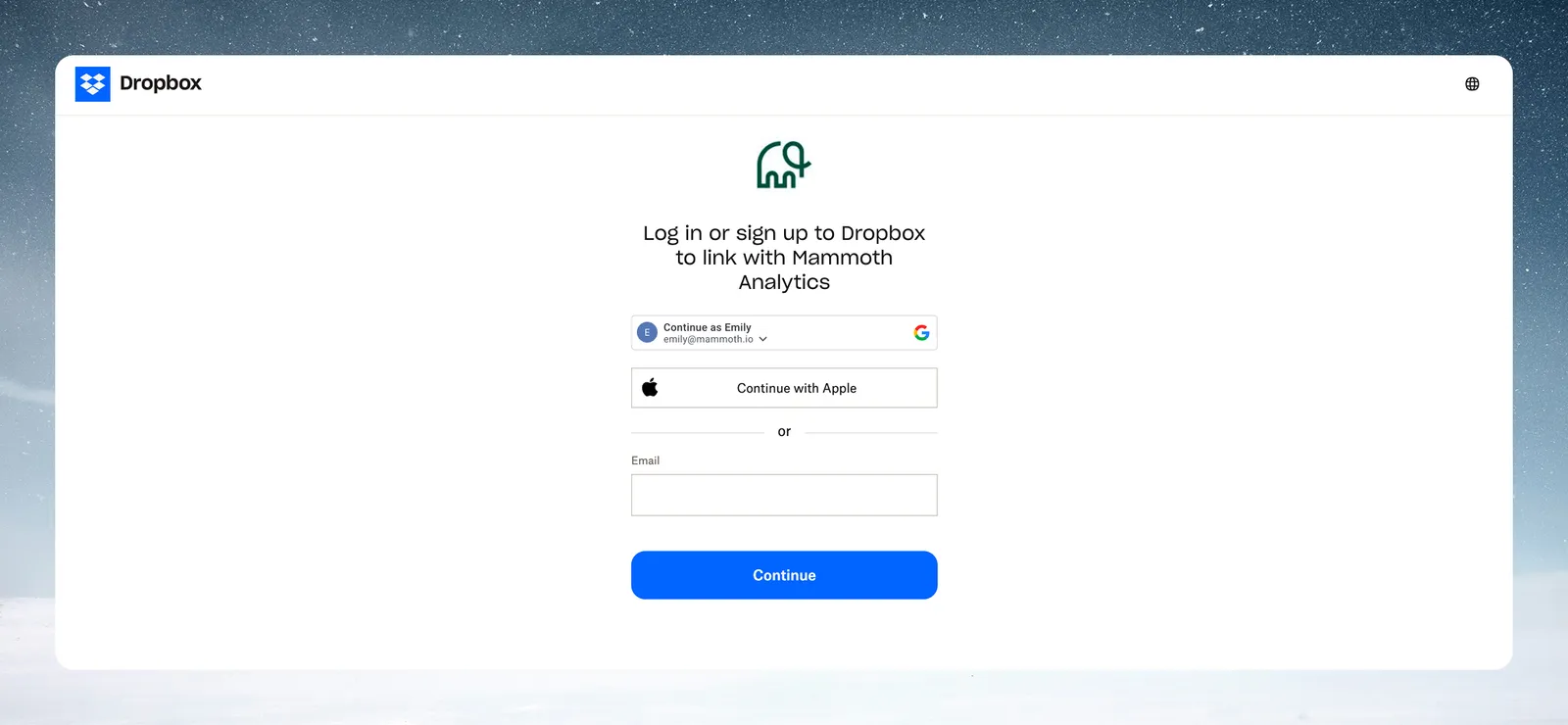
- Sign in to Dropbox and click Allow. You're returned to Mammoth.
- Under Select Dropbox Files & Folders, choose the ones Mammoth may read and click Connect. A folder includes everything inside it.
- The connection is now ready to use in the chat.
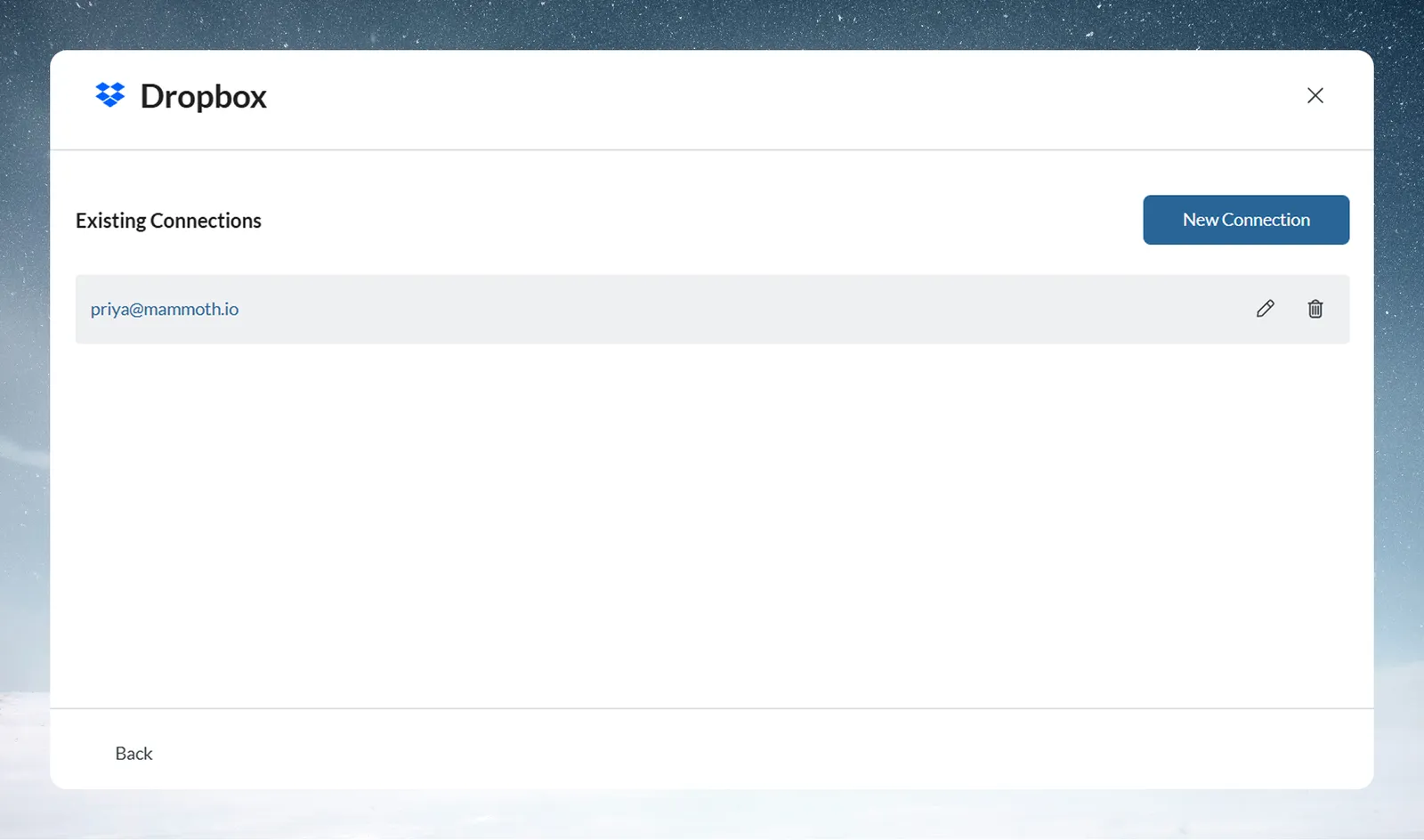
If you already have a Dropbox connection, pick it under Your connections in the launcher instead. See Connect a database or app for the shared steps.
Open a Dropbox file and pick columns
- In the left panel, browse your Dropbox folders and click a file to open it. A spreadsheet opens to its tabs.
- Tick the columns you want. They gather in Your table.
- If a file can't open in the panel yet, ask the agent in the Chat to import it.
Save a Dropbox file as a dataset
- Click Save as dataset.
- Enter a Dataset name and pick the folder under Save in.
- Click Save.
A dataset from a Dropbox file is saved once. Mammoth shows Saved once. Scheduled refresh for files is coming. A Dataset Refresh automation can't re-read Dropbox files.
Bring in new Dropbox files on a schedule
To keep adding files as they land in a Dropbox folder, use two automations:
- A File Collection automation collects new files from the Dropbox folder into Mammoth on a schedule. See What you can automate.
- A Data Consolidation automation adds the collected files to your dataset.
Troubleshoot Dropbox connections
| Symptom | Likely cause | Fix |
|---|---|---|
| Sign-in doesn't complete | You denied access or closed the tab | Start the connection again; Mammoth returns you after you click Allow |
| "Session expired. Please reconnect Dropbox." | The Dropbox sign-in expired | Start a new connection |
| "No files found." | The selected items contain no supported file types | Select a different file or folder, and check the file types listed above |
Related
- Connect a database or app: the shared connector workspace steps.
- What you can automate: set up a File Collection automation.
- Combine incoming data: add collected files to one dataset.
- Upload files: bring in a file from your computer instead.
- Manage saved connections: reuse or remove this connection.
Something wrong? support@mammoth.io