Change a member's role or remove them from Mammoth
You change roles and remove people in Workspace Settings → User Management. Workspace Owners can do all of it. Project Admins can add, re-role and remove people in their own projects, and everyone can leave or delete their own profile.
Who can change roles and remove people
| Action | Who can do it |
|---|---|
| Change someone's workspace role | Workspace Owners. Only an Owner can make someone an Owner or change an Owner's role |
| Remove users from the workspace | Workspace Owners |
| Add users to projects | Workspace Owners, and Project Admins of that project (from the project's Manage Users) |
| Change someone's project role | Workspace Owners, and Project Admins of that project |
| Remove someone from a project | Workspace Owners, and Project Admins of that project |
| Leave the workspace, delete your own profile | Everyone, for themselves |
Mammoth checks these on the server as well as in the app. Custom roles can grant some of them: see Create, edit and delete custom roles.
Find people in User Management
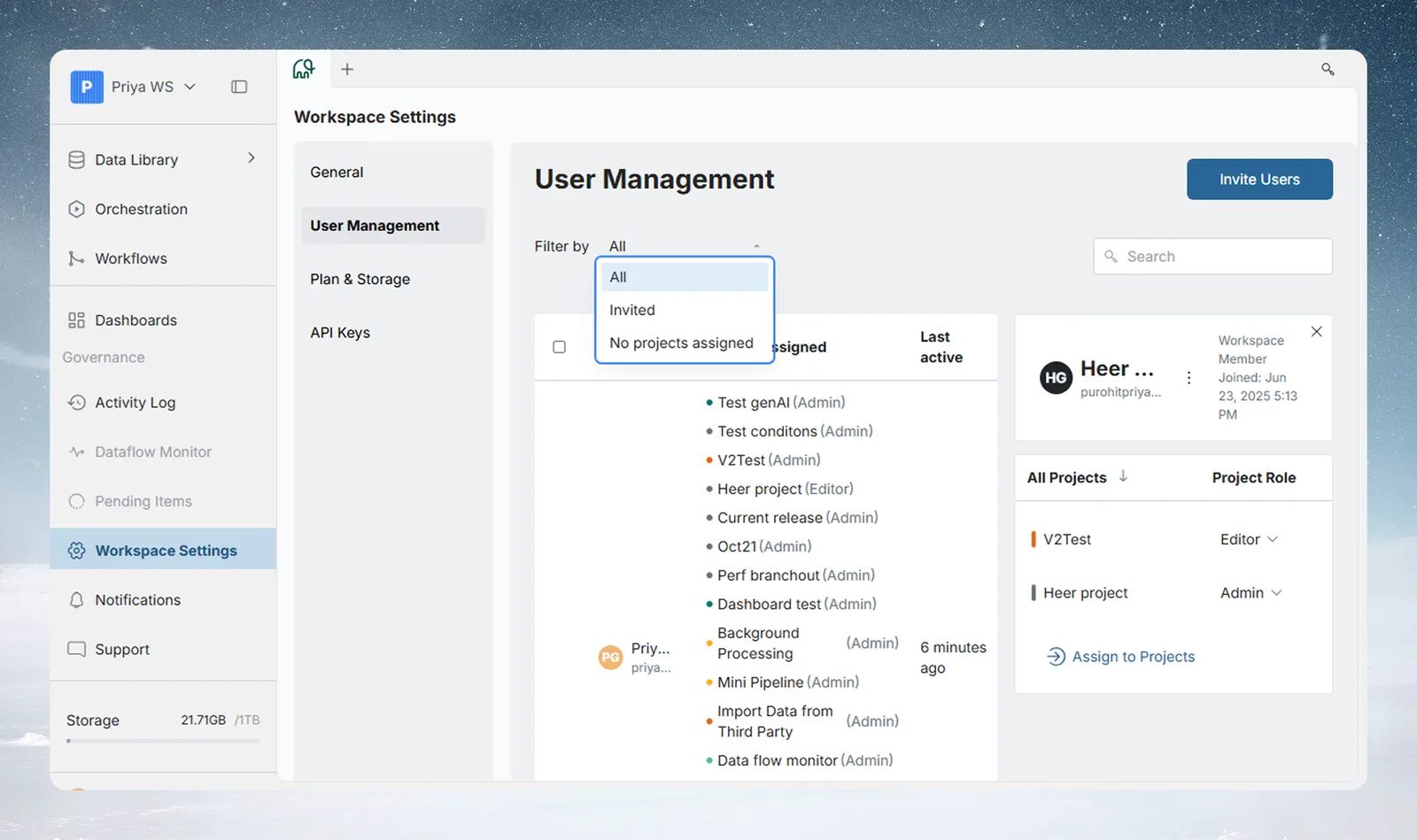
| Filter by option | Shows |
|---|---|
| All | Everyone in the workspace (default) |
| Invited | Users with pending, unaccepted invitations |
| No projects assigned | Users not yet added to any project |
The search field beside the filter narrows the list by name, or by email for invited users. With no match you see "We couldn't find any matches for your search."
| Column | What it shows |
|---|---|
| Name | Avatar, full name, email, and an "(Owner)" label for Workspace Owners. Click the sort icon to sort |
| Projects assigned | Each project as a coloured dot, project name and role. Use Show more / Show less when a user belongs to many projects |
| Last active | Relative time (for example, "2 minutes ago"). Hover for the full timestamp. Pending and expired invitations show their own actions here instead |
Add many users to projects or remove them at once
Owners tick users with the checkboxes to show the bulk action bar:
- Assign to Projects adds every selected user to the chosen projects at once.
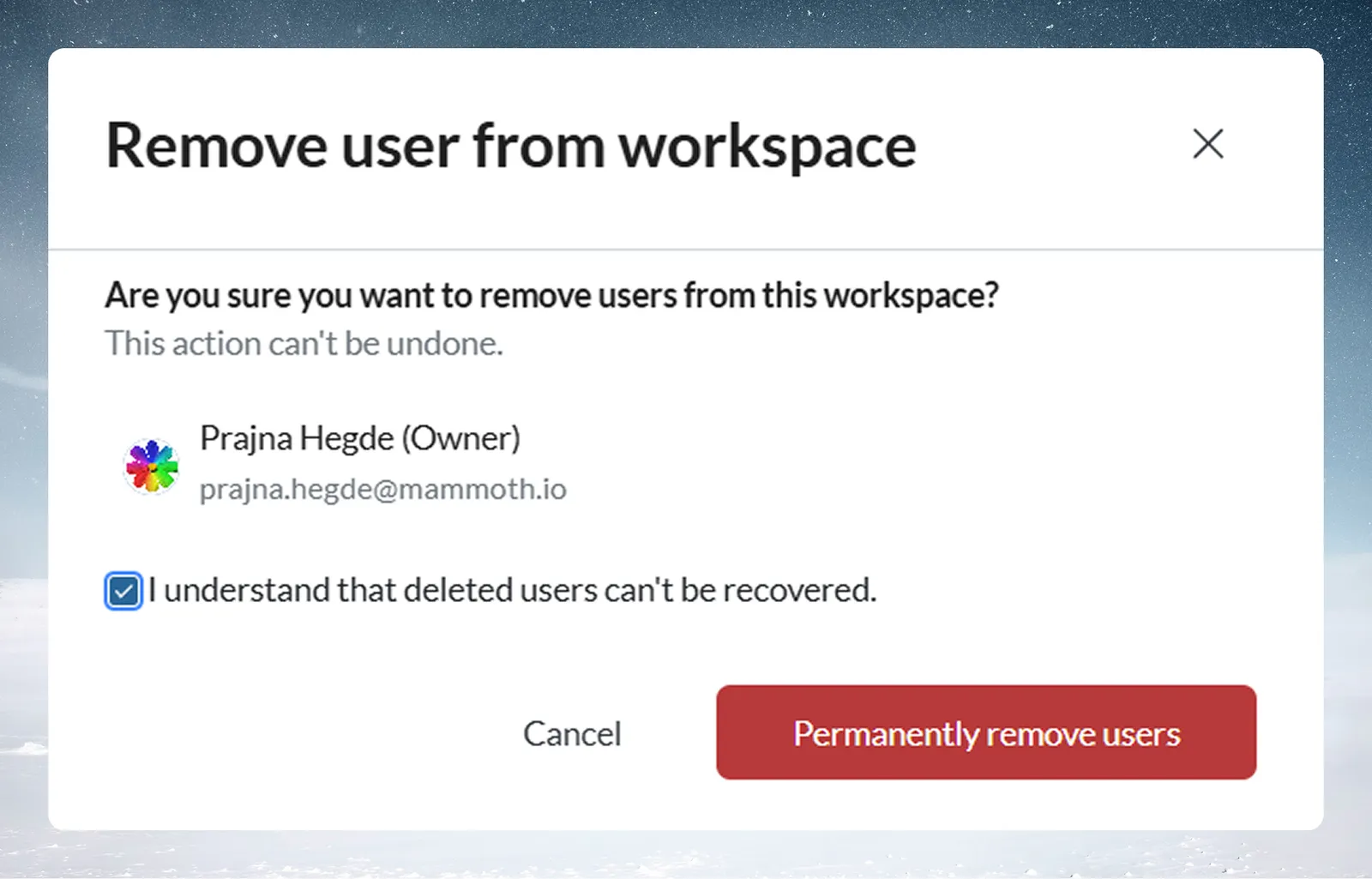
- Remove from workspace opens Remove users from workspace, which lists the selected users. Confirm with Remove Users.
Selecting only yourself hides Remove from workspace. To leave, see Leave a workspace or delete your profile.
Open one person's side panel
Click a user row to open their panel on the right.
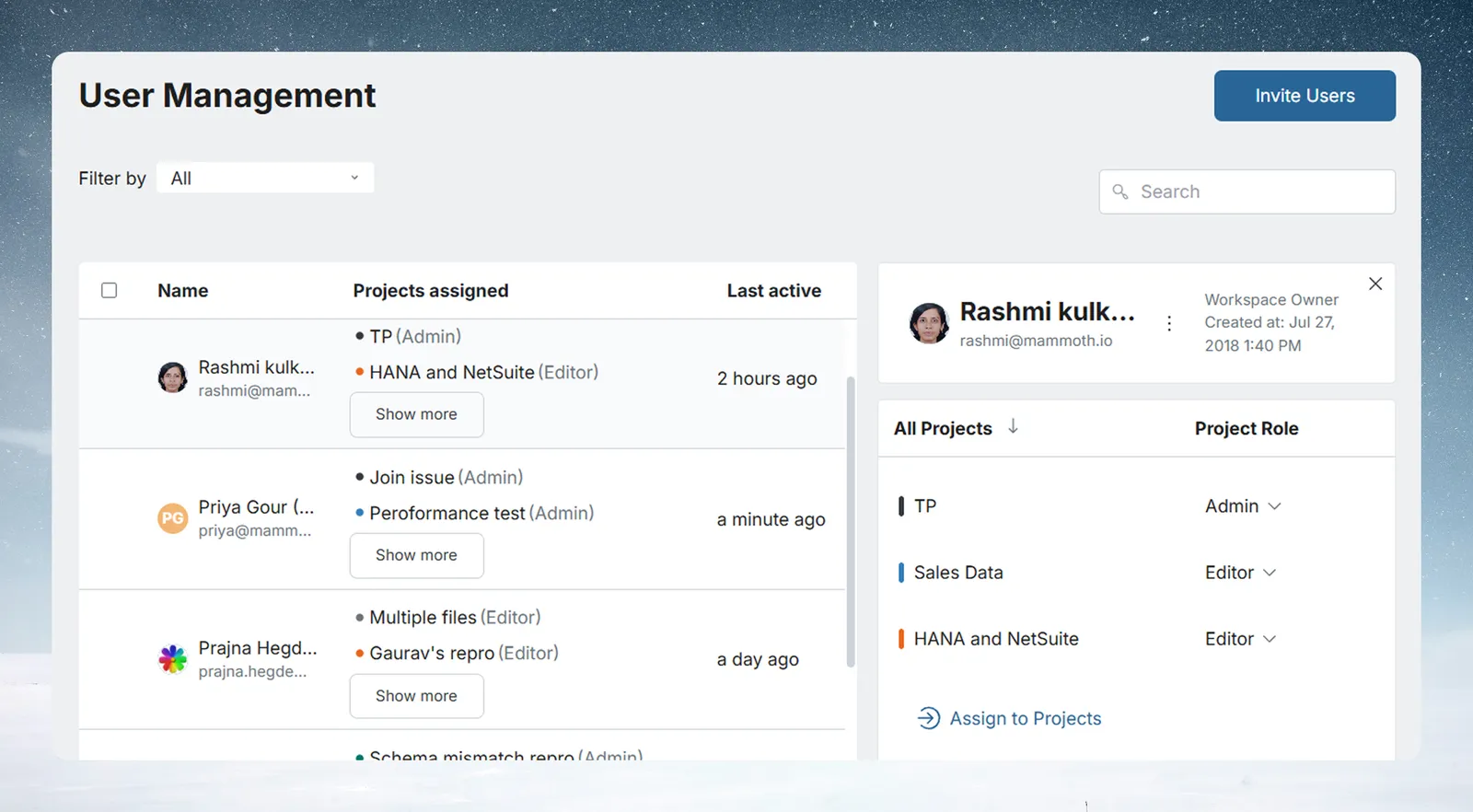
The panel shows the user's avatar, full name and email, and their workspace role (Workspace Owner, Workspace Member or a custom workspace role). It also shows a "Joined" date ("Created at" for an Owner) and every project they belong to, under All Projects and Project Role. Assign to Projects adds them to more projects. A user with no projects shows "No projects assigned" and "Assign this user to a project to get started".
Change someone's project role
- In the user's panel, click the role dropdown next to a project name.
- Pick Project Admin, Project Editor, Project Viewer or a custom project role.
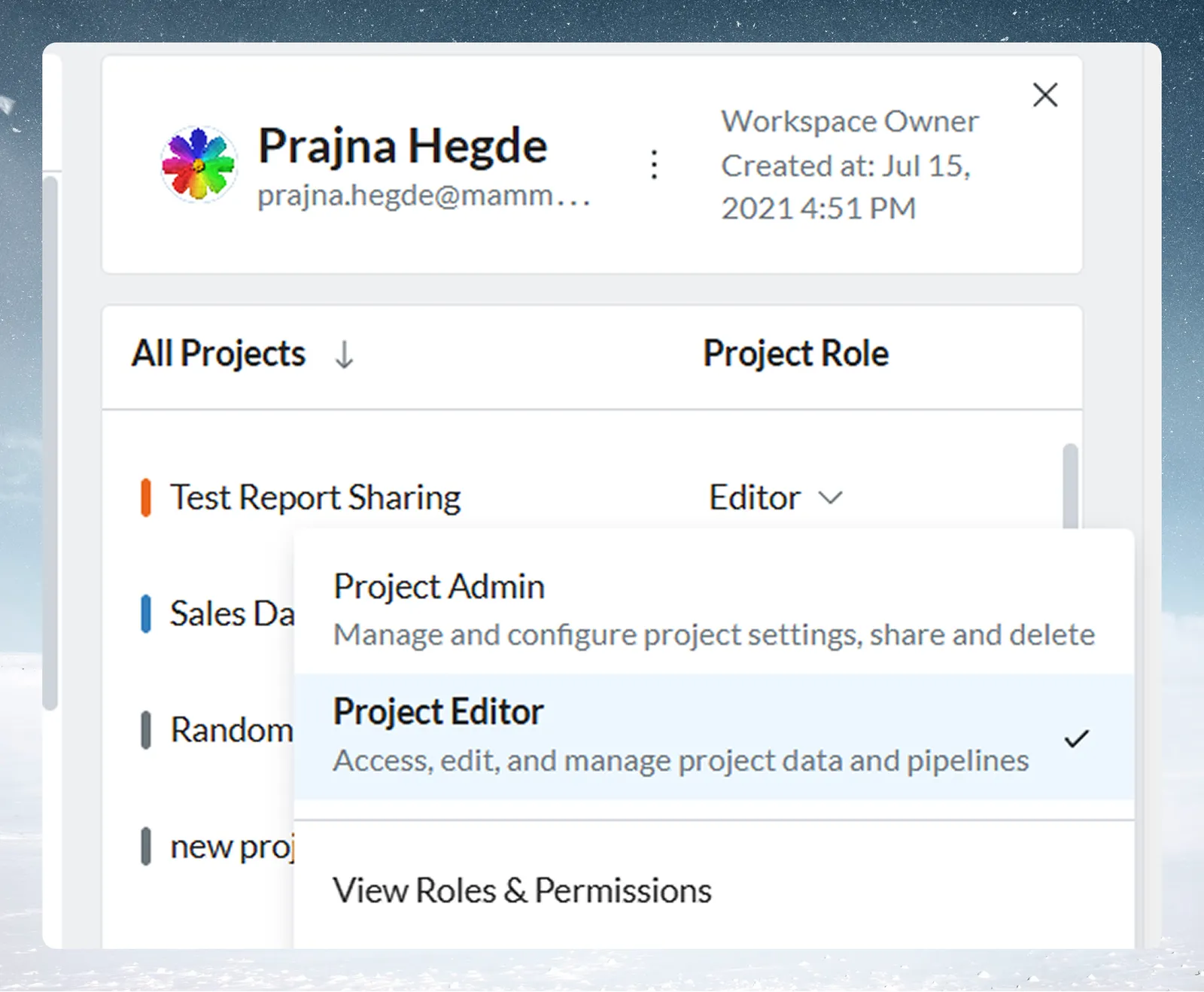
| Role | What they can do |
|---|---|
| Project Admin | Manage and configure project settings, share and delete |
| Project Editor | Access, edit, and manage project data and pipelines |
| Project Viewer | View Data Library items (read-only) |
Custom project roles follow, with their description. The change applies at once: "User project role changed successfully." View Roles & Permissions at the bottom of the dropdown opens the full permission list.
When in doubt, give Project Editor. Give Project Admin only to manage project membership, create Live Connections or change project settings. Use Project Viewer for people who only need to look.
Remove someone from one project
Click the trash icon next to a project to open Remove user from that project. It warns that the user will lose access to that project's files. Confirm to remove them. On your own panel the icon is a leave icon, which opens Leave the project.
Tip: Workspace membership is unaffected
Removing a user from a project removes only their project access. They stay in the workspace and can be re-added to the project at any time.
Make someone a Workspace Owner or remove them from the workspace
Click the user's workspace role at the top of their panel to open the role menu.
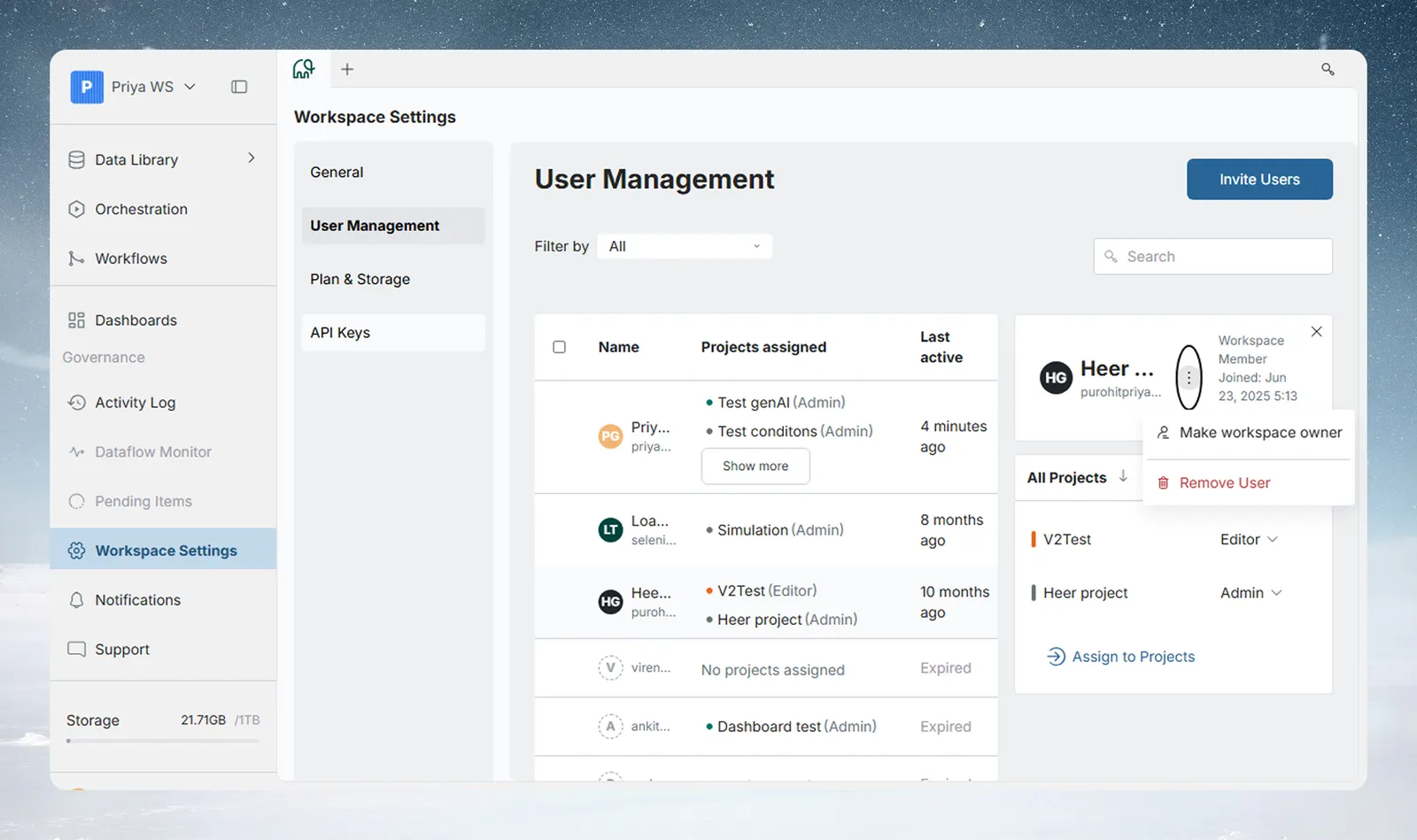
| Option | What it does |
|---|---|
| Workspace Owner / Workspace Member, then any custom workspace roles | Picks a role; the current one has a check mark. Making someone an Owner opens Make workspace owner, which warns that it grants full control; confirm with Make owner. Changing an Owner to Member opens Change workspace role; confirm with Change role |
| View Roles & Permissions | Opens the workspace permission list |
| Remove User | Opens Remove user from workspace. Confirm with Remove User |
A workspace can have several Owners, and making someone else an Owner doesn't change your own role. Each Owner has full control, including billing, user management, external keys and workspace deletion. On your own panel, the menu offers View Roles & Permissions, Leave Workspace and Delete Profile.
What happens when a role changes or a user is removed
- Workspace role changes (Owner, Member or a custom workspace role) and project role changes (Admin, Editor, Viewer or a custom project role) take effect immediately. There is no grace period.
- Removing a user from the workspace removes their workspace and project role assignments, so all their project access goes at once. Their account isn't deleted, and their memberships in other workspaces are unaffected.
- Project Admins can remove users from their project without affecting workspace membership.
Related
- Invite members: invite people and handle invitations.
- Roles and permissions: every permission by role.
- Share a project and set project roles: add people from inside a project.
- Audit logs: see who changed a role or removed someone.
Something wrong? support@mammoth.io