Paste data from Excel or Google Sheets into Mammoth
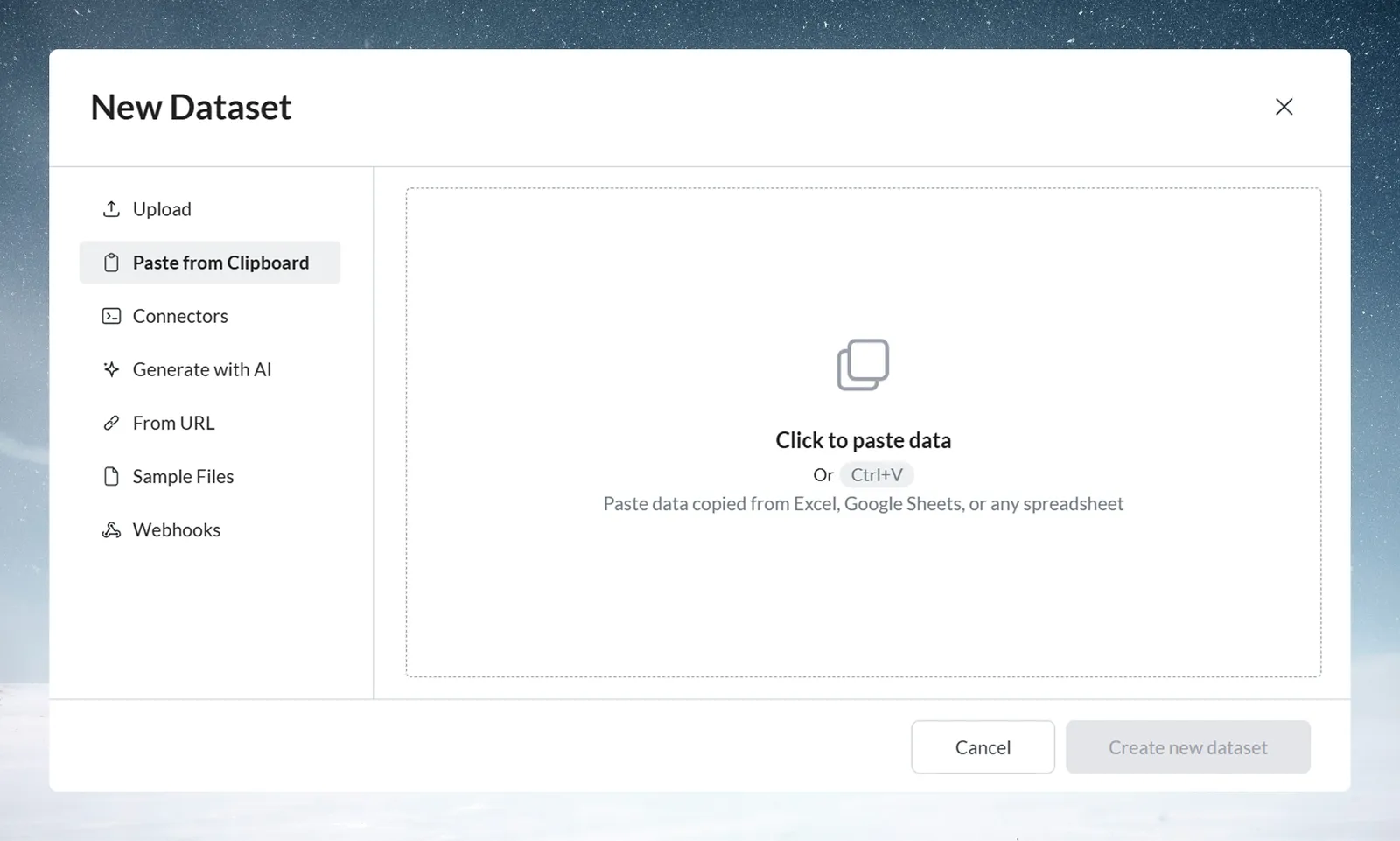
Paste from Clipboard turns cells you copied into a new dataset. In the Data Library, click New dataset, choose Paste from Clipboard, paste, and click Create new dataset. Use it for small tables and quick questions that don't need a file upload.
When to paste data
- Someone asks a question in a meeting: copy the Excel data, paste it into Mammoth and explore it.
- You want to test transformation logic on sample rows before you build a full pipeline.
- You need a small reference table (department codes, product categories) for lookups.
- You want a quick data quality check before a formal upload.
Paste cells to create a dataset
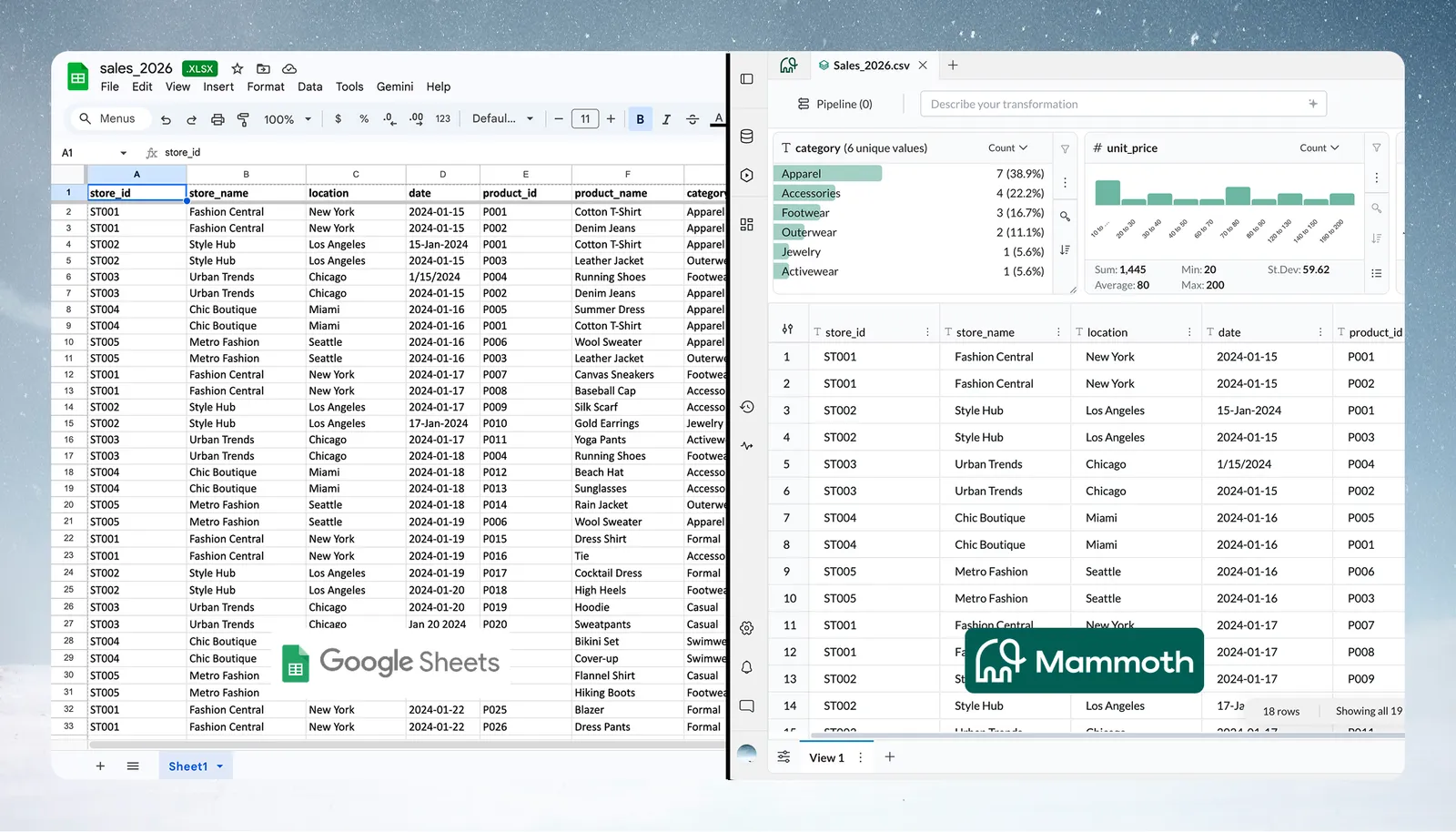
- Select cells in Excel or Google Sheets and copy them (Ctrl+C on Windows, Cmd+C on Mac). Include the header row.
- In Mammoth, click New dataset.
- Select Paste from Clipboard.
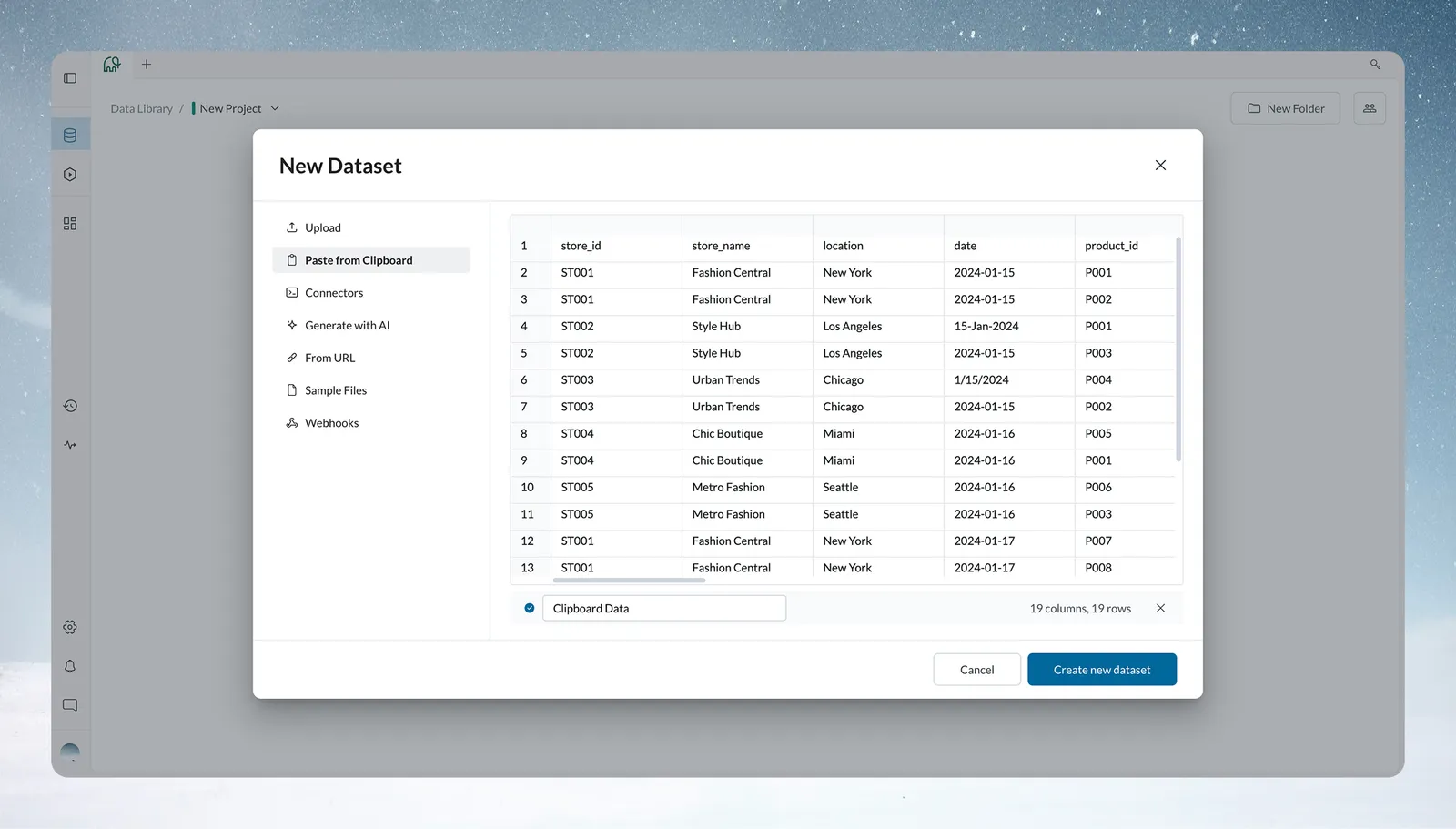
- Select Click to paste data, or press Ctrl+V (Cmd+V on Mac). Mammoth shows an editable preview of the pasted table.
- Check the columns and header row Mammoth detected.
- Give the dataset a name and click Create new dataset.
In the preview:
- To discard it, select the X button in the preview bar.
- If you paste again while a preview exists, Mammoth asks "Are you sure you want to replace this preview?" before it replaces it.
- If the browser blocks clipboard access, Mammoth shows "Clipboard access was blocked. Allow access or press Ctrl+V." (Cmd+V on Mac).
What you can paste
- Spreadsheets: Excel ranges (with or without headers), Google Sheets selections, and any spreadsheet that copies cells as tab-separated text.
- Web and tools: HTML tables from websites, database query results copied as text (for example from pgAdmin), and CSV text from text editors or command-line tools.
- Delimited text: tab-delimited data (the most common, from Excel) and comma-separated values.
Mammoth splits the pasted text on tabs if it contains any tab, and on commas otherwise. Other delimiters, such as pipes (|) and semicolons, are not detected.
What happens with text that isn't a table
If the pasted content is not rows and columns, Mammoth puts each line in a single column as text. That includes:
- plain sentences, such as
hello this is not a table; - JSON, such as
{"key": "value"}; - HTML, such as
<div>test</div>; - special characters, such as
@#$%^&*()_+=~.
Mammoth rejects pasted file paths, file names (for example report.xlsx) and images with "Invalid pasted data. Please copy cells from Excel, Google Sheets, or a CSV file."
Check the preview before you create the dataset. If it isn't what you expected, restructure the data into rows and columns, or use another method.
How Mammoth detects headers and types
- Header row: Mammoth treats the first line as headers when it has a non-numeric label in every column and at least one more line follows. Otherwise it keeps the first line as data.
- Delimiter: tab separation (most common from spreadsheets) or comma separation (CSV).
- Column types: detected when the dataset is created, the same way as for a file upload. Review them afterwards and use Convert Column Type where needed.
Worked examples
Answer a question in a meeting. The finance lead asks for the average deal size by region. Open the CRM report in another tab, copy the data, paste it into Mammoth, and use Explore Cards to break it down by region. You answer without leaving the meeting.
Train a teammate. Copy a 50-row sample of production data and paste it. Build a pipeline on it to show before-and-after results, without touching production.
Build a lookup table. Paste a 30-row table of Department Name and Department Code. Use it in joins across several Views, and paste a new version when the codes change.
Paste reliably
- Include the header row in your selection for better column names and type detection.
- Fix typos and formatting before you paste, and keep one date and number format per column.
- Paste a few rows first to check detection, then paste the full table.
- Check numeric codes (product IDs may be detected as numbers when you want text), dates, and long text values in the preview.
- Paste prepares the dataset in your browser's memory. For large tables, close other browser tabs to avoid slowdowns.
Limits of paste
| Area | Limit |
|---|---|
| Browser memory | The pasted table is held in your browser until you create the dataset, so very large tables can be slow |
| Clipboard size | Content too large for the browser to read shows "Content too large to paste. Use the file upload option instead." |
| Upload size | Mammoth sends the pasted table as a file when you create the dataset, so the 50 MB upload limit applies (see Limits and quotas) |
| Versions | Each paste creates a new dataset. To add to it later, use a file with Add data |
| Refresh | No schedule or automatic refresh. Copy and paste again for new data |
| Saving | Nothing is saved until you click Create new dataset. A browser refresh, crash or closed tab before then loses the data |
Choose another method instead
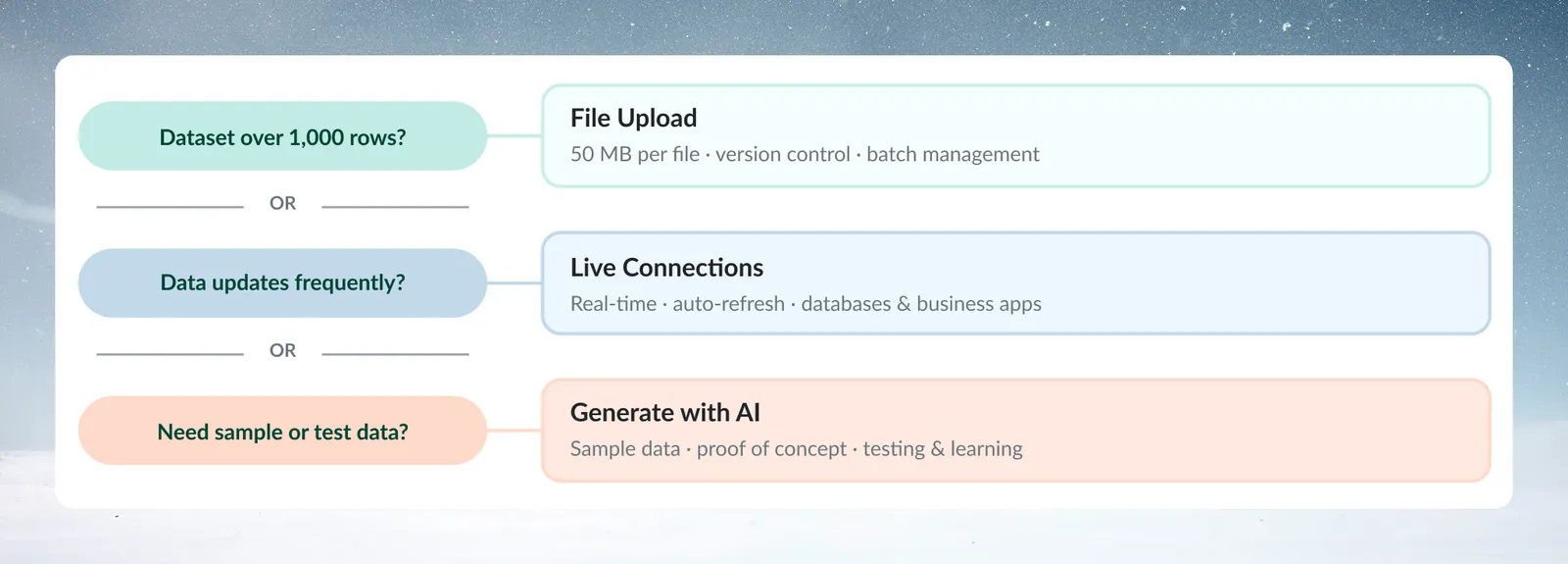
- Upload files when the dataset is large, you need batch history (Combine or Replace), the data updates regularly, or you have several related files.
- Connect a database or app when data changes daily or hourly, lives in a database or business application, or should refresh on a schedule.
- Generate with AI when you need sample data for tests, proofs of concept, learning or training.
Troubleshooting paste
| Symptom | Cause | Fix |
|---|---|---|
| Nothing appears after pasting | The text is a paragraph, not rows and columns; the clipboard holds an image, a file path or a file name; or the browser blocked clipboard access | Copy cells with a clear row and column structure. Paste into a text editor first to see the raw format. Allow clipboard access in your browser settings. |
| "Invalid pasted data. Please copy cells from Excel, Google Sheets, or a CSV file." | You pasted a file path, file name or image | Copy the cells themselves |
| Numbers detected as text, or dates as text | Mixed formatting in a column, no header row, or special characters in numbers | Include the header row, clean the formatting, then use Convert Column Type |
| The browser freezes or stops responding | The table is too big for browser memory, other tabs use memory, or there are many columns | Close other tabs, paste a smaller part first, or upload a file |
| Pasted data disappeared | The browser refreshed, crashed or the tab closed before you clicked Create new dataset | Click Create new dataset straight after pasting, and keep the source data to paste again |
Related
- Get data into Mammoth: compare every way to create a dataset.
- Upload files: for larger tables and files.
- Add or replace data in a dataset: add more rows to a pasted dataset later.
- Explore cards: look at the pasted data straight away.
- Look up a value from another dataset: use a pasted reference table as a lookup.
Something wrong? support@mammoth.io