Import files from an SFTP server into Mammoth
The SFTP connector imports a file from any SFTP-compatible file server into Mammoth as a dataset. You sign in with a username and password, an SSH key Mammoth generates, or your own private key. Open it from Data Library > New dataset > Connectors and search for SFTP. Project Admins create the connection; Project Editors can start datasets from a connection the project already has. Which connectors you can add depends on your plan.
What you can bring in from SFTP
Files of these types: .txt, .csv, .tsv, .psv, .xls, .xlsx, .xlsm, .xml, .json, .jsonl, .ndjson, .zip, .bz2, .gz, .tar, .7z.
An Excel workbook opens to its sheets; tick columns from the sheet you want.
Before you connect SFTP
You need:
- An SFTP server reachable from the internet.
- A user account with read access to the files you want to import.
- The server's hostname or IP address and port (default
22). - Mammoth's IP address added to your server's firewall allowlist. The connection form shows it. See Allow Mammoth through your firewall.
- One sign-in method:
| Method | What you need |
|---|---|
| Username and password | Your SFTP user's password |
| SSH key generated by Mammoth | Access to add a public key to the server |
| Your own private key | Your existing SSH private key in PEM format |
Connect an SFTP server to Mammoth
These steps follow the shared flow in Connect a database or app.
- Go to the Data Library and click New dataset.
- Choose Connectors.
- Search for SFTP and click its tile. The connector workspace opens with the Chat showing.
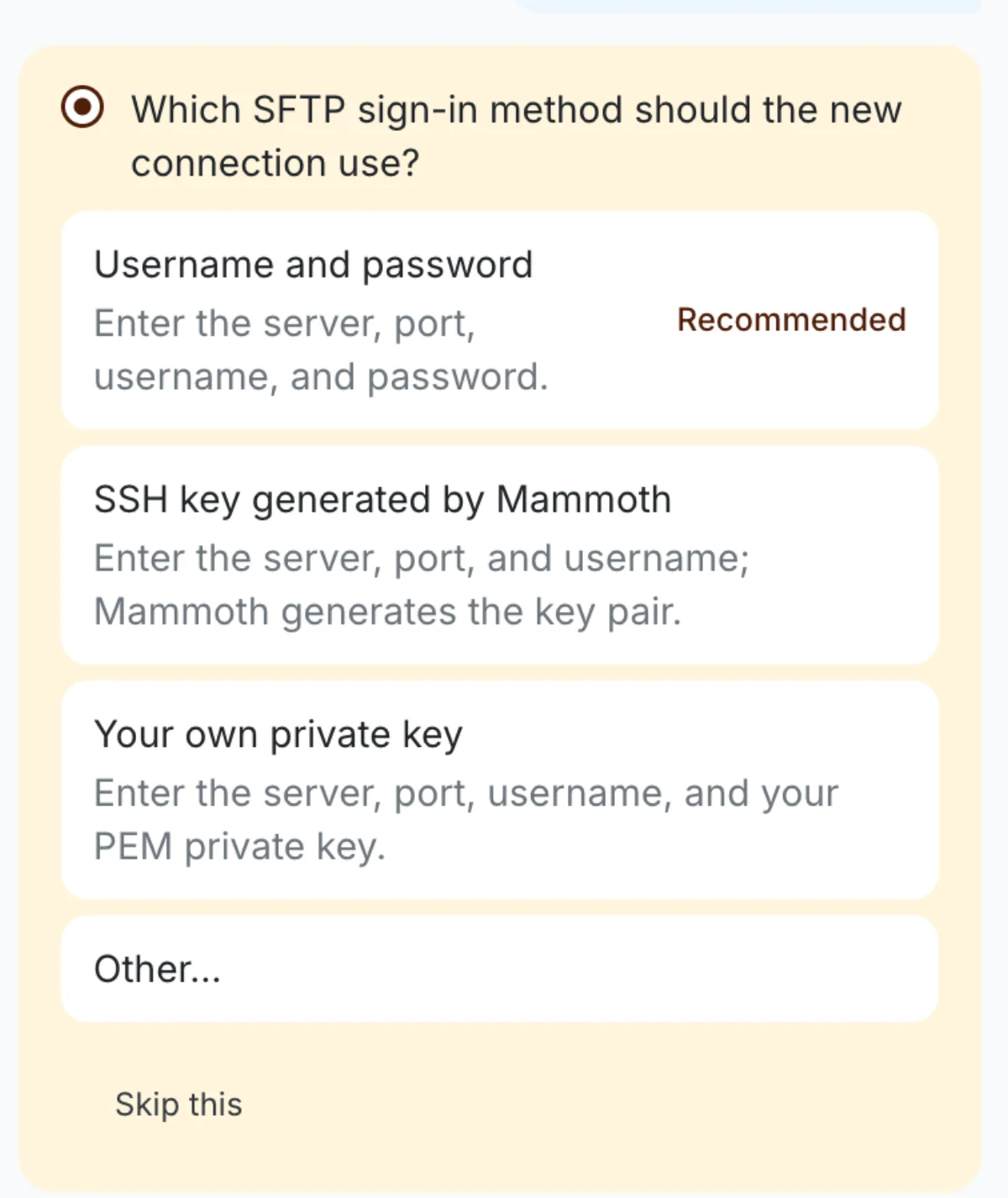
- The agent asks how you sign in to the server: Username and password (recommended), SSH key generated by Mammoth or Your own private key. Pick one, and it shows a connection card for that method.
The bottom of the form shows: "Mammoth connects from IP [address]. Add it to your server's allowlist if needed." Allow that IP address through your firewall.
Sign in to SFTP with a username and password
Choose Username and password for password sign-in. In the connection form under Data → Connections, the same option is Username & Password under Authentication Method.
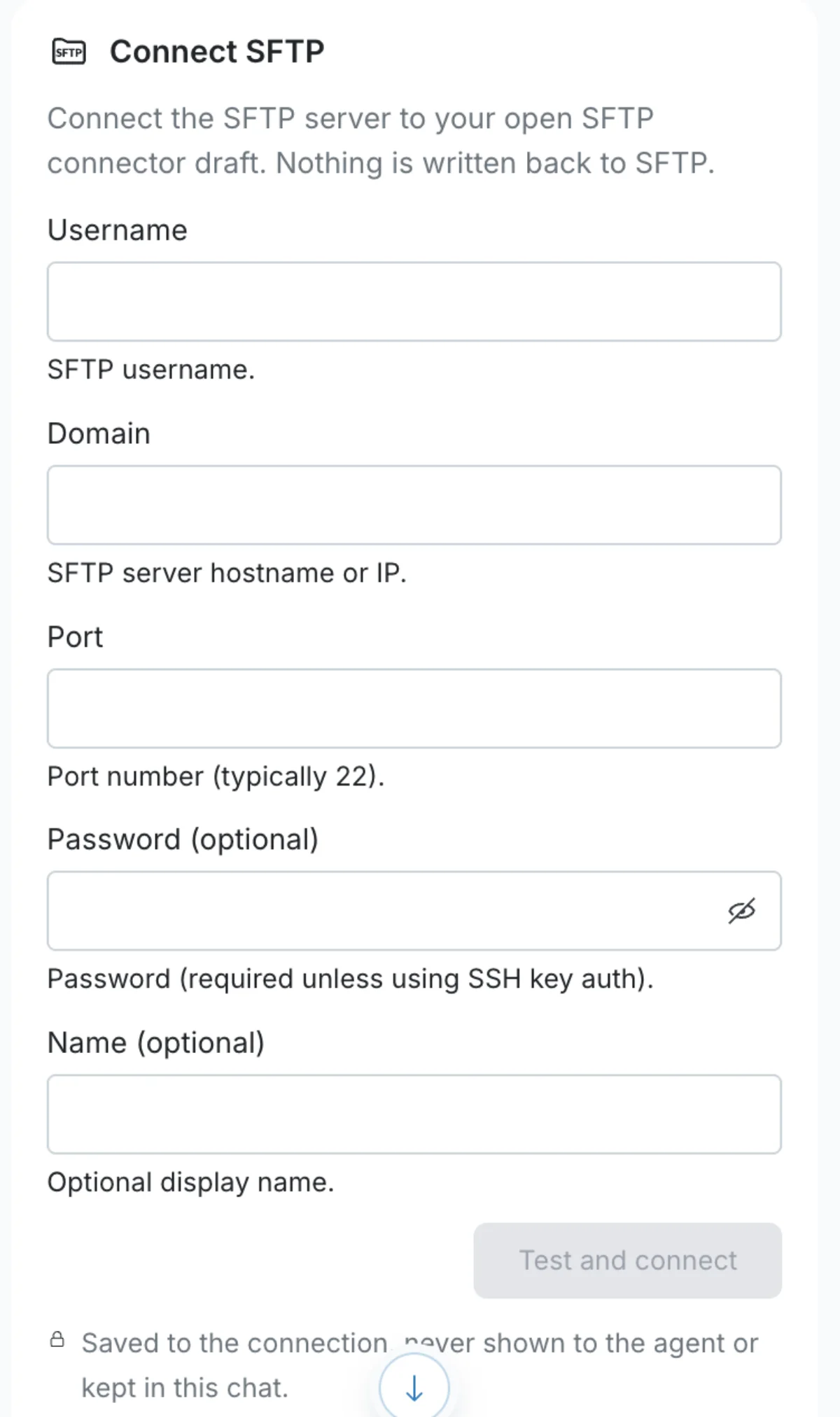
| Field | What to enter | Example |
|---|---|---|
| Username | SFTP user with read access | mammoth_user |
| Domain | Hostname or IP address of your SFTP server | sftp.example.com |
| Port | SFTP port, usually 22 | 22 |
| Password | Password for the SFTP user (optional on the card) | |
| Name | Optional label for this connection | SFTP Production |
Fill in the fields and click Test and connect.
Sign in to SFTP with an SSH key Mammoth generates
Choose SSH key generated by Mammoth (SSH Key in the connection form). Mammoth creates a unique public key for you to add to your server, so you have no private key to manage.
| Field | What to enter |
|---|---|
| Host | Hostname or IP address of your SFTP server |
| Port | SFTP port (default 22) |
| Username | SFTP user with read access |
| Display Name | Optional label for this connection |
- Fill in the fields and click Generate SSH Key. Mammoth shows the public key.
- Click Copy SSH Key to copy it, or Download key to save it as a
.pubfile. - Add the key to the server's
~/.ssh/authorized_keysfile, on the line for your SFTP user. - Return to Mammoth and continue connecting.
Sign in to SFTP with your own private key
Choose Your own private key (Private Key in the connection form) if you already have an SSH private key for Mammoth to use.
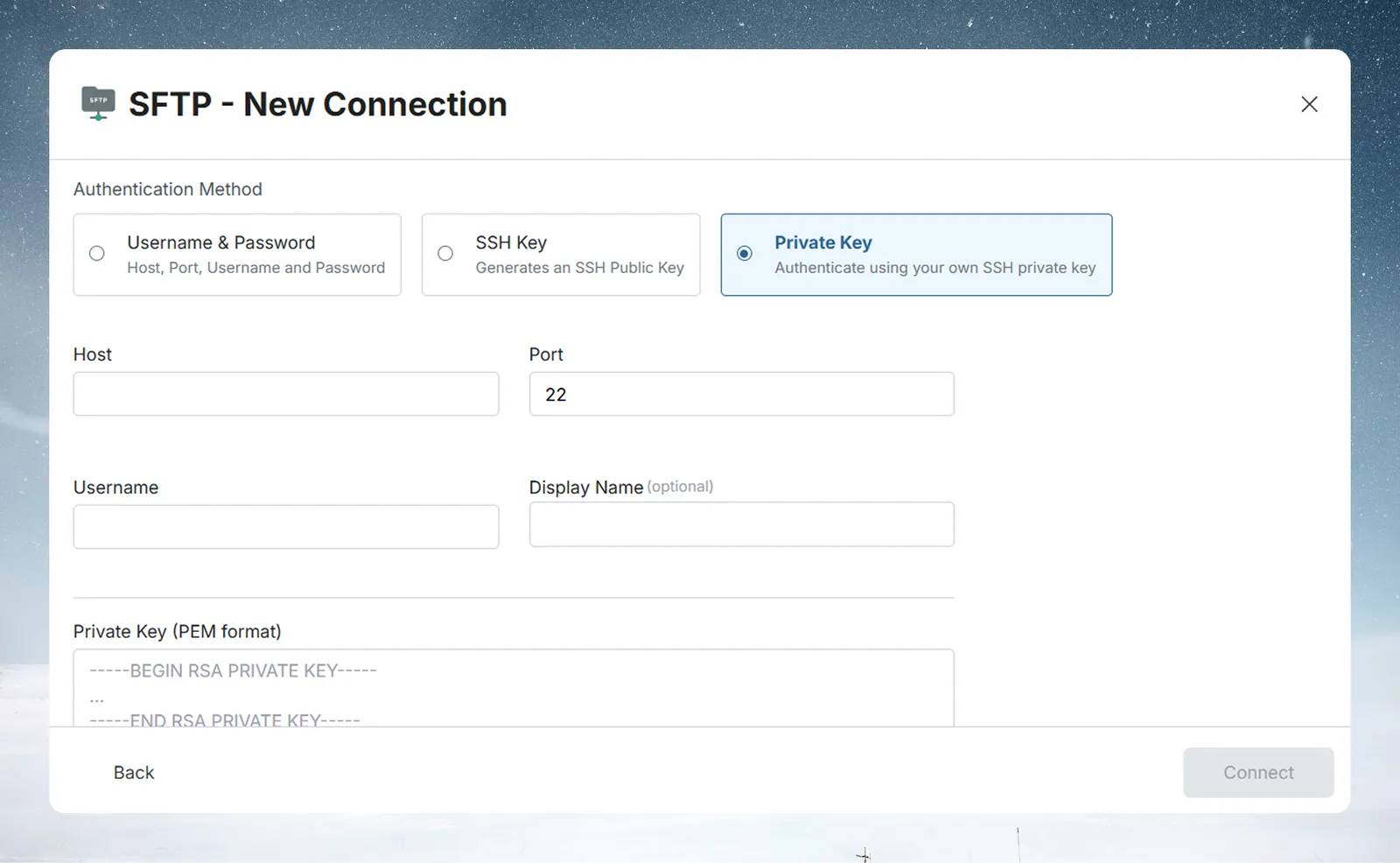
| Field | What to enter |
|---|---|
| Host | Hostname or IP address of your SFTP server |
| Port | SFTP port (default 22) |
| Username | SFTP user with read access |
| Private Key (PEM format) | Your SSH private key in PEM format (-----BEGIN RSA PRIVATE KEY----- ... -----END RSA PRIVATE KEY-----) |
| Passphrase | Optional passphrase, if your key is encrypted |
| Display Name | Optional label for this connection |
- Paste your private key in the Private Key (PEM format) box, or click Upload key file to select a
.pemor.keyfile. - If your key is passphrase-protected, enter the passphrase.
- Click Connect to save the connection.
Never share your private key or commit it to version control. If you think a key is compromised, remove it from your server's authorized keys at once.
Open an SFTP file and pick columns
Once connected, the workspace lists the folders and files on the server.
- In Tables, browse the folders and click a file to see its rows. A spreadsheet opens to its tabs.
- Tick the columns you want. They gather in Your table.
- Click Preview 100 rows to check the result.
If a file can't open in the panel yet, ask the agent in the Chat to import it.
Save an SFTP file as a dataset
- Click Save as dataset.
- Enter a Dataset name and choose a folder under Save in.
- Click Save. When the dataset is ready, click Open dataset.
Bring in new SFTP files as they arrive
Mammoth saves a file from this connector once and shows Saved once. Scheduled refresh for files is coming. A Dataset Refresh automation can't re-read it. To bring in new files:
- Set up a File Collection automation that collects new files into a folder. It can use a file name pattern. See What you can automate.
- Set up a Data Consolidation automation that adds that folder's files to a dataset.
Pull the next date-stamped file (older datasets)
Datasets created from the older SFTP connector dialog may use a Future pulls mode:
| Option | What it does |
|---|---|
| Pull same file | Re-reads the selected file |
| Pull next file based on name pattern | Looks for the next file whose name matches a date pattern |
For sftp_Tue-01-November-2022_daily.csv, the pattern is sftp_<dy>-<dd>-<mon>-<yyyy>_daily.csv. Put a date format inside <>. The supported formats are dd, mm, yyyy, yy, month, mon, day, dy, hh, mi and ss.
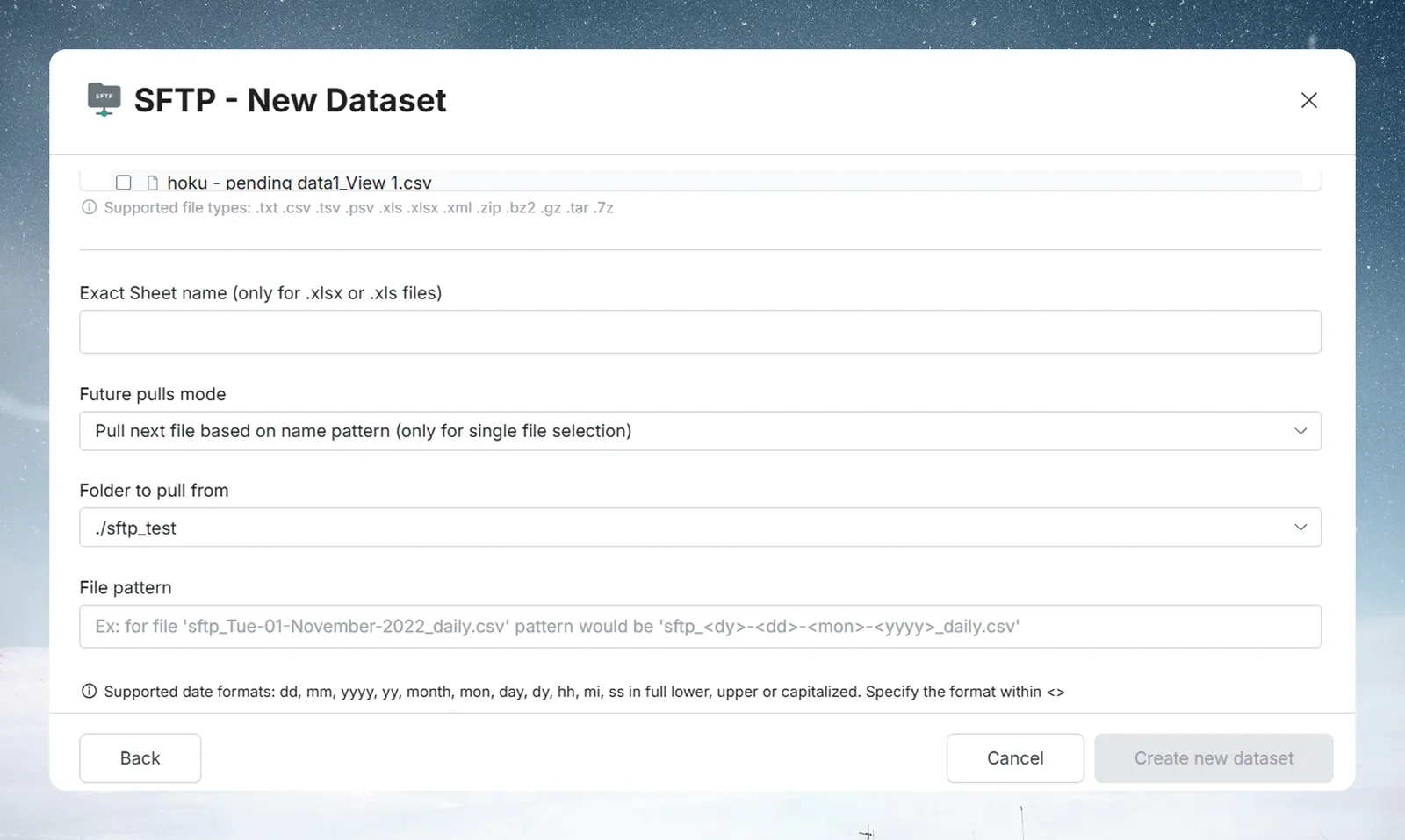
For new setups, use a File Collection automation with a file name pattern.
SFTP limits
- An uploaded private key file can be at most 16 KB, the maximum size for an SSH private key.
Troubleshoot SFTP connections
| Symptom | Likely cause | Fix |
|---|---|---|
| Connection fails | The port is closed to Mammoth | Open port 22 (or your custom port) inbound from Mammoth's IP address, shown on the connection form |
| Connection fails | A detail is wrong | Check the host, port and username, and for password sign-in, the password |
| Connection fails with a Mammoth key | The public key isn't installed | Check the key is in ~/.ssh/authorized_keys under the SFTP user's home directory |
| Connection fails with your own key | The key or passphrase is wrong | Check the key is valid PEM, the passphrase is right, and the matching public key is in ~/.ssh/authorized_keys |
| Permission denied on a file | The user can't read the file or list its folder | Check permissions with ls -la on the server and adjust with chmod |
| "Invalid private key format. Please provide a valid PEM-encoded key." | Mammoth couldn't read the key | Use a PEM key that begins with a -----BEGIN ... PRIVATE KEY----- line, and paste the whole key, including the -----BEGIN and -----END lines |
| "File exceeds the maximum allowed size for an SSH private key." | The uploaded key file is over 16 KB | Upload a key file of 16 KB or less |
Related
- Connect a database or app: the shared connector workspace steps.
- Allow Mammoth through your firewall: the IP address to allow.
- What you can automate: set up a File Collection automation.
- Combine incoming data: add collected files to one dataset.
- Manage saved connections: reuse or remove this connection.
Something wrong? support@mammoth.io