Approve a Checkpoint that is waiting for you
When a pipeline reaches a Checkpoint set to Pause for approval (an Approval Gate), it stops and emails the people chosen, who get a link to the View. Approving needs the project permission Approve/reject Checkpoint gates, which Project Admins have. To set up a Checkpoint, see Pause a pipeline for approval with a Checkpoint.
Approve a paused pipeline from the email
- Click the link in the email. It opens the View in Mammoth.
- Sign in if asked. You need a Mammoth account with access to the project.
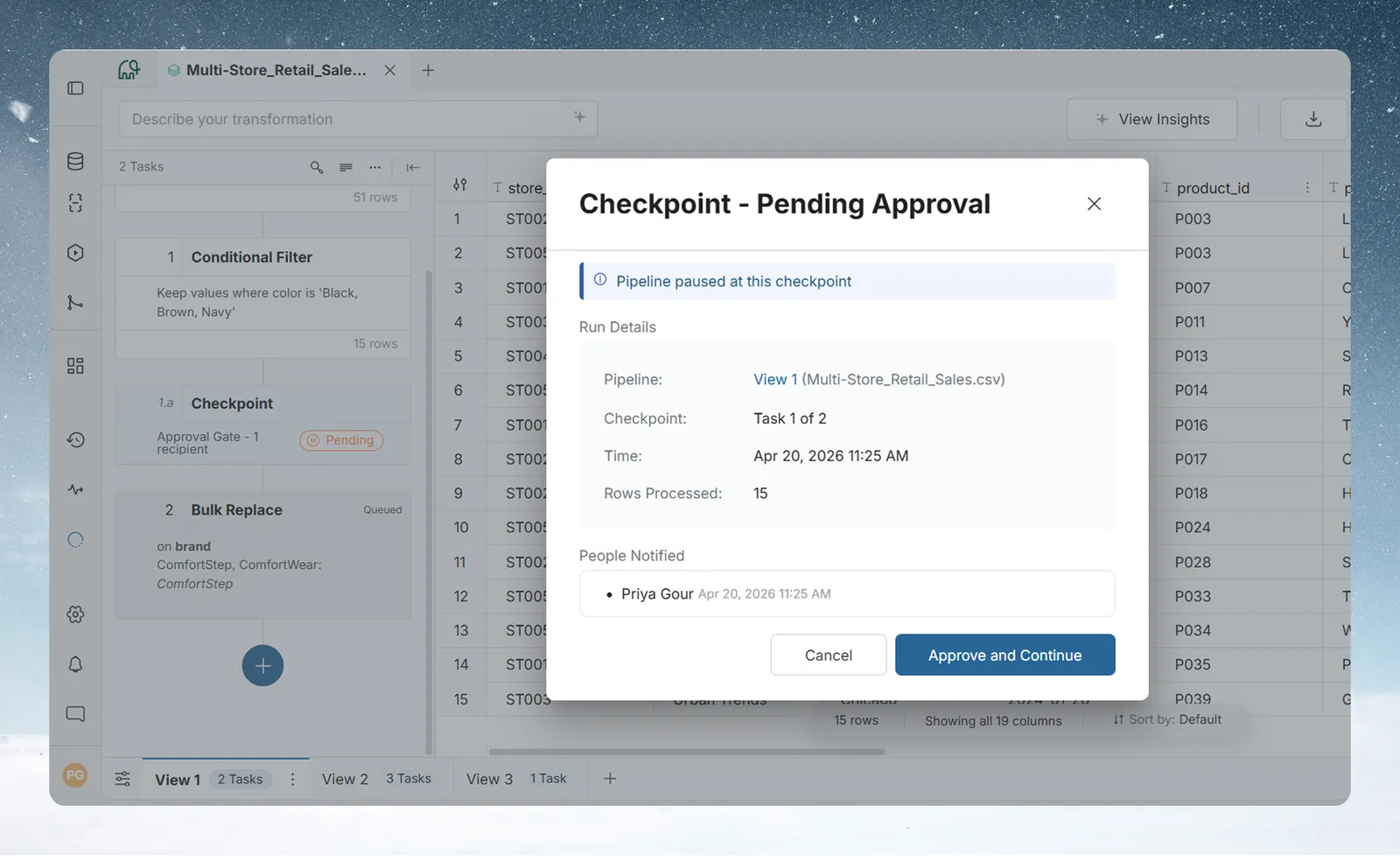
- In the Pipeline panel, click the Pending chip on the Checkpoint task.
- Read the Message from pipeline owner and check the data if you need to.
- Click Approve and Continue.
- In Approve this checkpoint?, click Yes, Approve.
The Checkpoint shows Approved and the pipeline continues on its own.
Who can approve
Approving needs the project permission Approve/reject Checkpoint gates. Of the standard roles, only Project Admin has it. A custom role can include it. For anyone else, Approve and Continue is turned off and its tooltip reads "Your role doesn't have permission to perform this action". See Projects and Members, roles and custom roles.
Find Checkpoints waiting for approval in Monitor
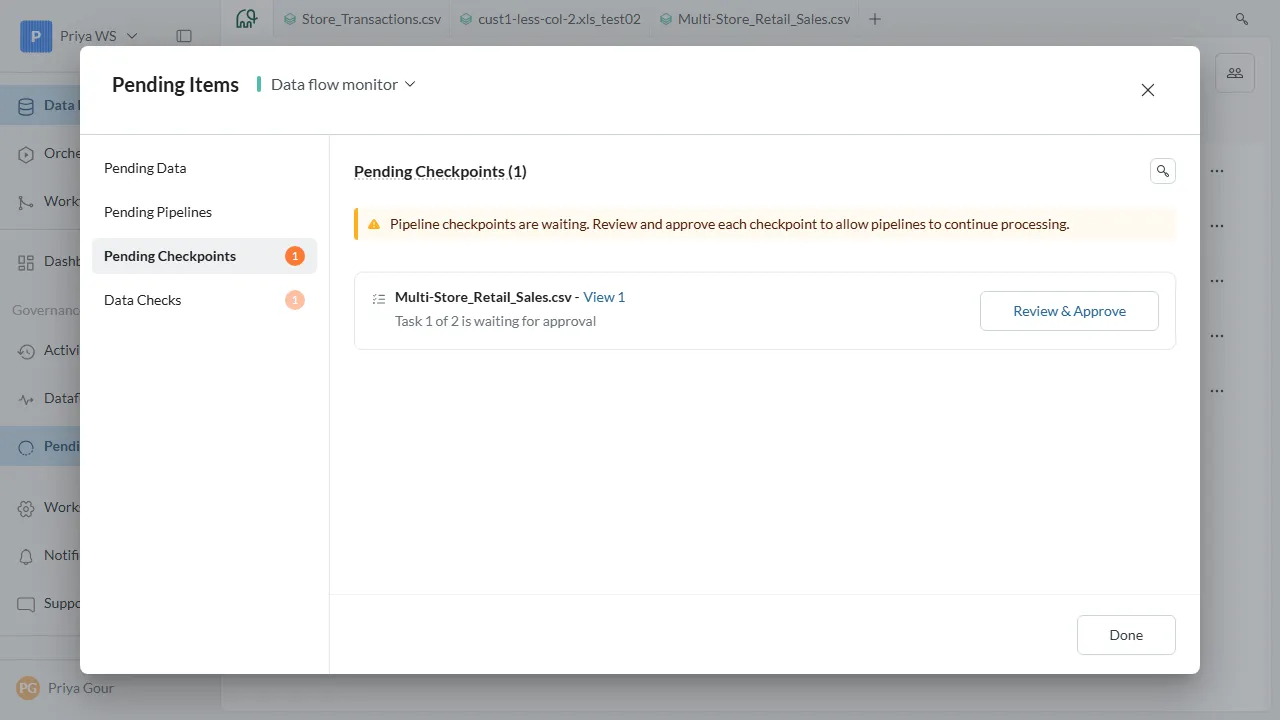
A waiting Approval Gate appears in Monitor, on the Needs Attention tab, in the Governance section. It reads Checkpoint: approval required, with the View and a line such as Task 4 of 8 is waiting for approval. Click Approve on the row to open the View, check the data and approve.
What happens when a pipeline reaches an Approval Gate
- The pipeline pauses. It stops at the Checkpoint. Later tasks don't run.
- Notifications go out. Email recipients get the message and any webhook fires.
- The status changes to pending. The Checkpoint shows a Pending chip, and its status window is titled Checkpoint Alert - Pending Approval.
- A reviewer opens it. They sign in, open the View and open the Checkpoint status window.
- The reviewer checks the data. The output up to this point is available while the pipeline is paused.
- The reviewer approves. They click Approve and Continue, then Yes, Approve in the Approve this checkpoint? confirmation.
- The pipeline resumes from the task after the Checkpoint.
- The status changes to Approved.
Troubleshooting approvals
| Symptom | Cause | Fix |
|---|---|---|
| Approve and Continue is greyed out with "Your role doesn't have permission to perform this action" | Your role lacks Approve/reject Checkpoint gates | Ask a Project Admin to approve, or to change your role |
Related
- Pause a pipeline for approval with a Checkpoint: add and configure Checkpoints.
- Members, roles and custom roles: give a role the approval permission.
- Remove duplicate rows and add data quality checks: automated checks with a pause or a flag.
Something wrong? support@mammoth.io