Schedule automations and trigger them by API
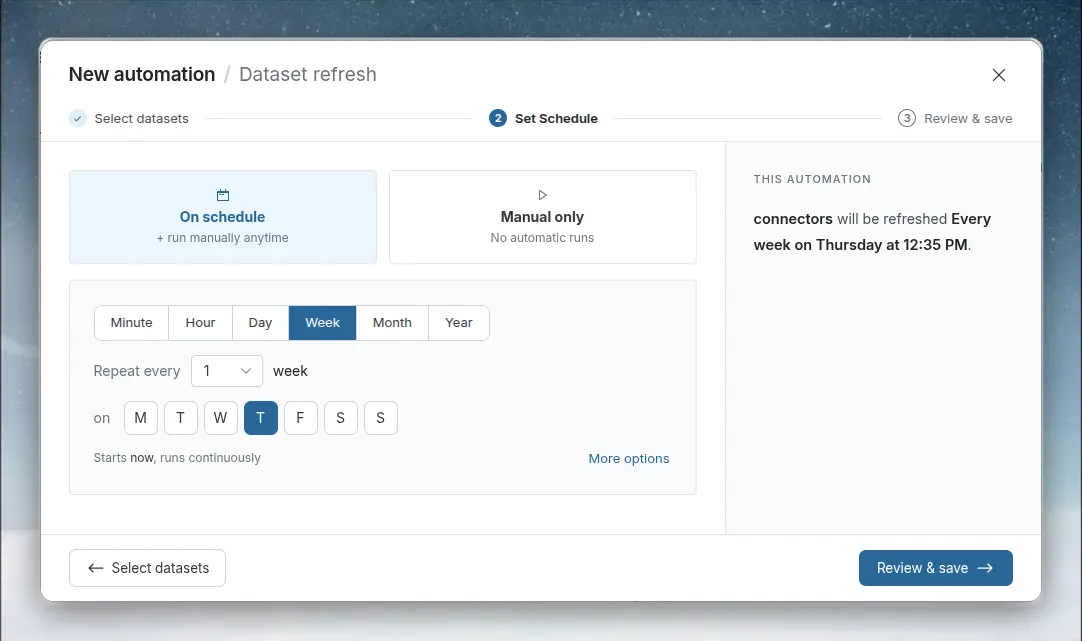
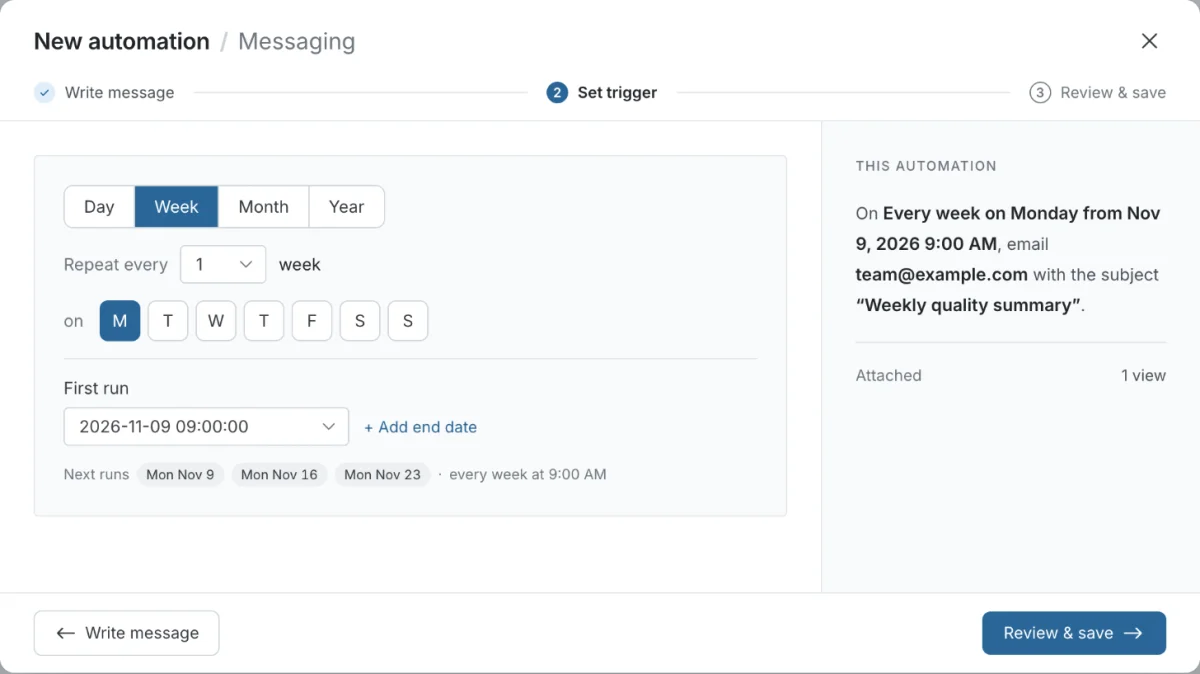
A schedule sets when an automation runs: a unit (Day, Week, Month or Year), how many units between runs, a First run and an optional End date. You set it on the Set Schedule step (Set trigger for Messaging) of the New automation window, or later with Edit schedule in the automation's Schedule row. Automations can also start from Run now, a new file in a folder, or an API or CLI call.
What can start an automation
Scheduling controls the timing of runs, such as every day at 6:00 AM, weekly on Mondays at 9:00 AM or monthly on the 1st. A trigger is what starts a run.
| Trigger | What it is | Applies to |
|---|---|---|
| Schedule-based | Time-based recurring runs | Dataset Refresh, File Collection, Scheduled Export, Messaging |
| Manual | On demand with Run now | All automation types |
| File upload | Runs when files are uploaded to the source folder | Data Consolidation |
| Webhook (data push) | External systems push data over HTTP. Rows are added every 5 min, hourly, daily or by hand | Webhook datasets |
| API trigger | External systems run an automation with a PATCH request or the CLI | Any Active automation |
Choose the right trigger
| Use this trigger | When |
|---|---|
| Schedule-based | Timing is predictable and doesn't depend on other systems |
| Manual | Testing, handling failures, ad-hoc reporting |
| File upload | Data arrives as files from several sources |
| Webhook | External systems push data, and you don't control when it arrives |
| API | Upstream processes finish at varying times and should start Mammoth when they do |
Where you set the schedule for each type
| Type | Where | Choices |
|---|---|---|
| Dataset Refresh | Set Schedule step | On schedule (you can still run it manually at any time) or Manual only (no automatic runs; it runs only when you trigger it manually or through the API) |
| File Collection | Set Schedule step | On schedule or Manual only |
| Scheduled Export | Set Schedule step | Always on a schedule. There is no Manual only option |
| Messaging | Set trigger step | Always on a schedule. There is no Manual only option |
| Data Consolidation | No schedule step | Runs when new files are added to its source folder |
To change the schedule of a saved automation, open it for editing and click Edit schedule in the Schedule row. See Manage automations.
Set how often an automation repeats
- Pick a unit: Day, Week, Month or Year.
- Next to Repeat every, pick the number of units between runs.
- For Week, also pick the weekdays to run on.
| Unit | Repeat every values |
|---|---|
| Day | 1 through 6 |
| Week | 1 through 3, on the weekdays you pick |
| Month | 1 through 12 |
| Year | 1 through 5 |
New schedules offer Day and coarser only, so you can't create an hourly or every-few-minutes schedule. If an automation was saved earlier with an Hour or Minute schedule, the scheduler still shows that unit when you edit it, so you can see what is running.
Run an automation weekly on chosen days
When Week is selected, a row of weekday buttons appears (one letter per day; hover for the full name). Select one or more days. At least one day is required. The first run can only fall on one of the days you pick.
Run an automation monthly or yearly
A monthly schedule runs on the day of the month of its first run. If that day doesn't exist in a month (for example the 31st), Mammoth shows a note such as Months without a 31st day are skipped. A yearly schedule that starts on 29 February shows Runs only in leap years, since other years have no Feb 29.
Plan limits on how often an automation runs
Your plan sets how often data can be refreshed. The scheduler doesn't offer a unit more frequent than your plan allows, whichever automation type you are creating. For example, on a plan whose limit is weekly, only Week, Month and Year are offered. On a plan without scheduled refresh, no unit is offered, so you can't set a schedule at all.
For Dataset Refresh and File Collection, Mammoth also checks the schedule:
- When you save, a schedule more frequent than your plan allows is refused with "Following frequency not allowed in your plan, please upgrade the plan".
- When a saved schedule is due but is now more frequent than your plan allows (for example after a plan change), that run is skipped.
Scheduled Export has no plan feature of its own, but the scheduler still offers only the units your plan's refresh frequency allows. Data Consolidation has no schedule, so it is never limited. The limits for each plan are on Limits and quotas.
Set the first run and an end date
- Under First run, pick the date and time of the first run. Later runs repeat from it. You can't pick a past date. If the time you pick is less than 5 minutes away or already gone today, the first run moves to the next day at that time (for a Week schedule, the next weekday you selected).
- To stop the schedule on a date, click + Add end date and pick an End date. It can't be earlier than the first run. To remove it, click Remove end date.
Without an end date, the automation runs until you suspend or delete it.
Below the dates, Next runs lists up to the next 3 run times, so you can check the schedule before you save. If the end date leaves only a few runs, the list shows All runs (or Only run when there is only one).
Messages that stop you continuing
You can't continue until the schedule is complete. The step tells you what is missing:
| Message | What to do |
|---|---|
| "Pick a first run to continue." | Choose a First run date and time |
| "Pick at least one day to continue." | For Week, select at least one weekday |
| "Pick an end date, or remove it, to continue." | Choose an End date, or click Remove end date |
Which time zone automation schedules use
Dates and times you pick are in your browser's local time zone. There is no separate time zone setting. Mammoth stores the schedule in UTC and shows next and last run times in your local time.
Because the run time is fixed in UTC, its local time can move by an hour when daylight saving time starts or ends. A run close to midnight can also fall on a different local day than you expect. The Next runs preview already shows the local times the runs will use.
Example schedules
| Need | Configuration |
|---|---|
| Operations team needs production metrics every morning | Dataset Refresh, Day, repeat every 1, first run at 6:00 AM. The pipeline runs after the data lands |
| Leadership receives portfolio performance every Monday morning | Messaging, Week, repeat every 1, on Monday, first run at 8:00 AM. Attach the executive summary Dataset View |
| Finance needs fresh data on the 1st of each month | Dataset Refresh, Month, repeat every 1, first run on the 1st. Pick a first run time early enough that the data is ready before the finance team starts work |
| Month-end close runs late on the 1st | Month, repeat every 1, first run on the 1st at 11:45 PM |
Stagger and sequence schedules
- Stagger concurrent automations. Rather than every refresh at 6:00 AM, use 5:30, 6:00 and 6:30 AM to avoid contention.
- If one process depends on another, schedule it at least 15 minutes after the first one usually finishes. For example: Dataset Refresh at 5:00 AM, pipeline at 5:15 AM, Messaging at 6:00 AM.
- Run non-urgent automations outside business hours so they don't slow down people working in Mammoth.
- Name automations with their timing, such as
Weekly Executive Summary - Mon 8am.
To refresh several datasets in a fixed order, put them in one Dataset Refresh and choose In a sequence. See Refresh several datasets in parallel or in a sequence.
Run an automation now
Run any Active automation straight away: click Run now in the detail panel, the edit window or the three-dot menu. Mammoth confirms with "Automation triggered successfully". Run now is only available while the automation is Active. A suspended automation must be resumed first. See Run an automation now.
Use a manual run to:
- test a new automation before its schedule starts;
- re-run after fixing a failure;
- send data to stakeholders who need it now;
- check that a configuration change worked.
A Dataset Refresh set to Manual only has no automatic runs at all. It runs only when you trigger it manually or through the API.
Run an automation when a file arrives
Data Consolidation automations run when new files are uploaded to, or moved into, their source folder. No schedule or manual trigger is needed: the new file starts the consolidation. See Combine incoming data.
Receive data pushed by webhook
A webhook lets an external system push data into a Mammoth dataset over HTTP. Your application sends an HTTP POST with a JSON or form-data payload to the dataset's unique URL, with the secret in an X-SECRET header if the webhook has one. Mammoth holds the rows and adds them at the next Add new rows run (5 min, Hourly, Daily or By hand), or when you click Add now.
To create one, click New dataset in the Data Library, choose Connectors, then Push > Webhook. Sends with a wrong or missing X-SECRET are turned away and nothing from them is added. Keep the secret safe: anyone with the URL and secret can push data into the dataset. For every option on the Webhook card, see Receive data by webhook.
Scheduled Export as a trigger
A Scheduled Export runs the export steps you pick on its own schedule (Day, Week, Month or Year), whether or not the data changed. Those exports still run after their data updates too, unless you turn that off on the export.
Run an automation from another system with the API
External systems can run an existing automation through the Mammoth API, the same as clicking Run now. Use it when an upstream process should start Mammoth as soon as it finishes.
Run an automation with the REST API
Send a PATCH request to the automation with a command operation on the run path:
curl -sS -X PATCH \
  "https://app.mammoth.io/api/v2/workspaces/$WORKSPACE_ID/projects/$PROJECT_ID/automations/$AUTOMATION_ID" \
  -H "Authorization: Bearer $MAMMOTH_API_TOKEN" \
  -H "Content-Type: application/json" \
  -d '{"patch": [{"op": "command", "path": "run", "value": ""}]}'
| Part | Value |
|---|---|
| Method and path | PATCH /workspaces/22/projects/5/automations/123 (your workspace, project and automation ids) |
| Base URL | https://app.mammoth.io/api/v2 |
| Authentication | An API token in the Authorization: Bearer mm_... header. Create one in Settings → API Keys → Generate key. See API authentication |
| Body | {"patch": [{"op": "command", "path": "run", "value": ""}]} |
To find the automation's id, list the project's automations with GET /workspaces/22/projects/5/automations.
The same endpoint suspends or resumes an automation. Send {"op": "replace", "path": "status", "value": "suspend"} (or "restore" to resume it) in the patch list.
A suspended automation can't be run through the API either. The request is refused with "Automation is suspended; resume it before running". Resume it first.
Run an automation with the CLI
With the mammoth CLI, the same run is:
mammoth automation update 123 --input '{"patch": [{"op": "command", "path": "run", "value": ""}]}' --yes
mammoth automation list shows the ids. See mammoth automation for every automation command.
Integration patterns
| Pattern | Example |
|---|---|
| Upstream completion | ERP finishes its nightly batch → API call → Mammoth refreshes the data |
| Event-driven | Payment system processes transactions → webhook → dataset updated with the new records |
| External workflow tool | An Apache Airflow DAG triggers a Mammoth automation as one step |
The API applies per-minute rate limits (see Limits and quotas). Retry rate-limited calls after a short delay instead of sending them again and again.
Troubleshooting
| Symptom | Cause | Fix |
|---|---|---|
| Automation doesn't run at the expected time | It is suspended, the plan no longer allows the schedule's frequency, or the source's Live Connection is no longer authenticated | Confirm the status is Active. Confirm your plan still allows the frequency: a schedule finer than your plan allows (for example after a downgrade) stops running until the plan allows it again. Check the status and Last run time. Check the source connection is authenticated |
| Run times vary | Several heavy automations compete for resources | Stagger their schedules |
| Automation fails after a schedule change | Schedule changes take effect from the next scheduled run, which uses the new configuration | Use Run now to test the new configuration straight away |
| Run now is greyed out | The automation is Suspended | Toggle it back to Active in the detail panel, then use Run now |
| Webhook data doesn't appear in the dataset | The URL or secret is wrong, or the rows are waiting for the next Add new rows run | Open Recent deliveries on the Webhook card. A Turned away entry says why (wrong or missing X-SECRET, or a site the webhook does not allow). Check the sender uses the card's URL and puts the Secret in X-SECRET. Click Add now to add waiting rows |
| API trigger returns 401 Unauthorized | The API token is missing, invalid or revoked | Send it as Authorization: Bearer mm_... (API authentication). Use a token from the same workspace as the automation. If it was lost or revoked, create a new one in Settings → API Keys |
| API trigger returns 403 | A token limited to one project is used in another project | Use a token for this project. See API errors |
| API says "Automation is suspended; resume it before running" | The automation is Suspended, so it can't run by hand or through the API | Resume it in the app, or send {"op": "replace", "path": "status", "value": "restore"}, then run it again |
Related
- Create an automation: where the schedule step sits in the wizard.
- Manage automations: read Next run, Last run and statuses, and edit a schedule.
- Refresh a dataset: schedule refreshes for connector and From URL datasets.
- Combine incoming data: the file-arrival trigger.
- Receive data by webhook: every option on the Webhook card.
Something wrong? support@mammoth.io