Import a Google Sheet into Mammoth and refresh it daily
The Google Sheets connector imports one spreadsheet tab into Mammoth as a dataset that can refresh from the sheet. You sign in with your Google account, then choose the spreadsheet and the tab. Open it from Data Library > New dataset > Connectors and search for Google Sheets. Project Admins create the connection; Project Editors can start datasets from a connection the project already has. Which connectors you can add depends on your plan.
What you can bring in from Google Sheets
- One tab of a spreadsheet per dataset. Pick the spreadsheet from a list or paste its link.
- Only the columns you tick.
Unlike most file sources, a Google Sheets dataset can refresh. Each refresh reads the sheet's current content.
Before you connect Google Sheets
You need a Google account with at least Viewer access on the spreadsheet.
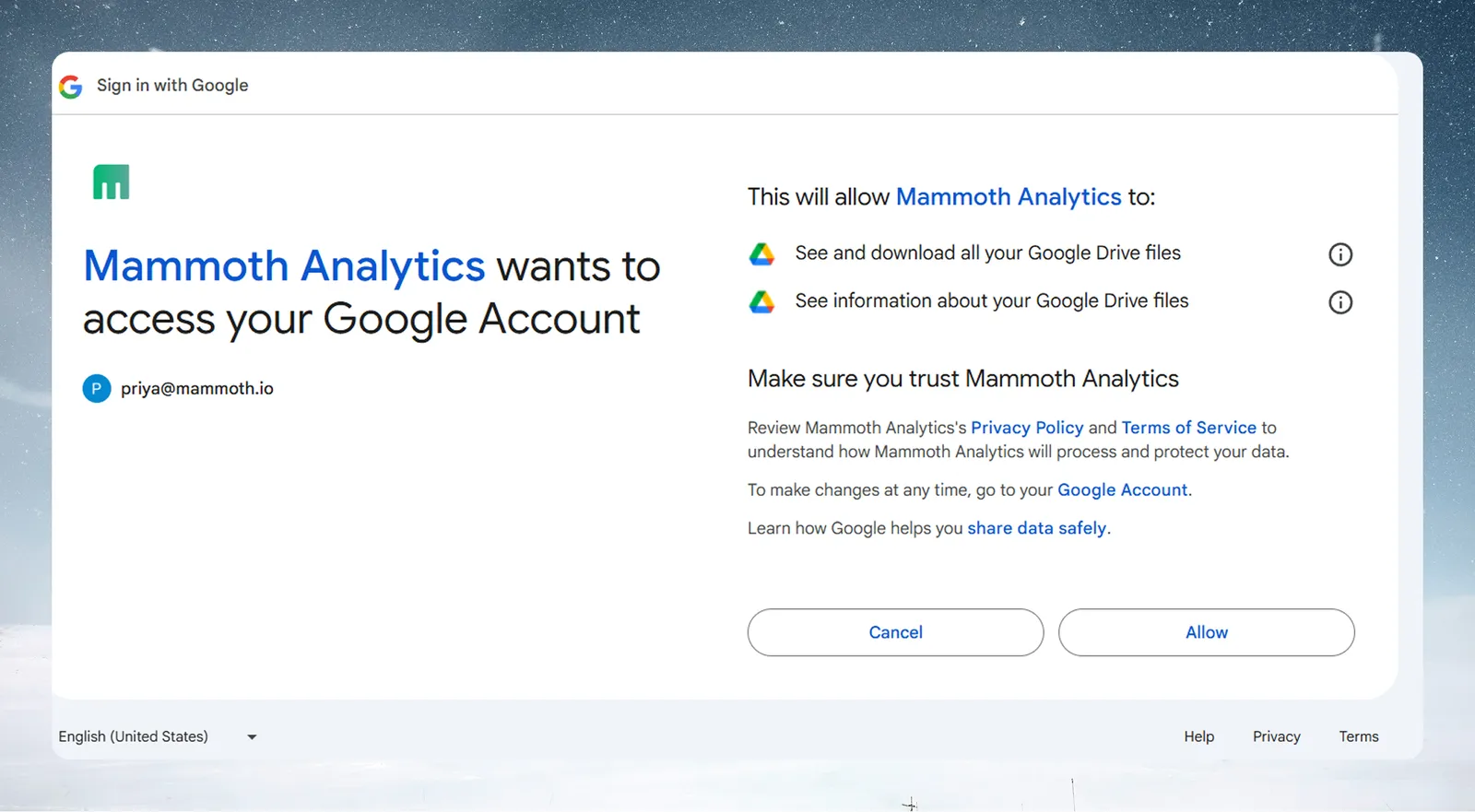
Mammoth asks for read-only access to view and download your Google Drive files and see your email address.
Connect a Google account to Mammoth
- Go to the Data Library, click New dataset, and choose Connectors.
- Search for Google Sheets and click its tile. The connector workspace opens with the Chat connecting Google Sheets.
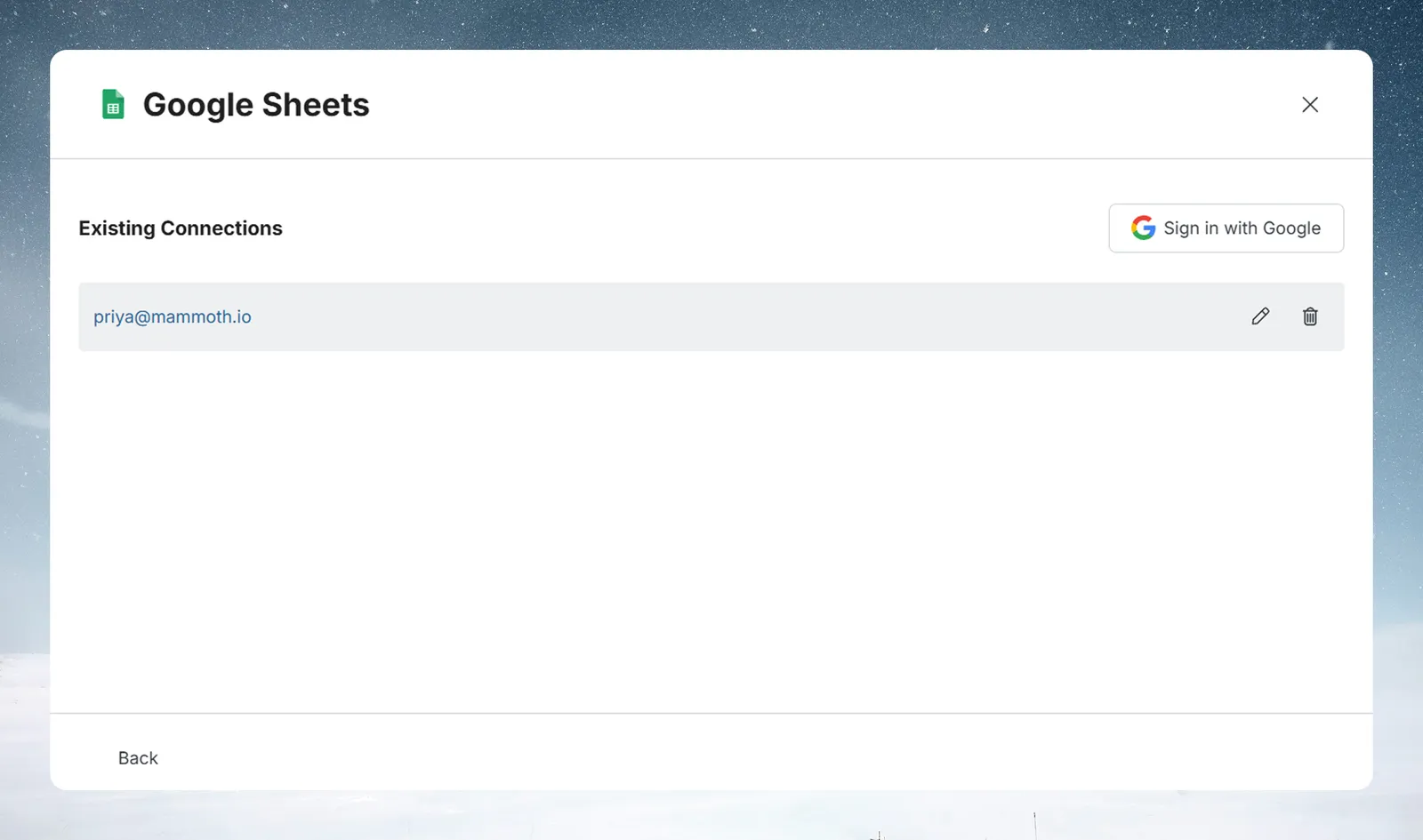
- In the chat's card, click Sign in with Google. Google's authorization page opens in a pop-up window, or in the same tab if your browser blocks pop-ups.
- Sign in with the Google account that has access to the spreadsheet, then click Allow. You're returned to Mammoth.
If the project already has a Google sign-in, clicking the Google Sheets tile opens that sign-in's files instead of a new chat. You can also pick a saved connection under Your connections in the launcher. See Connect a database or app for the shared steps.
Open a spreadsheet and tab
- In the left panel, find the spreadsheet under Your spreadsheets, or use Filter, or paste a spreadsheet link. To open a pasted link, click Open this spreadsheet.
- The spreadsheet opens to its tabs. Click the tab you want to see its rows.
- Tick the columns you want. They gather in Your table. To rename a column, click its name in Your table.
- Click Preview 100 rows to check the result.
Import several tabs from one spreadsheet
Create a separate dataset for each tab. Use the same connection and open a different tab each time.
Save a Google Sheets tab as a dataset
- Click Save as dataset.
- Enter a Dataset name and pick the folder under Save in.
- Under Keep it up to date, choose Daily or Manual.
- Click Save.
If Mammoth opens the Connect a Google Sheet screen
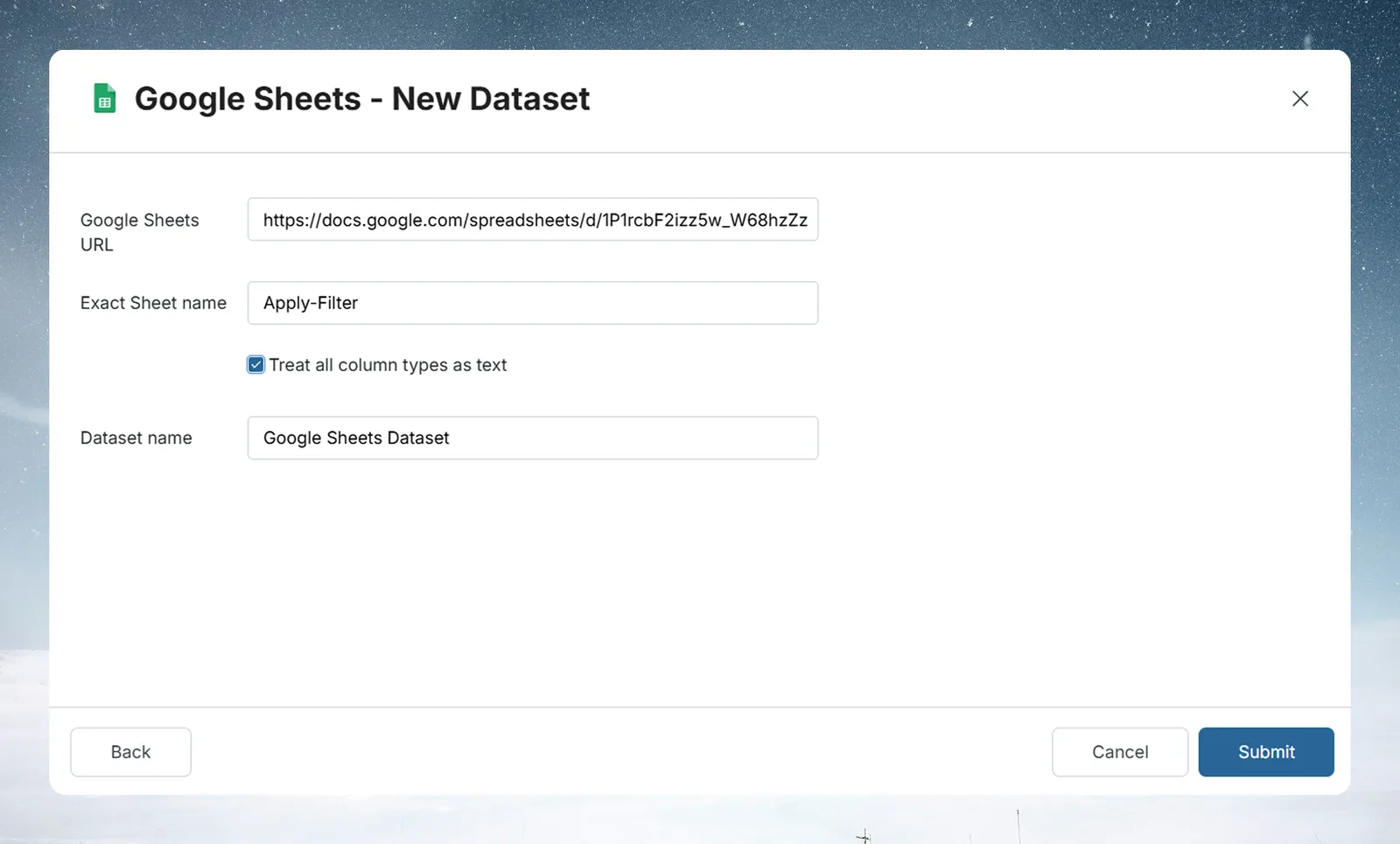
Mammoth still opens the older Connect a Google Sheet screen in some cases. There:
- In Spreadsheet, open Select a spreadsheet… and pick your spreadsheet, or click Paste a link instead.
- In Tab, choose the tab, then click Continue.
- On the Mammoth interpretation step, click Looks right if the header and columns are correct. If the tab needs reshaping, describe how to read the header and check the Result, or click Import as is.
- Enter a Dataset name, choose Manual or On a schedule, and click Create Dataset.
Refresh a Google Sheets dataset
Choosing Daily creates a Dataset Refresh automation that you can reschedule later. When a refresh runs, Mammoth reads the sheet's current content, so changes made in Google Sheets since the last refresh appear in your dataset.
After the dataset is saved, its Update method offers Replace all data or Add to existing data. Google Sheets refreshes don't use a key column.
Troubleshoot Google Sheets imports
| Symptom | Likely cause | Fix |
|---|---|---|
| Columns aren't what you expected | Extra or badly named columns | Untick the columns you don't need, or rename a column in Your table by clicking its name |
| "No tabs found in this spreadsheet" | The spreadsheet has no readable tabs | Check the spreadsheet in Google Sheets |
| Access denied | The authorized Google account can't see the sheet | Give that account at least Viewer access on the spreadsheet |
| "Couldn't open that spreadsheet. Check the link, and that this Google account can see it." | Wrong link, or no access | Check the link and the account's access |
Related
- Google Drive: import CSV, Excel and other files from Drive.
- Connect a database or app: the shared connector workspace steps.
- Refresh a dataset: change when the dataset refreshes.
- Manage saved connections: reuse or remove this connection.
- Import from a URL: bring in a file from a web link instead.
Something wrong? support@mammoth.io