Add, split, copy and delete columns
The Column Management category in Describe your transformation adds, copies, combines, splits, converts and removes columns. Each is a pipeline task, so it changes the View's structure and re-runs on every refresh. To rename a column, use the grid instead: double-click the header or choose Rename Column in its 3-dot menu (a Display Change, not a task).
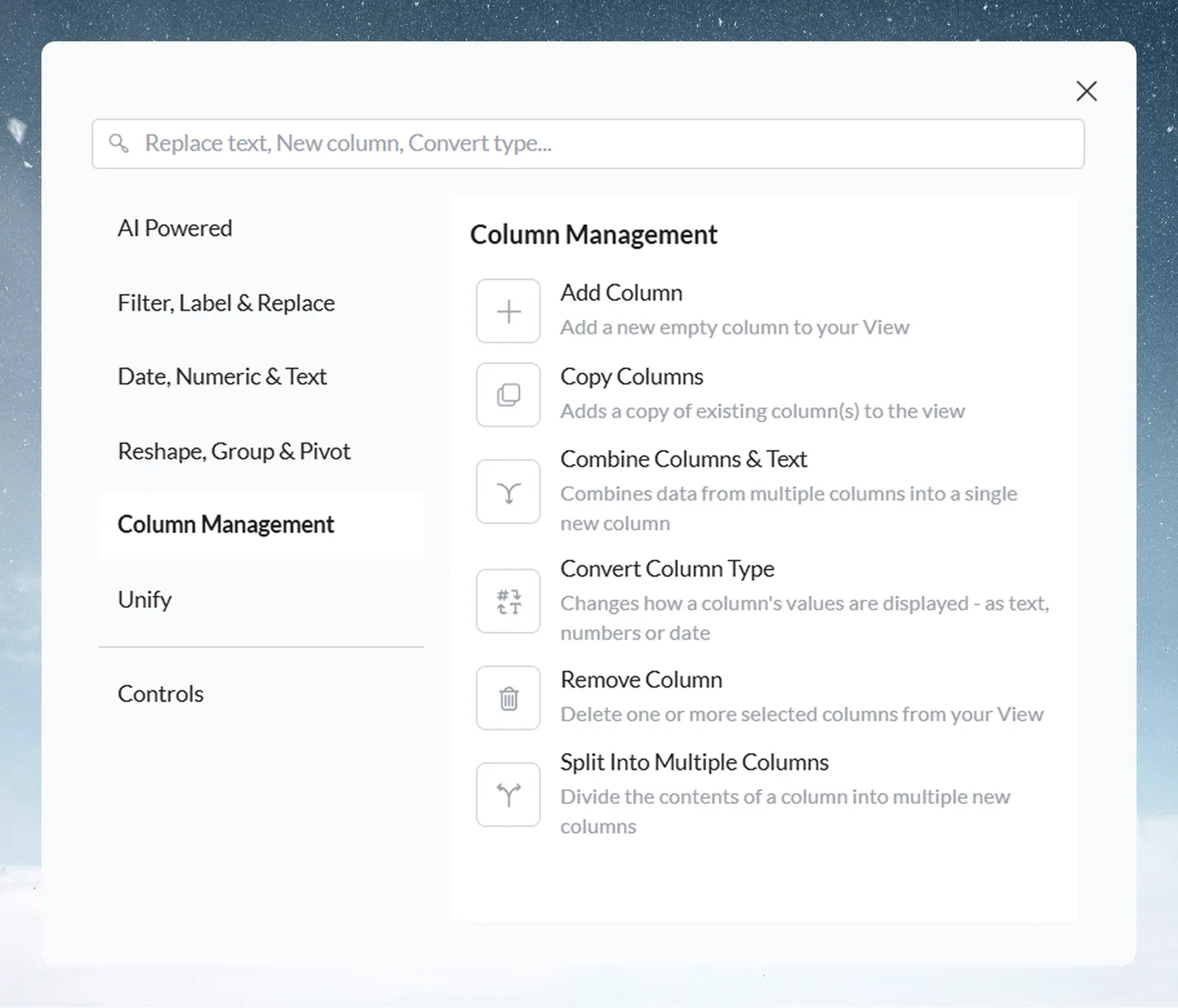
| Task | Use it to | Covered |
|---|---|---|
| Add Column | Add empty columns with a name and type | Below |
| Copy Columns | Duplicate columns, optionally as another type | Below |
| Combine Columns & Text | Join columns and fixed text into one column | Below |
| Split Into Multiple Columns | Break a text column into several by a delimiter | Below |
| Remove Column | Take columns out of this View | Below |
| Convert Column Type | Change a column's type | Convert text to dates and numbers |
Add a new empty column
Add Column adds one or more empty columns. You fill them with later tasks such as Label & Insert Values or Math Function.
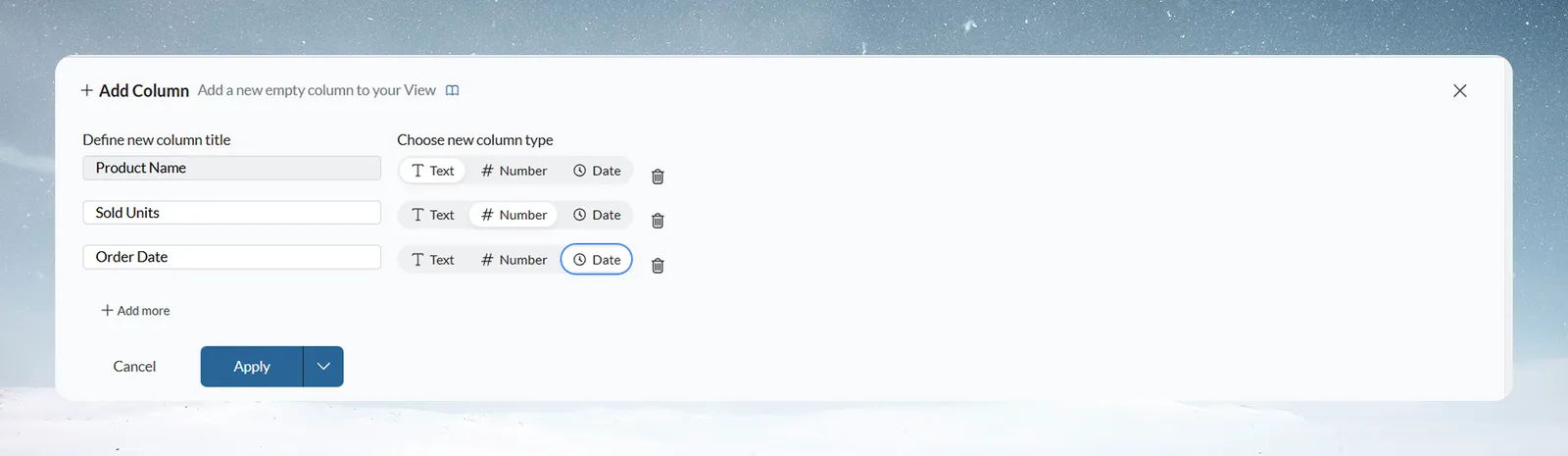
- Open Add Column (or choose Add New Column to the right in a column's 3-dot menu).
- In Define new column title, type a name.
- In Choose new column type, pick a type. Number opens Number, ID, Percentage and Currency; Text opens Text and ID; Date is a single option. See Column types, IDs, currency and percentages.
- To add more columns in the same task, click Add more. Each row has its own name and type. Click the trash icon to drop a row.
- Click Apply.
A title is required ("Input required") and can be up to 300 characters. It must not match another new column or an existing column ("A column with same name already exists. Try another value").
Copy a column
Copy Columns duplicates one or more columns. Use it to keep an original before you transform it, or to get a version in another type or format. A column's 3-dot menu has the same thing as Duplicate column values.
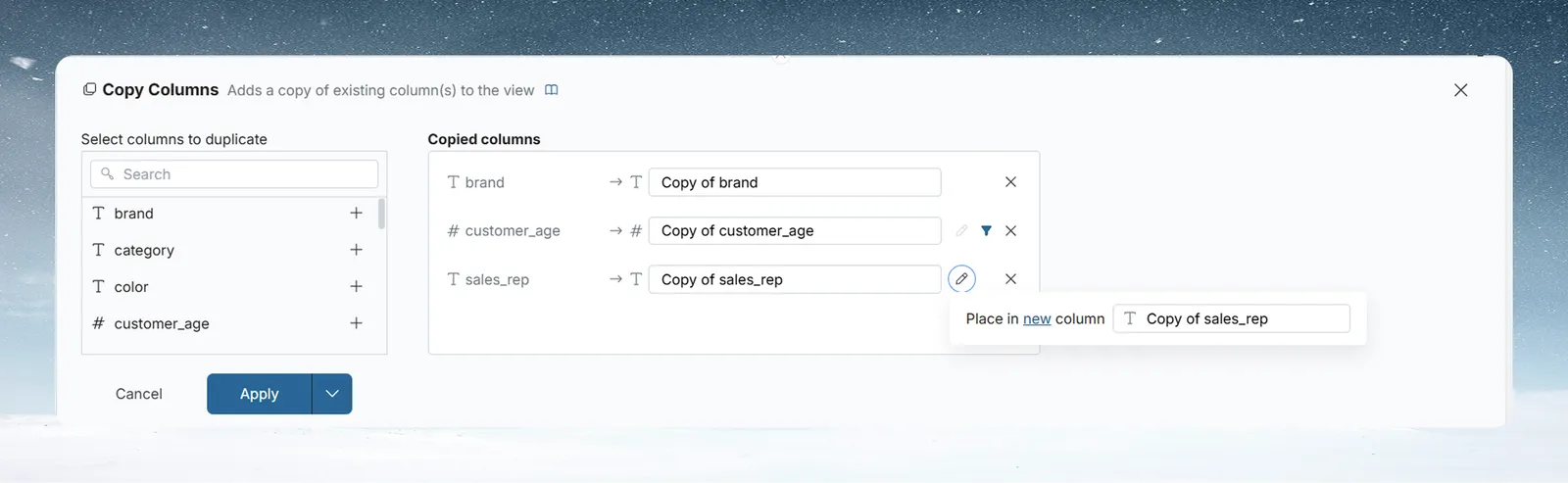
- In Select columns to duplicate, click + next to each column to copy. A search box appears when the list is long.
- Each column appears under Copied columns as source → destination. The default name is "Copy of brand" (for a column named brand). Edit it in the name field.
- Optional: hover a row and click its edit icon to set the output options (below).
- Click Apply.
Click the X on a row to drop it from the list. Hovering a row also shows a filter icon, which limits the copy to rows that match a condition.
| Output option | Choices |
|---|---|
| Place in | New Column, or Existing Column to overwrite one |
| Type for a Text column | T (Text) only |
| Type for a Number column | T (Text) or # (Number), with format controls (%, $, decimal places) |
| Type for a Date column | T (Text) or the date icon, with a Date Format dropdown for how the copy shows the date |
Combine two or more columns into one
Combine Columns & Text merges values from several columns, and any fixed text, into one column. Mix columns and text in any order. A text column's 3-dot menu has the same thing as Combine with another column.
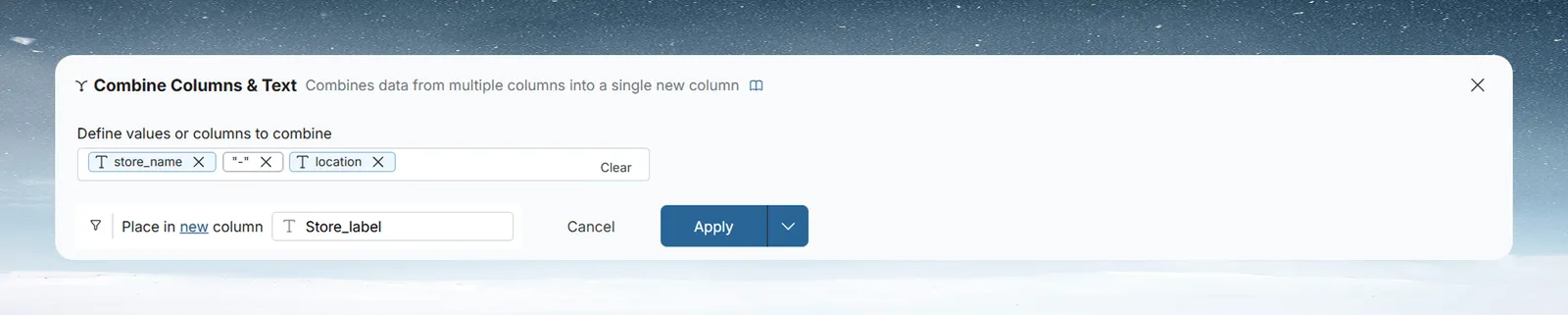
- Click in Define values or columns to combine and start typing.
- To add a column, pick it from the suggestions (they show type icons). It becomes a column chip.
- To add fixed text, such as a separator " - " or a prefix "ID:", type it and choose Add... " - " from the list. It becomes a text chip.
- Optional: click Add Condition to combine only for some rows. Describe the condition and click Generate, or build it with the Where column and operator dropdowns. Click Apply Condition.
- In Place in, choose New Column and type a name, or Existing Column.
- Click Apply.
Click the X on a chip to remove it, or Clear to remove everything.
For example, to make "Chic Boutique - Miami" from store_name and location, add the store_name chip, type " - " and add it as text, then add the location chip. Name the output store_label.
Split one column into several by a delimiter
Split Into Multiple Columns divides a text column into several new text columns at a delimiter. The source column stays as it is. A text column's 3-dot menu has it as Split this column.
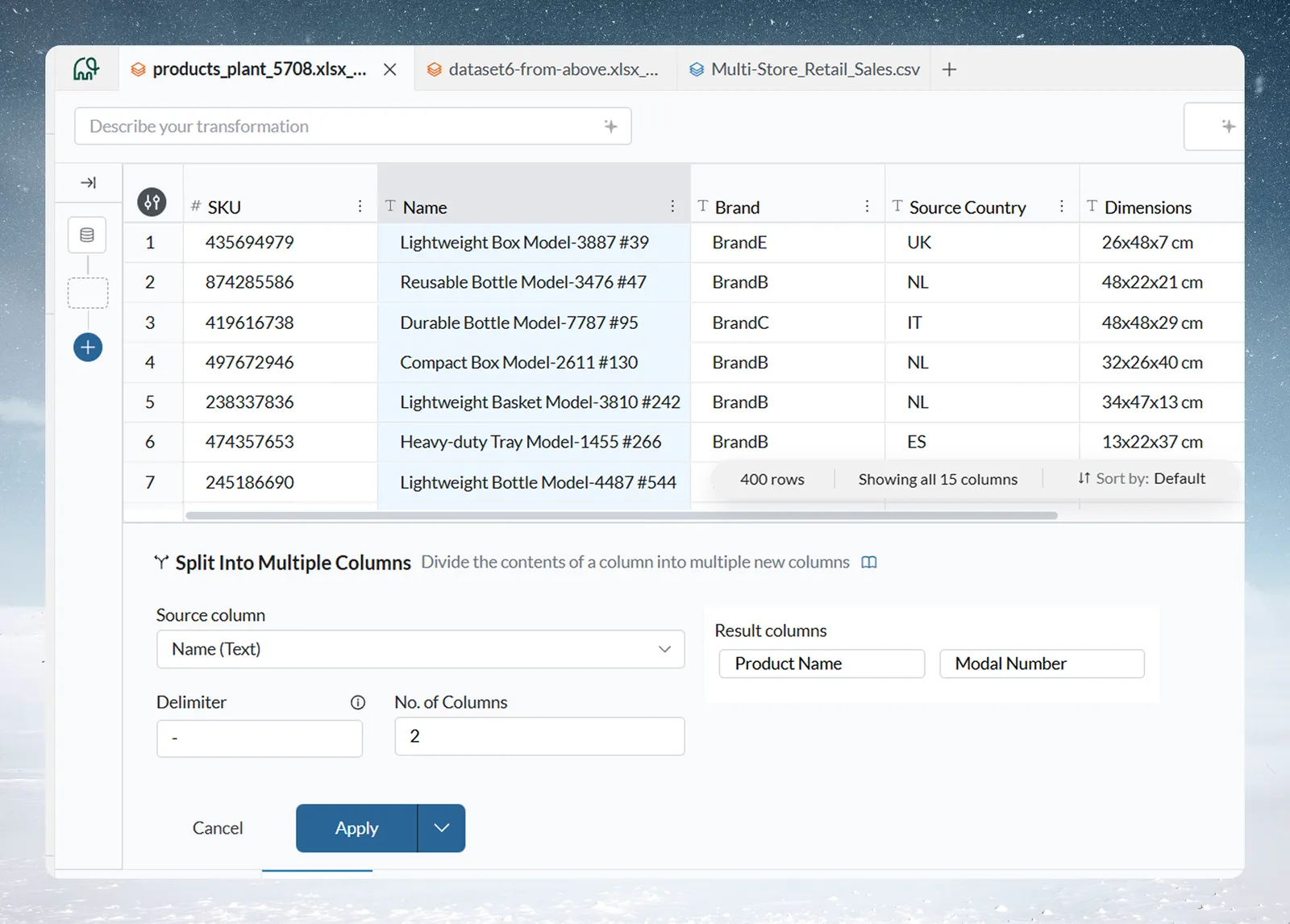
| Option | What it does |
|---|---|
| Source column | The text column to split. Only Text columns are listed. |
| Delimiter | The character or characters to split on, such as a comma, space, hyphen or pipe. The info icon shows an example: "UK, USA, France" split on a comma gives 3 columns. |
| No. of Columns | How many new columns to create, from 2 to 50. A number outside that range is set to the nearest limit. |
| Result columns | One name box per new column. Names start as "New column 1", "New column 2" and so on, skipping names in use. Each must be unique ("A column with same name already exists. Try another value"). |
When a value has a different number of parts than you have columns:
- More parts than columns: the last column gets all the remaining parts, joined with the delimiter.
- Fewer parts than columns: the extra columns are blank for that row.
For example, a name column holds "Lightweight Box Model-3887-B". Set Delimiter to - and No. of Columns to 2, and name the columns product and model. product gets "Lightweight Box Model" and model gets "3887-B", because the last column keeps the remaining parts.
Remove columns and get them back
Remove Column takes one or more columns out of this View.
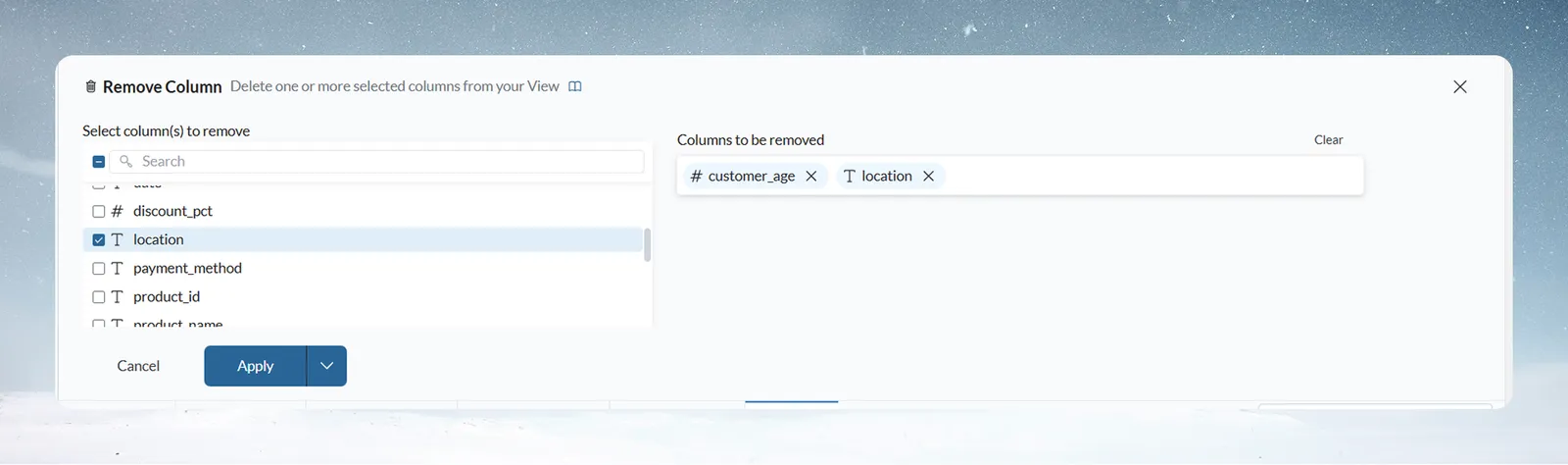
- In Select column(s) to remove, tick one or more columns. They show type icons (T for text, # for number, clock for date). Use the search box to find columns.
- Ticked columns appear as chips under Columns to be removed. Click a chip's X to untick it, or Clear to untick all.
- Click Apply.
You can also remove columns from a column's 3-dot menu (Remove Column) or by selecting several headers and choosing Remove in the multi-column menu. See Work in the data grid.
Removal is a pipeline task that affects this View only, and later tasks can't use the removed columns. To bring a column back, suspend or delete the Remove Column task in the Pipeline panel. To clear a column from the grid but keep it for tasks, use Hide Column instead.
Limits
| Limit | Value |
|---|---|
| Column title length in Add Column | Up to 300 characters |
| New columns from one Split Into Multiple Columns task | 2 to 50 |
Troubleshooting column tasks
| Message or symptom | Cause | Fix |
|---|---|---|
| "Input required" | A new column has no title | Type a title |
| "A column with same name already exists. Try another value" | The name matches a column in the View or another new column | Pick a unique name |
| The last split column holds several parts | The value has more parts than columns | Raise No. of Columns |
| Split columns are blank for some rows | Those values have fewer parts | Expected: extra columns stay blank |
| A removed column is needed again | Remove Column is a pipeline task | Suspend or delete that task |
| A column isn't offered in Split | It isn't a Text column | Convert it to Text first |
Related
- Convert text to dates and numbers: the sixth Column Management task.
- Rename, format and sort columns: rename and hide columns without a task.
- Label rows, edit cells and fill blanks: fill a new column with values.
- Calculate with formulas: fill a new column with a calculation.
- Work with text and JSON: extract part of a text value instead of splitting it.
Something wrong? support@mammoth.io