Read a text Explore Card and find messy values
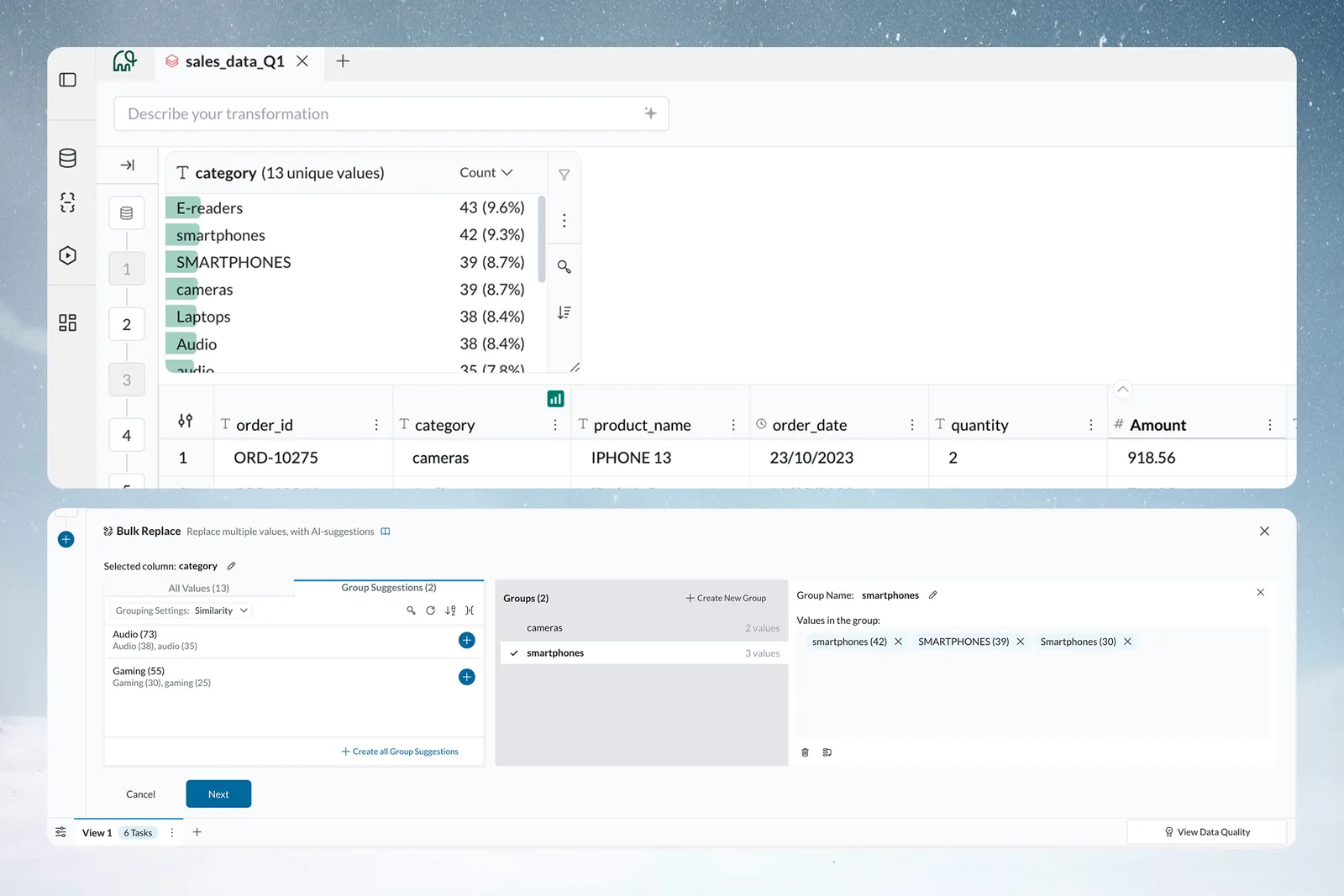
A text card lists the distinct values in a column, most frequent first, with a bar behind each value. Spelling variants, case variants, extra spaces and blanks each appear as their own row, so you see them at once. Add one with Add card in the Explore panel; the shortcuts that fix values need edit access to the View.
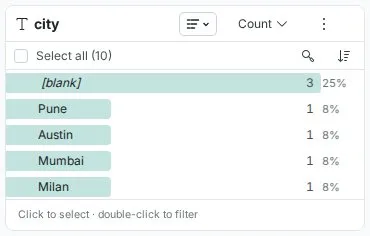
What a text card shows
| Part | What it shows |
|---|---|
| Header | The column name and the number of unique values, for example product_name 9 unique values |
| Rows | One per value, most to least frequent by default |
| Bar | Sized relative to the largest share in the list |
| Count and percentage | For example 20 and 20%. The percentage is rounded to a whole number and shows <1% for very small shares. It appears only while the card shows Count |
| Blanks | A (blank) row with its own count and share |
Above the list are Select all, Invert, Search values and Sort by. Drag a card's edge to widen it when value names are cut off, or hover a truncated value to see it in full.
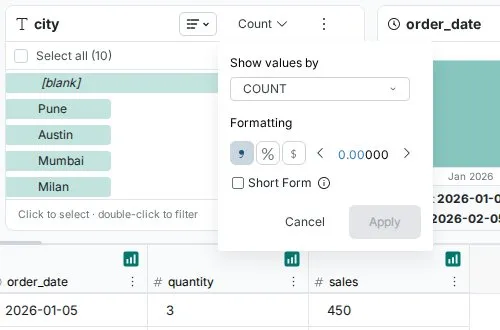
Switch a text card to a donut or treemap
Use the chart type dropdown: List (default), Donut or Treemap. Donut and Treemap show each value's share of the total, so they are available only when Show values by is Count or Sum.
Select values on a text card
Click a value to select it: a checkbox marks it, and a bar shows the number selected with Filter and Exclude. A plain click toggles a value. Hold Shift to select a run from the last value you clicked. Select all selects every value, and Invert flips the selection. Double-click a value to filter to it right away. Click Clear selection, or press Esc, to deselect.
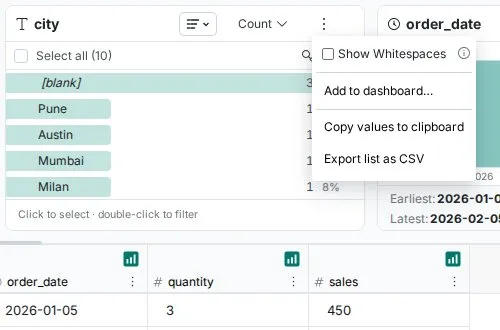
Find extra spaces with Show Whitespaces
In list view, tick Show Whitespaces at the top of the More options menu. Space characters become visible, with extra spaces emphasized, so "Company" and " Company" are clearly different.
Text quality problems a card reveals
| Problem | What you see | Fix |
|---|---|---|
| Spelling variants | "Service", "Services", "service" as separate rows | Bulk Replace to one value |
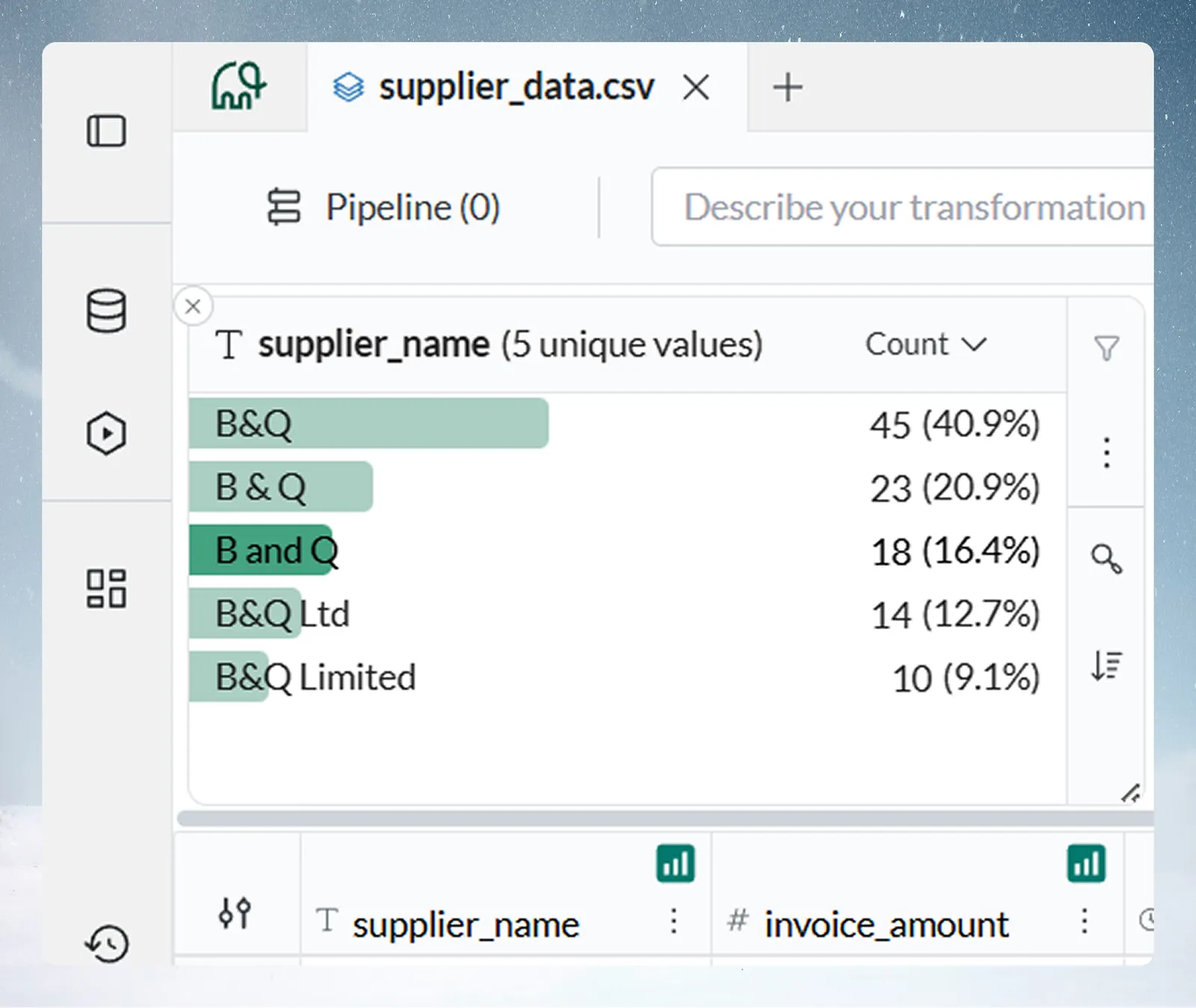
| Formatting variants | "B&Q", "B & Q", "B and Q" | Bulk Replace |
| Case variants | "Travel", "travel", "TRAVEL", each with its own count and percentage | Bulk Replace to one value |
| Extra spaces | " Company" apart from "Company" | Turn on Show Whitespaces to see the spaces |
| Missing data | A (blank) row with its count and share | Read the share to judge completeness |
The percentages show how widespread each variant is, and which one is dominant and should become the standard.
Worked example: a supplier_name card shows "B&Q" 45 (41%), "B & Q" 23 (21%), "B and Q" 18 (16%), "B&Q Ltd" 14 (13%) and "B&Q Limited" 10 (9%). Select the variants, choose Replace all values like this, and map them all to "B&Q". A single Bulk Replace task standardized all 863 records, so supplier spend reports add up.
Other patterns look the same: "Electronic Widget A" 20%, "Electronic Widget-A" 15%, "Elect Widget A" 8%; or "Ad hoc" 52%, "ad-hoc" 26%, "adhoc" 13%, "Ad Hoc" 7%. Consolidate each with Bulk Replace.
Troubleshooting text cards
| Symptom | Cause | Fix |
|---|---|---|
| Text card is empty or unexpected | The column is entirely null, or isn't typed as text | Check the column type; refresh the View if data was recently updated |
| Too many text values to read | High-cardinality column | Values load in frequency order as you scroll. Use Search values, or group values with a transformation |
| Text percentages don't add up to 100% | Percentages are rounded to whole numbers, and are relative to the rows the card counts | Check for a filter on an earlier card (filter icon in the header); scroll to load lower-frequency values |
Related
- Text, number and date cards: Show values by, sorting and the More options menu.
- Find and replace values: the Bulk Replace task a text card opens.
- Data quality report: a scored check of the whole View.
Something wrong? support@mammoth.io