Edit, reorder and copy tasks in a Mammoth pipeline
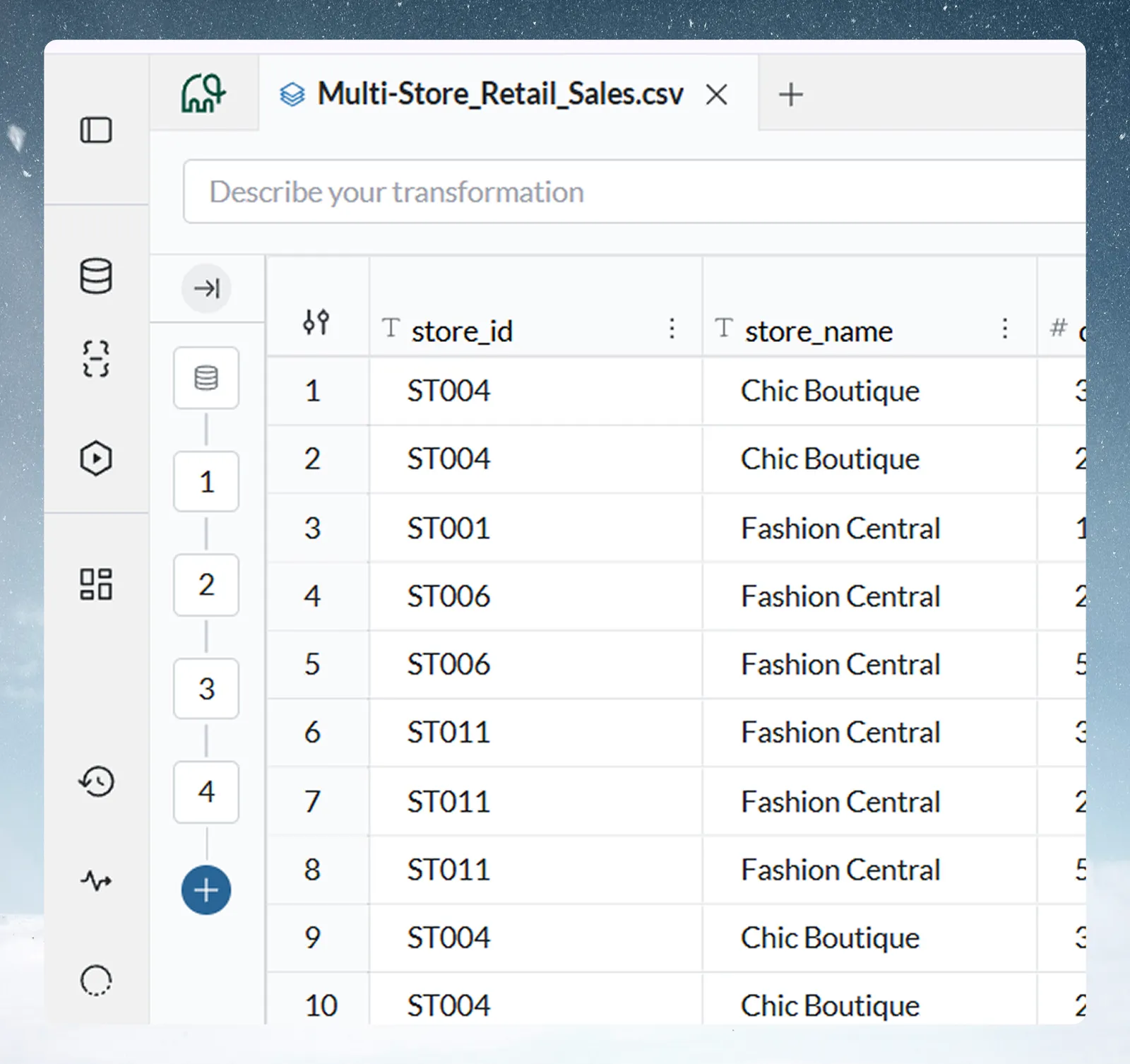
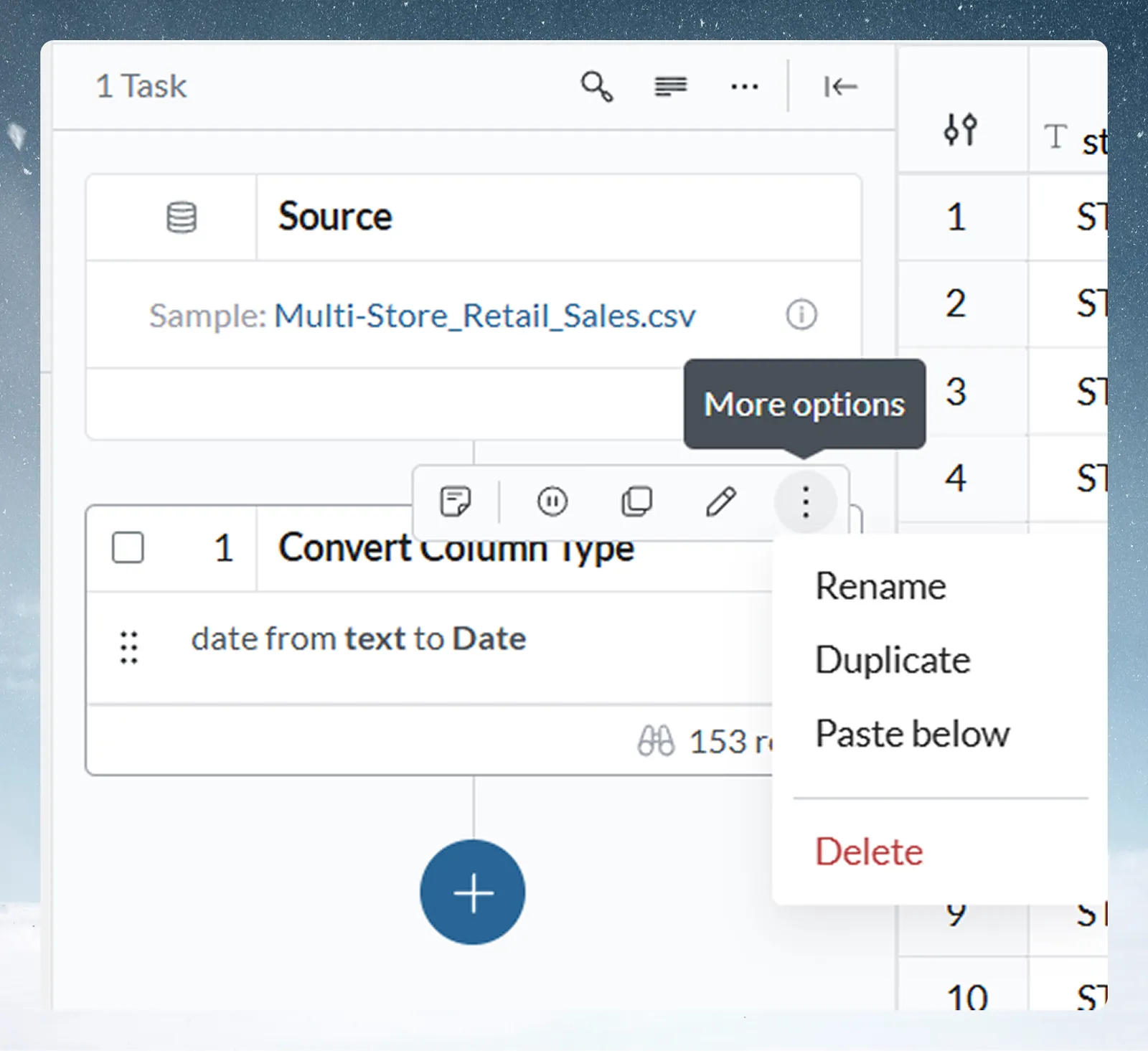
You manage tasks from the Pipeline panel on the left of a View. Hover a task card for its toolbar (edit, suspend, copy, note and More options), drag cards to reorder them, and open More Pipeline options (...) for Draft mode, paste and version history. For how tasks run, see How the pipeline works.
Use the Pipeline panel header
The header shows the task count (or "No tasks"), a Draft mode ON label while Draft mode is on, and four controls:
| Control | What it does |
|---|---|
| Search | Finds a task in the pipeline. Appears once the pipeline has eight or more cards. |
| Cards Density | Switches task cards between Large and Compact, and turns Display notes on or off. |
| More Pipeline options (...) | Draft mode toggle, Auto-sync options (when Auto-sync is available to you), Pipeline Version history, Paste and Clear clipboard. |
| Collapse (|← icon) | Collapses the panel into a narrow strip of mini task cards, giving the grid more width. Click the open icon at the top of the strip to expand it. |
Read a task card
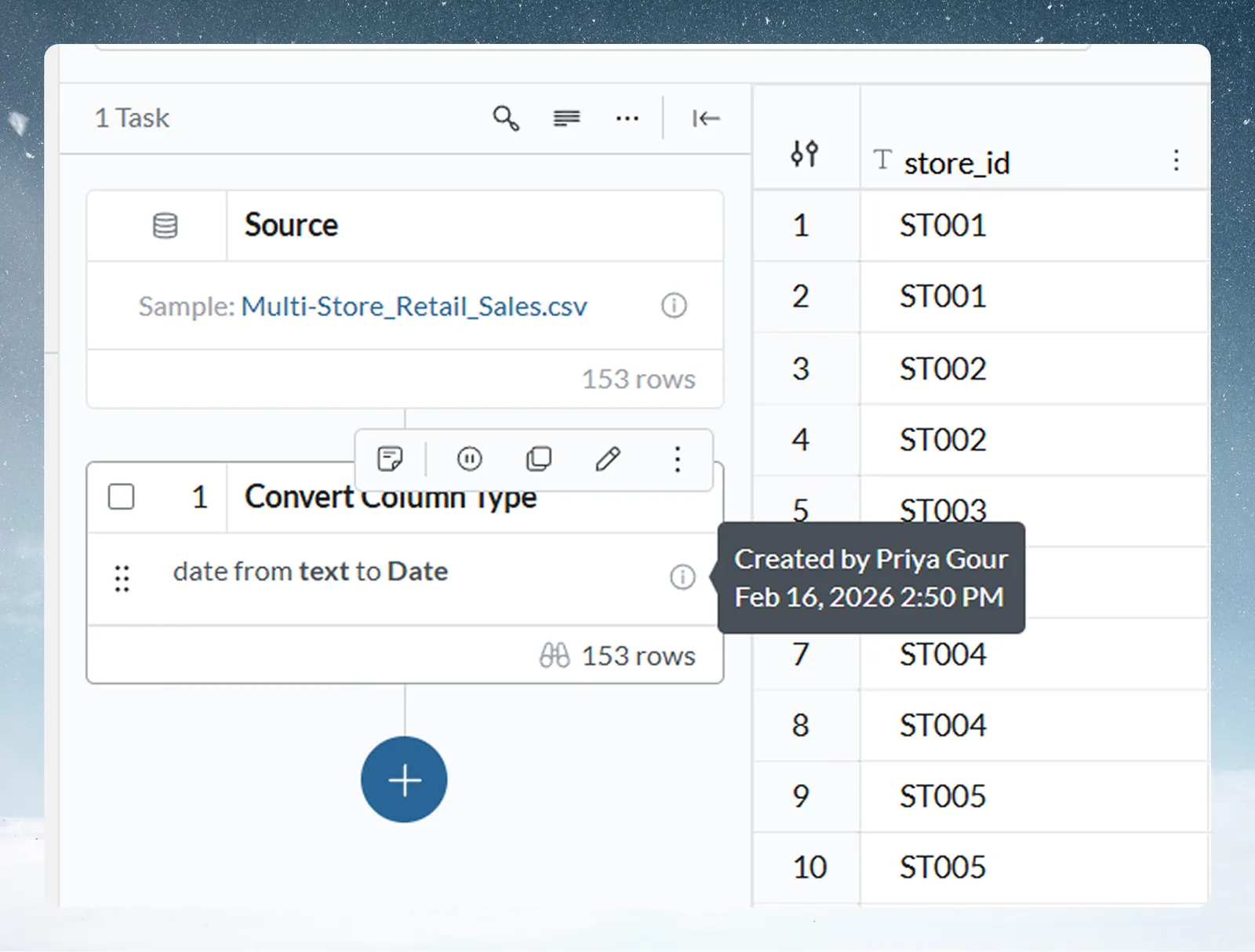
Each card shows the function name, a summary of its settings, and the row count after it ran. Hover the info icon (ⓘ) to see who last modified the task, when, and how long its last run took.
Edit, suspend or copy a single task
| Toolbar action | What it does |
|---|---|
| Add note | Attaches a note. Turn on Display notes in Cards Density to show notes on the cards. |
| Suspend (pause icon) | Turns the task off without deleting it. The card shows "Suspended" and the run skips it, so you see the result without it while keeping its settings. |
| Restore | Replaces Suspend on a suspended task and turns it back on. |
| Copy | Copies the task's settings to the clipboard. Disabled for Edit Cells tasks and for tasks in an error state. |
| Edit (pencil icon) | Reopens the configuration panel. |
| More options (...) | Rename (a descriptive name for long pipelines), Duplicate (opens the panel filled with the task's settings; apply it to add the copy; not for Edit Cells tasks), Paste below and Delete (warns first if later tasks depend on its columns or logic). |
Export and action steps have a different More options menu: see Run and pin export steps.
Copy and paste tasks between Views
- Hover the task and click Copy.
- Open the View where you want it (the same View or another).
- Choose Paste below from any task's More options menu, or Paste from More Pipeline options (...) to paste at the end.
Copied tasks keep all their settings, including parameter bindings. Clear clipboard in More Pipeline options (...) empties the clipboard.
Reorder tasks in the pipeline
- Drag a task card up or down. A bar appears with the warning "Reordering tasks may affect your data."
- Click Reorder Tasks to save, or Cancel to put the tasks back. Reorder Tasks stays disabled until you have moved a task.
Mammoth warns if the move would break a later task. On success, "Tasks reordered successfully" confirms it.
Select several tasks to copy, suspend or delete
Hover a task card and tick its checkbox. The header becomes a selection toolbar:
| Control | What it does |
|---|---|
| Select all checkbox | Selects or clears every task. |
| n selected | How many tasks are selected, for example 3 selected. |
| Copy | Copies the selected tasks ("Tasks copied successfully"). Paste them with Paste below or Paste, in this View or another. |
| Suspend, Restore, Delete | Suspends, turns back on, or deletes the selected tasks after a confirmation. |
| X | Leaves select mode. |
The action buttons stay disabled until a task is selected. Dashboard steps have no checkbox.
Delete a task that publishes a dashboard or feeds an export
Deleting a task is not a Trash action, but it can change what the View sends out. The dialog lists the steps it removes, then:
| Case | What the dialog says | Options |
|---|---|---|
| The task publishes a dashboard | "“Sales review” is published from here — removing the task removes the dashboard." The dashboard moves to Trash with it. | Delete task and dashboard. A note suggests turning off auto-sync instead, to keep the dashboard but stop it updating. |
| Exports or dashboards downstream | "This changes the data 2 things downstream send out. Are you sure?" with the list | Tick Turn off auto-sync for all 2 to keep them but stop them updating, then Delete task. |
| Other Views read from this View | "These stop working — there's no auto-sync to turn off" with the Views | Delete task anyway |
When no other View reads from it and version history can bring the task back, the footnote reads "Undo from Pipeline Version history". If the delete fails after you ticked the auto-sync option, Mammoth turns auto-sync back on: "The task was not deleted, so auto-sync was turned back on." Draft mode doesn't offer the auto-sync option.
Search a long pipeline for a task
With eight or more cards, click the search icon in the header and type in the Search on Pipeline box. Matching cards show under an All results header with a counter such as "2/5"; step through them with the up and down arrows. The X in the box closes the search. With no match you see "No results found" and "Try searching something else".
Troubleshooting task actions
| Symptom | Cause | Fix |
|---|---|---|
| Copy is greyed out on a task | The task is an Edit Cells task, or it's in an error state | Fix the error first. Edit Cells tasks can't be copied. |
| No + button below a card | The card is in an error state | See Fix a failing step. |
| The search icon is missing | The pipeline has fewer than eight cards | Scroll the panel instead. |
Related
- Run and pin export steps: Run now, Dependent Views and managed database credentials.
- Apply several tasks at once with Draft mode: queue edits and apply them together.
- See data at a task and restore a pipeline version: look back without changing the pipeline.
- Parameters and snippets: bindings that copied tasks keep.
Something wrong? support@mammoth.io