Mammoth security: sign-in, 2FA, data security and compliance
Mammoth secures your data with managed sign-in, role-based access control, encrypted credential storage and an activity log. Customer data is stored in AWS Ireland by default, and Mammoth is SOC 2 Type II and ISO 27001 certified. You set personal 2FA in Profile Settings; SSO, workspace-wide 2FA and IP allowlisting are set up by Mammoth on request.
This page is for users, IT administrators, developers and security reviewers.
Security at a glance
| Layer | Standard |
|---|---|
| Credential storage | RSA public-key encryption |
| Authentication | Keycloak: email/password, TOTP 2FA, API tokens; SSO set up by Mammoth on request |
| Access control | Role-based access control with Workspace and Project role tiers |
| Data location | AWS (Ireland) |
| Certifications and compliance | SOC 2 Type II, ISO 27001, GDPR, HIPAA |
To request security documentation, contact your account manager or support@mammoth.io.
Ways to sign in to Mammoth
Mammoth supports four authentication methods, managed through Keycloak, an identity provider (the service that checks who you are).
| Method | Use case |
|---|---|
| Email / password | Individual users and small teams |
| Enterprise SSO (SAML/OIDC) | Organisations with an existing identity provider (set up by Mammoth on request) |
| Two-factor authentication (TOTP) | A second step on top of your password (Pro plan) |
| API token | Automated workflows, integrations and service accounts |
Password requirements
- At least 12 characters.
- At least one letter.
- At least one digit.
- At least one symbol (except
"and\).
Reset a forgotten password
- Click the forgot-password link on the sign-in page.
- Enter your email address.
- Open the temporary reset link in your email.
- Set a new password that meets the requirements above.
You can then sign in with the new password. To change your password while signed in, use Reset password under Security in Profile Settings.
Set up two-factor authentication
Two-factor authentication (2FA) adds a time-based one-time password (TOTP) from an authenticator app to your sign-in. Personal 2FA is part of the Pro plan. On the Free, Starter and Team plans, clicking Enable 2FA opens an upgrade prompt instead of the setup screen.
Important: Enabling 2FA is permanent and cannot be undone. Once enabled, two-factor authentication cannot be disabled on your account.
- Open your account menu in the left sidebar and select Profile Settings.
- Under Security, find the Two-factor authentication row.
- Click Enable 2FA.
- The Enable Two-Factor Authentication screen opens with the warning "This action can't be undone." Click Enable 2FA to confirm, or Cancel to go back.
- The page reloads. Follow the prompts to register your authenticator app.
The Two-factor authentication row shows 2FA Enabled. Every sign-in now asks for your password and a current one-time code.
Get SSO, workspace-wide 2FA or IP allowlisting
These aren't settings in the app. Mammoth sets them up on request: contact support@mammoth.io or your account manager.
| Feature | What it does |
|---|---|
| Enterprise SSO (SAML/OIDC) | Lets your organisation sign in with its existing identity provider |
| Workspace-wide 2FA | Requires 2FA for every member. New users have a 2-day grace period from account creation before they must set it up |
| IP allowlisting | Limits sign-in to your organisation's network addresses |
| VPC deployment | Runs Mammoth in a private network. Also set up by Mammoth on request, not a setting in the app |
When workspace-wide 2FA is turned on, the Activity Log shows it under Workspace with the detail "Two-factor authentication is now required for all users".
How API requests are authenticated
Mammoth has two token types for programmatic access.
JWT tokens for user sessions
JWT tokens are issued on sign-in and used for user-scoped API access. They inherit the user's permissions and are checked on every request.
- Expiration: 48 hours; renewed automatically while the session is active.
- Use for: user-driven API calls, and scripts that authenticate as a user.
- Anti-CSRF: all state-changing requests need a matching anti-CSRF token.
- Workspace: each request is scoped to one workspace through the
X-WORKSPACE-IDheader.
Authorization: Bearer <your-jwt-token>
API tokens for integrations
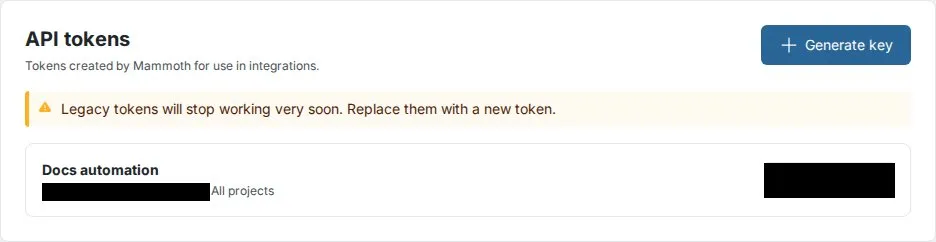
API tokens are long-lived credentials for one workspace, designed for service accounts and integrations. A token can also be limited to one project; Mammoth then blocks it from every other project before any operation goes ahead. The token is shown once when created and can't be retrieved afterwards.
Authorization: Bearer mm_<your-token>
The token belongs to one workspace, so no workspace header is needed. API token requests are excluded from CSRF checks. The older X-API-KEY / X-API-SECRET headers are deprecated; new tokens have no secret. To create one, see Create an API token. For the base URL, request examples, and the SDK and CLI login, see API authentication.
Keep tokens safe:
- Store tokens in a secrets manager (such as AWS Secrets Manager or HashiCorp Vault), never in source code.
- Use separate tokens for each environment (development, staging, production).
- Rotate tokens quarterly, or at once if you suspect a compromise.
- Delete tokens you no longer use.
How sessions are protected
- Sessions use cryptographically secure tokens generated with
secrets.token_urlsafe(). - Each session includes an anti-CSRF token checked on all state-changing operations.
- HTTP-only, Secure and SameSite=None cookie flags stop JavaScript reading the cookie and force HTTPS.
- Sessions expire after 48 hours of inactivity and are renewed on each authenticated request.
- Sessions end when you sign out.
- Each user's last sign-in date and last activity time are tracked for security auditing.
How Mammoth enforces access
Every request passes two checks before it reaches the application:
- Authentication: Mammoth checks the session token or API token and sets the user, workspace and session type.
- Authorization: Mammoth checks the required permission against the user's role on the target resource. If the check fails, the request is rejected.
Authorization also checks the resource hierarchy, for example that a project in a request belongs to the workspace in the request. A user can't reach a resource in another workspace, even if they know its ID. For every role's permissions, see Workspace and project roles, permissions and custom roles.
Workspaces are kept apart
Workspaces are the main tenant boundary.
- Database: every major resource (projects, datasets, views, pipelines, connectors, invitations, API keys) belongs to one workspace. Lookups are scoped to the workspace, so a query can't return another workspace's data.
- Session: each request carries one workspace context, and Mammoth checks it matches the workspace in the request. A user can't act for a workspace they don't belong to.
- API key: each key is bound to one workspace when created, and the workspace is checked on every request.
Users can belong to several workspaces. Each membership is a separate role record, so roles in one workspace have no effect in another.
Projects are kept apart
- Datasets, views, pipelines and Live Connections belong to exactly one project.
- Workspace Members must be added to a project to open it.
- Workspace Owners can view all project names, delete any project, and add users to projects they're not part of.
- Mammoth checks both workspace membership and project role before giving access to project resources.
- Live Connections are project-scoped. The same database can have separate connections in two projects, each with its own credentials. Users in one project can't use or discover another project's connections.
How credentials and data are protected
| Area | How it's protected |
|---|---|
| Connector credentials | Database passwords and API secrets you give Mammoth are encrypted with RSA public-key encryption (PKCS1-OAEP). The private key is stored separately from the encrypted values |
| Browser sessions | HTTP-only, Secure cookies: the session cookie is only sent over HTTPS and can't be read by JavaScript |
| Data location | Customer data is stored in AWS Ireland (EU) by default |
| Export destinations | Workspace Owners can limit which hosts custom exports may send data to. See Limit where exports can send data |
Ports your data sources must allow
For Mammoth to connect, each data source must be reachable on its standard port:
| Traffic | Port |
|---|---|
| Mammoth services (HTTPS) | 443 |
| PostgreSQL | 5432 |
| MySQL | 3306 |
| SQL Server | 1433 |
If your database listens on a different port, allow that port instead. For the full list, see Allow Mammoth through your firewall.
Compliance: SOC 2, ISO 27001, GDPR and HIPAA
| Certification | Scope |
|---|---|
| SOC 2 Type II | Security controls attested by an independent audit |
| ISO 27001 | Information security management system |
- GDPR: customer data is stored in AWS Ireland (EU). Your organisation is the data controller and Mammoth is the data processor. Mammoth also handles GDPR deauthorisation requests for third-party platform integrations (for example, Shopify) through webhooks when an end customer revokes consent.
- HIPAA: Mammoth supports HIPAA compliance for healthcare customers. Contact your account manager or support@mammoth.io to discuss your requirements.
- Audit trail: the Activity Log records who did what and when across your workspace. See Audit logs.
To request compliance documentation, contact your account manager or support@mammoth.io.
Related
- Audit logs: review and export the Activity Log.
- Workspace and project roles, permissions and custom roles: the full permission matrix.
- API keys, AI assistants and connected apps: create and scope tokens.
- Your profile: change your password and turn on 2FA.
- Allow Mammoth through your firewall: network setup for connectors.
Something wrong? support@mammoth.io