See and filter rows that match a highlight rule
Click a rule card in the Conditional Highlights panel to turn on focus mode: matching rows keep the highlight and the rest are dimmed. Use it to check exactly which rows a rule affects before you share a View. For creating rules, see Highlight cells and rows with colour.
Read the focus mode banner
- Matching rows show the rule's highlight. Other rows are dimmed.
- A banner above the grid shows the count, for example "Highlighting 14 of 200 rows for brand is 'BasicWear'". For a Color Scale it reads Color scale on and the column name.
To leave focus mode, click the same card again, or click the X at the right of the banner.
Filter to the matching rows
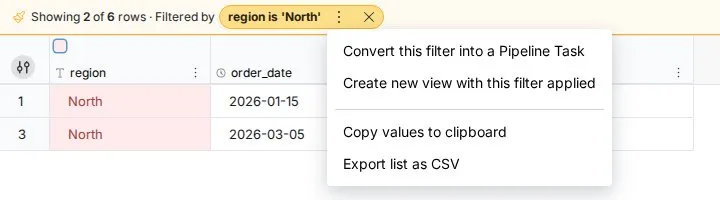
For a Condition Rule (not a Color Scale), the banner has a filter button (tooltip Filter to matching rows). Click it to show only the matching rows. The banner then reads Showing 14 of 200 rows · Filtered by and the rule, with a 3-dot menu and a close button that removes the filter. This filter is temporary and doesn't add a pipeline task.
The 3-dot menu offers:
| Action | What it does |
|---|---|
| Convert this filter into a Pipeline Task | Opens Conditional Filter prefilled with the rule's condition. The task is added only when you apply it. |
| Create new view with this filter applied | Creates a new View with a Conditional Filter task using the rule's condition |
| Copy values to clipboard | Copies the visible columns of the matching rows, tab-separated with a header row |
| Export list as CSV | Downloads the matching rows as a CSV file |
The first two actions are hidden in preview mode.
Related
- Highlight cells and rows with colour: create and manage rules.
- Filter rows: what Convert this filter into a Pipeline Task opens.
- Work in the data grid: the grid and action bar.
- Rename, format and sort columns: other display changes that don't touch the data.
Something wrong? support@mammoth.io