Change, reorder and fix tasks in your first pipeline
Project Admin or Project Editor · Updated 8 Nov 2026
Every task in a view's Pipeline panel can be suspended, copied, renamed, deleted or dragged to a new position, from the options that appear when you hover its card. You need the Project Admin or Project Editor role. This page continues Build your first pipeline.
Suspend, copy, rename or delete a task
Hover over a task card to see its options.
| Option | What it does |
|---|---|
| Add note | Attaches a note explaining the task |
| Suspend (pause icon) | Turns the task off without deleting it; Restore turns it back on |
| Copy | Copies the task to paste elsewhere |
| Edit (pencil icon) | Reopens the task's panel |
| More options (...) | Rename, Duplicate, Paste below and Delete |
See Edit, reorder and copy tasks.
Reorder tasks in the pipeline
- Drag a task card up or down by its drag handle. A bar warns "Reordering tasks may affect your data."
- Click Reorder Tasks to save, or Cancel to put it back.
Mammoth checks dependencies first: if task B uses a column task A creates, moving B above A shows a warning. A successful reorder shows "Tasks reordered successfully".
Troubleshooting your first pipeline
| Symptom | Cause | Fix |
|---|---|---|
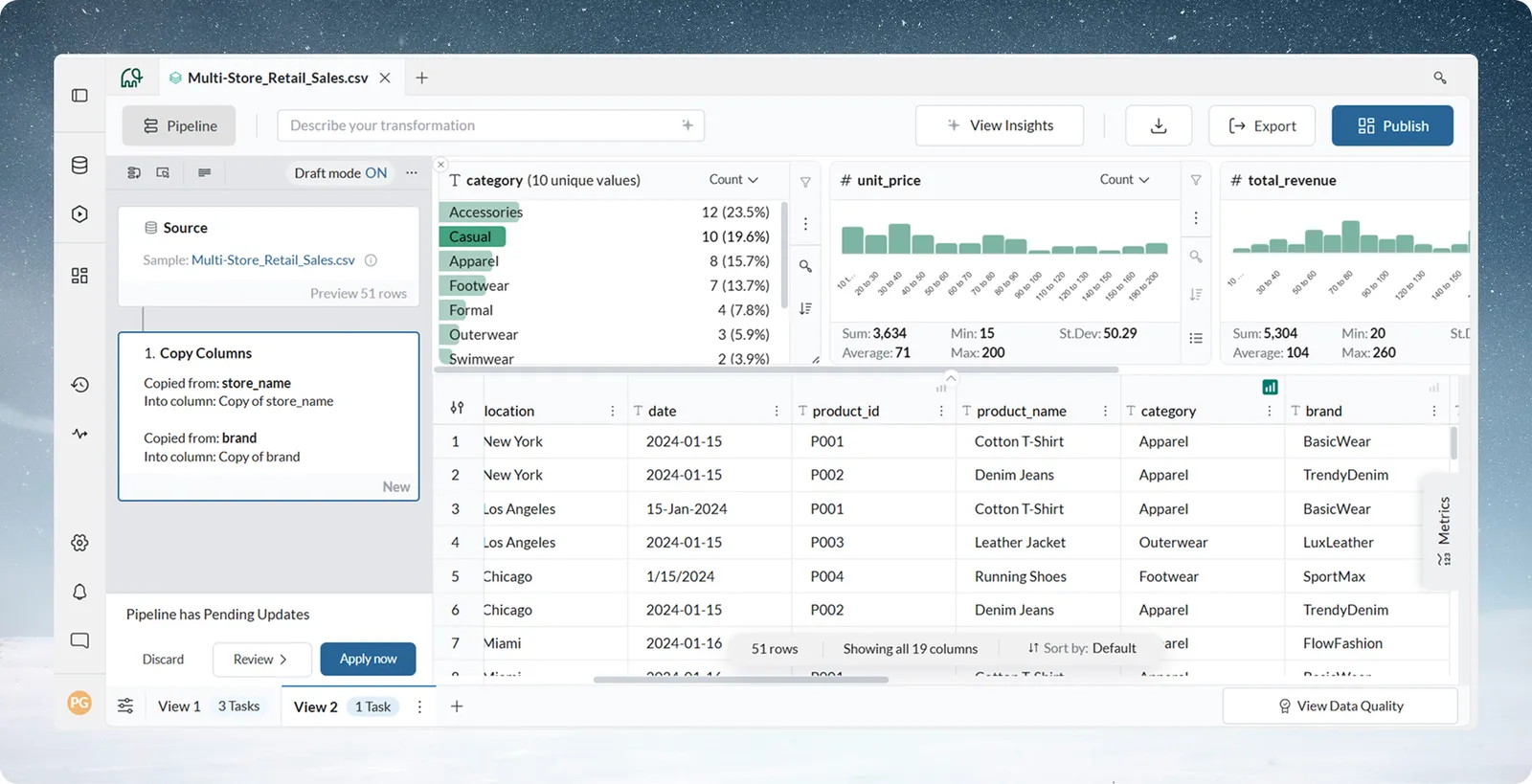
| You added a task, but the data didn't change | Draft mode is on. The header shows Draft mode ON, new tasks are marked New, and a bar reads "Pipeline has Pending Updates" | Click Apply now in that bar. Tasks don't run until you do |
| A column doesn't appear in a task's column list | A task only sees the columns that exist at its position | Reorder so the task that creates the column comes first, or insert the task further down with the + button between cards |
| Results don't match what you expected | One task in the chain is wrong | Preview from the first task down until you find where the data went wrong, then edit that task |
| You want to undo a task | The task is applied | Hover the card, click More options (...) > Delete. Mammoth warns you if later tasks depend on it, then runs the pipeline again. Or suspend it to keep its settings, or restore an earlier version from Pipeline Version history |
| You're not sure how to set up a task | A setting's meaning isn't clear | Click the book icon (tooltip "Learn more") in the task panel's header for that function's docs. Watch the preview above the panel, for example "120 rows removed". In Conditional Filter, Math Function and Ask in plain words, describe what you want in plain words |
Related
- Edit, reorder and copy tasks: version history and copying tasks between views.
- Fix a failing step: when a task shows an error.
- After your first pipeline: reuse it, export it and learn the next tasks.
Was this page helpful?
Something wrong? support@mammoth.io