Read automation statuses, run results and History
The Automations tab in the Data Library lists every automation in the current project with its status. Click a row to open its detail panel with the Last run result, settings and, for a Data Consolidation, a History of the files it took in. You need the Monitor orchestration status permission to see the list.
Read the automation list
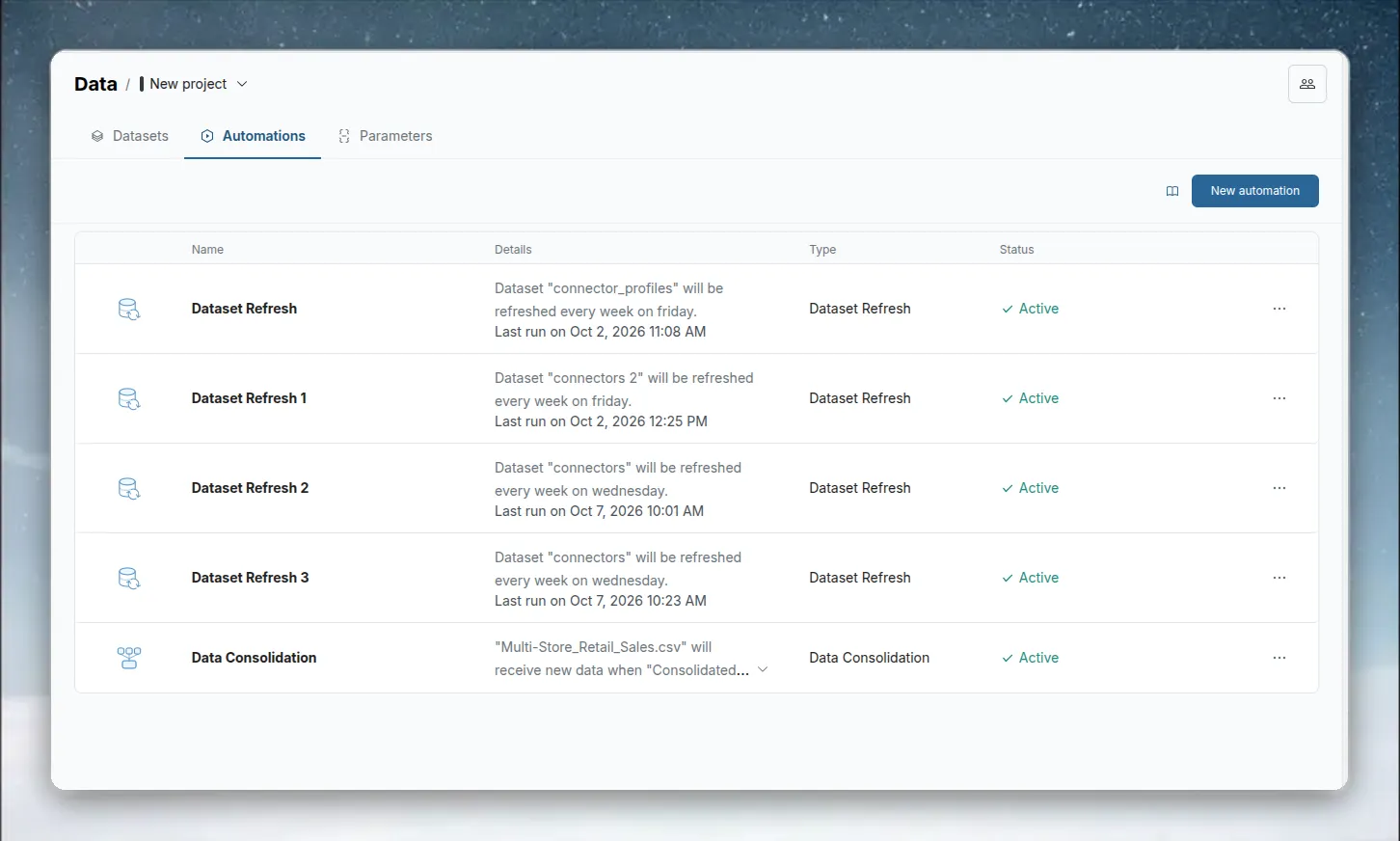
| Column | What it shows |
|---|---|
| Name | Automation name and description (if set) |
| Details | One-line summary of what the automation does |
| Type | Dataset Refresh, File Collection, Data Consolidation, Scheduled Export or Messaging |
| Status | Active, Suspended, Error, Needs your input or Files not added |
With 8 or more automations, a Search automations box filters the list by name. If nothing matches, it shows "No results found for your search".
If your role doesn't include viewing automations, the tab says "You don't have access to Automations" and "Your role in this project doesn't include viewing automations. Ask a Project Admin for access." If there are none and you can't create them, it says "No automations yet" and "Ask a Project Admin to set one up."
What each automation status means
| Status | Icon | Meaning |
|---|---|---|
| Active | Green check | Runs normally on its schedule or trigger |
| Suspended | Grey pause | Paused. It doesn't run on its schedule, and you can't run it by hand until you resume it |
| Error | Red warning | The last run failed, or a dataset, View or folder it uses was deleted. Check Last run result |
| Needs your input | Amber question mark | Data Consolidation only: a PDF or image batch couldn't be matched to the destination's recipe and is waiting on someone |
| Files not added | Amber warning | Data Consolidation only: one or more files didn't go in or were kept separate. Open the source folder to fix them |
An Error takes priority over Needs your input and Files not added.
Live run status
During a run, the row shows a pill with what it is doing. The same pill shows on the folder or dataset rows it works on; hover for details.
| Pill | Meaning |
|---|---|
| Queued | Waiting to start |
| Analysing | Checking new files against the destination (Data Consolidation) |
| Running | The run is in progress, or files are being processed |
| Needs review | A file's columns don't match the destination, so it needs review |
| Finished | The run has finished |
| Failed | The last run failed, or a file could not be appended |
Open the detail panel
Click a row. The panel opens on the right, with Edit, Run now and Delete in its header.
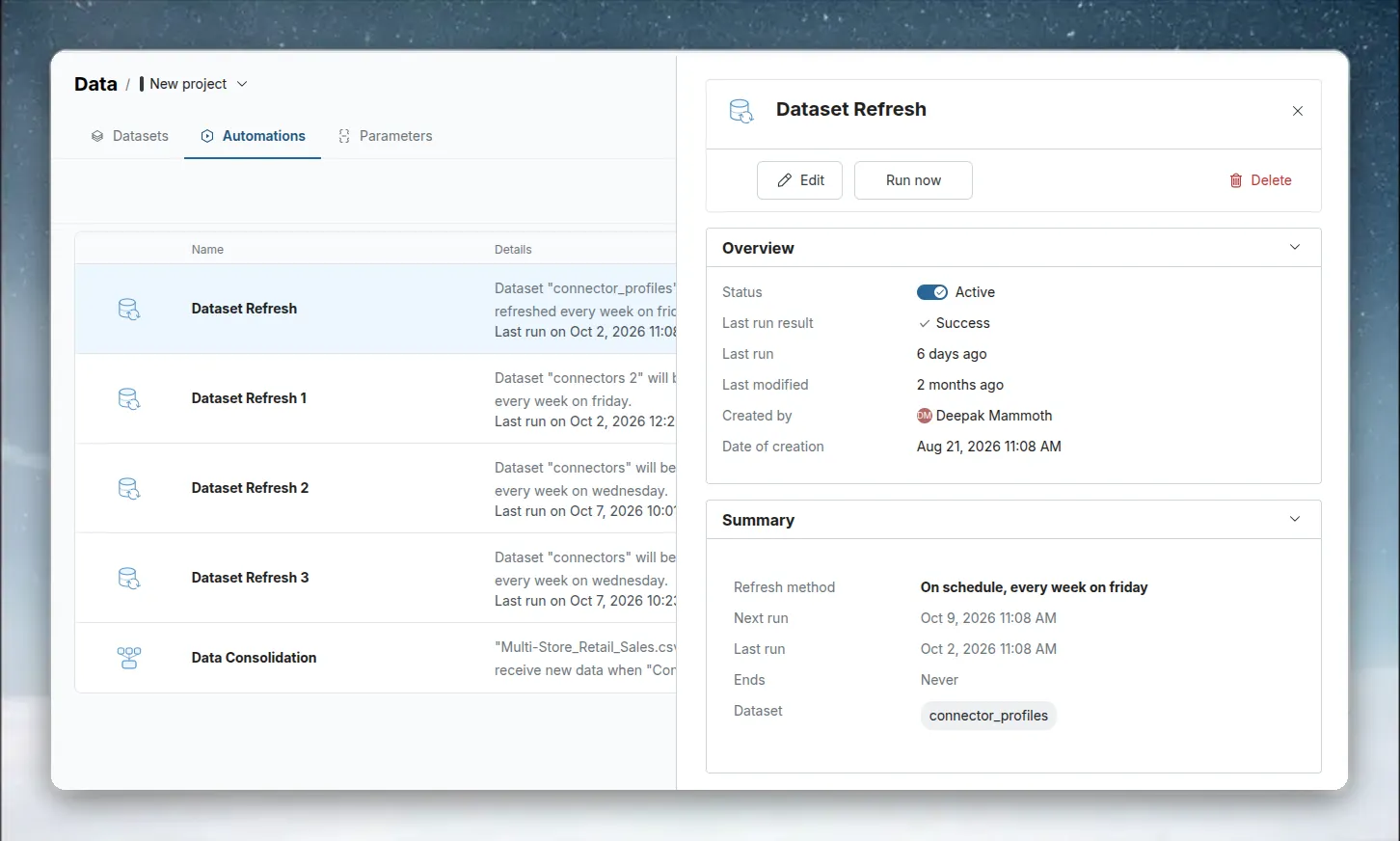
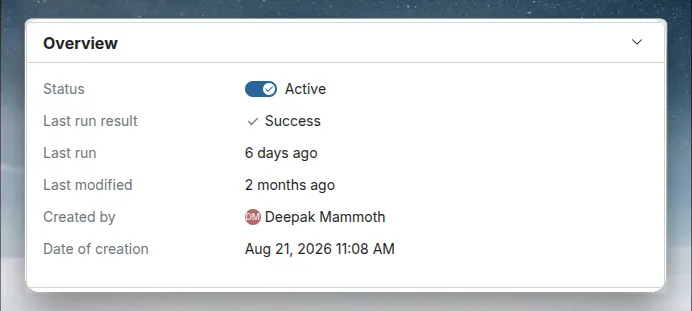
| Overview field | What it shows |
|---|---|
| Status | Toggle to activate or suspend it. Shows Active or Suspended, plus a Trial pill during a trial |
| Last run result | Success, the reason the last run failed, or Not run yet |
| Last run | When it last ran (hover for the exact time) |
| Last updated by / Last modified | Who last edited it, and when |
| Created by / Date of creation | Who created it, and when |
A Dataset Refresh suspended because your trial ended shows Refresh Manually next to its status, with the tooltip "This automation got suspended after trial. Refresh manually by retrieving latest data." See Refresh a dataset by hand after a trial ends.
The Summary shows the type's settings (schedule, datasets, exports, recipients and so on), with Next run, Last run and Ends (the end date, or "Never") for scheduled types. For a Data Consolidation it names the source folder, the name pattern (if any) and the destination dataset.
See which files a Data Consolidation took in
A Data Consolidation also has a History section: the last 20 runs, newest first. Files that arrive within 10 minutes of each other count as one run.
| Part | What it shows |
|---|---|
| When | When the run started (hover for the exact time) |
| How the files arrived | Uploaded file (or "3 uploaded files"), Moved in (a dataset moved into the folder, or "3 moved in"), or Added on request (a file added with Add anyway) |
| Result | Added or All 3 added, 2 of 3 added, Nothing added, or In progress. Duplicates don't count toward the total |
| Rows | The rows that went in, for example +1,250 rows |
Click Files on a run to see how each file went, for example "Added to Sales · 1,250 rows" or "Its columns don't match Sales". Hide files closes it. The first run with a problem opens on its files. A file skipped as a duplicate has Add anyway next to it.
Before any file arrives, History says "No files yet. Each file this automation takes in shows here, with how it went." If it can't load, it says "Couldn't load the history." For each file reason, see Fix a file that didn't go into the dataset.
Fix an automation that shows Error
- Open the detail panel.
- Read Last run result for the specific error.
- Check the common causes: a dataset, View or folder it uses was deleted; a cloud connection expired (Dataset Refresh); an attached View was deleted (Messaging).
- Edit the automation to fix the cause.
- Use Run now to check the fix.
A file whose columns don't match a Data Consolidation's destination shows Files not added, not Error. See Fix files a watched folder didn't add.
Related
- Manage automations: suspend, resume, run, edit or delete one.
- Monitor: everything that needs attention across the project.
- Activity log: who changed an automation.
- Check and fix a Dataset Refresh: refresh-specific errors.
Something wrong? support@mammoth.io