Add another dataset's rows to a dataset
You can load the rows of another dataset in the same project into a dataset, adding them or replacing what is there, for example to merge two datasets that share the same columns. Open the destination's panel in the Data Library, click Add data, and choose Select existing. You need Edit-level access to the destination dataset, and the source must be in the same project.
The Update method at the top of the dialog applies here too: Add to existing data appends the source rows and keeps previous data; Replace all data deletes all existing rows and inserts the source rows. See Choose add or replace.
Pick the source dataset
- Choose Select existing.
- Open the Dataset picker and choose the source. It lists the other datasets in the project, plus the project's unprocessed PDF files (marked Unprocessed PDF).
- Check the data preview of the source columns and first rows.
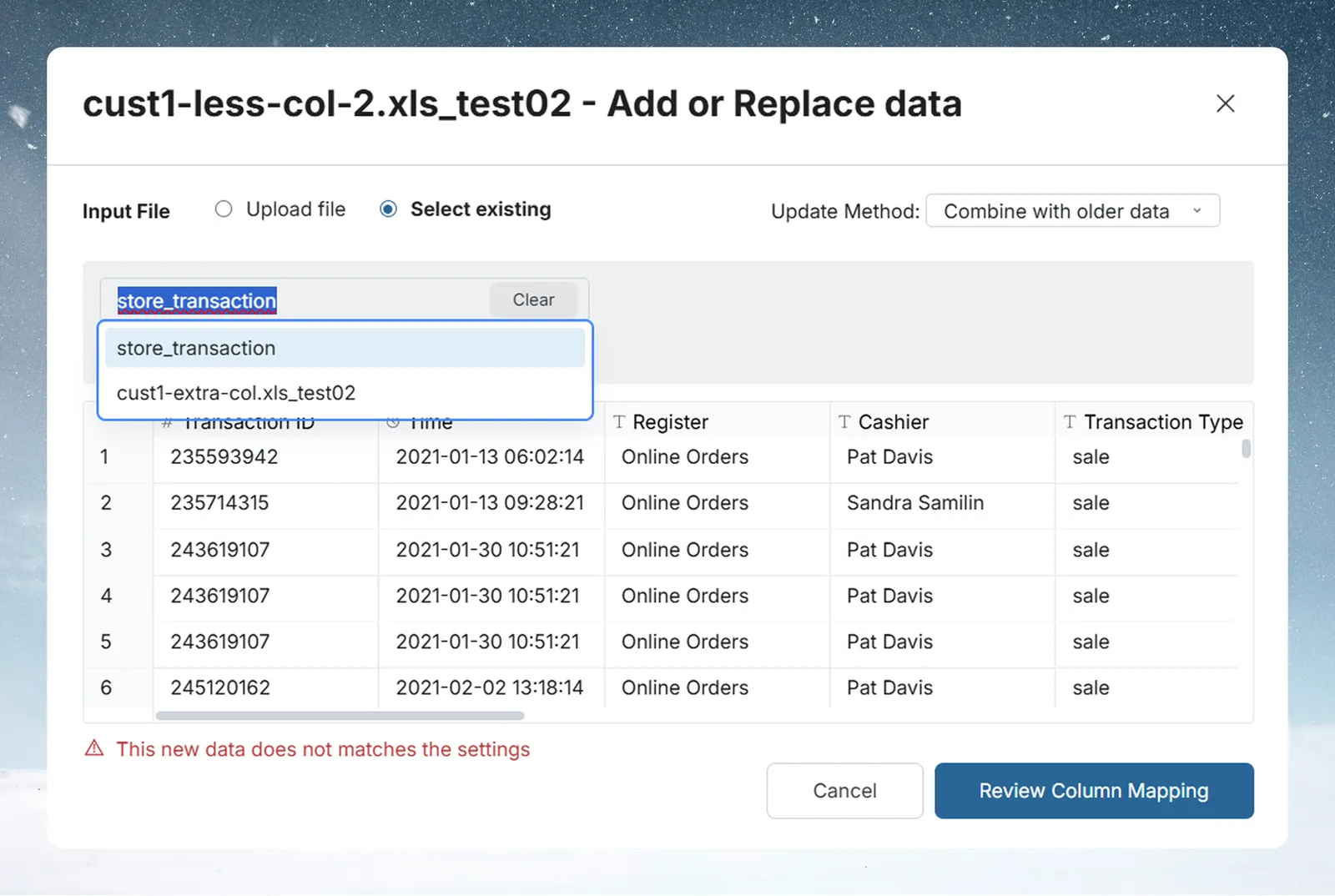
Datasets that hold unstructured data are marked with a warning icon and Needs structuring. They appear only when the destination dataset has a saved recipe, and they must be structured to match the destination before they can combine.
Two picks behave differently:
- Unprocessed PDF: Mammoth replays the destination's saved recipe on the PDF. There is no column mapping, and the button is Submit.
- Needs structuring: the button is Apply Recipe. It previews the destination's recipe applied to the source dataset, and nothing is written until you select Submit. Submitting confirms the recipe on the source and deletes the source dataset.
Keep or delete the source dataset
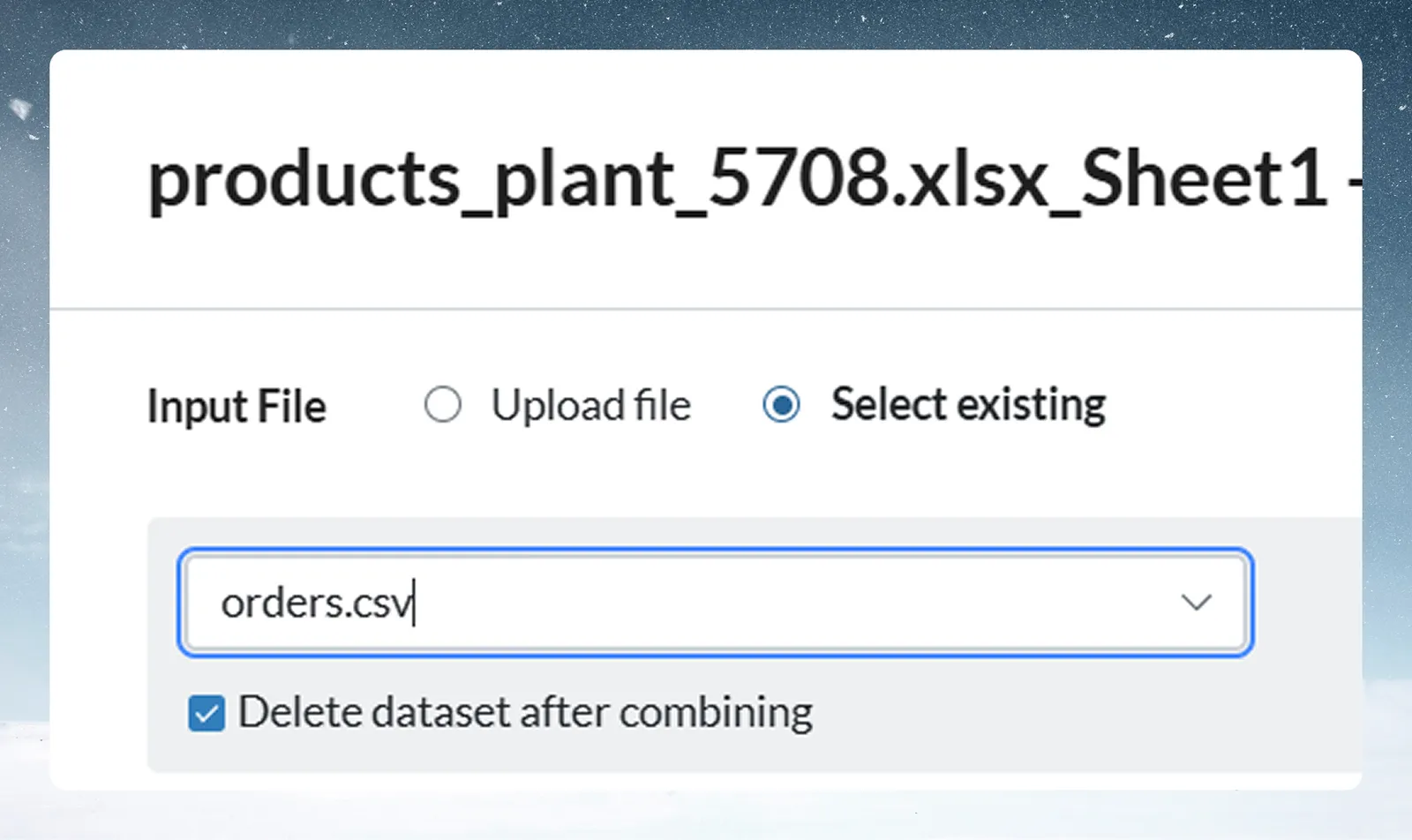
The Delete dataset after combining checkbox is ticked by default. It is hidden when you pick a PDF or a dataset that needs structuring. If left ticked, Mammoth permanently deletes the source dataset after the operation. Untick it to keep the source; leave it ticked only when the source is a temporary staging dataset you no longer need.
Check that the columns match
After you pick a source, Mammoth checks whether its columns match the destination's.
| Outcome | What you see | What to do |
|---|---|---|
| Columns match | Green check: "New data matches the settings" | Click Validate or Submit, or Review Column Mapping to adjust |
| Columns differ | Red message: "These columns do not all match the dataset's, by name or by type. Review the column mapping to line them up." | Click Review Column Mapping and map the columns |
Map the columns when they differ
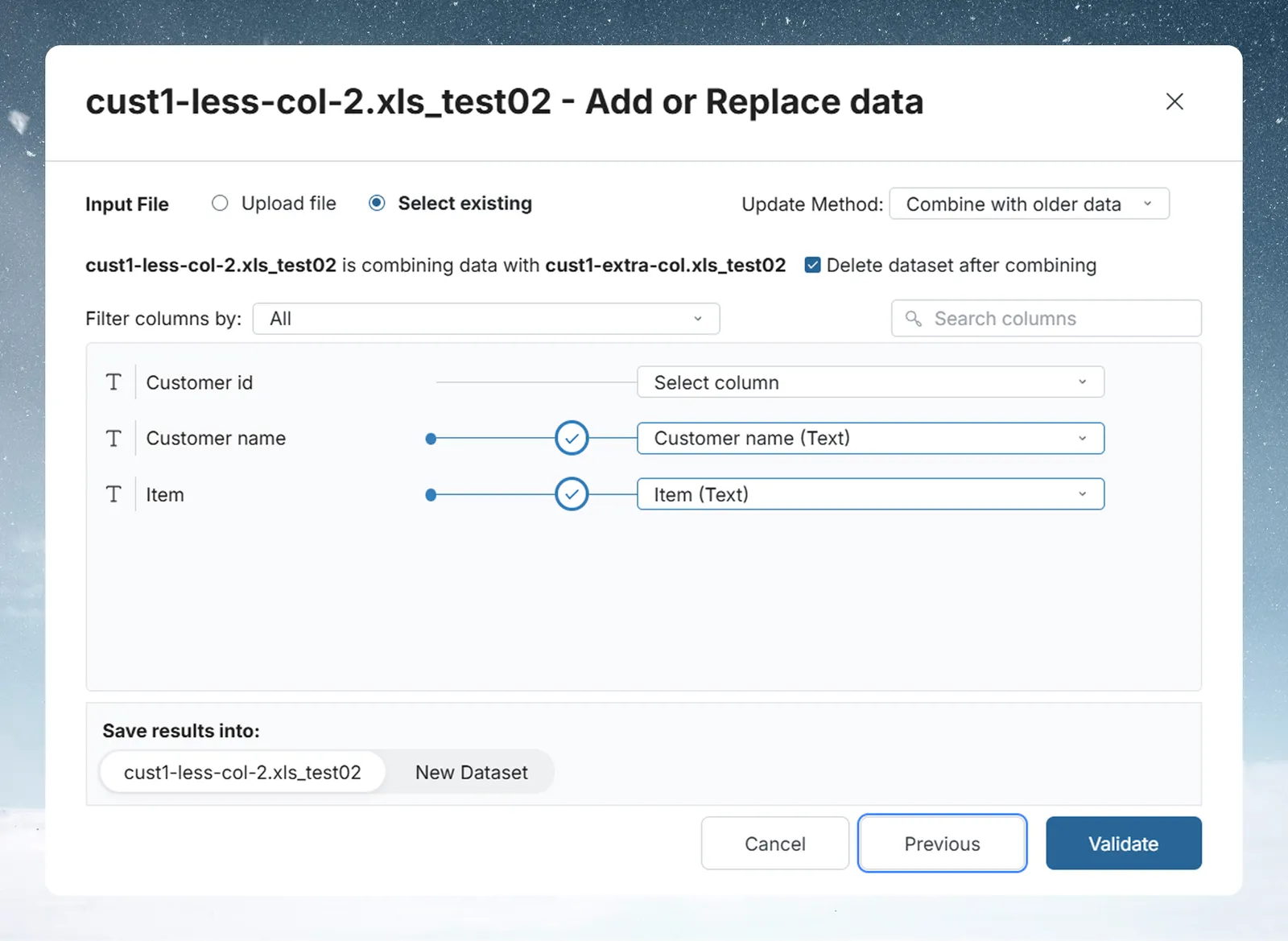
The sub-header confirms what is happening, for example "Daily Sales is combining data with orders.csv", with the Delete dataset after combining checkbox beside it.
The mapping table lists every destination column on the left (with its data type icon: T for Text, # for Number, ⏱ for Date / Time) and a Select column dropdown on the right for the matching source column.
- Use Filter columns by to show All, Matched or Unmatched columns.
- A column search appears when the dataset has many columns or when you start typing.
- When a mapped source column has a different type from the destination column, a selector lets you choose which type to keep.
- Validate is enabled once at least one column is mapped (and, for a new dataset, once it has a name). Unmapped columns are allowed.
- After a successful validation, the button becomes Submit.
Save the result as a new dataset
By default, the combined result overwrites the destination dataset. Set Save results into to New Dataset to keep both the source and the destination and write the output to a new dataset. You can name it (up to 300 characters). With New Dataset, Submit is available without validating.
Check what the change affects before you submit
When you click Validate, Mammoth checks for Views, pipelines or tasks that depend on the destination dataset and would be affected. If it finds any, a Review window lists them. Confirm you understand the impact before the final submit becomes available.
After you submit, the operation runs in the background and a message confirms when the source dataset will be deleted. See What happens after you submit.
Related
- Add rows to a dataset or replace its data: upload a file, and what happens after you submit.
- Combine datasets: put the rows of several datasets together from the list.
- Set column mapping and type rules: aliases and type rules for every load.
- Activity log: every batch operation with time and user.
Something wrong? support@mammoth.io