Freeze, hide and undo column Display Changes in a View
Hiding, reordering, renaming, formatting and sorting columns are Display Changes: they change how one View looks, never the data. Review or undo them in Display Changes (n) at the bottom of the Pipeline panel. Freezing a column is a personal setting instead. For renaming, formatting and sorting, see Rename, format and sort columns.
How Display Changes differ from pipeline tasks
- View-specific: each View has its own Display Changes. A new View starts with none.
- They apply at once in most cases. Number format changes need Apply in the formatting panel.
- They add no pipeline tasks: the Pipeline panel is unaffected.
- Renamed columns show their new names in the grid, pipeline task dropdowns and exports.
- They aren't part of automation: they are presentation only and don't run in scheduled pipelines.
Number formatting changes only how values look in this View; other Views keep their own formatting. For pipeline tasks, see How the pipeline works.
Hide or reorder columns
- Hide a column: open its 3-dot menu and choose Hide Column. The data stays and the column is still available in pipeline task dropdowns. Exports leave out hidden columns unless the export's Include hidden columns option is selected. Other Views are unaffected.
- Unhide a column: use the Column browser (click the column count at the bottom of the View) or revert it in Display Changes.
- Reorder columns: drag a header left or right. It applies at once.
To take a column out of the data for later tasks, use Remove Column instead. See Add, split, copy and delete columns.
Freeze a column so it stays visible
In the column's 3-dot menu, tick Freeze "order_id" (the label shows the column's name). The column is pinned to the left of the grid and stays visible as you scroll right; untick it to unfreeze. You can freeze more than one column, though each one leaves less room to scroll the rest.
Freezing isn't a Display Change. It is your personal setting for this View: it stays after a refresh, doesn't appear in Display Changes, and other users don't see it.
Review and undo changes in Display Changes
Display Changes (n) appears at the bottom of the Pipeline panel once at least one Display Change is active. Hover it for a breakdown, for example "Column Rename (1), Format Changes (2), Grid Changes (2)."
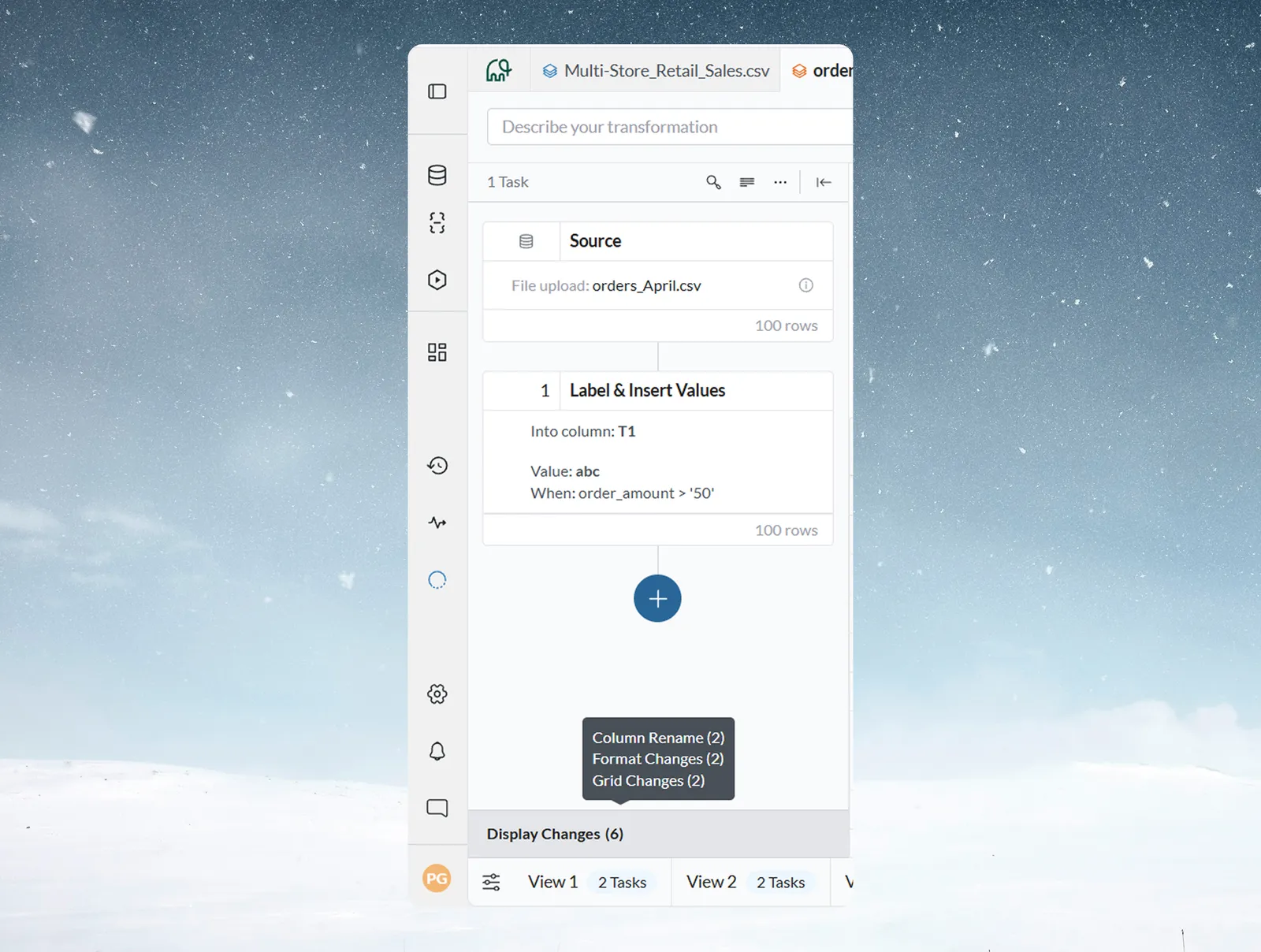
Click it to open the dialog. It has three sections:
| Section | What it lists |
|---|---|
| Column Rename | Every renamed column as original name → new name |
| Format Changes | Every column with a display format, with before and after |
| Grid Changes | Active sorting, column order and hidden columns |
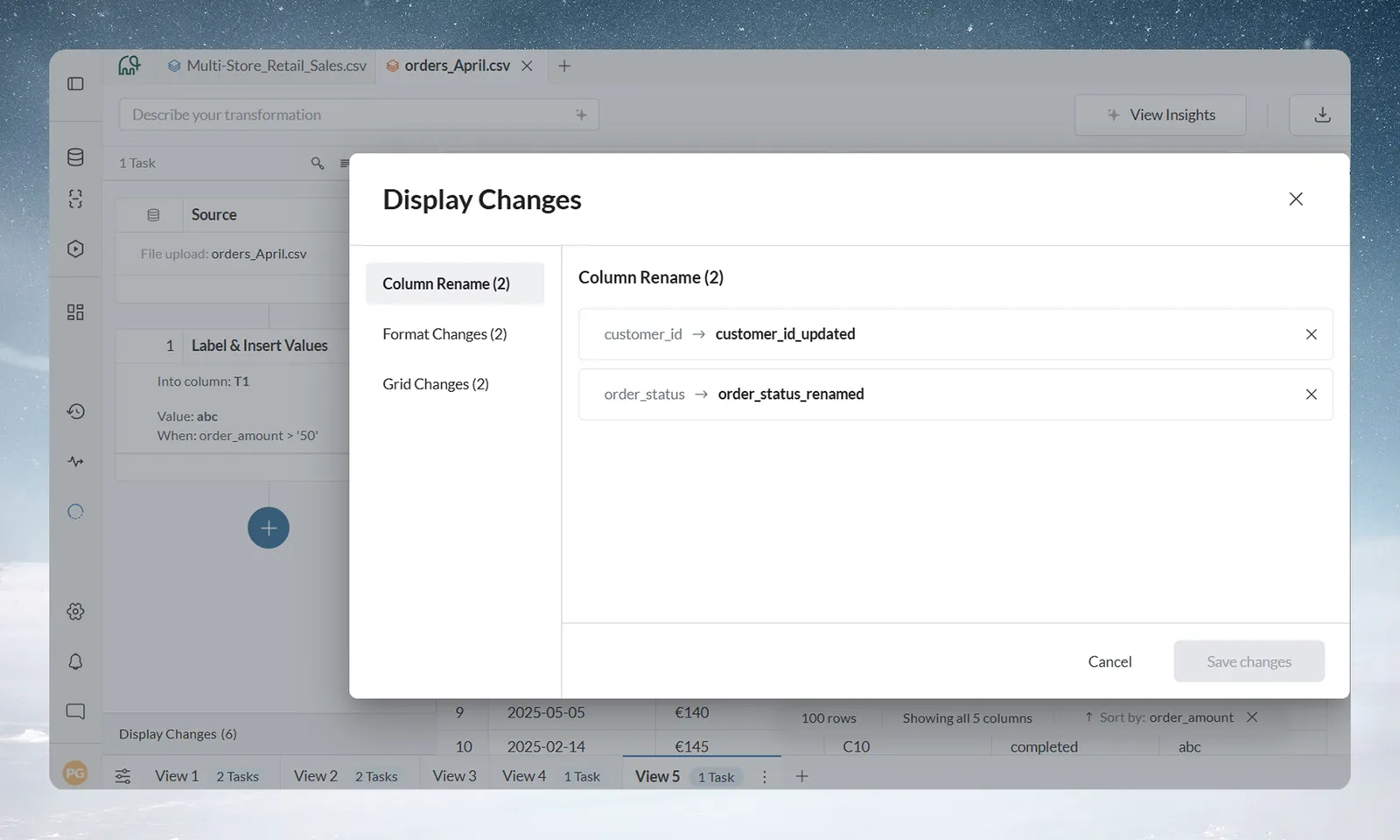
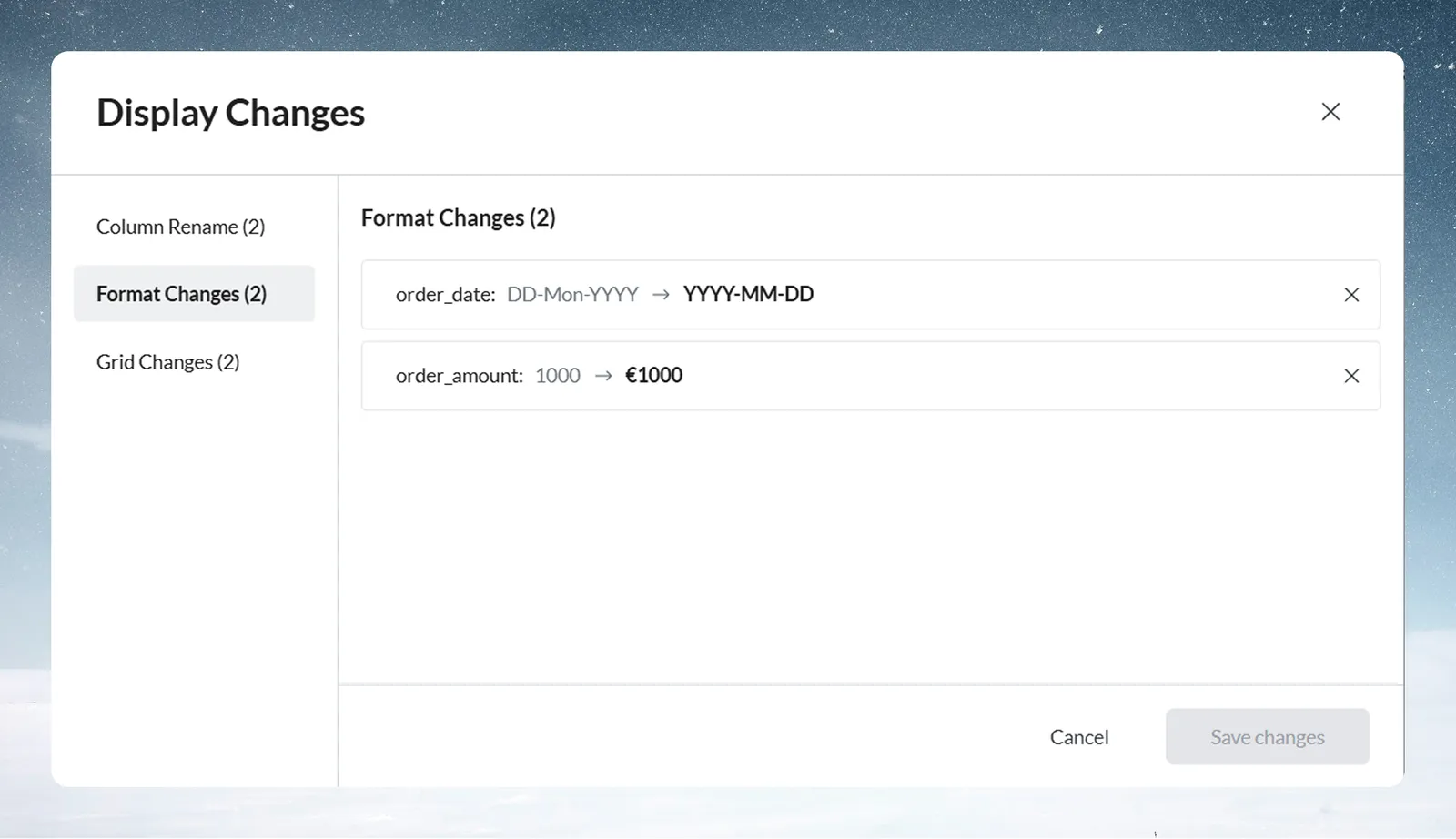
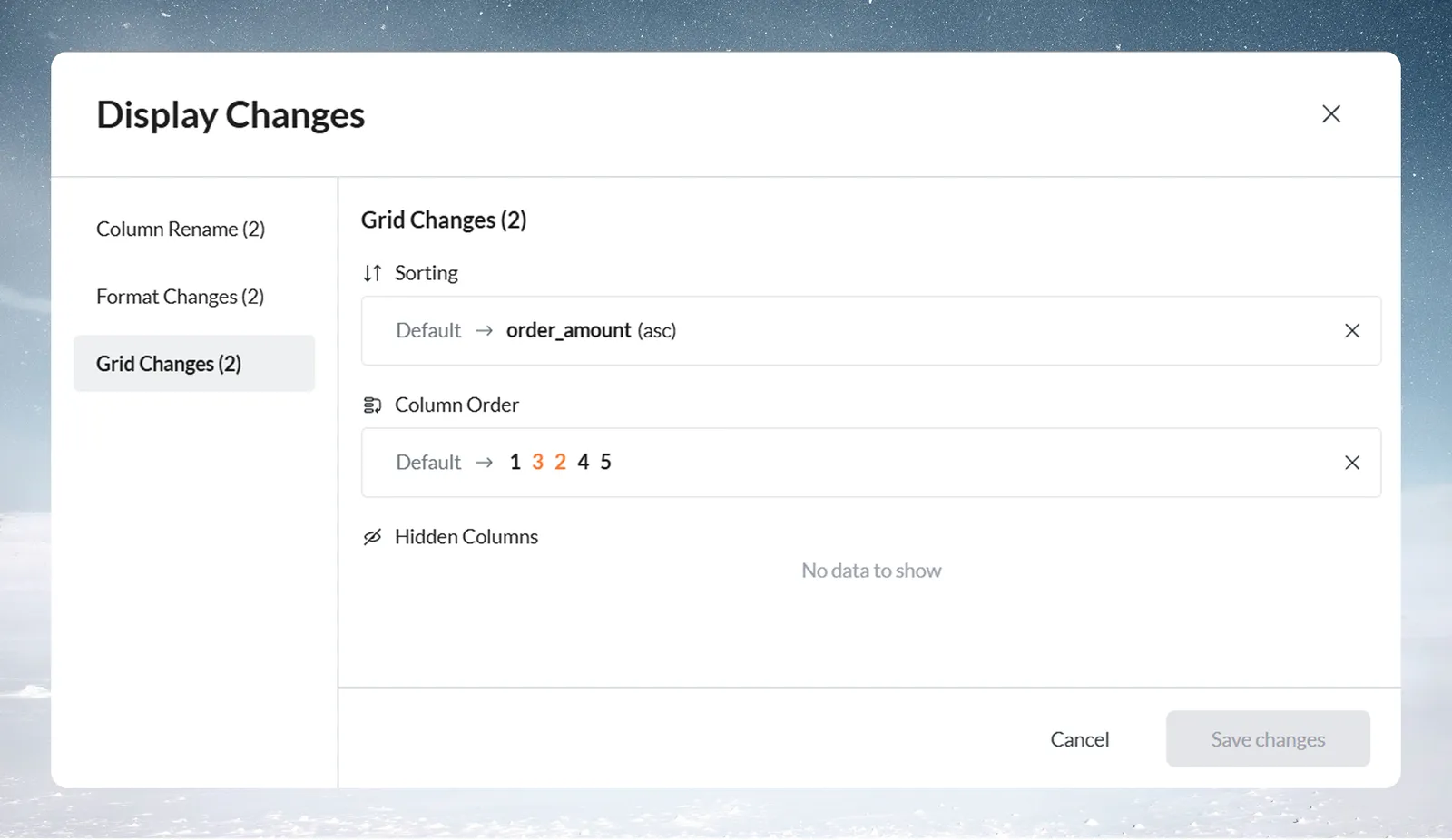
To undo changes:
- Click the X on an entry to revert it, or click Undo changes to revert a whole section.
- Click the submit button. It reads Save changes and is disabled until you change something; after that it reads, for example, Apply 2 changes.
Related
- Rename, format and sort columns: the column menu's format and sort options.
- Browse columns: show, hide and reorder all columns at once.
- Highlight values with colour: colour cells by rule without changing data.
- Work in the data grid: the grid, its counts and bulk actions.
Something wrong? support@mammoth.io