Export data from Mammoth after every pipeline run
An export delivers a View's data to a destination every time the pipeline runs: a database or warehouse, a file store, an app, an API or another dataset. Click Export in the View toolbar, pick a destination and click Apply. The export becomes a task pinned to the end of your pipeline, with no manual steps; which destinations you can use depends on your plan.
This page covers what every export shares. The forms for each destination are on two pages:
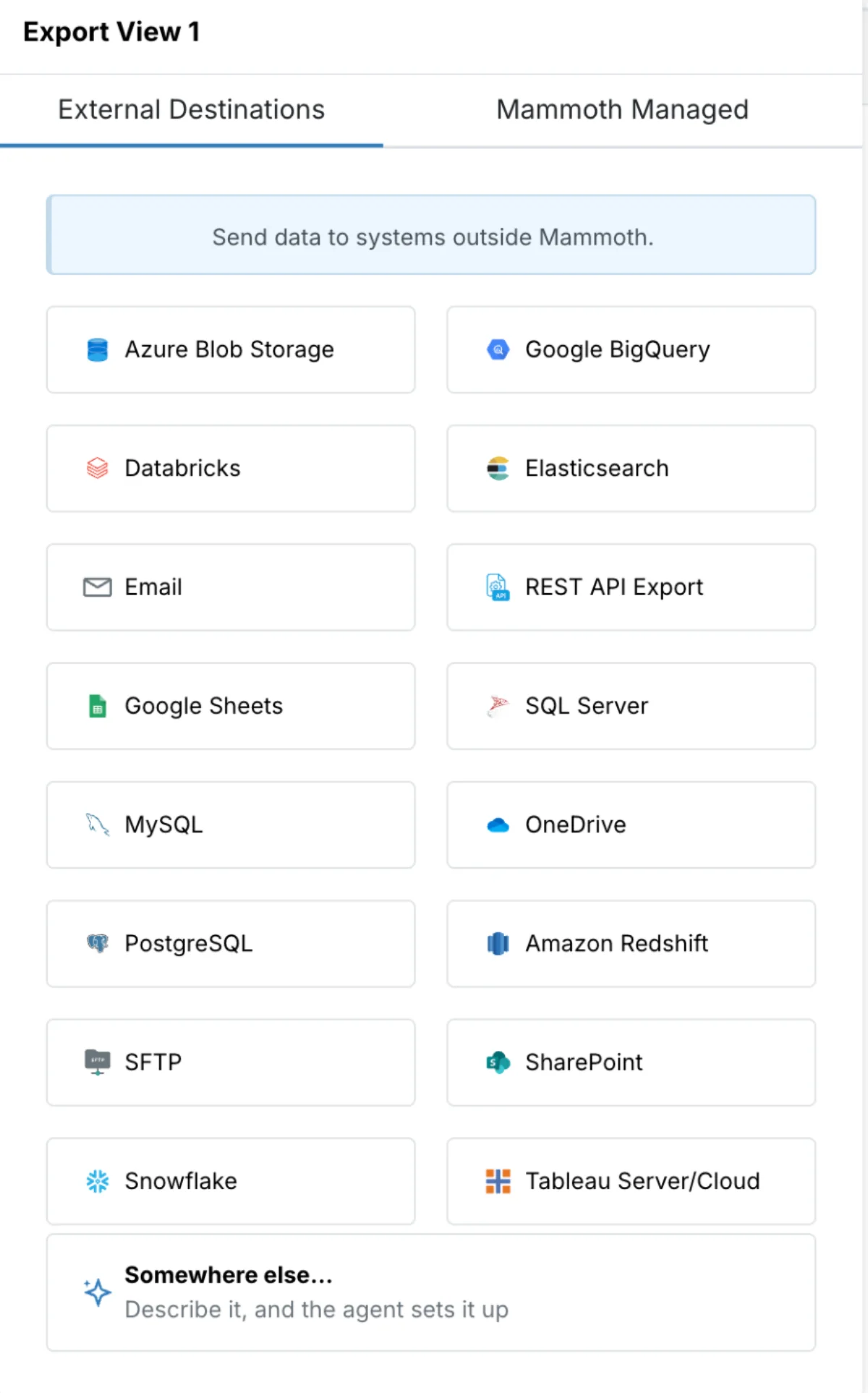
- Send data to a database or warehouse: Send to Dataset, Mammoth-managed databases, BigQuery, PostgreSQL, MySQL, SQL Server, Redshift, Snowflake, Databricks and Elasticsearch.
- Send to files, apps and APIs: SFTP, SharePoint, Azure Blob Storage, OneDrive, Google Sheets, Email, Tableau Server/Cloud, REST API and Somewhere else….
Set up an export
- In the View toolbar, click Export. The Export menu opens on the External Destinations tab.
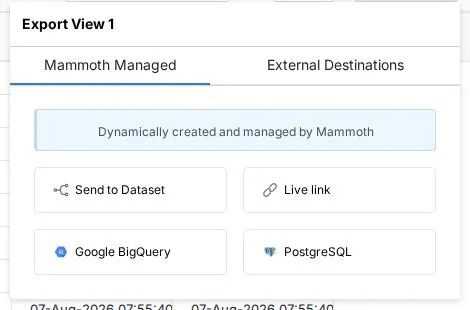
- Pick a destination card, or switch to the Mammoth Managed tab for Send to Dataset, Live link or a managed database.
- Fill in the export form in the pipeline panel.
- Click Apply. The export runs straight away and after every pipeline run.
The Export menu is titled with the View's name. Clicking a card opens the export form in the pipeline panel, where a summary row with a pencil icon lets you switch to another category or connector. The form footer has Apply and a read-only Position and Update method line with a pencil to edit them.
| Tab | Who manages it | Use when |
|---|---|---|
| External Destinations | You provide credentials or connect an account | You have your own database, warehouse, server or app |
| Mammoth Managed | Mammoth provisions everything | You want zero infrastructure setup |
Which export destination to use
| Situation | Best option |
|---|---|
| Colleagues need the file in their inbox after each update | Export → Email |
| A team works from a shared spreadsheet | Export → Google Sheets |
| Data belongs in your warehouse | Export → Snowflake, Databricks or another database |
| A BI tool needs to query Mammoth data via URL | Export → Live link |
| Tableau or Power BI needs automatic data delivery | Export → a managed or external database, or Tableau Server/Cloud |
| Push results into another Mammoth Dataset | Export → Send to Dataset |
| A destination must get data at fixed times, even when nothing changed | Export, then an Export on a schedule automation |
| An email should go out at most once a day or week | Export → Email, with Send at most |
| Someone needs the data once | Not an export: download a copy |
Export destinations by plan
What you can create depends on your plan. A card shows a Trial pill when your plan doesn't include that destination. Hover the pill to see which plans include it ("Included in" and the plan names). Clicking a gated card opens the upgrade prompt instead of the form.
| Destination | Plan |
|---|---|
| Send to Dataset, Snowflake, Databricks, Google Sheets, Email | Every plan, no Trial pill |
| PostgreSQL, MySQL, SQL Server, Amazon Redshift, Google BigQuery, Elasticsearch | Paid plans (database exports) |
| SFTP, SharePoint, OneDrive, Azure Blob Storage | Paid plans (file exports) |
| Live link, Tableau Server/Cloud, REST API Export | Team and Pro |
| Mammoth-managed Google BigQuery and PostgreSQL | Pro |
| Somewhere else… (AI custom destination) | Available on Enterprise plans (it opens the AI Agent) |
A workspace that is over its managed-database limit gets an error when it creates a managed table.
Task position and update method
The footer of an export form shows a read-only Task Position line and, for destinations that have one, an Update Method line. Click the pencil icon to edit them.
Keep the export at the end of the pipeline
By default the export task sits at the end of the pipeline, so it always runs after all transformation tasks. Mammoth keeps it there automatically. Change it only if you need the export at a specific position (rare). Live link and the managed databases have no position option.
Choose how data is written: Replace, Combine or Merge
| Destination | Where you set it |
|---|---|
| Send to Dataset | In the form, under Each time this runs |
| Google BigQuery, PostgreSQL, MySQL, SQL Server, Amazon Redshift, Snowflake and Databricks (external) | Replace, Combine or Merge as the Update method |
| Google Sheets | Replace or Append, as the form's Write mode |
| Method | Behaviour |
|---|---|
| Replace | Replaces the table's data on each run |
| Combine | Adds new rows to the existing table without changing existing rows |
| Merge | Updates rows that match the Reference Column values and inserts rows with no match |
With Merge, choose at least one Reference Column: a column whose values uniquely identify each row, like a primary key. See Send data to a database or warehouse.
See when an export runs
Export forms with an Apply button have a When it runs box under the form. Send to Dataset, the managed databases and Somewhere else… don't. It says what sets the export off and when it runs next.
| What you see | What it means |
|---|---|
| "When new data is added to" the Dataset | The export runs when someone uploads a file, or a folder automation appends one |
| "After" the Dataset "refreshes" | A Dataset Refresh automation refreshes the data on a schedule, and the export runs after each refresh. The box shows the schedule and the next run. Click Change in Automations to edit that automation |
| Only when someone changes this data | Nothing refreshes the data on its own, so the export could stay quiet for weeks. Click Refresh it on a schedule to create a Dataset Refresh automation, or Send it on a schedule (saved exports) to create a Scheduled Export |
| A schedule row, such as "Every week on Monday at 9:00 AM" | A Scheduled Export automation also runs this export on a clock. Click Change in Automations to edit it |
When a Scheduled Export runs the export, the box has an Also send after each data update checkbox. Clear it to send only on the schedule. If neither a data update nor a schedule sends the export, the box warns "Nothing sends this export on its own now." with a Run after each data update link.
If the box can't load, it says "Couldn't load what sets this export off. It still runs as saved."
For the automations themselves, see Refresh a dataset and Export on a schedule.
Limit how often an email export sends
An email export that sends after data updates has a Send at most choice, so a busy dataset doesn't flood inboxes.
| Option | What it does |
|---|---|
| Every time (default) | Sends each time the data updates |
| Once a day | Holds updates and sends at the time you pick (half-hour steps, your local time) with the newest rows. If nothing changed since the last email, it sends nothing |
| Once a week | The same, on the weekday and time you pick |
While updates are held, the box shows when holding started ("Holding changes since" a date and time). Send at most only limits sends that follow data updates. A Scheduled Export that includes the email still sends on its own schedule.
"This export's schedule moved to Automations"
Exports used to keep their own schedule. An export that had one now shows This export's schedule moved to Automations: it still runs on the same schedule, now as a Scheduled Export automation. Choose:
- Keep the schedule: hides the note and leaves the schedule as it is.
- Run after each data update instead: after you click Apply, the export runs after each data update and leaves the Scheduled Export.
Send only new rows on each run
Below When it runs, the Send only new rows checkbox makes each run send only rows added since the last run, instead of every row.
- Tick Send only new rows.
- Under Using the column, pick a date or number column whose values only grow, such as an ID or a created date. Date columns are listed first, and the first one is preselected.
- Click Apply. The next run sends every row, then later runs send only rows with a larger value than any already sent.
After a run, the form says which value the next run starts after. Rows must arrive with a larger value than any already sent. Click Start over and send every row next time to reset it. Picking a different column also starts over.
| Destination | Can send only new rows |
|---|---|
| PostgreSQL, MySQL, SQL Server, Amazon Redshift, Google BigQuery, Snowflake, Databricks | With Combine or Merge. With Replace: "Choose Combine or Merge to send only new rows. Replace would leave just the newest rows in the table." |
| Google Sheets | With Append only |
| Email, REST API Export | Yes |
| SFTP, SharePoint, OneDrive, Azure Blob Storage, Elasticsearch, Tableau Server/Cloud | No: "This destination is replaced on every run, so it can't send only new rows." |
If the View has no date or number column, the form says "Sending only new rows needs a number or date column whose values only grow, like an ID or a created date."
Check an export's run history
Open a saved export step to see its runs at the top of the form.
- The first line shows the last run, such as "Last run 2 hours ago", or "Last run failed 2 hours ago" with the error underneath.
- Click Run history to list the 20 most recent runs. Each shows the date and time, what started it (Manual, Pipeline or Schedule), the destination, the rows sent and how long it took. Hover a failed run to read its error. Click Hide history to close the list.
- Email runs say who they reached: "Sent to 3 people", "Skipped: no rows, so nothing was sent", or which people it couldn't reach.
A new export shows "No runs yet". If the history can't load: "Run history is unavailable right now".
Get an email when an export fails
When an export fails, Mammoth emails everyone with access to the project. The subject names the export, the Dataset and the View it failed on. The same goes for a pipeline task that fails.
You get one email per failure streak from scheduled runs: if a scheduled run fails again before a successful run, no new email is sent. A failure in a run that isn't scheduled always sends an email.
Pause exports while you edit the pipeline
When you apply a pipeline change to a View that feeds exports or published dashboards, Mammoth asks whether to pause those sends while you work. See Pause sends while you edit.
Hold exports for review with Auto-sync
Every export destination (and the Live Link task) has an Auto-sync setting, shown as ON or OFF on its task card and switched from the step's options menu.
- ON (the default): the destination receives updated data automatically after each pipeline execution.
- OFF: data is held until you release it manually from the Monitor panel. This gives you a review gate before delivery.
Turn Auto-sync off when:
- You need to review output before it reaches a downstream system
- A compliance process requires human sign-off before data delivery
- You're testing pipeline changes and don't want production destinations updated yet
Each export destination can be paused independently. For example, you can keep Auto-sync ON for a Live Link while holding a database export pending for review. See Control when Views update with Auto-sync.
For regulated workflows, combine Auto-sync OFF on critical destinations with a Data Check task earlier in your pipeline. The Data Check runs automated quality validation (null checks, row count thresholds, value ranges) and halts the pipeline if data fails, so only validated data reaches the manual review stage. See Remove duplicates and check data.
Release held exports from the Monitor panel
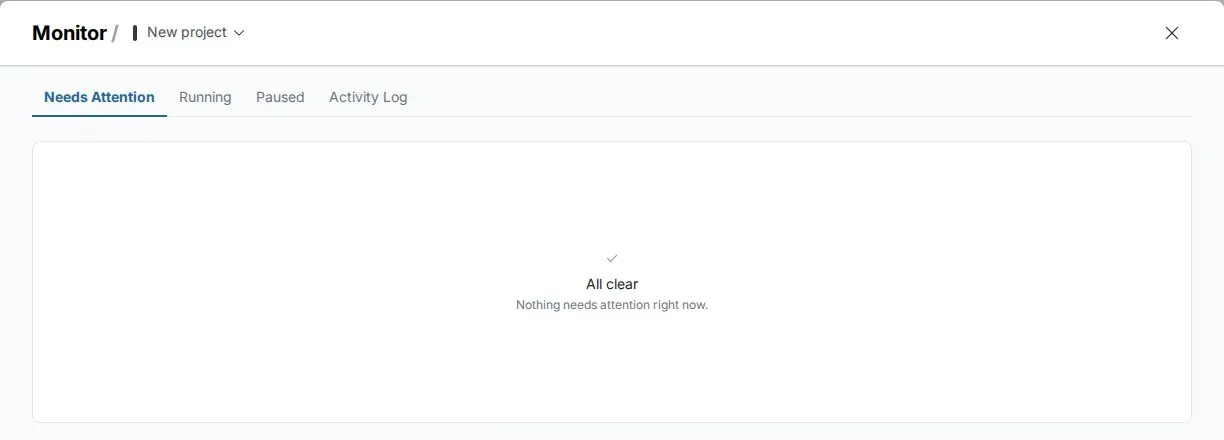
The Monitor panel (opened from its icon in the left sidebar) tracks exports and pipeline health across up to four tabs. A badge on the Monitor icon shows the count of items needing attention.
Needs Attention lists everything currently waiting on you, with an orange badge count:
- Errors.
- Pending: items with new data waiting to be released, including destinations with Auto-sync OFF that have new pipeline output. Click Update to release a pending destination update straight away, without re-enabling Auto-sync, or Process for a batch held by an incoming link.
- Automations: files that an automation's rule sent to a dataset but that didn't go in.
- Governance: checkpoint approvals and failed Data Checks earlier in the pipeline.
- Pending Retentions.
Running shows pipeline and export tasks executing across the workspace, with long-running tasks flagged as stuck.
Paused lists every data source (View, Dataset) and export destination that has Auto-sync intentionally turned off, whether or not it has pending data. Use it to audit which tasks are in manual-approval mode. It includes a shortcut to turn Auto-sync back on.
Activity Log is a history of workspace activity, visible if you have permission to view it. See Activity log.
Troubleshooting exports
The destination doesn't update after the pipeline runs
Cause: Auto-sync is OFF for the destination, or the View's own Auto-sync is OFF so the pipeline never re-executes and no export runs.
Fix: Turn Auto-sync ON for the destination and the View. Check Monitor → Needs Attention → Pending for exports waiting to be released.
The export shows SUCCESS but the destination didn't update
Cause: View Auto-sync is OFF (the pipeline didn't re-execute), or Export Auto-sync is OFF on specific destinations (delivery is held pending).
Fix: Open Monitor → Needs Attention → Pending to see and release pending exports.
The export never runs
Cause: When it runs reads Only when someone changes this data, or "Nothing sends this export on its own now."
Fix: Click Refresh it on a schedule, Send it on a schedule or Run after each data update.
For database errors (Validate Connection, schema conflicts, Merge), see Send data to a database or warehouse.
Related
- Send data to a database or warehouse: database, warehouse and managed destinations.
- Send to files, apps and APIs: file stores, Google Sheets, Email, Tableau and REST API.
- Live links: a CSV URL that always serves the latest data.
- Export on a schedule: send exports at fixed times.
- Control when Views update with Auto-sync: hold and release data.
Something wrong? support@mammoth.io