Check and free up storage in your Mammoth workspace
The Data usage card in Workspace Settings → General shows how much of your workspace's storage is used. To see each dataset's size and delete what you don't need, open Workspace Settings → Plan & Storage → Manage storage. Everyone in the workspace can open both; the buttons that change the plan are for Workspace Owners.
Check storage on the Data usage card
The Data usage card in General shows used and allowed storage. Hover over it for the exact figures.
| Usage level | What you see |
|---|---|
| Under 80% | Used and allowed storage |
| 80–99% | "Storage almost Full" warning: "Reaching 100% storage will pause automated data imports and pipelines." |
| 100% | "Storage full" message: "Automated data imports and pipelines are paused." |
A Contact support button appears once usage reaches 80%, for Owners who can change the plan.
When the sidebar is collapsed, the account menu at the bottom of the sidebar also shows storage use.
Find the largest datasets in Manage storage
The Manage storage accordion lists every dataset with its size. Its header shows the number of datasets and used / allowed storage.
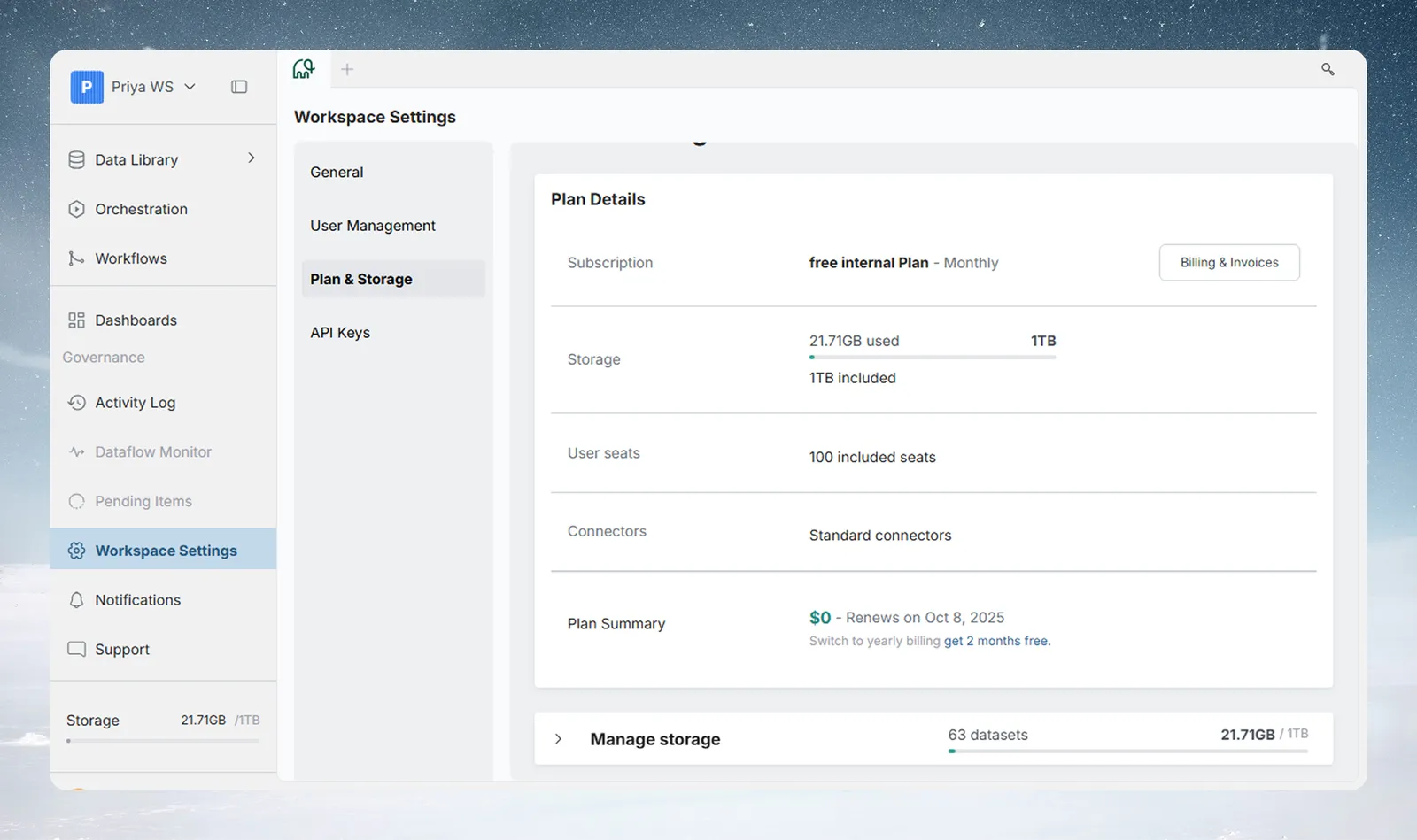
On plans not billed by card, it's expanded by default. On plans billed by card it starts collapsed: click the header to expand it.
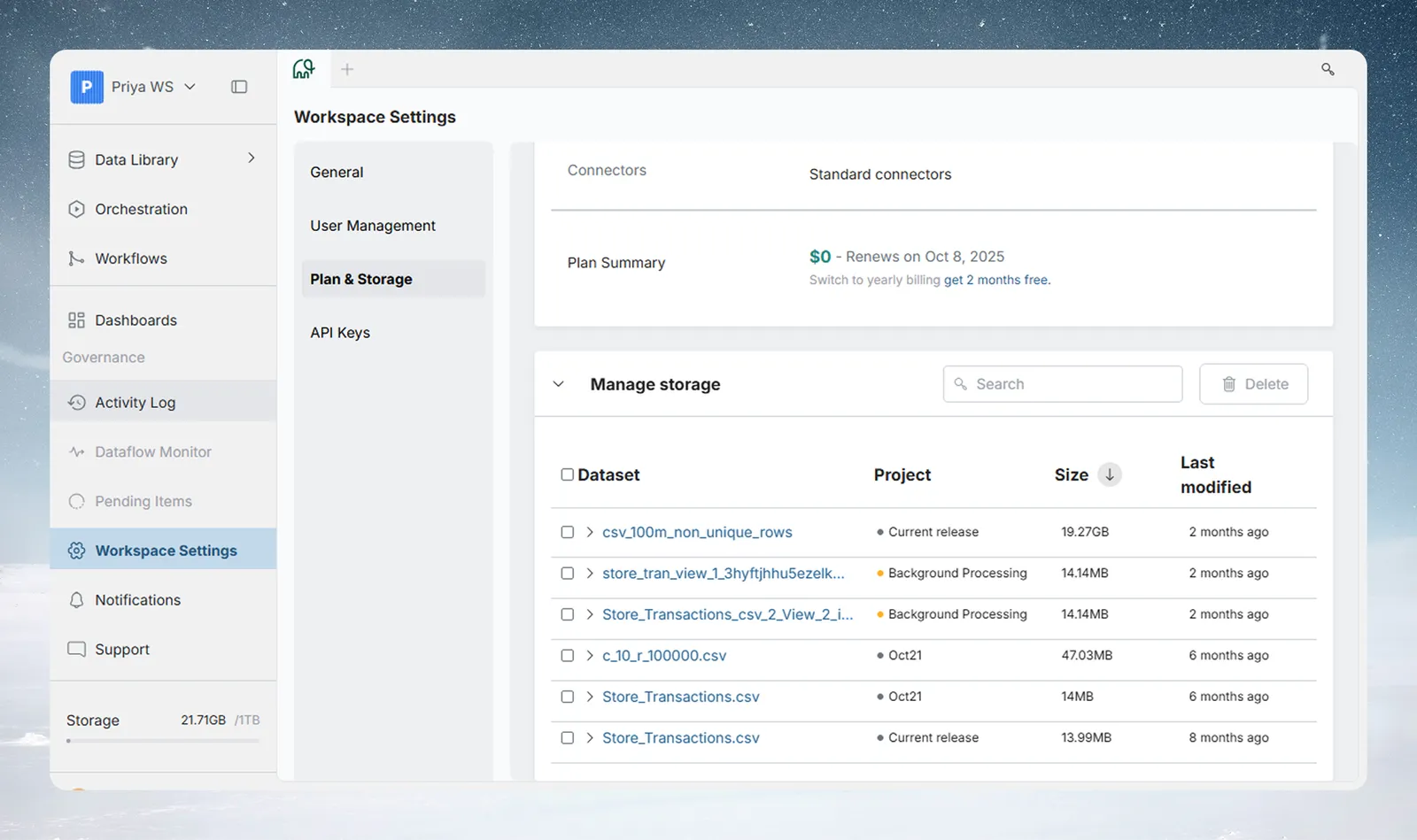
| Control | What it does |
|---|---|
| Search | Filters the list by dataset name (shown once there are 8 or more datasets) |
| Delete | Bulk-deletes selected datasets after confirmation |
| Size column | Sortable; defaults to largest first |
| Arrow before a dataset's name (Expand views for the dataset) | Shows a dataset's individual views with their sizes |
Free up storage
- Open Workspace Settings → Plan & Storage.
- Expand Manage storage if it's collapsed.
- Sort by Size so the largest datasets are at the top.
- Expand a row to check whether individual views can be removed without deleting the parent dataset.
- Tick the datasets you no longer need.
- Click Delete and confirm.
To remove a few batches of a dataset instead of the whole dataset, see Batches: see and fix what arrived.
The Data usage card in General shows the workspace total. Manage storage shows per-dataset sizes with delete controls, so use it to find what to remove.
What happens when storage is full
Mammoth warns you as storage fills up:
| Storage used | What you see |
|---|---|
| 80% or more | A bar at the top of the app, for example "You have used 85% of your storage", with Manage storage |
| 100% | The bar turns red: "You have exceeded the storage limit on your plan." The Manage storage section on Plan & Storage reads Manage storage - Full |
You can close the bar for the rest of your browser session. At 100%, automated data imports and pipelines are paused. Actions that add data, such as adding a dataset or saving a new view, are blocked:
| You are | What you see |
|---|---|
| Owner, self-serve plan | The Upgrade Plan picker. Choose a plan or a larger storage size |
| Owner, Enterprise or contract plan | Storage limit was reached: "For increased storage, kindly reach out to our support team." |
| Member | "You have exceeded the storage limit on your plan." with a Manage storage button |
Get more storage
To get more space, change storage size on Starter, Team and Pro, or change to a plan with more storage. The Free plan has a fixed amount of storage. For each plan's allowance, see Limits and quotas.
Related
- Billing and plans: change storage size or plan.
- Workspace settings: General and Email groups: the rest of the General section.
- Get things back from Trash: restore a dataset you deleted.
- Trials, plan limits and view-only mode: deleting data to get under a smaller plan's limit.
Something wrong? support@mammoth.io