Import a file from a URL into Mammoth
From URL creates a dataset from a file at a web address, so you don't download and re-upload it. In the Data Library, click New dataset, choose From URL, paste the link into Enter file URL and click Read file. A linked dataset keeps following its link, so you can fetch the latest file again with Get the latest or a Dataset Refresh automation.
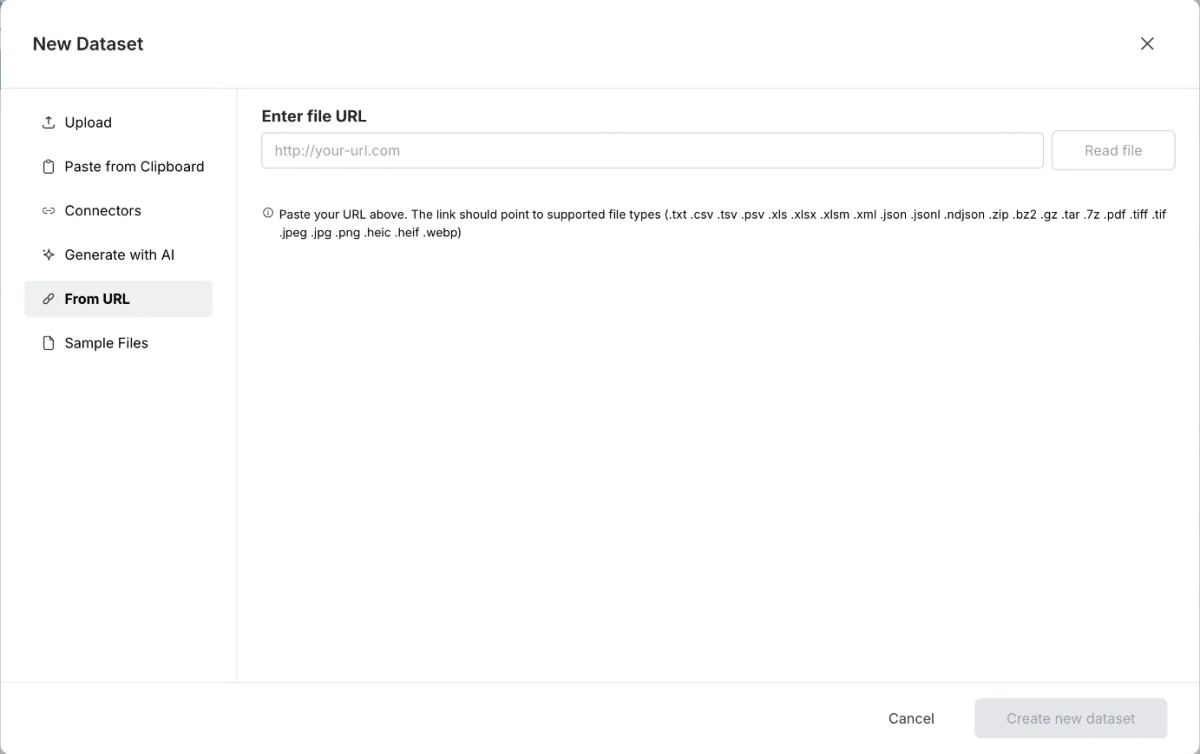
It works with direct file URLs and with cloud storage URLs such as S3, Google Cloud Storage, Azure Blob Storage and Dropbox. No other set-up is needed.
When to import from a URL
Good fit:
- Files at a web address that you refresh on demand or on a schedule.
- Vendor or partner files published to a stable URL.
- Cloud storage files shared by public or signed URLs.
- Report servers that generate downloadable data files.
Use a connector instead when you need data from a database or an application's API, when the source needs a complex sign-in, or when data must flow both ways. Use Upload files when the file is on your computer or has no stable, reachable URL.
Create a dataset from a URL
- Go to the Data Library and select the project you want to add data to.
- Click New Dataset in the top right corner.
- In the New Dataset window, select From URL in the left-hand menu.
- Paste your direct file URL into the Enter file URL field.
- Click Read file. Mammoth shows a preview: the file name, where it comes from (such as From example.com), the number of rows and columns, and the first rows. A workbook with several tabs shows, for example, 3 tabs, each becomes a dataset, followed by the tab names.
- If the link points to a single CSV, TSV or TXT file, answer Should this dataset follow the link? (see the table below). For other files, the window shows "A JSON or Excel file can't be fetched again from its link, so it is added once."
- Click Create new dataset.
| Option | What it does |
|---|---|
| Keep it linked (Recommended) | A live source. You can get the latest file from the link whenever you like. |
| Copy it once | Works like an uploaded file. The link is kept only as a note. |
You can change this choice later from the dataset's ⋮ menu.
The dialog closes right away. A placeholder row for the new dataset appears in the Data Library while the file downloads. Download time depends on the file size.
You can also paste a link into the search box of the Connectors launcher and choose Fetch this file.
Supported URLs and file types
The URL must:
- start with
http://orhttps://; - give a file name: Mammoth takes it from the
Content-Dispositionheader or the last segment of the URL path. A URL such ashttps://example.com/download?id=7with neither fails; - return the file itself, not an HTML page or a download landing page;
- point to a supported file type;
- be reachable when you import.
File types are the same as for file upload: .txt, .csv, .tsv, .psv, .xls, .xlsx, .xlsm, .xml, .json, .jsonl, .ndjson, .zip, .bz2, .gz, .tar, .7z, .pdf, .tiff, .tif, .jpeg, .jpg, .png, .heic, .heif, .webp. Only a CSV, TSV or TXT file can keep following its link. Other files are added once.
URL examples
Direct file URLs:
https://example.com/data/sales_report.csv
https://reports.company.com/Q1_2024.xlsx
AWS S3 signed URL (example format only, not a working URL):
https://bucket-name.s3.amazonaws.com/file.csv?X-Amz-Algorithm=AWS4-HMAC-SHA256&X-Amz-Credential=EXAMPLE&X-Amz-Date=20240315T120000Z&X-Amz-Expires=3600&X-Amz-SignedHeaders=host&X-Amz-Signature=EXAMPLE_SIGNATURE
A valid S3 signed URL must include all the X-Amz-* parameters. The base S3 URL without them returns an Access Denied error.
Google Cloud Storage:
https://storage.googleapis.com/bucket-name/monthly-data.csv
Azure Blob Storage:
https://storageaccount.blob.core.windows.net/container/file.csv
Dropbox shared link:
https://www.dropbox.com/s/abc123/data-export.csv?dl=1
Mammoth sets dl=1 on Dropbox shared links for you, so the file downloads instead of the preview page.
Get the latest file from its link
A dataset created From URL shows where it is linked, such as Linked to example.com. To fetch the file again:
- Open the dataset's panel in the Data Library.
- Click Get the latest ("Fetch the file at its link again.").
Your pipeline replays over the new file. Each refresh follows the dataset's update method in its Settings. A dataset you keep linked when you create it starts on Replace, so fetching an unchanged file again doesn't repeat its rows. If the update method adds rows, the panel notes "Each refresh adds the file's rows again."
Refresh a URL dataset on a schedule
Add the dataset to a Dataset Refresh automation. Dataset Refresh accepts datasets that follow the link they came from.
On Data → Connections, the Links group lists every dataset that follows a link, with Get the latest and Automate the refresh. See Manage saved connections.
Two cases can't be refreshed from the link:
- A dataset made from a JSON file: "A dataset made from a JSON file can’t take new rows from its link."
- A copy, which keeps the link as a note only: "A copy. To fetch it again, choose Follow its link in ⋮."
Switch a dataset between linked and copied
From the dataset's ⋮ menu:
| Option | What it does |
|---|---|
| Stop following the link | Turns a linked dataset into a copy. It works like an uploaded file and is never fetched from the link again. |
| Follow its link | Turns a copy back into a linked dataset, so Get the latest and Dataset Refresh fetch the file again. |
If you chose Copy it once but Mammoth couldn't make the copy, it says "The dataset was added, but it still follows its link. Choose Stop following the link in its menu to make it a copy."
See where a dataset came from
The dataset's panel shows a source card: Linked to for a linked dataset, or Copied from for a copy, followed by the link.
Mammoth masks the parts of a link that can carry credentials. A user:password@ login and the values in the query string (for example a token or an X-Amz-Signature) show as ***. Values that only steer how a host serves the file, such as dl, raw, format or gid, stay visible. Everyone who can open the dataset sees the masked link, and refreshes still use the full stored link.
Import private files securely
- Prefer HTTPS URLs (
https://example.com/data.csv) over HTTP (http://example.com/data.csv). - For private cloud storage, use signed URLs, which carry time-limited access in the URL itself. Mammoth fetches the file using the URL as given. From URL has no separate credential fields.
The S3 signed URL below shows the format only. It is not a working URL.
https://my-bucket.s3.amazonaws.com/exports/data.csv?
X-Amz-Algorithm=AWS4-HMAC-SHA256&
X-Amz-Credential=EXAMPLE_CREDENTIAL&
X-Amz-Date=20240315T120000Z&
X-Amz-Expires=3600&
X-Amz-SignedHeaders=host&
X-Amz-Signature=EXAMPLE_SIGNATURE
Worked examples
Vendor files. An accounting firm's vendors publish transaction CSV files to stable URLs. The team imports each one with From URL into the right project, and pipelines categorize and check the transactions. Nobody downloads or re-uploads files.
Files in S3. An engineer exports production metrics to S3 and creates a signed URL. The data team pastes it into From URL. They get the dataset without S3 permissions or manual file transfers.
Limits
- Larger files take longer to download. Plan for extra wait time on very large files.
- Mammoth waits up to 9 seconds to connect and 27 seconds for the server to respond. A slower or unavailable server makes the import fail.
- A time-limited signed URL must not have expired when you submit.
If your source keeps producing very large files, ask the provider to compress them (gzip, zip) or split them into smaller parts.
Troubleshooting URL imports
| Symptom | Cause | Fix |
|---|---|---|
| A warning under the URL field after Read file: the URL can't be reached | The URL changed or the file moved, a signed URL expired, or the file is temporarily unavailable. A wrong URL, expired link, timeout or refused connection all give the same error. | Open the URL in a browser and check it returns the file. Generate a fresh signed URL. Ask the data provider whether the URL is stable. |
| A warning under the URL field after Read file: a file problem | No file name in the URL path and no Content-Disposition header; the server returns audio, video or an HTML page; the extension doesn't match the content; or the format isn't supported | Make sure the URL returns the file itself, not a download or preview page, and that the format is in the list above |
| The same error as an unreachable URL, with access denied (the source answers 401 Unauthorized or 403 Forbidden) | The file isn't public, a signed URL expired, or the source needs authentication headers | Use a public URL or a valid signed URL. For header-based sign-in (Bearer tokens, Basic Auth), use the REST API connector, because From URL can't send separate authentication headers. |
| A placeholder row stays in the Data Library for a long time | The file is still downloading. This is expected. | Wait for it to finish. If it fails after a long wait, use a compressed version or split the file. |
Compare URL import with other methods
| Method | Best for | Pros | Cons |
|---|---|---|---|
| From URL | Files at a web address | No manual download, works with signed URLs, refreshes from the link | No separate authentication headers |
| File upload | Local files | Immediate; 50 MB limit per file | Manual |
| Connectors | Database sources | Scheduled refresh, always current | Needs a connector set up |
| REST API connector | Custom integrations | Supports authentication headers and custom requests | Needs API set-up |
Related
- Refresh a dataset: fetch the file from its link on a schedule.
- Manage saved connections: the Links group for every linked dataset.
- Upload files: supported formats and how files are read.
- Add or replace data in a dataset: how update methods add or replace rows.
- Connect a database or app: for APIs that need a sign-in.
Something wrong? support@mammoth.io